White Dots on iPad Screen: Causes, Fixes & When to Worry
Updated March 2026 • 8 min read • All iPad Models
1. Introduction
You unlock your iPad and there it is a white dot sitting on an otherwise perfect display. Frustrating, especially on a device that costs hundreds of dollars. The good news: not every white dot means your screen is dying. It could be a stuck pixel you can fix in five minutes, or a software glitch triggered by the last iPadOS update. The bad news: it could also signal physical damage or in rare cases a swelling battery that needs urgent attention.
This guide gives you a clear, honest diagnosis path so you know exactly what you are dealing with and what to do next.
2. Identifying the Symptom: Dot, Spot, or Line?

Accurately describing what you see is half the diagnosis. Here is a quick reference:
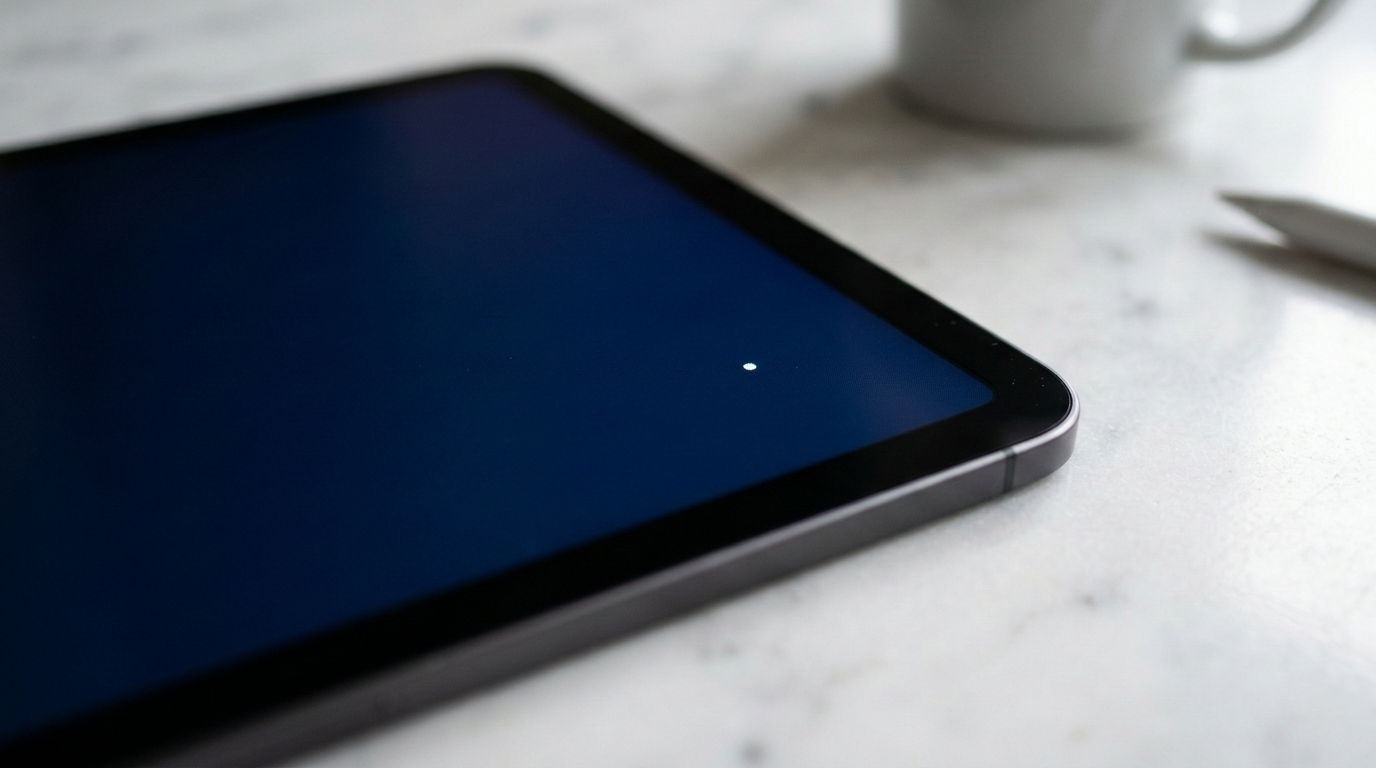
- Pinhead-sized bright dots stay fixed in one position regardless of what is on screen. Almost always a stuck pixel. Most fixable type.
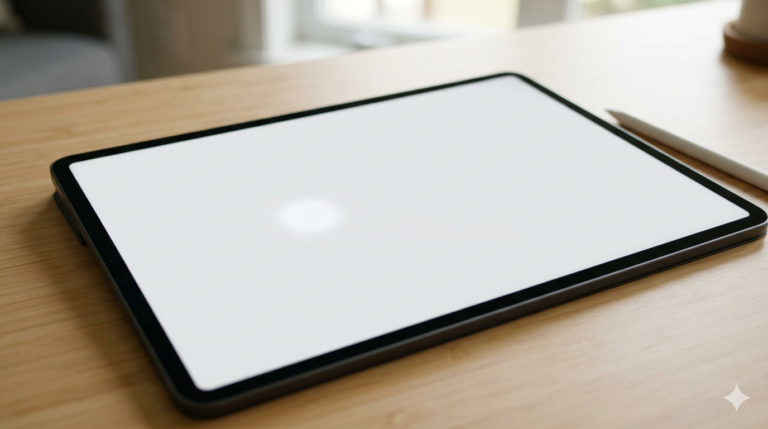
- Large cloudy or milky blotch often covers several centimeters. Typically pressure damage or backlight bleed. Rarely software-fixable.
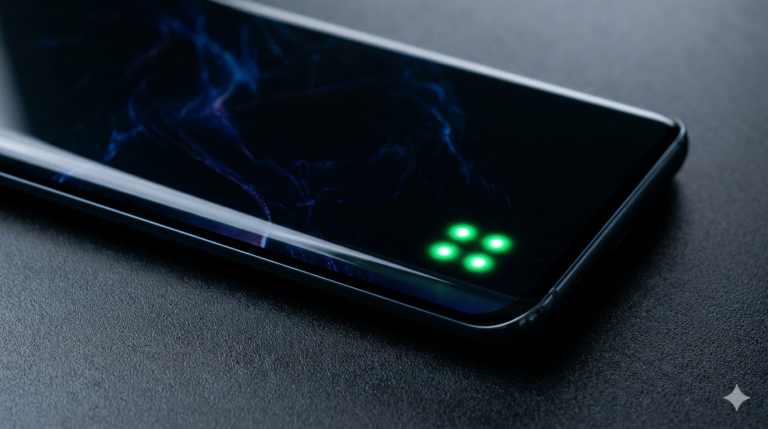
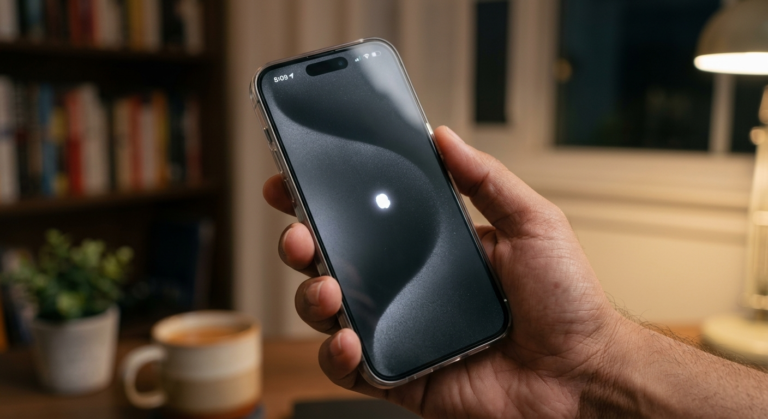
- Two white dots check Settings > Accessibility > Touch > AssistiveTouch first. If it is ON, toggle it off and both dots will vanish instantly. This single step resolves the issue for thousands of users every year.
- Horizontal or vertical white line damaged display connector or cracked LCD panel. Professional repair required.
3. Common Causes of White Dots and Spots
Pressure Damage (Most Common)

Sliding your iPad into a tight b
ag alongside books, a charger, or a laptop concentrates force directly on the LCD layer. The liquid crystals inside get pushed out of alignment, creating a permanent milky white blotch. This is the number-one cause of cloudy spots and is almost never reversible without a screen replacement.
Backlight Bleeding
LCD iPads use LED backlights that shine through multiple layers. When those layers separate or warp slightly, light escapes unevenly creating bright patches, usually in the corners, that are most visible on dark backgrounds. Minor bleed is considered normal; significant bleed visible in normal lighting may qualify as a manufacturing defect under warranty.
Dead vs. Stuck Pixels
Stuck pixels are transistors frozen in an “on” state, emitting constant white, red, green, or blue light. Because they are electrically active, software tools can sometimes unstick them. Dead pixels are non-functional and appear black not white. If your dot is white or colored, you likely have a stuck pixel, which is the more fixable of the two.
Dust and Debris
Particles trapped between display layers during manufacturing or an aftermarket repair can appear as small bright specks. If a white dot appears immediately after a third-party screen repair, request a redo; most reputable shops cover this under their service warranty.
Battery Swelling Safety Warning

⚠ STOP USING YOUR i PAD IMMEDIATELY if the screen is bulging, the device feels unusually hot, or you can see the display lifting away from the frame. A swelling lithium-ion battery pushes against the screen from inside, causing white pressure spots that worsen rapidly. Do not press on the screen or attempt a self-repair. Contact Apple Support right away.
4. Software-Based Solutions (Try These First)
Force Restart

Clears RAM and resets the display driver resolves many stuck-pixel glitches instantly.
Face ID iPads (iPad Pro, Air M2+, mini 6+): Press Volume Up → Volume Down → hold Top button until Apple logo appears.
Home Button iPads (iPad 9th/10th gen, older): Hold Home + Top button together for ~10 seconds until Apple logo appears.
Update iPadOS
Known firmware bugs in specific iPadOS versions cause display artifacts. Go to Settings > General > Software Update. If the dot appeared right after an update, check Apple’s support forums a patch is often already in the pipeline.
Dead Pixel Fixer Tools

Open Safari, search “online dead pixel fixer,” and run the rapid color-cycling test over the affected area for 10–30 minutes. This sends rapid electrical signals to the stuck transistor attempting to reset it. Success rate: roughly 30–40% for genuine stuck pixels. Free and risk-free.
Reset All Settings
If nothing else works, go to Settings > General > Transfer or Reset iPad > Reset > Reset All Settings. This restores display calibration to factory defaults without deleting your data. Back up first as a precaution.
5. Hardware Fixes and Professional Help

The Gentle Pressure Technique
For a stuck pixel that software could not fix: power off the iPad, wrap a finger in a soft microfiber cloth, and apply very gentle circular pressure directly on the dot for 30–60 seconds. Power back on. The success rate is modest (~20%) but completely safe when done carefully. Do not use this if your device is under warranty, as physical manipulation may affect coverage.
When to Contact Apple Support
Check your coverage before booking a repair. Visit checkcoverage.apple.com and enter your serial number (Settings > General > About).
- Standard 1-Year Warranty: covers manufacturing defects (factory dead pixels, significant backlight bleed). Does not cover pressure damage or user accidents.
- AppleCare+ (2–3 years): covers accidental screen damage for a flat $49 service fee as of 2026.
Third-Party vs. Apple Repair
Apple Authorized Service Providers use genuine parts and preserve True Tone/ProMotion calibration. Independent shops may be cheaper but risk losing display accuracy and Face ID functionality. DIY screen replacement is not recommended for iPads; the adhesive-bonded construction requires heat tools and carries a high risk of further damage.
6. LCD vs. OLED: Why the Technology Matters

LCD iPads (all standard iPads, iPad Air through M1, older iPad Pro models) use a continuous backlight. Light leakage and pressure bruising are the dominant failure modes producing those diffuse, cloudy white patches.
OLED iPads (iPad Pro M4 2024 onward, Apple’s Tandem OLED) have no backlight; each pixel emits its own light. OLED screens cannot produce backlight bleed by design. The main OLED risk is pixel burnout from prolonged static high-brightness images, which appears as a faint ghost image, not a bright white dot. If you own an iPad Pro M4 and see a large cloudy white spot, it is almost certainly physical damage, not a display technology issue.
Quick rule: Cloudy white blotch on any iPad → pressure or backlight damage. Single bright white dot on any iPad → stuck pixel. Refer to Section 4 for software fixes first.
7. Prevention: Protect Your Screen

- Use a case with a raised bezel so the screen never rests flat on hard surfaces. Folio-style cases that cover the display are best for bag carry.
- Avoid heat exposure. Never leave your iPad in a hot car. Apple recommends 0–35°C operating temperature. Sustained heat accelerates battery swelling, the internal cause of pressure damage.
- Clean with microfiber only. Paper towels and clothing scratch the oleophobic coating over time. Dampen the cloth with water only, never spray liquid directly on the screen.
- Do not overpack your bag. Keep your iPad in a dedicated sleeve or compartment, away from chargers, keys, and heavy books.
8. Conclusion: When to Worry, When to Wait
Most white dot situations fall into one of three categories: software-fixable (try Section 4 first), warranty-eligible (check your coverage and contact Apple), or physical damage (book a repair). The one scenario where you act immediately without waiting is a suspected swollen battery treat that as an emergency, not an inconvenience.
Run through the software fixes before spending any money. They take under 30 minutes and resolve a genuine percentage of complaints. If the dot survives all four software steps, it is hardware and now you know exactly what to do next.
9. Frequently Asked Questions
Can white dots disappear on their own? Yes if the cause is a software glitch or a temporarily stuck pixel, it can resolve after a restart within hours or days. Hardware damage (pressure, bleed) will not self-heal.
Does Apple warranty cover white spots? Manufacturing defects like dead pixels and significant backlight bleed are covered under the 1-year Limited Warranty. Accidental damage (pressure spots) is not but AppleCare+ covers it with a $49 service fee.
How much does an iPad screen repair cost in 2026? Out-of-warranty costs vary by model see the table below. With AppleCare+, any screen repair is $49 flat.
| iPad Model | Out-of-Warranty Screen Cost (2026) |
|---|---|
| iPad (9th / 10th generation) | $229 – $269 |
| iPad mini (6th / 7th generation) | $249 – $299 |
| iPad Air (M1 / M2 / M3) | $299 – $379 |
| iPad Pro 11-inch (M4, OLED) | $499 – $549 |
| iPad Pro 13-inch (M4, OLED) | $549 – $599 |
Prices sourced from Apple’s official service pricing page (March 2026). Verify current costs at apple.com/support/ipad/repair before booking a service appointment.