
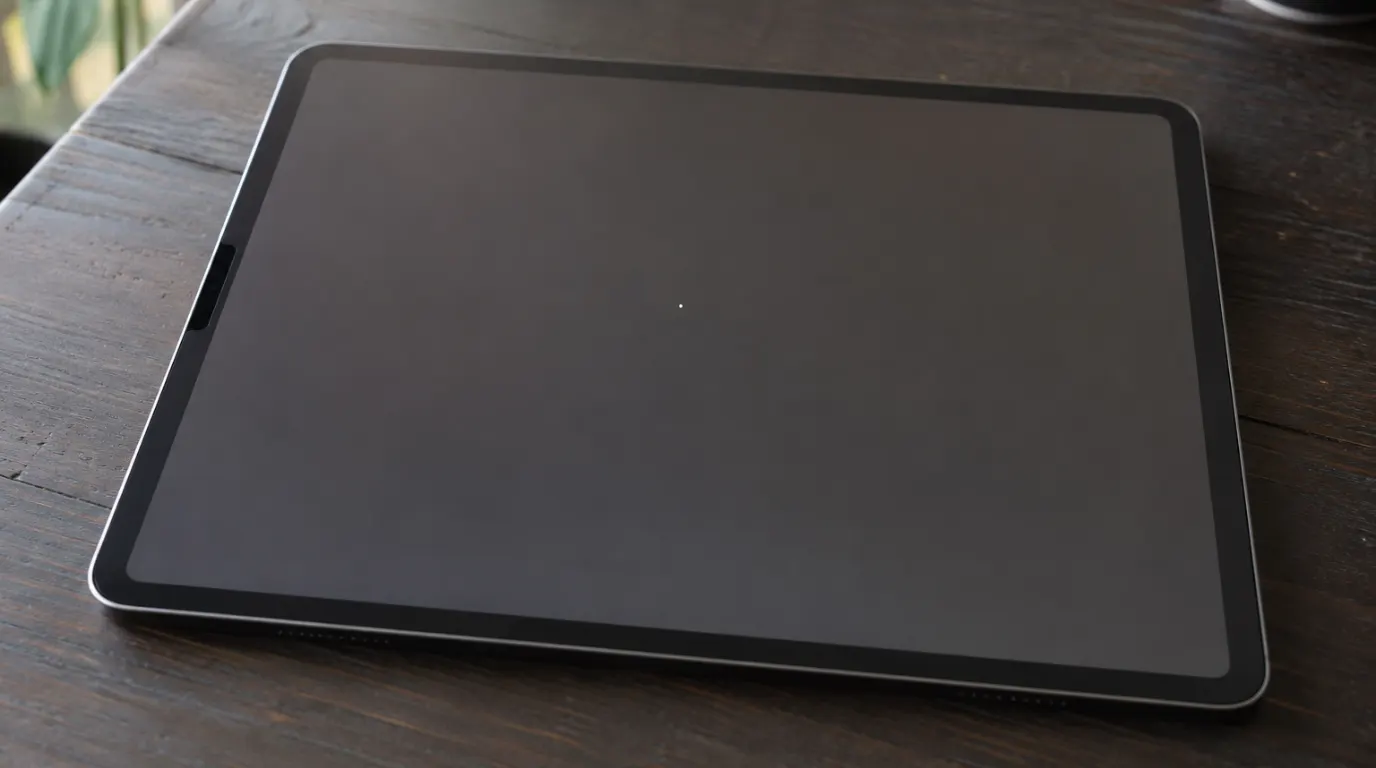
You unlock your iPad and there it is a white dot sitting right in the middle of your display. Maybe it was there when you woke up, maybe it showed up after the morning commute. Either way, it’s annoying, and you’re wondering if it’s going to get worse.
Here’s the honest version: most white dots are not a death sentence for your screen. Some are stuck pixels that respond to simple software tricks. Some are caused by a bag being overpacked. A few are from the last iPadOS update doing something weird with the display driver. And occasionally rarely, but importantly they signal something that needs immediate attention.
This guide runs through the actual diagnosis path. No fluff, no upselling repairs you don’t need.
| What You See | Most Likely Cause | First Step |
| One small bright white dot, fixed position | Stuck pixel | Run a pixel fixer tool (free) |
| Two floating dots on screen | AssistiveTouch is ON | Settings > Accessibility > Touch > AssistiveTouch toggle off |
| Large milky white blotch | Pressure damage or backlight bleed | Check warranty; likely needs screen replacement |
| Screen bulging or lifting | Swollen battery | Stop using it contact Apple Support now |
| White dot appeared after an iOS update | Software/driver glitch | Force restart first; check for an update patch |
What the Dot Actually Looks Like Getting the Diagnosis Right

This matters more than most people think. Describing the symptom accurately determines whether you spend 20 minutes running a free fix or $300 at a repair shop.
A pinhead-sized, bright white dot that stays in exactly the same position no matter what’s on screen that’s almost always a stuck pixel. The transistor controlling that pixel is frozen in an “on” state, emitting constant light. Unlike dead pixels (which go dark and appear black), stuck pixels are electrically active, which is actually good news software tools can sometimes knock them loose.
A cloudy, milky blotch that covers a centimeter or more is a different story. That’s usually pressure damage to the LCD layer or light escaping through a warped backlight stack. It won’t respond to software fixes, and it tends to look worse on white or light-colored backgrounds. Many people notice it first while browsing until everything looks fine until they hit a white webpage.
Two white dots that seem to float or move check AssistiveTouch before doing anything else. Go to Settings > Accessibility > Touch > AssistiveTouch. If it’s on, toggle it off. Those two dots disappear instantly. This catches more people than you’d expect.
A white line running horizontal or vertical across the display is almost always a damaged connector or cracked panel. That’s a repair job, not a software fix.
Common Causes of White Dots on iPad Screens
Pressure Damage The Most Common One We See
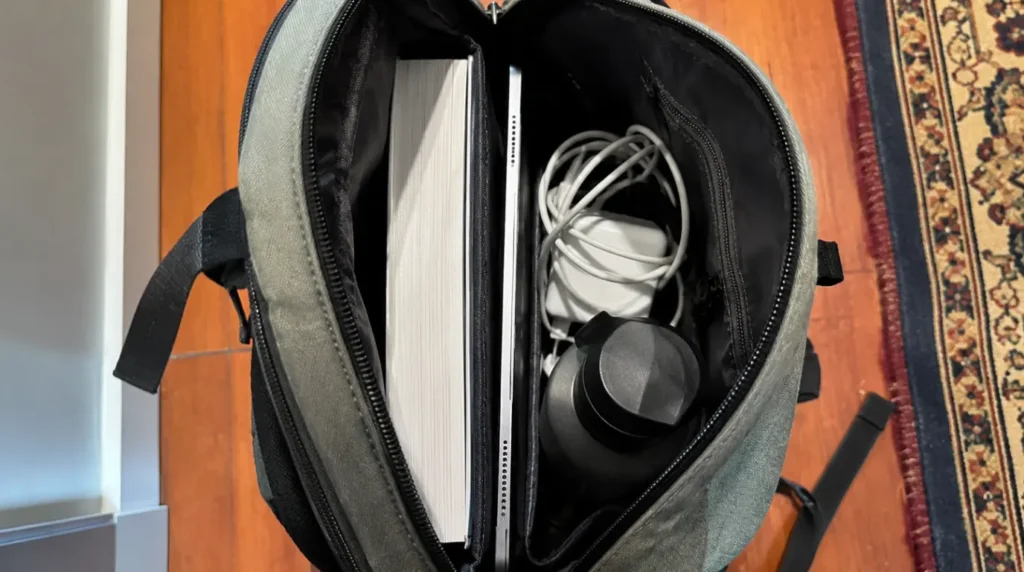
If you carry your iPad in a bag with books, a charger, a laptop, or anything that creates concentrated weight, that’s the most likely culprit for a cloudy white spot. The LCD panel on most iPads has liquid crystal layers that are sensitive to sustained pressure. When the crystals get pushed out of alignment, you get a permanent white or milky discoloration.
It tends to appear gradually; sometimes you don’t notice it until you’re viewing a light background. We see this constantly in the shop, especially after flights, long commutes, or whenever someone’s been shoving their iPad into an already-full bag.
This type of damage is almost never reversible without a screen replacement.
Backlight Bleed
LCD iPads use edge or direct LED backlights that push light through multiple thin layers. When those layers warp slightly from heat, pressure, or manufacturing variation light bleeds out unevenly. The result is usually a bright patch in one or more corners, most visible when you’re looking at a black or very dark screen.
Minor backlight bleed is common and doesn’t affect daily use much. If it’s significant enough to notice in normal lighting, it may qualify as a manufacturing defect under Apple’s warranty. Worth checking before you pay out of pocket.
Stuck Pixels
A stuck pixel is a transistor stuck in the “on” position. It emits constant light white, red, green, or blue regardless of what the screen is displaying. These are different from dead pixels, which are off entirely and look black.
Because stuck pixels are still electrically active, there’s a real (if modest) chance that cycling rapid color signals through them forces a reset. That’s what pixel fixer tools do. More on that below.
Software and Display Driver Glitches
A few iPadOS updates over the past couple of years caused temporary display artifacts white patches, faint smears, color irregularities that had nothing to do with hardware. These usually appeared within a day or two of updating and often resolved after a force restart or the next patch. If the dot showed up right after an update, that’s worth factoring in before you assume the worst.
Dust or Debris from a Screen Repair
If the white speck appeared right after a third-party screen replacement, there’s a decent chance it’s dust or debris trapped between layers during the repair. Any reputable shop should redo this at no charge; it’s a known risk of LCD repairs and covered under most service warranties.
Battery Swelling Treat This as an Emergency
⚠️ If the screen is bulging, lifting at the edges, or the device feels unusually hot stop using it immediately.
A swelling lithium-ion battery pushes against the screen from the inside, creating white pressure spots that worsen quickly. This isn’t a screen problem, it’s a safety issue. Don’t press on the display. Don’t attempt to open the device. Contact Apple Support directly and let them handle it.
How to Diagnose It Yourself
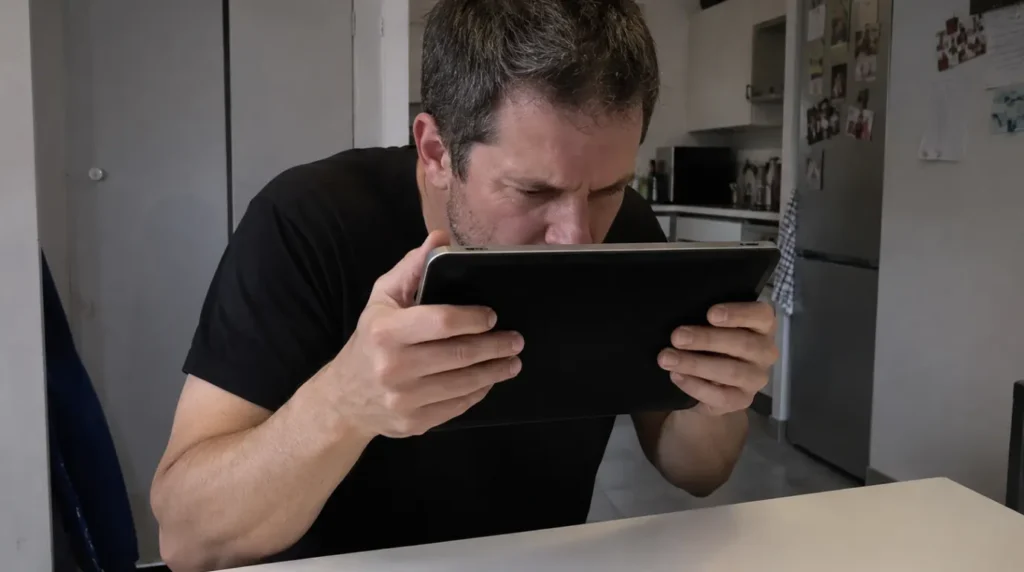
Before spending anything, run through this in order:
Step 1 Check AssistiveTouch Settings > Accessibility > Touch > AssistiveTouch. If it’s enabled, turn it off. If that fixes it, you’re done.
Step 2 Look at the dot on different backgrounds Open a black screen (play a dark video or enable Dark Mode and open a black image). Then switch to a white background. Stuck pixels show up clearly on both. Pressure damage is usually more visible on light backgrounds and can look almost invisible on dark ones.
Step 3 Check if it moves Scroll a webpage or video slowly. If the dot moves with content, it’s not a display issue; it’s probably a screen protector bubble or a piece of debris on the surface. Wipe the screen and the protector.
Step 4 Check physical condition Look at the screen from an angle in good light. Any bulging, separation at the edges, or uneven surface suggests internal hardware issues pressure damage or battery swelling.
Software Fixes Try These Before Spending a Cent
Force Restart
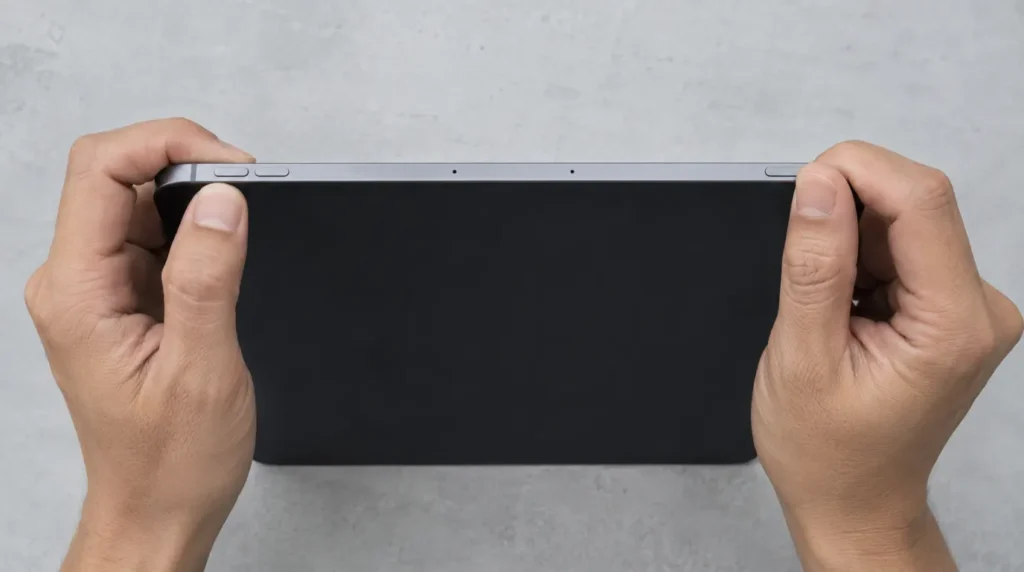
This clears the display driver and often resolves software-caused artifacts. It’s the first thing to try, takes 30 seconds, and has no downside.
- iPad with Face ID (iPad Pro, Air M2+, mini 6+): Press Volume Up, then Volume Down, then hold the Top button until the Apple logo appears.
- iPad with Home button (iPad 9th/10th gen, older models): Hold Home + Top button together for about 10 seconds until Apple logo appears.
Update iPadOS
Go to Settings > General > Software Update. If the dot appeared right after a recent update, check Apple’s support communities if others are reporting the same thing, a patch is usually in progress.
Run a Pixel Fixer
Open Safari and search “online dead pixel fixer.” These tools cycle through rapid color patterns on your screen to send electrical signals to the stuck transistor. Position the test over the affected area and run it for 10–20 minutes. This works on a portion of genuine stuck pixels, not all of them, but enough that it’s worth doing before anything else. It’s free and risk-free.
Reset All Settings
If nothing else works: Settings > General > Transfer or Reset iPad > Reset > Reset All Settings. This restores display calibration to factory defaults without deleting your data. Back up first as a precaution.
Hardware Approaches
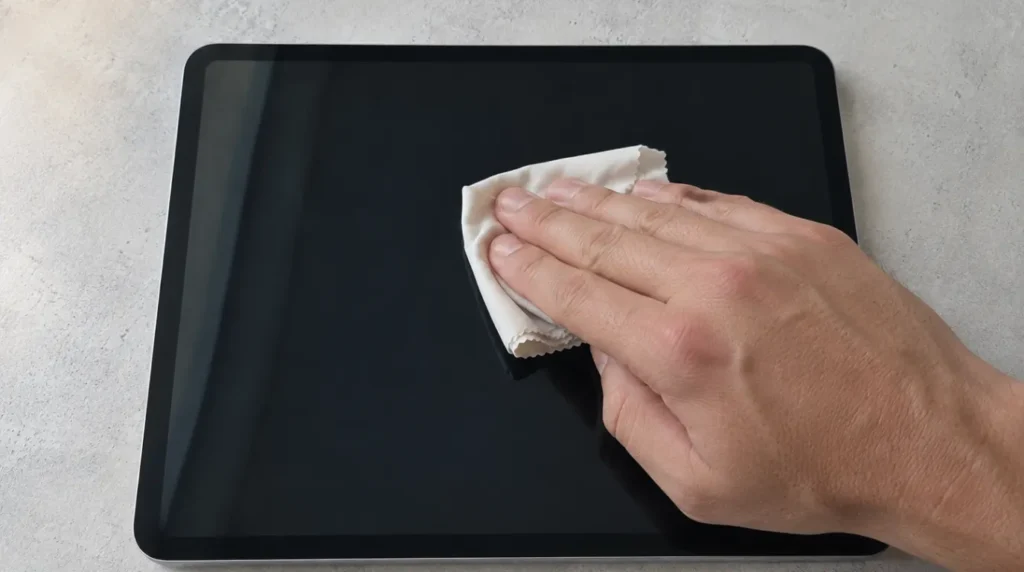
The Gentle Pressure Method
This only applies to stuck pixels that survived the software fixes. Power the iPad completely off. Wrap a finger in a clean microfiber cloth. Apply very gentle circular pressure directly on the dot for 30–60 seconds, then power back on.
The success rate isn’t high, but it occasionally works and it’s harmless when done carefully. Don’t press hard. Don’t use this if your device is under warranty physical manipulation, however minor, could complicate a warranty claim.
When It’s Clearly Hardware Damage
If pressure damage or backlight bleed is the diagnosis, software fixes won’t help. At that point your options are:
- Check warranty coverage see below
- Apple repair genuine parts, True Tone/ProMotion calibration preserved
- Third-party authorized repair often cheaper, still uses quality parts
- Live with it if the damage is minor and in a corner, some people choose to wait
Repair Costs and Warranty Coverage
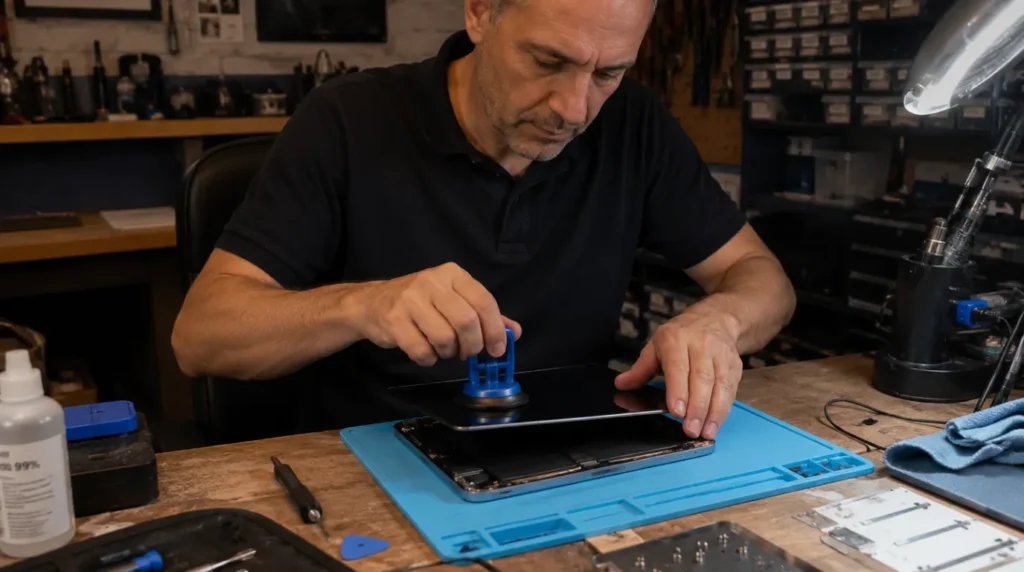
Check your coverage first at checkcoverage.apple.com enter the serial number from Settings > General > About.
Standard 1-Year Limited Warranty: Covers manufacturing defects factory dead pixels, significant backlight bleed from the factory. Doesn’t cover pressure damage or anything accident-related.
AppleCare+ now uses tiered pricing for screen repairs. Current iPad Pro and iPad Air owners pay just $29 per incident. Older iPad models still carry the $49 service fee. Check your exact model’s rate before booking.
Out-of-Warranty Screen Repair Costs (2026 estimates):
| iPad Model | Out-of-Warranty Screen Cost |
| iPad 9th / 10th generation | $229 – $269 |
| iPad mini 6th / 7th generation | $249 – $299 |
| iPad Air M1 / M2 / M3 | $299 – $379 |
| iPad Pro 11-inch M4 (OLED) | $499 – $549 |
| iPad Pro 13-inch M4 (OLED) | $549 – $599 |
Prices sourced from Apple’s service pricing page, March 2026. Verify current costs at apple.com/support before booking.
Apple vs. Third-Party Repair
Apple Authorized Service Providers preserve True Tone calibration and Face ID functionality. Independent shops may be cheaper but some use aftermarket panels that don’t match the original color accuracy. DIY screen replacement on an iPad isn’t recommended; the adhesive-bonded construction requires heat tools and the margin for error is low.
LCD vs. OLED: Why It Changes the Diagnosis
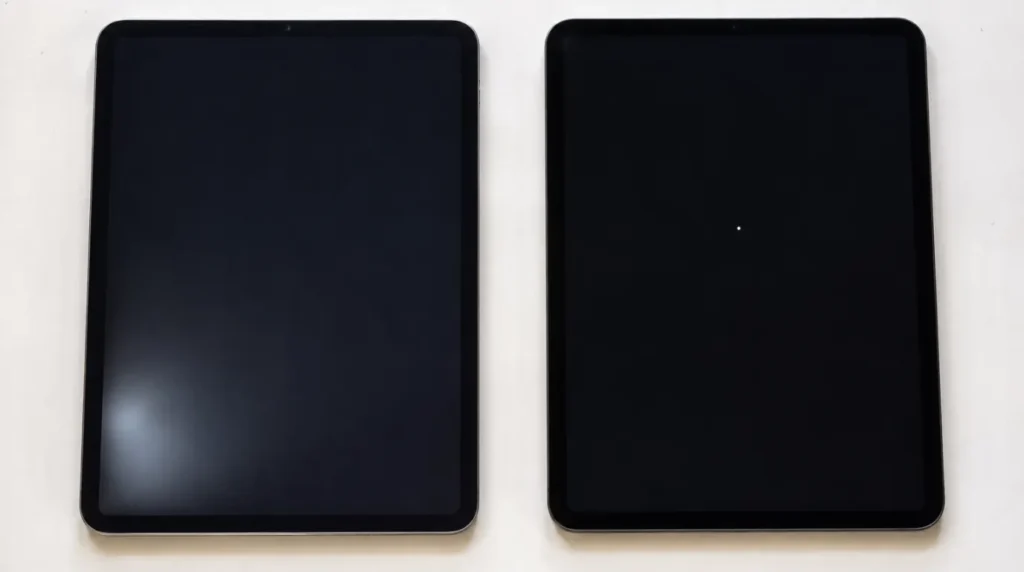
Most iPads still use LCD screens with a continuous backlight. Pressure damage and backlight bleed are the dominant LCD failure modes, producing soft, diffuse white areas. Only the iPad Pro M4 and M5 use Apple’s Tandem OLED display. OLED has no backlight, so each pixel emits its own light and backlight bleed is physically impossible on these panels.
If you own an iPad Pro M4 or M5 and see a large cloudy white area, that’s almost certainly physical damage, not a display technology issue. A single small bright dot could still be a stuck pixel. For OLED, the more common long-term risk is burn-in from prolonged static content at high brightness which shows up as a faint ghost image, not a bright white dot.
How to Diagnose It Yourself
Try the screenshot test. Screenshot the screen with the dot visible, then view that image on another device or zoom in and move it around. If the dot moves with the photo or shows up on another device, it’s software, not hardware. A restart or update should fix it.
Common Mistakes That Make It Worse
A few things we regularly see in the shop that people do before bringing it in:
- Pressing hard on the dot If it’s a stuck pixel, aggressive pressure can damage surrounding pixels. Be gentle or skip it entirely.
- Ignoring a spreading white area Pressure damage can expand if the source of pressure isn’t removed (e.g., a tight case).
- Assuming it’s dirt, we’ve had people bring in iPads where they were still wiping the screen trying to clean off what was clearly a stuck pixel underneath the glass.
- Delay on battery swelling This one matters. A swollen battery pushes harder over time. If the screen is lifting, don’t wait.
Prevention

- Use a case with a raised bezel so the screen doesn’t contact flat surfaces directly. Folio-style cases that close over the display are best for bag carry.
- Keep it in a dedicated sleeve or compartment away from chargers, keys, heavy books, and anything that can concentrate pressure on the panel.
- Avoid heat, don’t leave your iPad in a hot car. Apple recommends operating temperatures of 0–35°C (32–95°F). Sustained heat accelerates battery aging and increases swelling risk.
- Clean with microfiber only paper towels and regular fabric scratch the oleophobic coating over time. Slightly damp cloth, never spray liquid directly on the screen.
When Repair Isn’t Worth It
Older iPad models with a cracked or pressure-damaged screen sometimes cost more to repair than the device is worth on the used market. Before booking a repair on an iPad 6th or 7th gen, check what that model sells for on eBay or Swappa. If the repair quote is close to or exceeds the resale value, you’re better off replacing it.
Frequently Asked Questions

Can a white dot on an iPad screen disappear on its own?
Sometimes. If it’s a software glitch or a temporarily stuck pixel, it can resolve after a restart or on its own within a day or two. Hardware damage, pressure marks, backlight bleed won’t self-heal.
Why do I have two white dots on my iPad screen?
Almost certainly AssistiveTouch. Go to Settings > Accessibility > Touch > AssistiveTouch and turn it off. Those dots disappear instantly. This is one of the most common “screen problems” people bring to the shop that isn’t actually a screen problem.
Does Apple cover white spots under warranty?
Yes, for manufacturing defects. Factory dead pixels and significant backlight bleed present from new are covered under the standard 1-year warranty. Pressure damage from use isn’t but AppleCare+ covers accidental screen damage for a $49 service fee.
My white spot appeared after the last iPadOS update. Is that possible?
Yes. Certain firmware builds have caused display artifacts. Force restart first. If it persists, check Apple’s support communities if multiple users report the same thing, a patch typically follows within a few weeks.
Is a white dot on my iPad screen getting bigger a bad sign?
It can be. Pressure damage sometimes spreads if the cause of pressure isn’t addressed in a tight case, a packed bag. If the white area is growing, something is still pressing on the panel. Remove cases and keep it somewhere flat while you sort it out.
How do I know if my iPad battery is swelling?
Signs include: screen that appears to bow outward or lift at the edges, the device feeling unusually thick in the middle, the display separating from the frame slightly, or a white pressure mark that appeared without any impact or bag incident. If you see any of these, stop using the device and contact Apple Support.
Expert Verdict
Most white dot situations come down to three things: it’s a software issue (force restart, run the pixel fixer), it’s a stuck pixel (try the free tools, then the gentle pressure method), or it’s physical damage (check your warranty before paying out of pocket).
The battery swelling scenario is the one where speed matters. If there’s any sign the screen is lifting or bulging, treat it as urgent, not something to deal with next week.
Run through the free software steps first. They take under 30 minutes and they do resolve a real portion of these complaints. If the dot survives all of them, you know it’s hardware, and now you have a clear picture of your options.
Key Takeaway
White dot on your iPad = not always serious, but worth diagnosing properly. Start free (software fixes), check coverage before paying, and take battery swelling seriously.
Editor Note
Article updated July 2026: AppleCare+ pricing corrected to reflect current tiered rates ($29 for iPad Pro M4/M5 and iPad Air M2/M3, $49 for older models). LCD vs. OLED section updated to include the iPad Pro M5, which replaced the M4 in October 2025. Diagnosis steps expanded with a screenshot test to separate software from hardware causes. Repair pricing table flagged for re-verification against Apple’s live support page.
About the Author
- Ben is a display repair technician with over 10 years of hands-on experience diagnosing screen failures across Apple, Windows, and Android devices
- Content on screenproblems.com is based on real repair observations not manufacturer talking points
- Free fixes are always prioritized before recommending paid repairs
- Ben founded screenproblems.com to give people an honest resource before they spend money they don’t need to
Disclaimer
Pricing figures are sourced from Apple’s official service pages and are subject to change by region and model. Always verify current costs at apple.com/support before booking. Attempting any hardware fix including the gentle pressure technique is at your own risk. When in doubt, consult an authorized repair provider. ScreenProblems.com is not responsible for damage resulting from DIY repair attempts.