White Spots on Laptop Screen: Causes, Fixes & Prevention (2026)
Updated: March 2026 | Reading Time: ~9 Min | Covers: All Laptop Brands
White spots on a laptop screen are one of the most frustrating display problems. They appear without warning, disrupt your work, and can be hard to diagnose.
But here’s the good news: not every white spot means an expensive repair. Some fixes are completely free and take just minutes.
This guide covers every cause, every fix, and exactly when to call a professional all in plain language.
What Is a White Spot on a Laptop Screen?
A white spot is any area on your display that shows bright, washed-out, or cloudy patches regardless of what is on screen.
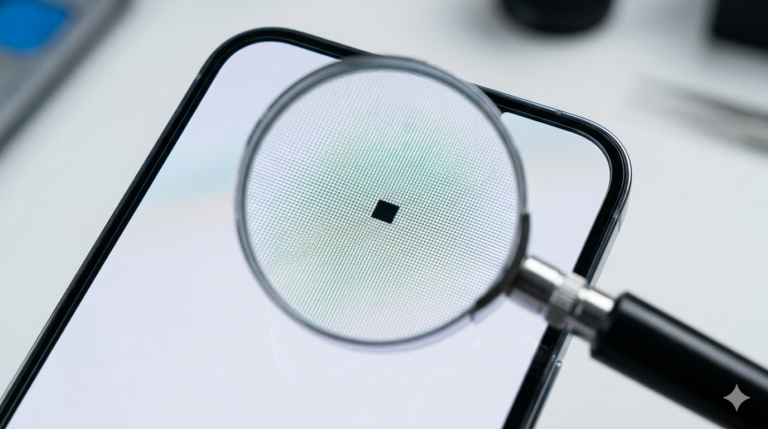
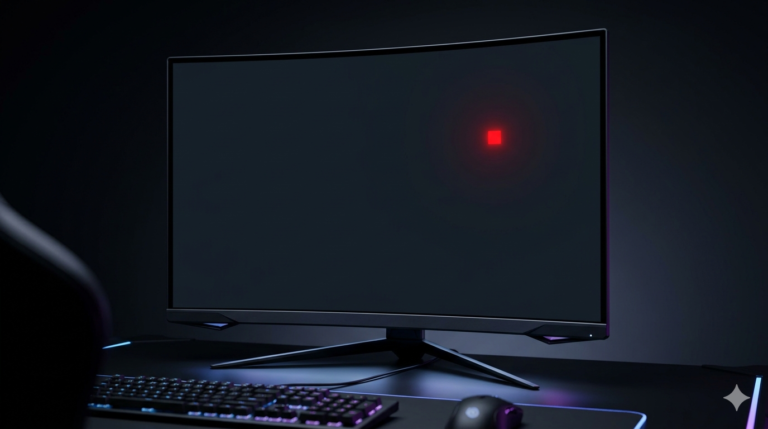
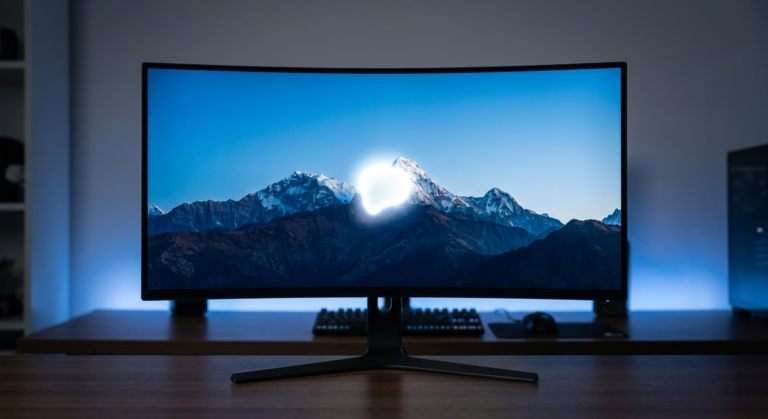
It can be a pinhead-sized dot (a stuck pixel), a cloudy smear (pressure damage), or a glowing patch near the edges (backlight bleed). Identifying the type is your first step.
How to Diagnose Your White Spot (3 Quick Steps)

Step 1: Take a Screenshot
Press Windows + PrtScn to capture your screen. Open the file in Photos and zoom into the spot area.
If the spot is NOT visible in the screenshot, it is a hardware issue; the problem lives in the physical screen, not the software.
Step 2: Connect an External Monitor
Plug your laptop into an external monitor via HDMI or USB-C. If the white spot disappears on the external screen, your laptop display panel or its cable is damaged.
If the spot shows on both screens, the problem is your graphics driver or GPU. A software fix may work.
Step 3: Test With Solid Color Backgrounds
Open a browser and search for a pure black full-screen image, then a pure white one, then red.
- Spot visible on black, invisible on white: Dead or stuck pixel.
- Spot worse on dark backgrounds: Backlight bleed.
- The spot looks the same on all colors: Physical LCD damage or pressure bruise.
7 Common Causes of White Spots on Laptop Screens
1. Pressure Damage (Most Common)

Squeezing a laptop into a tight bag, placing books on top, or pressing the lid too hard compresses the liquid crystals inside the LCD panel.
This creates a permanent cloudy or milky white patch. The damage often appears hours after the pressure event, which makes it confusing to trace.
2. Dead or Stuck Pixels

A stuck pixel is frozen in the “on” state and glows white, red, green, or blue at all times. A dead pixel receives no power and appears as a permanent black dot.
Stuck pixels are sometimes fixable with software. Dead pixels almost always require a screen replacement.
3. Backlight Bleeding
Laptop LCD screens use LED backlights to illuminate the display from behind. If the display layers shift due to impact, heat, or a manufacturing defect light leaks through unintended areas.
Backlight bleed appears as bright glowing patches, usually at corners or edges. It is most visible in dark rooms when displaying a black image.
4. Liquid or Moisture Damage
Even small amounts of liquid splash, high humidity, or condensation can seep between display layers and cause permanent white patches or discoloration.
Liquid damage is usually irreversible. The residue corrodes the panel layers even after the moisture is gone.
5. LCD Panel Aging
Over years of use, the LCD panel’s internal components degrade. Fluorescent-style backlight systems become uneven. Older panels develop white or yellow patches in areas of highest brightness exposure.
This is more common in laptops that are 4–6 years old and used at maximum brightness for extended periods.
6. Loose or Damaged Display Cable
The thin cable connecting your motherboard to the display panel can become loose, pinched, or frayed especially on laptops that are frequently opened and closed.
Symptoms include white lines, flickering, or patches that change when you flex the screen lid. This is a hardware fix but is usually cheaper than a full panel replacement.
7. Graphics Driver or Software Glitch
Occasionally, a corrupted graphics driver causes the display to render artifacts including white patches or color distortions.
This is the easiest cause to rule out: a driver update or reinstall will either fix it immediately or confirm the problem is hardware.
How to Fix White Spots on a Laptop Screen
Fix 1: Update or Reinstall Your Graphics Driver
This should always be your first step because it costs nothing and takes two minutes.
- Right-click the Start button and select Device Manager.
- Expand Display Adapters and right-click your GPU.
- Select Update Driver > Search Automatically for Drivers.
- Restart your laptop and check if the spot is gone.
If updating does not work, try rolling back to a previous version using the Roll Back Driver option in the same menu.
Fix 2: Use Pixel-Fixing Software
For stuck pixels, a pixel-fixer tool rapidly cycles colors across your screen at high speed to “unstick” frozen liquid crystal molecules.
- JScreenFix.com Free browser-based tool. Drag the flashing box over the affected area for 10–30 minutes.
- PixelHealer Free Windows app. More control over location and duration.
The success rate is around 60% for soft stuck pixels. It will not fix physical damage.
Fix 3: Clean the Screen

Dust, smudges, and residue can mimic a white spot. Before assuming hardware damage, clean the screen properly.
- Power off the laptop completely.
- Use a dry or very lightly dampened microfiber cloth.
- Wipe in gentle circular motions. Never press hard.
- Never use paper towels, tissues, or alcohol-based cleaners.
Fix 4: Gentle Pressure Technique
Warning: Only try this for a small, isolated stuck pixel dot. Do NOT use this if you suspect physical damage, backlight bleed, or a cracked panel.
Power off and unplug your laptop. Wrap a fingertip in a soft microfiber cloth. Apply very gentle circular pressure directly over the stuck pixel for 10–15 seconds. Power the laptop back on and check if the pixel has reset.
This technique works by physically nudging misaligned liquid crystals back into place. Done correctly and gently, it causes no further harm.
Fix 5: Adjust Screen Brightness
Some backlight bleeding becomes significantly less visible at lower brightness levels. Go to Settings > System > Display and reduce brightness to around 60–70%.
This is not a fix, but it is a practical way to reduce the visual impact while you arrange a proper repair.
Fix 6: Reseat or Replace the Display Cable
If the white spot changes position or intensity when you flex the screen lid, a loose display cable is likely the cause.
A technician can open the laptop hinge area and reseat or replace the cable for a relatively low cost, often $30–$70 at a local repair shop, much cheaper than a full panel replacement.
Fix 7: Replace the LCD Panel
If all other fixes fail, full screen replacement is the final solution. Costs in 2026 vary by brand and model:
- Budget laptops (Acer, Lenovo IdeaPad): $60–$120 third-party.
- Mid-range (Dell Inspiron, HP Pavilion): $100–$180.
- Premium (MacBook, Dell XPS, Lenovo ThinkPad): $200–$450+.
Always get a written warranty on the replacement panel and labor before authorizing any repair.
Brand-Specific Notes
- Lenovo: IdeaPad models are more prone to pressure damage due to thinner bezels. ThinkPads are more durable. Check warranty at support.lenovo.com.
- Dell: XPS models occasionally have backlight bleed out of the box. Dell’s warranty (and Dell Premium Support) covers manufacturing defects well.
- HP: HP laptops with older IPS panels can develop yellow-white patches with age. HP Care Pack extends coverage for accidental screen damage.
- MacBook: Uses IPS LCD (non-Retina) or Retina IPS/Mini-LED. AppleCare+ covers screen damage for a service fee. Out-of-warranty MacBook screen repair is expensive $299–$599+.
When to Seek Professional Help Immediately
Some situations are beyond DIY fixes and require a professional technician right away:
- The white area is growing or new spots keep appearing.
- The screen is cracked or the glass is visibly damaged.
- You suspect a swollen battery (screen bulging from inside).
- The laptop was exposed to liquid and white patches appeared afterward.
- Your device is under warranty, always claim it before paying out of pocket.
How to Prevent White Spots on Your Laptop Screen

- Use a padded sleeve or dedicated laptop compartment in your bag.
- Never stack heavy items on top of a closed laptop.
- Keep the laptop away from direct sunlight and heat sources.
- Use a screen protector if you carry the laptop daily.
- Clean the screen weekly with a microfiber cloth and never spray liquids directly.
- Run your laptop at 60–80% brightness to reduce backlight stress and extend panel life.
When Should You Replace the Laptop Screen?
Replace the screen not the whole laptop if the damage is physical but the rest of the machine works well.
Consider replacing the entire laptop if the repair cost exceeds 50% of the laptop’s current resale value, or if the machine is more than 5 years old with other hardware issues.
A screen replacement makes strong financial sense for premium laptops (MacBook, ThinkPad, XPS) where the body and internals still have years of useful life.
Frequently Asked Questions
Can white spots disappear on their own?
Soft stuck pixels sometimes self-correct within days. Pressure bruises and backlight bleed do not. If a spot persists for more than a week, it will likely be permanent without intervention.
Does warranty cover white spots?
Manufacturing defects (spots on a brand-new laptop) are usually covered under the standard warranty. Accidental damage from pressure or drops is not. Extended warranties and protection plans like Dell Premium Support, HP Care Pack, and Lenovo Premium Care often cover accidental screen damage.
Is it safe to use a laptop with a white spot?
A small stuck pixel or minor backlight bleed is safe to use. However, if you suspect a swollen battery is causing the screen to bulge, stop using the laptop immediately; this is a safety risk.
How long does a pixel-fixer tool take to work?
Most tools recommend 10–30 minutes per session. If the pixel is not fixed after two or three sessions totaling about an hour, software methods are unlikely to resolve it.
Final Thoughts
Most white spots on laptop screens fall into one of two categories: fixable for free in minutes, or requiring a professional repair.
Start with the diagnostic steps to identify the type of spot. Try the free software fixes first. If those fail, evaluate the repair cost against the age and value of your laptop.
With the information in this guide, you now have everything you need to make the right call, no guesswork, no wasted money.
────────────────────────────────────────
This article is for informational purposes only. Always consult a certified technician for diagnosis and repair. Pricing estimates are based on US market averages as of March 2026.