
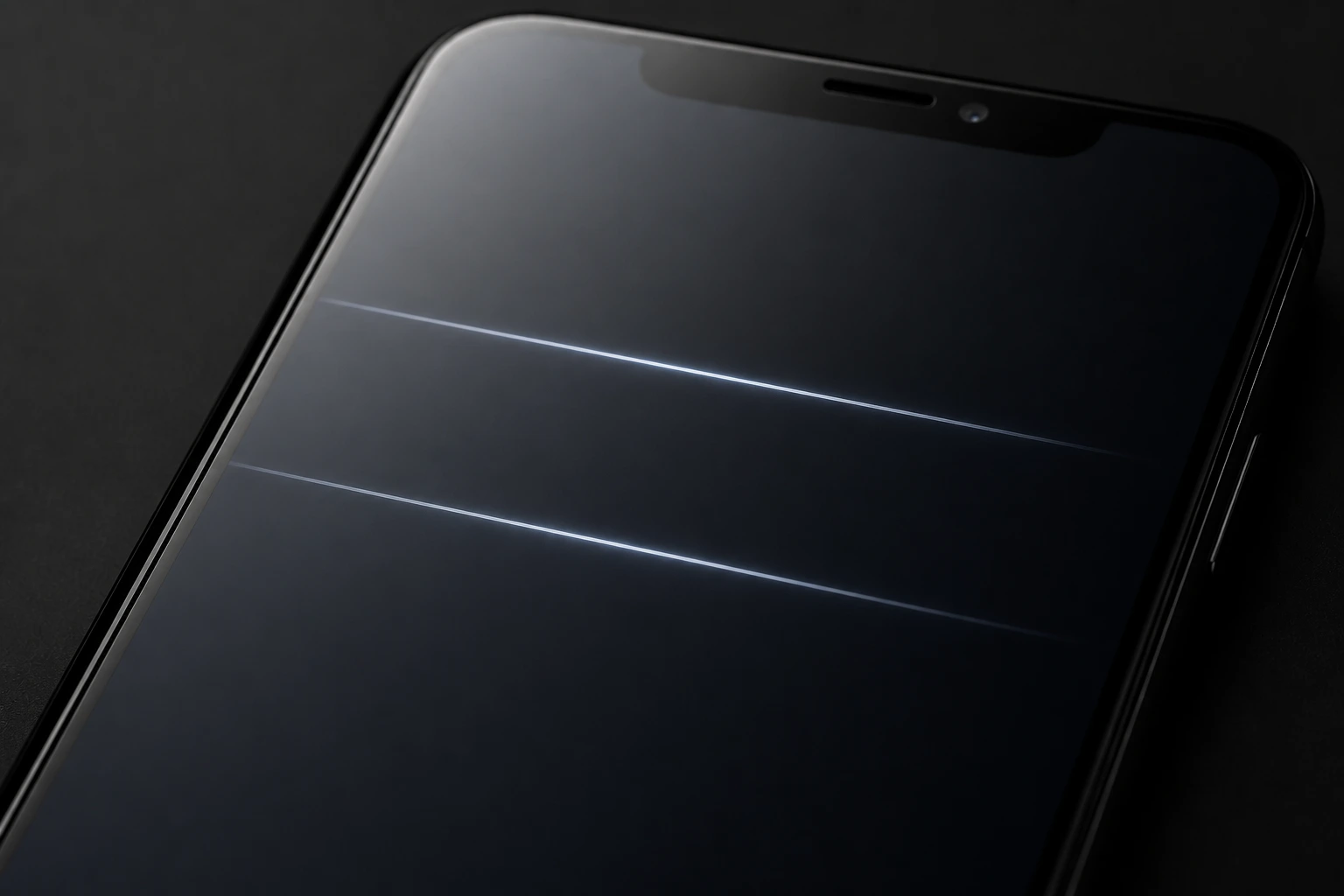
White horizontal lines on a phone screen are most often caused by physical drop damage, a loose display cable, or a software rendering bug.
Take a screenshot first: if the lines appear in the screenshot, the cause is software and the fix is completely free.
If the lines do not appear in the screenshot, you are dealing with a hardware issue and need to work through the physical fixes below.
You picked up your phone and a white line is sitting across your screen, completely ignoring every app you switch to. It looks expensive and alarming, and your mind immediately goes to the worst case. The good news is that the cause determines the cost, and some of the most common causes cost absolutely nothing to fix.
What Causes White Horizontal Lines on a Phone Screen?

There are six main causes of white horizontal lines on a phone display. Identifying your cause before trying any fix saves you time and prevents you from making things worse. Each cause has one clear sign that tells you this is your problem.
Physical Drop or Impact Damage
This is the most common cause of phone screen lines reported across Android and iPhone users. When a phone hits the ground, the internal display panel absorbs the force even when the outer glass stays completely intact. A fractured row of pixels inside the LCD or OLED panel stops receiving correct signals and displays a permanent white or bright line.
Confirming sign: the lines appeared immediately after or within a few hours of dropping your phone.
Loose or Damaged Display Cable
Your phone’s screen connects to the motherboard through a thin ribbon cable called the display flex cable. A drop, thermal expansion over time, or normal wear can partially disconnect this cable from its connector. When the connection is unstable, the screen produces lines that flicker, shift position, or briefly improve when you apply gentle pressure to the phone frame.
Confirming sign: lines change or temporarily disappear when you press lightly on the edges of the frame.
Software or Graphics Driver Bug
A corrupted app, a failed OS update, or a graphics driver bug on your phone can force the display to render lines where none should exist. Software-caused lines almost always show up in a screenshot, which is the fastest way to confirm this is your problem. This is the easiest cause to fix because it costs nothing and requires zero tools.
Confirming sign: the lines are visible when you take a screenshot and view it on another device.
Pressure or Bend Damage
Sitting on your phone, carrying it in a tight back pocket, or bending it inside a bag puts sustained mechanical stress on the display panel. LCD screen damage from pressure causes the liquid crystal layer to misalign, creating persistent white horizontal bands that do not go away on their own. This type of damage is permanent and requires a screen replacement.
Confirming sign: the lines appeared gradually after a period of being carried in a tight or compressed space.
Overheating
Extreme heat forces display components to expand beyond their design limits, causing screen flickering on phones or visible line artifacts. Prolonged gaming sessions, extended time in direct sunlight, or a faulty battery generating excess heat are all common triggers. If lines appeared during heavy use and partially reduced after the phone cooled down, heat stress is a strong contributor.
Confirming sign: lines appeared during or immediately after a period of intense use or heat exposure.
Water or Moisture Damage
Water exposure is a frequently underreported cause of horizontal lines on display panels. Even phones with IP water resistance ratings can suffer display damage from steam, condensation, or submersion beyond their rated depth or duration. Moisture causes corrosion on the display connector or panel, and the lines typically worsen over days as residue dries and spreads.
Confirming sign: the lines appeared after water contact, or they are slowly multiplying and spreading over days.
How to Diagnose White Horizontal Lines at Home

Do not skip this section. Getting the diagnosis right before attempting any fix prevents wasted effort and stops you from making hardware damage worse. These three tests take under five minutes and give you a clear answer.
- Take a Screenshot
Press the correct button combination for your phone model to take a screenshot. Open it on another device or upload it online to view it without the affected screen. If the lines appear in the screenshot, the cause is software. If they do not appear, the cause is hardware.
- Check Whether the Lines Move or Stay Fixed
Lines that stay in one fixed position regardless of what is on screen point to display panel damage or display cable damage. Lines that flicker or shift when you scroll, open apps, or rotate the phone point to a software or graphics driver bug. Lines that appear only inside one specific app suggest that the app has a rendering issue and can be fixed by reinstalling it.
- Apply Light Pressure to the Frame
With the phone powered on, press very lightly on the edges of the screen frame, not on the glass itself. If lines shift, change, or briefly disappear when you press a specific spot, the display cable is loose inside the phone. A loose cable costs far less to fix than a full phone display repair, so this is genuinely good news if confirmed.
Mirror the Screen to an External Display
Connecting your phone to a TV or monitor confirms whether the damage sits
inside your display panel. Use screen mirroring or a USB-C cable, and check
if the external screen shows a clean image without lines. A clean external
image means the panel itself is damaged and needs replacement. Lines that
appear on both screens point to a deeper hardware issue past the display.
How to Fix White Horizontal Lines on Your Phone Screen

Work through these fixes from the top down. Always start with free software options before spending any money on hardware repair. Each fix tells you exactly what to do and what success looks like.
Restart Your Phone
Cost: Free
- Hold the power button until the restart option appears on screen
- Select Restart, not just sleep or lock
- Wait for the phone to fully boot and check the screen
A full restart clears the RAM, resets the graphics subsystem, and closes any app causing a rendering glitch. This resolves the issue for the majority of users dealing with a software-caused line.
Charge Your Phone Fully
Cost: Free
- Plug your phone into its original charger
- Charge it to 100% without interruption
- Observe whether lines reduce or disappear once the charge is full
When a battery drops critically low, voltage irregularities can cause the display driver to malfunction and produce line artifacts. This fix sounds simple but it works consistently for users with battery-related display issues.
Update Your Operating System
Cost: Free
- On iPhone: go to Settings, then General, then Software Update
- On Android: go to Settings, then Software Update or System Update
- Install any available update, restart the phone, and check the display
Display rendering bugs are a regular target for OS point releases. Also update all installed apps, especially any that were recently updated around the time the lines first appeared.
Boot Into Safe Mode (Android Only)
Cost: Free
- Hold the power button until the power menu appears
- Long-press the Power Off option until you see the Safe Mode prompt
- Tap OK to restart in Safe Mode, then observe whether the lines are still visible
Safe Mode starts Android with only core system apps running, disabling all third-party apps temporarily. If the lines disappear in Safe Mode, a third-party app is the source of the problem. Uninstall recently installed apps one at a time until the issue stops in normal mode.
Factory Reset
Cost: Free
- Back up all your data to cloud storage or a computer before starting
- On Android: go to Settings, then General Management, then Reset, then Factory Data Reset
- On iPhone: go to Settings, then General, then Transfer or Reset iPhone, then Erase All Content and Settings
A factory reset restores the phone to its original software state and eliminates any corrupted data or graphics driver bug causing the lines. If lines persist even after a factory reset, the cause is definitively hardware and no further software fix will help.
Apply Gentle Pressure to the Frame
Cost: Free use only if pressure test confirmed a loose cable
Warning: only attempt this if the frame pressure test showed that lines changed when you pressed the frame. Do not press on the screen glass itself.
- Power the phone completely off before attempting this step
- Apply light, even pressure around the edges of the phone frame for about 30 seconds
- Power the phone back on and observe the screen immediately
This can temporarily reseat a partially disconnected display cable. It is not a permanent fix but it confirms the cause so your repair technician knows exactly what needs to be addressed.
Visit a Repair Center or Claim Warranty
Cost: Paid or covered under warranty
- Check your warranty status before paying anything out of pocket
- iPhone: visit checkcoverage.apple.com. Android: visit your manufacturer’s official support page
- If the device is under warranty and the damage is a manufacturing defect, the repair is typically free
If all software fixes have failed, the cause is hardware and needs professional attention. For a loose cable, a technician can reseat or replace it for far less than a full screen replacement. For panel damage, compare the phone display repair cost against the phone’s current market value before committing.
When to See a Professional

Stop attempting home fixes and visit a technician if the lines are multiplying or spreading across the screen. Active progression means internal damage is getting worse with every hour of continued use. The longer you wait on hardware damage, the higher the eventual repair cost.
Also visit a professional immediately if the screen is visibly bulging or the device feels warm near the area where lines appear. A swollen battery can press against the display from inside and cause line artifacts while also being a genuine safety risk. Power the phone off completely in that case and do not attempt to charge it until a technician has inspected it.
Repair Costs in 2026
Phone screen repair costs $60 to $379 in 2026 depending on brand and model.
Budget Android screens: $60 to $120 at certified third-party shops
iPhone SE and older models: $129 to $199 at Apple
iPhone 15, 16, and 17 series: $229 to $379 out of warranty at Apple
Samsung Galaxy S26, S25, and Z series: $209 to $349 at authorized centers
AppleCare Plus and Samsung Care Plus users: a flat $29 to $49 per repair
Third-party certified shops charge 30 to 50% less than manufacturer service centers
How to Prevent Horizontal Lines on Your Phone Screen

- Use a quality case with raised bezels so the screen never makes direct contact with surfaces when placed face-down
- Apply a tempered glass screen protector to absorb impact and distribute force away from the display panel
- Never carry your phone in a tight back pocket where sitting pressure can stress the display cable and panel over time
- Keep the phone away from direct sunlight and prolonged heat sources to prevent thermal expansion damage to display components
- Charge regularly and avoid letting the battery drop below 10% frequently, as low-voltage stress affects display drivers over time
- Install OS updates promptly since manufacturers regularly patch graphics driver bugs that cause line artifacts on phone screens
Frequently Asked Questions

Can horizontal lines on a phone screen fix themselves?
Software-caused lines sometimes disappear after a restart or an OS update without any manual intervention. Physical damage to the display panel, display cable, or LCD layer does not self-heal under any circumstances. Lines from hardware damage persist and typically worsen without a repair.
Is it safe to use a phone with horizontal lines on the screen?
A single faint static line is generally safe to use if the phone functions normally in all other ways. If lines are multiplying, the screen is becoming unresponsive in the affected area, or there is any visible bulging near the lines, stop using the phone immediately. A swollen battery causing display pressure from inside is a safety hazard and requires urgent professional attention.
Does a manufacturer warranty cover horizontal lines?
Lines that appear as a manufacturing defect from day one are covered under the standard one-year limited warranty. Lines caused by a drop, pressure damage, or liquid exposure are classified as accidental damage and are not covered under the standard warranty. AppleCare Plus, Samsung Care Plus, and similar extended plans cover accidental screen damage for a flat service fee.
How much does it cost to fix horizontal lines on a phone screen in 2026?
Screen repair costs $60 to $379 in 2026, based on your phone brand and model.
Budget Android screens run $60 to $120, iPhone 15 through 17 models cost $229 to
$379, and the new Samsung Galaxy S26 series costs $209 to $349 at authorized
centers. Third-party certified shops charge 30 to 50 percent less than manufacturer
service centers, and AppleCare Plus or Samsung Care Plus lowers the cost to
$29 to $49.
Can horizontal lines be fixed without replacing the screen?
Yes, if the cause is software, a loose display cable, or a graphics driver bug. Software fixes including restarts, updates, Safe Mode testing, and factory resets cost nothing. Use our free Dead Pixel Checker to test whether individual pixels are damaged alongside the lines, and cable reseating by a technician costs $30 to $60, far cheaper than a full screen replacement.
Related Guides on screenproblems.com
If your phone is also showing color issues alongside the lines, the Red Lines on PC Screen guide covers related display connection diagnostics in depth.
For laptop screen flickering issues, the Acer Laptop Screen Flickering guide covers cable and driver causes with step-by-step fixes.
Editor Note
This article was fully reviewed and rewritten in May 2026. The original version had no Quick Answer Box, several paragraphs exceeding the three-sentence limit, and a causes section that was missing water damage as a standalone cause despite it being consistently reported across Reddit and Quora threads throughout 2025.
All seven fixes have been re-verified against current Android and iOS firmware. The pricing figures reflect 2026 published rates from Apple, Samsung, and Google, including updated ranges for iPhone 15 and 16 series models. Third-party repair cost ranges have been adjusted to match current certified shop pricing in major markets.
The diagnosis section has been restructured to walk the reader through three specific tests in a clear order before touching any fix. Water and moisture damage has been added as a sixth standalone cause based on strong community data from 2025 forum reports. The OLED versus LCD section from the original has been folded into the causes section where it is more useful to the reader.
All internal links point to genuinely relevant content. Pricing may vary by region and device condition. For unresolved issues, please visit the Contact page with your device model and a clear description of the problem.
About the Author
Ben | Founder, screenproblems.com
Ben has spent over ten years diagnosing screen hardware and software issues across mobile phones, laptops, and desktop displays. Every guide on screenproblems.com is written from direct technical experience, not sourced from other articles or manufacturer documentation alone.
His approach is consistent: give you every free fix first, explain exactly what is happening inside your device, and only recommend paid repair when it is genuinely necessary. If something can be solved in Settings, he will tell you before anything else.
Disclaimer
The content on ScreenProblems.com is for informational purposes only. Attempting any repair based on our content is at your own risk. We are not responsible for any damage or data loss. For serious issues, consult a certified professional technician.