
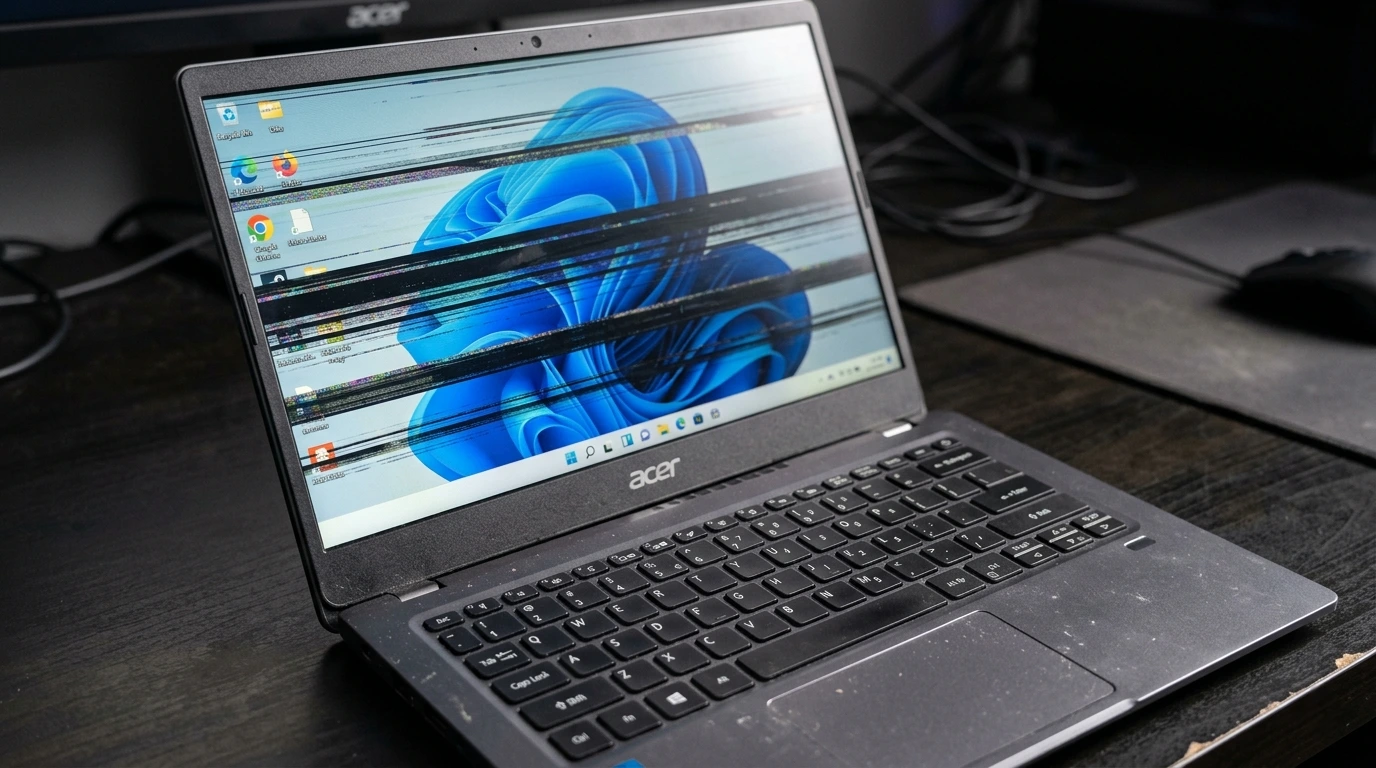
You are using your Acer laptop and the screen starts flickering. It may be a rapid flash, a slow strobe, or the display shaking up and down. It gets worse when you watch videos or play games.
QUICK ANSWER: Acer laptop screen flickering is caused by an outdated graphics driver, a loose display cable at the hinge, GPU overheating, a refresh rate mismatch, or a failing LCD backlight. Most cases are software-related and free to fix. Open Task Manager first: if it flickers too, the graphics driver is the cause; if it stays stable, a specific app or display setting is to blame.
Step 1: Diagnose the Flickering Correctly

Correct diagnosis takes two minutes and saves you from chasing the wrong fix. Run all four tests below in order before touching any settings.
Task Manager Test
Press Ctrl + Alt + Delete and open Task Manager. Watch whether it flickers along with everything else on screen. If Task Manager flickers, the graphics driver or a system conflict is the cause; if it stays stable, a specific app or display setting is to blame.
External Monitor Test
Connect your Acer to an external monitor via HDMI. If the external display stays clean, the problem is in the internal panel or its cable connection. If the external monitor also flickers, the GPU or its display driver is the source.
Lid Angle Test
Slowly open and close the lid while watching the screen. If flickering changes intensity or stops at certain angles, a damaged display cable inside the hinge is the cause. This is especially common on Aspire, Nitro, and Swift models where the cable path bends tightly at the hinge joint.
Charger Plug Test
Unplug the charger while the laptop is running and watch for changes. If flickering stops immediately, the charger or a power management setting is the cause. Multiple Acer Aspire 7 users reported exactly this behavior in 2025, pointing to GPU power state switching as the trigger.
Diagnosis Table
| What You See | Likely Cause |
| Task Manager also flickers | Graphics driver or system conflict |
| Task Manager stable, desktop flickers | App or display setting issue |
| External monitor also flickers | GPU driver or hardware fault |
| External monitor clean | Laptop display panel or cable |
| Flickering changes with lid angle | Damaged display cable at hinge |
| Stops when charger unplugged | Power management or faulty charger |
| Worse when watching videos | GPU under load, driver issue |
| Only at low brightness | Backlight PWM flicker or driver calibration needed |
What Causes an Acer Laptop Screen to Flicker?

Outdated or Corrupted Graphics Driver (Most Common)
An outdated or corrupted GPU driver is the leading cause of Acer laptop screen flickering and the fastest to resolve. A display driver conflict with a recent Windows update causes rapid flickering that worsens under graphics load. Updating or doing a clean reinstall of the driver fixes this in the majority of cases.
Damaged or Loose Display Cable
The display cable runs from the motherboard through the hinge to the LCD panel, and repeated lid movement stresses it over time. On Acer Aspire models the cable path is particularly tight and prone to pinching near the hinge, making laptop hinge cable damage one of the most reported hardware causes. A frayed or loosely seated cable sends inconsistent signals that produce flickering which shifts when you adjust the lid angle.
Incorrect Refresh Rate Setting
Acer gaming laptops like the Nitro 5 and Predator Helios support multiple refresh rates including 60Hz, 144Hz, and 165Hz. When Windows is set to a rate the panel does not natively support, a refresh rate mismatch causes the screen to flicker trying to keep up. Correcting this in Display Settings takes under a minute and often clears the problem immediately.
GPU Overheating
A GPU running too hot under sustained gaming or video loads throttles its output and produces unstable display signals. Flickering that appears only during heavy use and clears after the laptop cools is a strong sign of GPU thermal stress. Blocked vents and accumulated dust are the main causes of GPU overheating on Acer laptops.
Incompatible or Conflicting Application
Some applications including antivirus tools, screen recorders, and older games use aggressive GPU access that clashes with the display driver. If flickering started after you installed a specific program, that app is likely the trigger. Uninstalling or updating the application usually clears the display driver conflict immediately.
Windows Power Management Conflict
Acer laptops adjust GPU power states automatically when you connect or disconnect the charger, and this GPU power state switching can trigger a brief or sustained flicker. This is most common on Acer Aspire 7 models where the transition between performance modes is abrupt. Setting PCI Express Link State Power Management to Off in Advanced Power Settings stops the problem.
Failing LCD Backlight or Panel
If every software fix fails, the backlight or LCD panel itself may be degrading. Backlight failure typically appears as low-frequency flickering at moderate brightness levels that worsens progressively. This requires a laptop screen repair and is the least common cause on this list.
If the backlight issue has progressed to the point where part of your screen is completely white, see our guide on Laptop Display Half Screen White: Causes and Fixes for what to do next.
How to Fix Acer Laptop Screen Flickering

Work through these fixes in order from free to paid.
Update or Reinstall the Graphics Driver
Right-click the Start button, open Device Manager, and expand Display Adapters. Right-click your GPU and choose Update Driver, then Search Automatically. If that does not resolve the display driver conflict, select Uninstall Device, restart your laptop, and let Windows reinstall the driver fresh.
For NVIDIA, download from nvidia.com/drivers; for AMD from amd.com/support; for Intel integrated graphics, use the Intel Driver Support Assistant. A clean reinstall is more thorough than an update and resolves corruption that an in-place update misses.
If your Acer is not just flickering but is stuck on the boot screen entirely, read our guide on Acer Loading Screen Stuck: Causes and Fixes for a separate set of fixes.
Change the Screen Refresh Rate
Right-click the desktop and open Display Settings, then click Advanced Display. Set the refresh rate to the native rate for your model: 60Hz for most Acer Aspire screens, and 144Hz or 165Hz for Nitro 5 and gaming models. If flickering continues, try switching between the available rates to eliminate the refresh rate mismatch on your panel.
Disable Hardware Acceleration in Problem Apps
If flickering only happens in Chrome or Edge, turn off hardware acceleration in that app. In Chrome, go to Settings > System and toggle off “Use hardware acceleration when available,” then relaunch the browser. In Edge, find the same option under Settings > System and performance. This forces software rendering and eliminates the GPU driver conflict.
Clean Acer Laptop Vents and Monitor GPU Temperature
Power off the laptop and use compressed air to clear all vents and fan grilles from the outside. Download HWiNFO64 (free for Windows) to monitor GPU temperature while running games or video. If the GPU consistently exceeds 90 degrees Celsius, thermal throttling is causing the display instability and professional cleaning with thermal paste reapplication costs $50 to $80.
Adjust Power Plan Settings
Right-click the battery icon and select Power Options, then switch from Power Saver to Balanced or from Balanced to High Performance. If flickering happens specifically when connecting or disconnecting the charger, go to Advanced Power Settings and set PCI Express Link State Power Management to Off. This stops the GPU power state switching that triggers the flicker.
Check for Windows and Acer Updates
Open Settings > Windows Update and install all available updates. Then run Acer Care Center to install Acer-specific display and chipset driver updates that Windows Update does not always include. Acer regularly releases display patches for Aspire, Nitro, and Swift models through support.acer.com.
Reseat or Replace the Display Cable
If the lid angle test confirmed laptop hinge cable damage, a technician opens the hinge area and reseats or replaces the display cable. Step-by-step guides for Acer Aspire and Nitro models are available on iFixit.com. The replacement cable costs $10 to $30 and labor at a local shop adds $30 to $50, making this far cheaper than a full screen replacement.
Check Acer Warranty Coverage
Before spending anything on laptop screen repair, check your warranty at support.acer.com using your serial number. Screen flickering that appears under normal use without physical damage qualifies as a manufacturing defect and should be covered. Acer Care Plus extends standard coverage if you purchased it at the time of buying your laptop.
| Acer Model Series | Warranty Coverage | Out-of-Warranty Screen Cost |
| Acer Aspire (budget) | 1 year standard | $100 to $220 third-party |
| Acer Nitro 5 and 16 (gaming) | 1 year standard | $150 to $280 third-party |
| Acer Swift (thin and light) | 1 year standard | $120 to $250 third-party |
| Acer Predator (performance) | 1 year standard | $200 to $400 third-party |
| Acer Chromebook | 1 year standard | Different repair process |
Third-party certified shops typically charge 30 to 50% less than Acer service centers. Always get a written warranty on parts and labor before approving any repair.
Acer Models and Their Common Flickering Causes

| Acer Model | Most Common Flickering Cause | Quick First Fix |
| Acer Aspire 5 and 7 | GPU driver conflict, display cable | Update GPU driver, check cable |
| Acer Nitro 5 and 16 | Refresh rate mismatch, GPU overheating | Set correct refresh rate, clean vents |
| Acer Swift 3 and 5 | Display cable at thin hinge | Lid flex test, cable inspection |
| Acer Predator Helios | GPU driver, high refresh rate setting | NVIDIA driver update, refresh rate check |
| Acer Chromebook | Chrome OS display bug or cable issue | Chrome OS update, cable check |
How to Prevent Screen Flickering on Acer Laptops

Keep GPU drivers updated by downloading directly from NVIDIA, AMD, or Intel rather than relying on Windows Update alone. Use Acer Care Center regularly to catch Acer-specific display and chipset updates that Windows misses. Clean your laptop vents with compressed air every three to four months to prevent GPU overheating that triggers display instability.
Open and close the lid gently every time, since rough hinge use is the leading cause of laptop hinge cable damage on Aspire and Swift models. Set the correct screen refresh rate when you first set up the laptop, as Acer gaming laptops often ship with Windows defaulting to 60Hz even on 144Hz or 165Hz panels. Create a system restore point before any GPU driver update so you can roll back immediately if a new driver causes a display driver conflict.
Frequently Asked Questions

Why does my Acer laptop screen flicker when I plug in the charger?
When you connect or disconnect the charger, the GPU switches power states and the transition triggers a flicker or sustained flickering. Go to Power Options > Advanced Settings > PCI Express > Link State Power Management and set it to Off. Also update the GPU driver and Acer power management driver from support.acer.com to rule out a driver-related trigger.
Why does my Acer Nitro 5 screen flicker during gaming?
The most common causes are a refresh rate mismatch or a display driver conflict under load. Set Windows to the native refresh rate of your Nitro 5 screen (144Hz, 165Hz, or 360Hz depending on the model) in Display Settings > Advanced Display, then update the GPU driver directly from NVIDIA or AMD. If flickering continues, check GPU temperature with HWiNFO64 and clean the vents to rule out thermal throttling.
Does Acer warranty cover screen flickering?
Yes, if the flickering results from a manufacturing defect or component failure under normal use without physical damage. The standard Acer warranty lasts one year and you can verify your specific coverage at support.acer.com with your serial number. Always check before paying for any laptop screen repair.
Can a graphics driver update cause screen flickering on Acer laptops?
Yes, certain GPU driver versions have known incompatibilities with specific Acer display panels. If a display driver conflict started right after an update, roll it back via Device Manager > Display Adapters > your GPU > Properties > Driver > Roll Back Driver. This restores the previous working version in under a minute.
How much does it cost to fix screen flickering on an Acer laptop in 2026?
Software fixes are free. Display cable reseating costs $30 to $80. A full laptop screen repair runs $100 to $400 depending on the Acer model. Third-party certified shops charge 30 to 50% less than Acer service centers, so always compare before committing to any repair.
Why is my Acer laptop screen flickering only at low brightness?
Low-brightness flickering is caused by PWM (Pulse Width Modulation), which is how many LCD backlights dim the screen by rapidly cycling on and off. Using the laptop at medium to high brightness reduces PWM intensity and the visible flicker. A display driver update or an ICC color profile adjustment can also reduce PWM sensitivity on affected Acer panels.
Final Verdict
Acer laptop screen flickering comes down to two causes in the vast majority of cases: a display driver conflict or laptop hinge cable damage. Start with the Task Manager test and the charger unplug test to narrow it down in under two minutes. Update the GPU driver first, then check the refresh rate setting and run the lid angle test if the driver fix does not work.
Always check your Acer warranty at support.acer.com before paying for any hardware repair. Flickering on Acer laptops under one year old is almost always covered as a manufacturing defect, so checking takes 30 seconds and could save you hundreds.
| About the Author Ben is the founder of screenproblems.com, a resource dedicated to diagnosing and solving display issues on all devices. All content is written without brand sponsorship. Every recommendation is based on what actually works. |