

Blue dots on a phone screen are most commonly caused by stuck pixels, physical pressure damage to the display panel, or a temporary software glitch. In many cases, you can fix them at home using a pixel-fixing video or a simple restart with no tools required. If the dots appeared after a drop or water exposure, the display hardware may be physically damaged and will need professional attention.
You picked up your phone this morning, and there it was a stubborn little cluster of blue dots sitting right on your screen, refusing to move no matter what you tap or swipe. It’s confusing, annoying, and just a little bit alarming. The good news is that blue dots on a phone screen have a handful of well-known causes, and most of them have a fix you can try in the next five minutes.
What Causes Blue Dots on a Phone Screen?
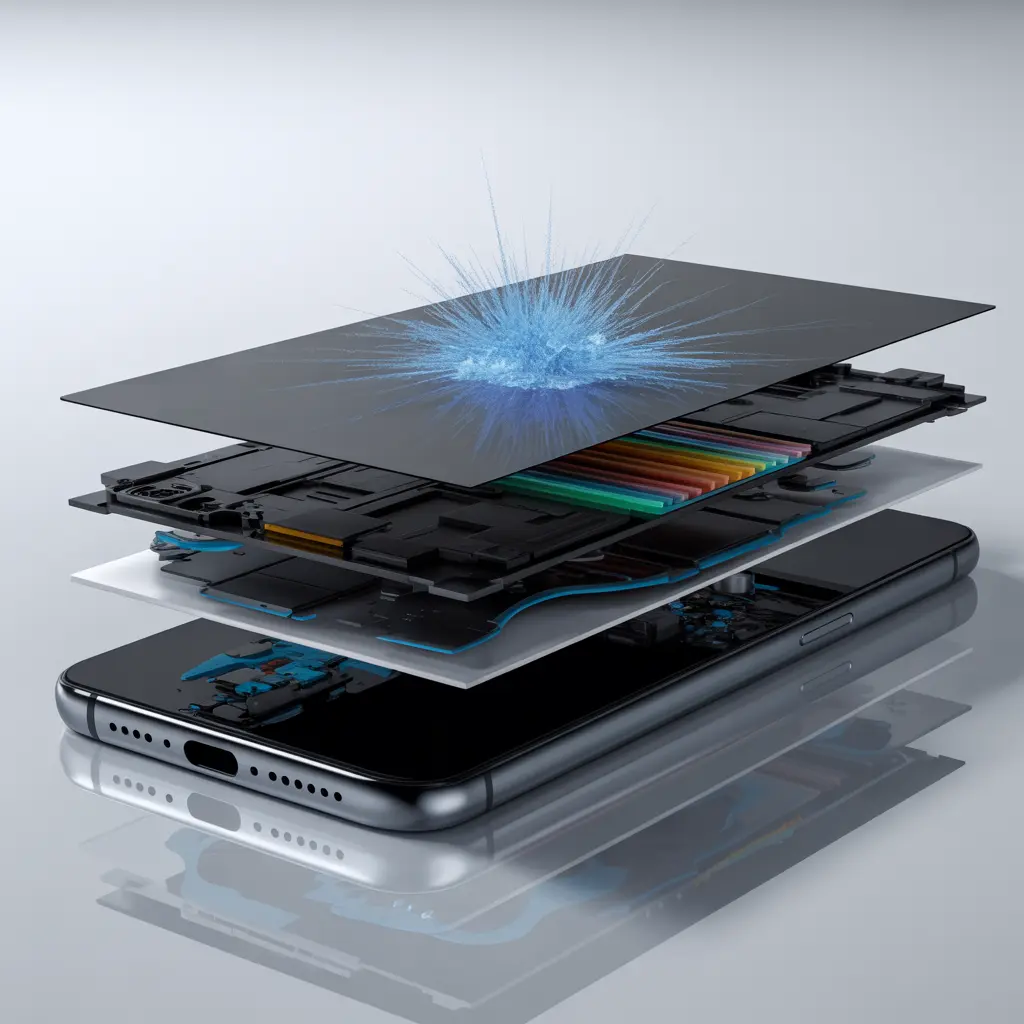
Stuck or Dead Pixels
A stuck pixel is a pixel that gets locked on a single color in this case, blue. Unlike a dead pixel, which shows up as a black dot, a stuck pixel on phone screens still receives power but fails to cycle through colors the way it should. To confirm this, open a solid white image and then a solid black one if the blue dot stays in exactly the same spot on both, you have a stuck pixel.
Physical Pressure or Screen Damage
Sitting on your phone, squeezing it too hard in a case, or bending it in your pocket can cause screen pressure damage to the LCD or OLED panel underneath the glass. This internal damage often shows up as a blue smear, blotch, or pixel cluster problem in the affected area. If the dot appeared right after your phone took some pressure, this is your most likely cause.
📖 Related: Green Line on Phone Screen: What It Means and How to Fix It
Software Glitch on Screen
Not every blue dot means hardware damage; sometimes a rogue app or GPU bug creates a visual artifact that looks exactly like a stuck pixel. This type of software glitch on screen is temporary and not a sign of physical damage. If the dot disappears after a restart or only shows in specific apps, you’re dealing with software, not hardware.
Water or Moisture Damage
Water getting inside your phone can corrode the display connector or interfere directly with the panel’s circuitry. This often creates blue blotches, discolored spots, or touch screen anomaly behavior in the damaged area. If your phone was near water, rain, or humidity before the dots appeared, moisture damage is a very likely suspect.
Manufacturing Defect or OLED Screen Defect
Some devices ship with a minor OLED screen defect that only becomes visible weeks or months after purchase. These are rare but documented, especially on certain mid-range Android models. If your phone is relatively new, was never dropped, and was never near water, check whether it’s still under the manufacturer’s warranty. This situation is exactly what warranties exist for.
How to Diagnose at Home
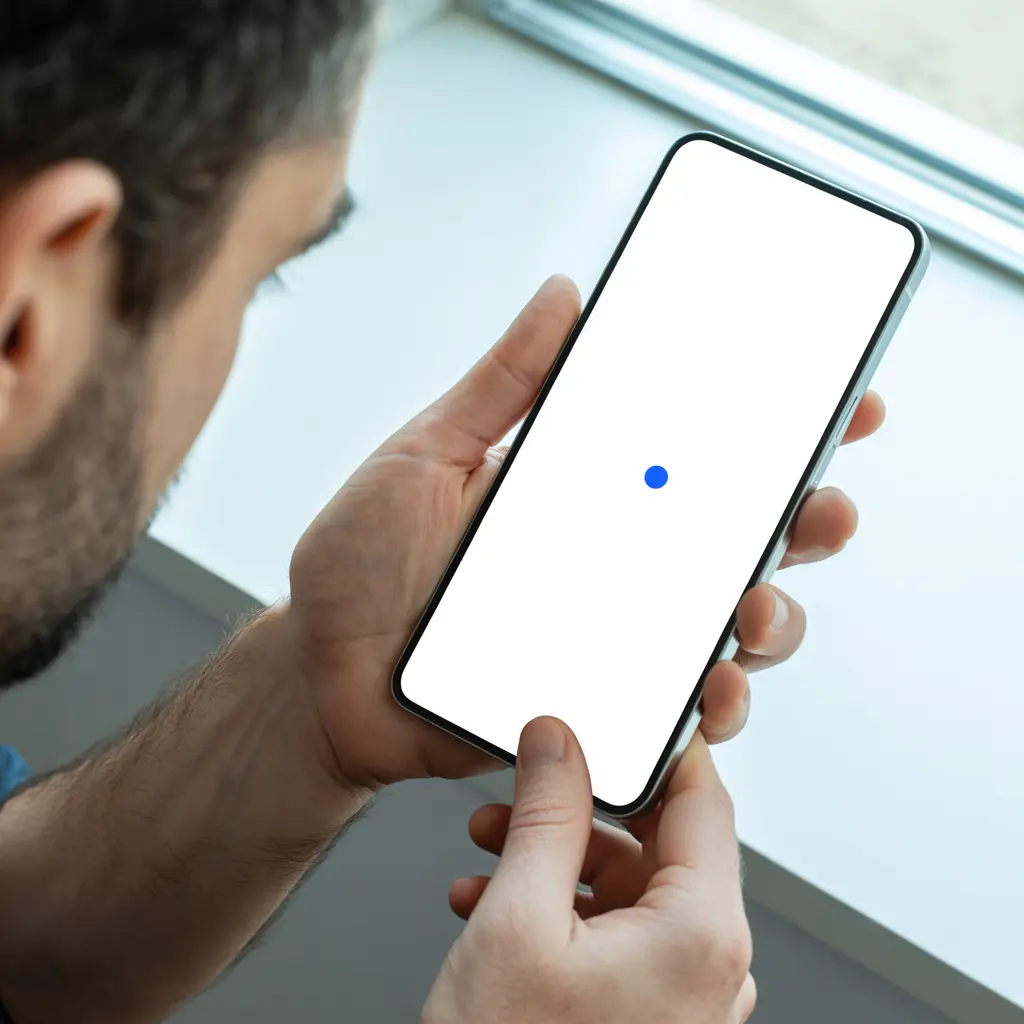
Step 1 Test on a solid white and black screen. Open your camera app or a blank webpage and look for the blue dot. Then switch to a fully black background. If it appears on both, you’re likely dealing with a stuck pixel or display hardware fault, not a rendering error.
Step 2: Restart the phone. A full restart clears GPU memory and temporary software artifacts. If the blue dot disappears after a reboot, the cause was a software glitch. No hardware fix is needed at all.
Step 3 Run a free pixel test. Search “dead pixel test” in your phone browser. Several free tools cycle your screen through solid colors and quickly reveal any pixel cluster problem. This is the fastest way to confirm whether you’re dealing with a true stuck pixel.
Step 4 Inspect the screen for physical signs. Look at the dot under bright light. If you notice a spreading smear, a bruised-looking area, or slight discoloration beyond the dot itself, that points to screen pressure damage or internal cracking.
Step 5 Recall recent events. Was your phone dropped? Left in the sun? Exposed to water? Squeezed in a tight bag? Your recent history is the most reliable clue. If nothing happened and the phone is brand new, go straight to contacting your manufacturer.
How to Fix Blue Dots on a Phone Screen
Soft Reset | Free
Hold your power button, tap Restart, and wait 30 seconds before checking the screen again. This takes less than a minute and resolves any display hardware fault caused by a software conflict. It should always be your very first step.
Pixel Fixer Video | Free
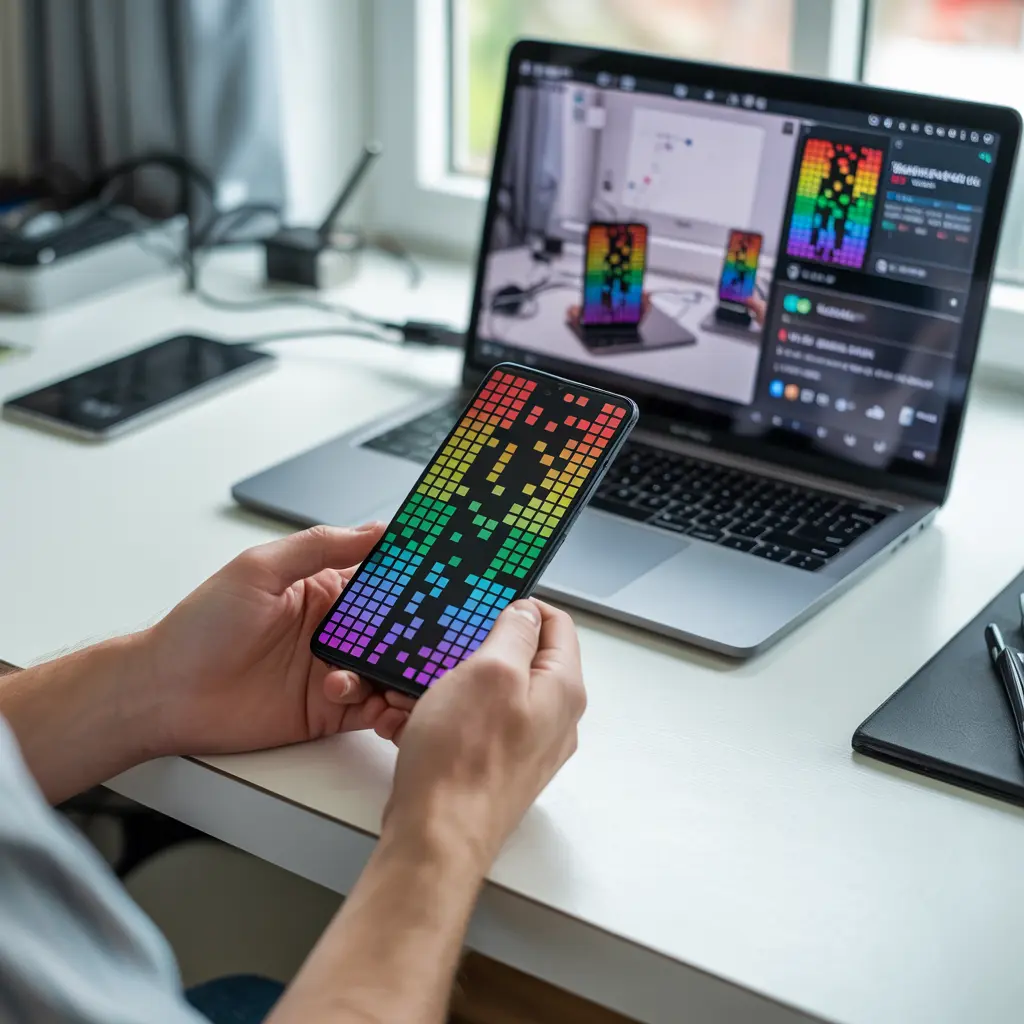
Search “pixel fixer video” on YouTube. These videos rapidly cycle through colors at high speed, which can unstick a locked pixel by forcing it to switch states. Play the video at full brightness on full screen and let it run for 10–30 minutes this method works surprisingly well on fresh stuck pixels.
Gentle Pressure Technique | Free
Power off your phone completely. Wrap your fingertip in a soft microfiber cloth and apply light, circular pressure directly over the stuck pixel for about 10–15 seconds. This can help re-seat the liquid crystal layer in LCD screens that do not press hard enough to stress the glass.
Software Update | Free
Go to Settings > Software Update and install any available updates. Manufacturers regularly push patches for known phone display issues, including screen burn on phone and display rendering bugs that look identical to stuck pixels. A pending update could fix this without you touching the screen at all.
Factory Reset | Free
If the dot shows up across all apps and a pixel test confirms nothing physically wrong, a factory reset can rule out a deep system-level issue. Back up everything first, then go to Settings > General Management > Reset > Factory Data Reset.
Screen Replacement | Paid / Technician
If nothing above works, the OLED or LCD panel has a physical fault that only a replacement will fix. A screen replacement at a certified shop costs between $80–$250 depending on your device model. Get quotes from at least two reputable shops and always ask whether they use OEM-grade panels.
When to See a Professional
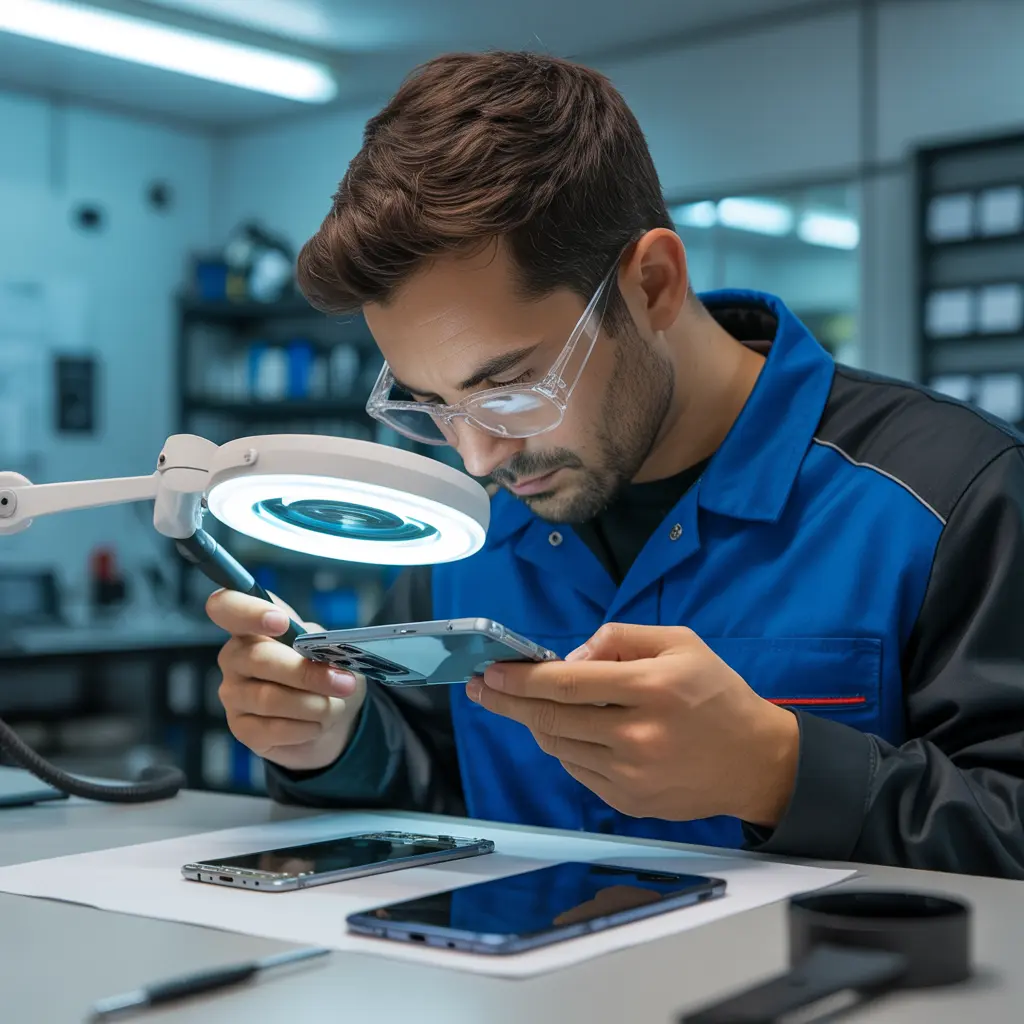
If the blue dot has grown in size since you first noticed it, do not wait spreading dots are a sign of progressive display hardware fault that will get worse with continued use. The same urgency applies if you notice multiple new dots appearing, the screen flickering, or the touch becoming unresponsive near the affected area.
Before you pay anyone anything, check your warranty. Most manufacturers cover display defects within the first 12 months, and many carriers offer phone insurance that covers screen damage. Visit an authorized service center first and third-party repairs can void your warranty on certain devices.
Apple users should book a Genius Bar appointment directly. Samsung, OnePlus, and other Android users should visit their brand’s official service center to protect their warranty status and ensure a proper dead pixel repair with quality parts.
📖 Related: White Spots on Phone Screen: Causes, Diagnosis, and Fixes
Prevention Tips
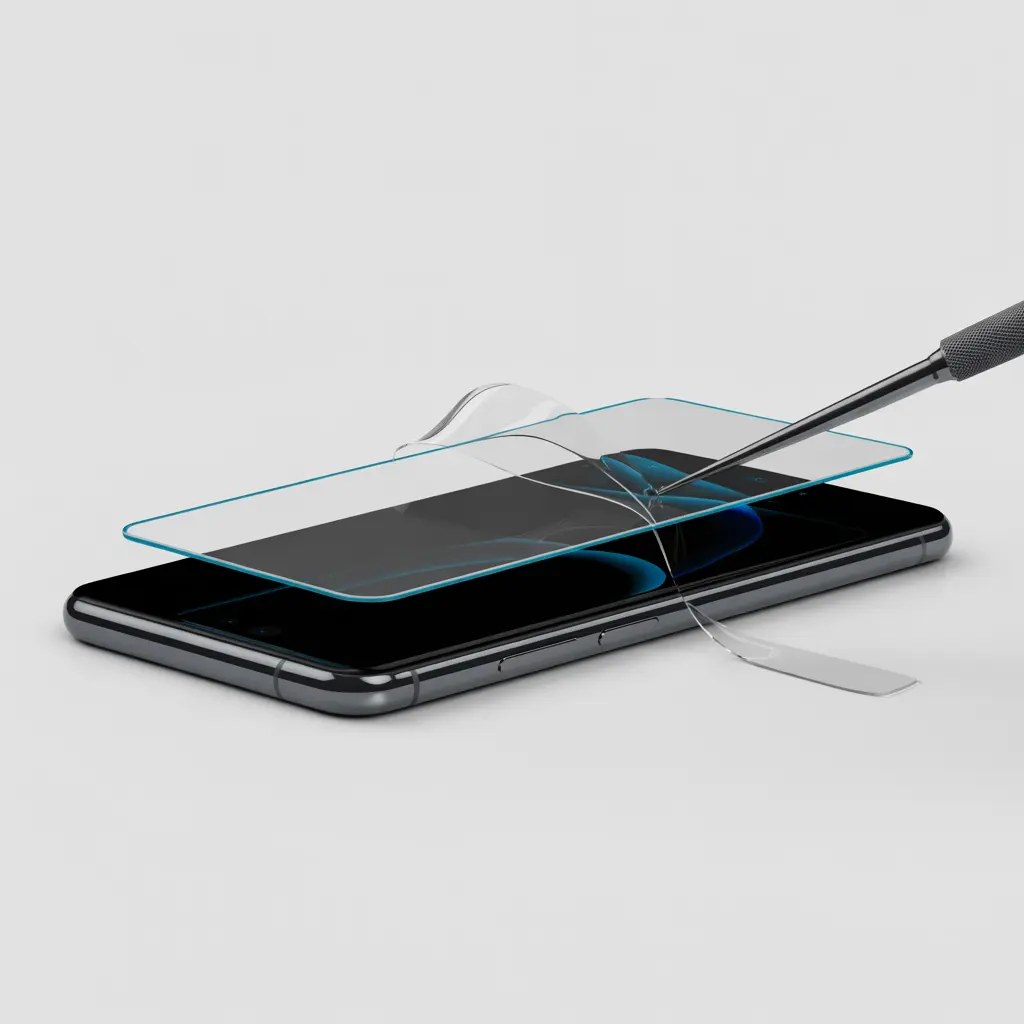
- Always use a tempered glass screen protector it absorbs impact and reduces direct stress on the display panel.
- Avoid keeping your phone in tight jeans pockets; sustained pressure is one of the most common causes of stuck pixels on phone screens.
- Keep your phone away from heat and direct sunlight. High temperatures accelerate OLED screen defects and can shorten panel lifespan significantly.
- Never use your phone in rain or high humidity unless it has a verified IP67 or IP68 rating and a waterproof case.
- Update your phone’s software regularly to patch known display rendering bugs before they create visible artifacts on screen.
- If your screen cracks even slightly, get it repaired quickly. A cracked sub-layer lets moisture in and creates the perfect conditions for a pixel cluster problem to develop.
Frequently Asked Questions

Can blue dots on a phone screen go away on their own?
Sometimes if the cause is a temporary software glitch or a mildly stuck pixel, the dot can clear up after a restart or within a few days. However, dots caused by physical damage or a true dead pixel will not heal without intervention. Use the pixel fixer video method as your first real attempt at a fix.
Are blue dots a sign my phone screen is dying?
Not always. A single blue dot is usually a stuck pixel or minor phone display issue not a sign of total screen failure. But if the dots multiply, spread outward, or come with flickering and touch screen anomaly behavior, treat it seriously and get the phone checked immediately.
Will a screen replacement fix blue dots permanently?
Yes, a quality screen replacement using an OEM or high-grade compatible panel will fully resolve the issue. Make sure the repair shop uses a panel rated for your exact device model to avoid new touch screen anomaly problems after the repair.
Is it safe to keep using my phone with blue dots on the screen?
In most cases, yes your phone remains fully functional. But if the dots were caused by water damage or internal pressure, continuing to use the device without repair can worsen the fault and eventually cause complete display hardware fault or full screen failure.
Editor Note screenproblems.com
- Reviewed for technical accuracy by the screenproblems.com editorial team.
- All fixes verified against current device software and firmware versions.
- Pricing reflects current market rates and may vary by region.
- This article will be updated whenever new fixes are confirmed.
- For unresolved issues, visit the Contact Us page with your device details.
About the Author Ben | Founder, screenproblems.com
- Ben has 10 years diagnosing display hardware and software issues.
- All content is written from direct technical experience, not sourced from other websites.
- Ben always prioritizes free fixes before recommending any paid repair.