
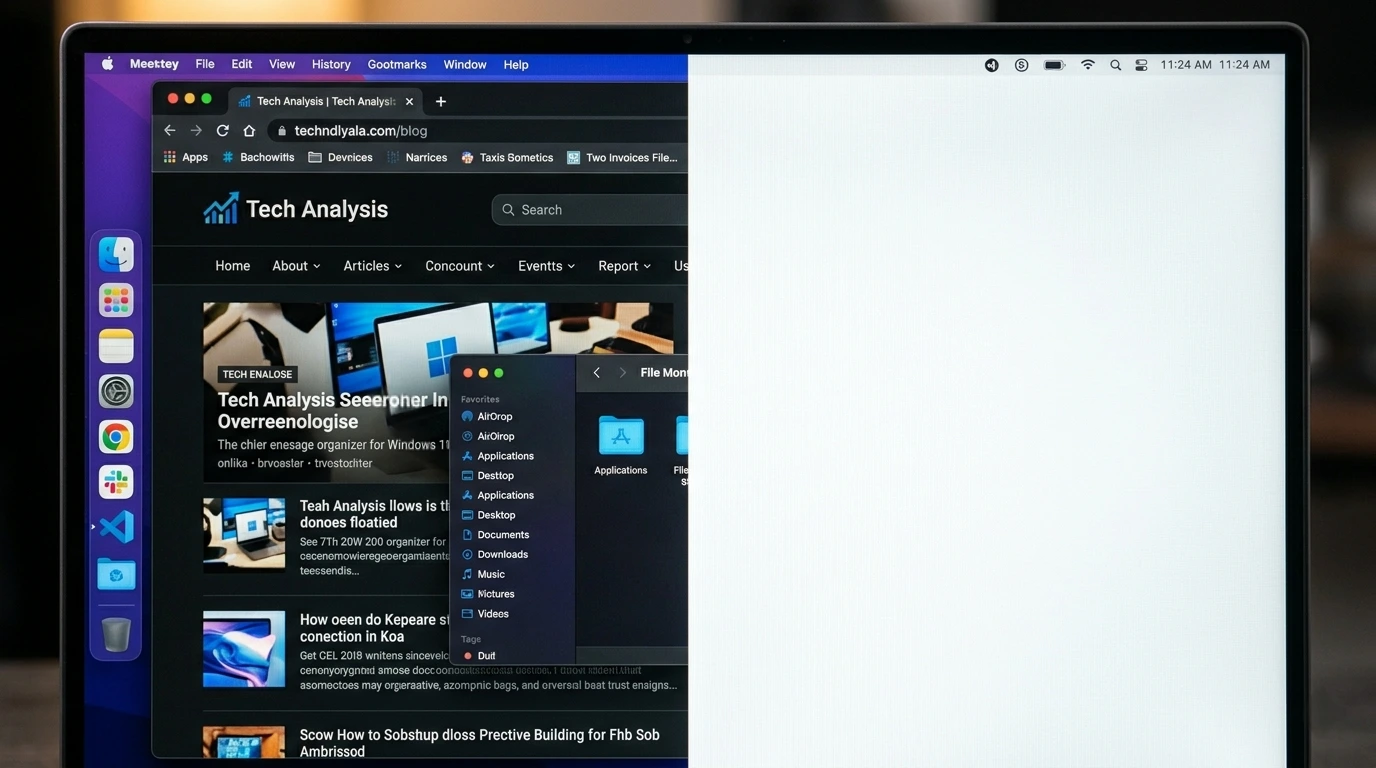
You open your laptop and half the screen is white while the other half shows the display normally. The white half does not respond to what is on screen. It stays there no matter what app you open.
A laptop display showing half screen white is caused by a damaged or loose display cable inside the hinge, a cracked LCD panel, a failed graphics driver, or physical pressure damage to the LCD layer. The white half means that section of the screen is receiving no signal or corrupted signal from the display controller.
Do this first: take a screenshot and open it on another device. If both halves of the screen appear correctly in the screenshot with no white area, the cause is a hardware failure in the physical display. If the white area appears in the screenshot, the cause is a GPU or software rendering issue.
Step 1: Diagnose the Half White Screen

Correct diagnosis takes two minutes and prevents wasted money on the wrong repair.
Screenshot Test
Press Windows + Print Screen or Command + Shift + 3 on Mac. Open the image on another device. If the screenshot shows a normal full image with no white area, the display hardware or cable is at fault. If the white half appears in the screenshot, the GPU or its drivers are producing the faulty output.
External Monitor Test
Connect the laptop to an external monitor via HDMI or USB-C. If the external monitor shows a full clean image, the problem is in the laptop display panel or its internal cable. If the external monitor also shows white or a corrupted image, the GPU is the cause.
Lid Angle Test
Slowly open and close the laptop lid while watching the screen. If the white area changes, shrinks, or temporarily shows the display at certain lid angles, a damaged display cable at the hinge is the confirmed cause. This is one of the most common causes of half screen issues on laptops.
Diagnosis Table
| What You See | Likely Cause |
| White half not in screenshot | Physical display cable or LCD panel failure |
| White half visible in screenshot | GPU or graphics driver fault |
| Full image on external monitor | Laptop display or cable problem |
| White half on external monitor too | GPU hardware failure |
| White area shifts when lid moves | Damaged cable at hinge |
| Top half white, bottom half normal | LCD panel fracture or cable signal loss |
| Appeared after drop or pressure | Physical LCD damage |
| Appeared after driver update | GPU driver conflict |
What Causes Half Laptop Screen to Turn White?

Damaged Display Cable (Most Common)
This is the most frequent cause of a half white screen on laptops. A thin ribbon cable runs from the motherboard through the hinge to the display panel. Every time you open and close the lid, this cable flexes. Over time, it develops micro-fractures or becomes partially disconnected. When half the cable signals fail, exactly half the screen loses its image and turns white. A key sign is the white area shifting when you flex the lid. Cable repair typically costs $30 to $80 at a local shop, far cheaper than a full screen replacement.
Cracked or Fractured LCD Panel
A drop, a hard knock, or pressure on the closed lid can crack the LCD matrix internally without visibly shattering the outer glass. The crack disrupts signal transmission to the affected rows or columns of pixels. The result is a sharp horizontal or vertical boundary where normal display ends and a solid white area begins. Physical damage creates a fixed white area that does not change regardless of software fixes. Screen replacement is the only solution.
Pressure Damage to LCD Layer
Sustained pressure from a tight bag, a heavy object on the lid, or carrying the laptop against a hard surface compresses the liquid crystal layer inside the LCD panel. The compressed liquid crystals scatter and stop receiving display signals properly, creating a white or washed-out area that covers part of the screen. Unlike a visible crack, pressure damage has a less defined boundary and may look milky or cloudy rather than sharply white.
GPU Driver Failure
A corrupted, outdated, or newly installed graphics driver can cause the GPU to output incorrect display data to part of the screen. This type of half white screen appears in screenshots and typically appears on the same portion of the screen across all apps. Rolling back or reinstalling the GPU driver resolves this completely in most cases.
Loose or Failed Display Controller Connection
Inside the laptop, the display is connected not only by a cable but also by a connector at the back of the LCD panel. If this connector becomes loose or corroded, part of the screen loses its connection and turns white. This can happen from a drop, from thermal expansion and contraction over time, or from manufacturing stress. A technician can reseat this connection for a low cost.
GPU Hardware Failure
In serious cases, the GPU itself is failing and producing incorrect output to half the screen. This is confirmed if the white area appears on an external monitor as well. GPU failure requires a motherboard repair or replacement, which is significantly more expensive than a display cable or screen fix.
How to Fix a Half White Laptop Screen

Work through these fixes in order. Free software fixes first. Hardware repair last.
Restart the Laptop
Hold the power button and select Restart. A full restart resets the GPU and display driver. If the white half disappears after restart and does not return, a temporary software glitch caused it. If it returns immediately or is present from the moment the laptop boots, the cause is hardware.
Update or Reinstall the GPU Driver
On Windows, right-click the Start button and open Device Manager. Expand Display Adapters, right-click your GPU, and select Update Driver. If that does not work, select Uninstall Device, restart, and let Windows reinstall the driver. Download the latest driver directly from nvidia.com for NVIDIA GPUs or amd.com for AMD GPUs. On Mac, go to System Settings > General > Software Update since macOS packages GPU drivers with system updates. If the white half appeared right after a driver update, use Roll Back Driver in the Driver tab to revert to the previous version.
Perform a Hard Reset
Shut down the laptop completely. Remove the power cable and the battery if it is removable. Hold the Power button for 30 seconds with no power connected. Reconnect power and start the laptop. This discharges residual power from hardware components and can resolve transient display states that cause half-screen issues.
Check and Reseat the Display Cable
If the white half changes when you slowly move the lid, a loose or damaged display cable is the cause. A technician opens the laptop hinge area, locates the ribbon cable connector, and reseats or replaces it. This costs $30 to $80 at most repair shops and is the correct fix for cable-related half white screens. Do not attempt this without experience because the ribbon cable and its connectors are extremely fragile.
Connect an External Monitor as a Workaround
While arranging a repair, connect the laptop to an external monitor via HDMI or USB-C. If the external monitor shows a full clean display, you can continue working normally while the internal screen issue is addressed. Set the laptop to external display only mode in display settings if the half white screen is distracting.
Check Warranty Coverage
Before paying for any repair, check your warranty. Manufacturing defects that cause display failures under normal use are covered under the standard one-year limited warranty. Accidental damage protection plans cover physical display damage for a deductible.
| Brand | Warranty Coverage | Screen Repair Cost 2026 (Out of Warranty) |
| Dell | 1 year + Dell Premium Support optional | $150 to $400 |
| HP | 1 year + HP Care Pack optional | $130 to $380 |
| Lenovo | 1 year + Lenovo Premium Care optional | $120 to $350 |
| Apple MacBook | 1 year + AppleCare Plus $99 fee | $399 to $599 |
| ASUS | 1 year standard | $100 to $320 |
| Third-party shop (all brands) | N/A | 30 to 50% less than brand service |
Can I Fix a Half White Screen Without Replacing the Screen?
Yes, in some cases. If the cause is a GPU driver issue, the fix is free and takes minutes. If the cause is a loose display cable, a technician can reseat it for $30 to $80 without replacing the screen. If the cause is the LCD panel itself being cracked or physically damaged, a full screen replacement is the only permanent solution.
The external monitor test and screenshot test tell you definitively which scenario you are in before spending any money.
Repair vs Replace: Simple Decision

- If the cable is the cause and the laptop is otherwise in good condition, repair it. Cable repairs are cheap.
- If the LCD panel is cracked and the laptop is under 3 years old, screen replacement makes strong financial sense.
- If the laptop is 5 or more years old and screen replacement costs over 50% of its resale value, consider replacing the laptop.
- If the GPU is failing and causing the white half on an external monitor too, logic board repair or replacement is needed. At that point, compare the repair cost against a new or refurbished replacement.
How to Prevent Half White Screen Issues

- Open and close the laptop lid gently. Rough handling is the primary cause of display cable failure at the hinge.
- Never place heavy objects on the closed laptop lid. Pressure on the lid fractures the LCD panel.
- Use a padded laptop sleeve with a rigid panel when transporting. This protects the screen from pressure in bags.
- Keep GPU drivers updated. Driver conflicts that cause half-screen display errors are preventable with regular updates.
- Create system restore points before GPU driver updates. This allows instant rollback if a new driver causes display issues.
- Avoid storing the laptop with objects (books, cables, pens) between the keyboard and screen when closed.
Frequently Asked Questions

Why is exactly half my laptop screen white?
When exactly half the screen turns white, it means half of the display cable connections have failed or the LCD panel has fractured along a precise line. The display controller sends signals to the screen in sections. When one section loses its connection completely, that portion shows solid white because it is receiving no image data. The external monitor test confirms whether the display cable or the panel is at fault.
Can I fix a half white laptop screen at home?
You can fix software-caused half white screens at home for free by updating or reinstalling the GPU driver. Cable reseating is possible at home if you have electronics repair experience and the correct tools, but the display cable is fragile and one wrong move can cause permanent damage. LCD panel replacement is not recommended as a DIY project on laptops. For hardware issues, a professional technician is the safer and more reliable choice.
Does the half white screen mean my data is at risk?
No. A half white screen is a display problem, not a storage problem. Your files, photos, and data on the hard drive or SSD are completely unaffected. Connect an external monitor to continue working normally while the display is repaired.
Is a half white laptop screen covered by warranty?
Yes, if it appeared under normal use without a drop, impact, or liquid exposure. Manufacturing defects including display cable failures and LCD panel failures are covered under the standard one-year warranty. Physical damage from drops or pressure is not covered by standard warranties but is often covered by accidental damage protection plans.
How much does it cost to fix a half white laptop screen in 2026?
Cable reseating: $30 to $80. Screen replacement: $100 to $400 depending on the laptop brand and screen type. MacBook screen replacement at Apple: $399 to $599. Third-party certified shops charge 30 to 50% less than brand service centers. Always check your warranty before paying for any repair.
Final Verdict
A half white laptop screen is almost always caused by a damaged display cable or a cracked LCD panel. Both are hardware problems with clear, straightforward repair paths.
Run the screenshot test and the external monitor test first. These two checks confirm the cause in under five minutes. If the external monitor shows a clean full image, the problem is in the display or cable, not the GPU.
Check your warranty before spending money on any repair. Many users pay out of pocket for repairs covered under their existing warranty or protection plan.
| About the AuthorBen is the founder of screenproblems.com, a resource dedicated to diagnosing and solving display issues on all devices.All content is written without brand sponsorship. Every recommendation is based on what actually works. |