LCD Screen White Spot Issue: Causes, Fixes and Prevention (2026 Guide)
Updated: March 2026 | Reading Time: ~12 Min | Covers: LCD, LED, Monitor, TV, Laptop
A white spot on your LCD screen is one of the most disruptive display problems.
It does not matter whether it is a laptop, monitor, TV, or a commercial LED display. That bright patch or glowing dot is impossible to ignore and can mean very different things.
Some white spots are free to fix in minutes. Others require a panel replacement that costs hundreds of dollars.
This guide covers every type of white spot, every cause, and every fix in one place. Updated with 2026 repair costs and display technology context.
Step 1: Diagnose Your White Spot Before Touching Anything

Wrong diagnosis leads to wasted effort and can make damage worse.
Take two minutes to identify what you are dealing with before attempting any fix.
Is It a Single Dot or a Patch?
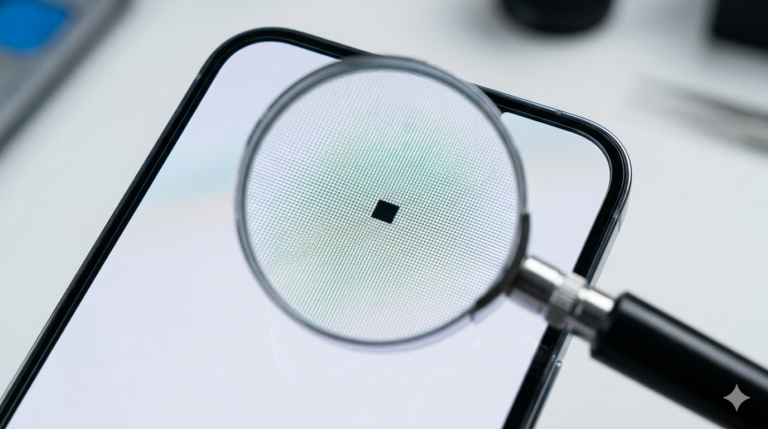
- Single pinhead-sized dot: Almost certainly a stuck or dead pixel. Software fixes may work.
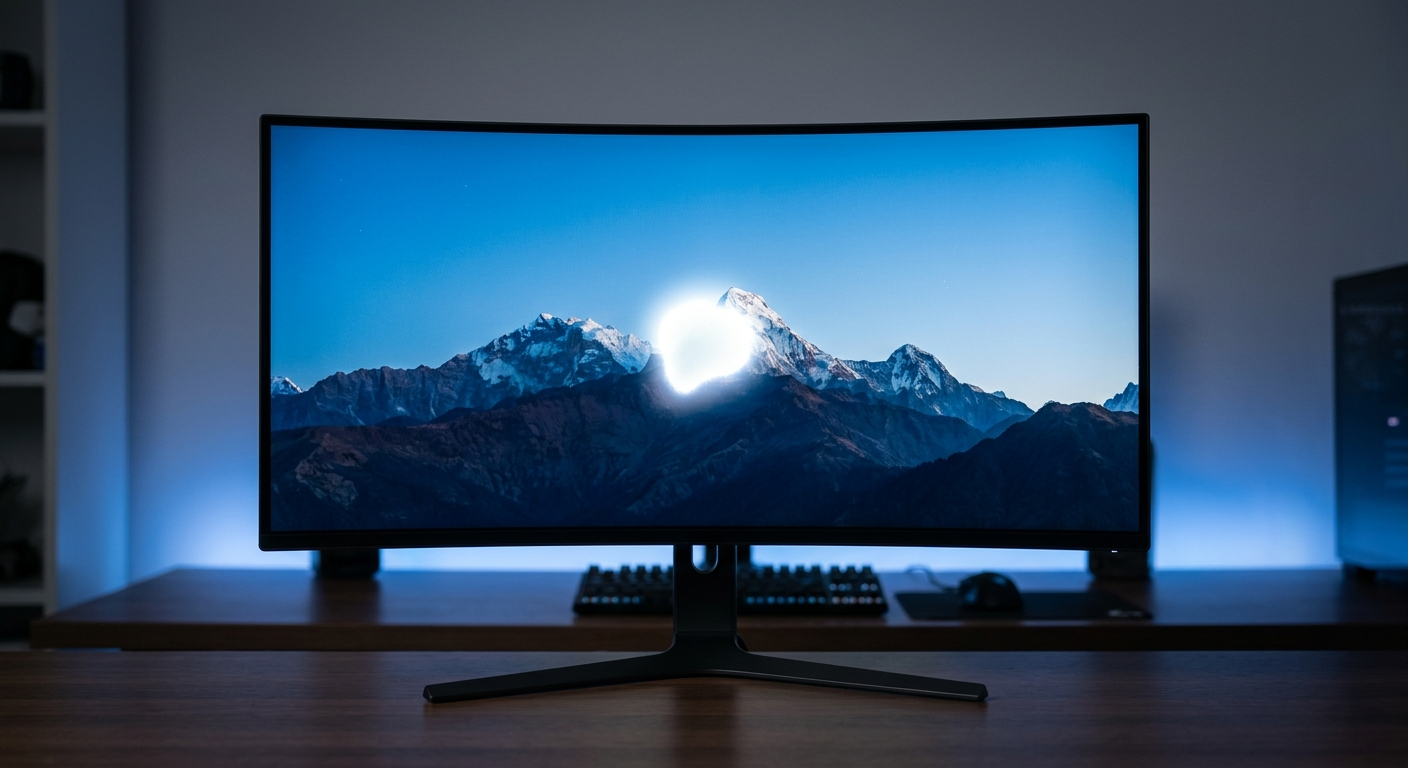
- Cloudy or milky patch (1 to 5 cm): Pressure bruising of the LCD panel. Physical damage.
- Bright glowing area near screen edge: Backlight bleeding. A backlight or diffuser layer issue.
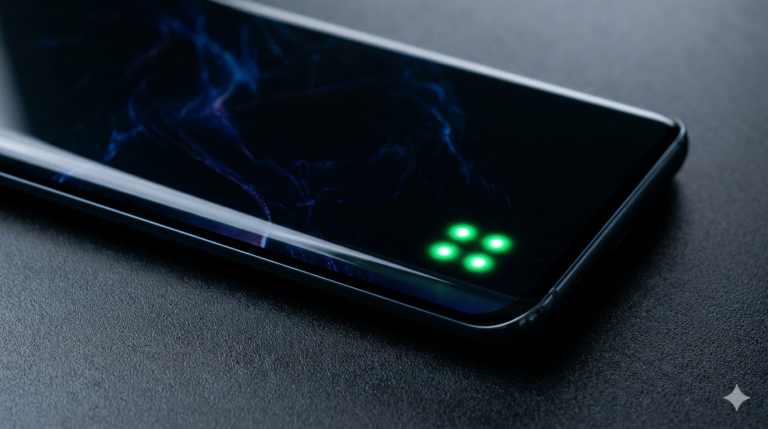
- Scattered multiple bright dots: Diffuser sheet displacement or LED hotspots inside the display.
Take a Screenshot First
Capture a screenshot using your device’s native screenshot function.
Open the file on another device and zoom into the spot area.
If the white spot is NOT visible in the screenshot, the problem is 100% in the physical hardware.
If it IS visible in the screenshot, the issue is a software or graphics rendering bug.
Test With Solid Color Backgrounds
Display a pure black image, then pure white, then solid red.
- Spot visible on black only: Stuck pixel or backlight bleed.
- Spot visible on all backgrounds: Physical panel damage or pressure bruise.
- Spot invisible in bright images: Dead pixel.
What Is a White Spot on an LCD Screen?
An LCD (Liquid Crystal Display) uses a backlight layer that shines light through liquid crystal pixels to create images.
When any part of this system fails, light escapes in the wrong place and creates a white or bright anomaly on the screen.
The display type affects what kind of white spot occurs and how it should be fixed.
LCD Screens (Laptops, Monitors, TVs)
Traditional LCDs have a shared backlight behind the panel. The backlight shines through multiple layers including a diffuser sheet, a reflector sheet, and the liquid crystal layer.
If any layer is damaged, displaced, or degraded, light leaks through unevenly and creates white patches.
LCD screens are the most vulnerable to pressure damage and backlight bleed.
LED-Backlit LCD Screens
Most modern monitors and TVs labeled as LED are actually LED-backlit LCDs. The display technology is the same as traditional LCD, but uses LEDs instead of fluorescent tubes as the backlight source.
LED-backlit screens are vulnerable to backlight hotspots when individual LEDs fail or when diffuser lenses become misaligned.
OLED Screens
True OLED displays do not use a shared backlight. Each pixel generates its own light independently.
OLED screens are immune to backlight bleeding and diffuser-related white spots.
However, OLED pixels can develop permanent bright spots from physical impact or can suffer burn-in from prolonged static images.
White spots on OLED screens are rare and almost always indicate direct physical damage.
Commercial LED Displays and Signage
Large format LED display walls use individual LED modules. White spots on these displays are usually caused by a faulty LED chip, a driver failure, or a damaged module.
These are modular systems, so repairs typically involve replacing the affected module rather than the entire display.
Common Causes of White Spots on LCD and LED Screens
1. Pressure Damage

This is the single most common cause of white spots on laptop and monitor screens.
Pressing on the screen surface compresses the liquid crystal layer beneath. The crystals misalign permanently and create a milky, cloudy white patch.
The damage often appears hours after the pressure event, which makes it confusing to trace.
Common causes include a heavy object placed on a closed laptop, transporting a laptop in an overstuffed bag, or pressing the screen frame too hard.
2. Backlight Diffuser Sheet Displacement
The diffuser sheet is a thin optical film that spreads backlight evenly across the display.
If this sheet shifts position due to physical shock, aging adhesive, or thermal expansion, it creates concentrated bright spots or patches on the screen.
This is a very common cause of white spots on LCD TVs, particularly 40-inch and larger screens where the diffuser sheet spans a greater area.
3. Stuck or Dead Pixels
A stuck pixel is a pixel that is permanently “on” and displays a constant white, red, green, or blue color regardless of the image.
A dead pixel receives no power and appears as a permanent black dot.
Stuck pixels sometimes respond to software pixel-fixing tools. Dead pixels require a screen replacement to resolve.
4. LED Backlight Failure or Hotspot
Individual LED chips in the backlight can fail in a way that creates a concentrated bright spot directly above them.
This appears as a distinct circular or oval bright patch, typically 2 to 5 cm in diameter.
It is more common in budget TVs and monitors where fewer LEDs are used and each covers a larger area.
5. Dust or Debris Between Screen Layers
Microscopic particles that enter between the display layers during manufacturing or a screen repair can create bright spots.
The particle scatters or reflects the backlight, making a small area appear permanently brighter than the surrounding screen.
If white spots appeared after a recent screen repair, trapped debris is a likely cause.
6. Aging and Thermal Stress
LCD panels used at high brightness levels for extended periods degrade unevenly over time.
The liquid crystal material deteriorates faster in areas of peak brightness. This creates persistent white or yellow-white patches in the center of the screen after years of use.
This type of degradation is gradual and worsens slowly over months.
7. Manufacturing Defects
Some white spots are present from the day the display is first used.
These are manufacturing defects involving uneven LCD cell gaps, substandard diffuser sheets, or misaligned optical films.
They are covered under the manufacturer warranty and should be reported immediately.
How to Fix White Spots on an LCD Screen
Fix 1: Rule Out Software Causes
Before touching the hardware, eliminate software as a cause.
- Update your graphics driver via Device Manager (Windows) or System Preferences (Mac).
- Roll back to a previous driver version if the spot appeared right after a driver update.
- Connect an external monitor. If the spot is absent on the external display, the issue is in your panel or cable, not the GPU.
Fix 2: Try Pixel-Fixing Software for Stuck Pixels

Pixel-fixing tools rapidly cycle colors on screen to electrically stimulate frozen pixels back into operation.
- JScreenFix.com: Free browser-based tool. Works on any device with a browser. Drag the flashing box over the white dot and run for 20 to 30 minutes.
- PixelHealer (Windows): Free desktop app with more precise control over the affected area.
- UDPixel (Windows): Older but effective free tool for stubborn stuck pixels.
Success rate is approximately 60% for soft stuck pixels. If a pixel does not respond after three sessions, it is a hardware issue.
Fix 3: Gentle Pressure Technique for Stuck Pixels
Only attempt this for a single small stuck pixel dot. Do not use this technique on a cloudy patch, backlight bleed, or cracked screen.
Power off the display completely.
Wrap a soft, blunt object (such as a pen cap or fingertip covered with microfiber cloth) in the cloth.
Apply very light circular pressure directly over the stuck pixel for 10 to 15 seconds.
Power on and check if the pixel has reset.
The goal is to nudge misaligned liquid crystals back into their correct position. Excessive pressure will cause more damage.
Fix 4: Diffuser Sheet Reseating (for TVs and Large Monitors)
This requires opening the display. It voids most warranties. Only attempt on out-of-warranty devices.
The diffuser sheet sits directly behind the LCD panel, in front of the LED backlight layer.
If the white spot is a large patch appearing consistently in one location, the diffuser sheet may have shifted.
Carefully disassemble the display bezel, locate the diffuser sheet, and reseat it flat and centered within the frame.
Many users and repair technicians have resolved TV white spots using this method alone.
Pro Tip: Search for your specific TV or monitor model on YouTube before opening it. Many models have detailed disassembly guides.
Fix 5: Replace a Failed LED Backlight

If the white spot is a circular, concentrated bright patch that does not change with image content, an individual LED failure is likely.
This requires partial disassembly to reach the backlight array.
LED replacement kits for popular TV brands are widely available online. A single LED strip replacement costs $10 to $40 for parts.
If you are not comfortable with electronics repair, this is the point to contact a professional technician.
Fix 6: Full Panel Replacement
When all other fixes fail or the damage is extensive, the LCD panel itself must be replaced.
2026 replacement cost estimates:
- Budget laptop (15 inch): $60 to $130 for parts and labor at a third-party shop.
- Mid-range monitor (24 to 27 inch): $80 to $180.
- Premium laptop (MacBook, Dell XPS, ThinkPad): $200 to $450+.
- LCD TV (55 inch): $150 to $400 for the panel. Labor adds $50 to $100.
- Commercial LED display module: $40 to $200 per module depending on pitch and brand.
If repair cost exceeds 60% of the replacement value of the display, buying a new unit is usually the better financial decision.
Device-Specific Fixes and Considerations
Laptop Screens
Laptop LCDs are the most prone to pressure damage due to daily transport and use in tight bags.
Always check warranty status at the manufacturer website before paying for repairs. Dell, HP, Lenovo, and Apple all have online warranty lookup tools.
For Lenovo laptops: IdeaPad models are more vulnerable to pressure damage than ThinkPads due to thinner bezels.
For MacBooks: Apple charges $299 to $599+ for out-of-warranty screen replacement. AppleCare Plus reduces this to a service fee of $99.
Desktop Monitors
Most monitors come with a pixel defect warranty. ISO 13406-2 and ISO 9241-307 define acceptable pixel failure thresholds.
A single bright pixel is often covered under Class II or Class III defect policies, meaning the manufacturer will replace the monitor if a stuck bright pixel is present.
Check your monitor’s documentation or contact the manufacturer before assuming the repair is out of pocket.
LCD and LED TVs
White spots on TVs are most commonly caused by diffuser sheet displacement or individual LED failure.
Diffuser sheet reseating is the most cost-effective DIY fix for TV white spots and has a high success rate.
Samsung, LG, and Sony all offer paid extended warranties beyond the standard one-year coverage. These sometimes cover display defects in the second and third year of ownership.
Commercial LED Display Panels
LED display walls are modular. White spots almost always indicate a failed module or driver board.
Power down the section containing the affected module. Remove and replace the module.
Always order replacement modules from the same manufacturer and product line to ensure color and brightness matching.
Pro Tip: Keep a stock of 2 to 3 spare modules per 10 square meters of LED wall. This allows rapid on-site repair during live events or presentations.
Warranty Coverage and Repair Costs in 2026
Understanding warranty policies saves significant money.
- Standard manufacturer warranty (1 year): Covers manufacturing defects. Does not cover physical damage from pressure, drops, or liquid.
- Extended warranty plans: Squaretrade, Asurion, and manufacturer-specific plans (Dell Premium Support, HP Care Pack, AppleCare Plus) often cover accidental screen damage for a deductible or service fee.
- Pixel defect policy: Many monitor brands replace panels with one or more bright stuck pixels under warranty. Check the pixel policy in your product documentation.
Always check coverage before authorizing a paid repair.
How to Prevent White Spots on LCD and LED Screens
Handling and Physical Protection
- Never place objects on top of a closed laptop.
- Use a padded laptop sleeve with a rigid panel when transporting.
- Store monitors and TVs away from areas where they can be bumped or knocked.
- When shipping displays, always use original packaging with foam inserts.
- Never press directly on the screen surface to point at something.
Environment and Operating Conditions
- Operate LCD displays within the specified temperature range, typically 0 to 40 degrees Celsius.
- Avoid placing displays in direct sunlight. Prolonged UV exposure degrades optical films and accelerates panel aging.
- Maintain humidity below 85%. High humidity accelerates corrosion in display connectors and panel layers.
- Do not block ventilation around the display. Heat buildup accelerates LED and panel degradation.
Usage Habits That Extend Screen Life
- Run brightness between 60 and 80 percent. Maximum brightness accelerates backlight degradation.
- Enable auto-sleep or screensaver after 10 minutes of inactivity.
- Avoid displaying static images for long periods. Use a screensaver or rotate content on commercial displays.
- Clean screens using only a dry or lightly dampened microfiber cloth. Never spray liquids directly onto the panel.
Are Some Display Technologies More Resistant to White Spots?
Yes. Display technology directly affects the types of defects that can occur.
- Traditional LCD: Highest risk of backlight bleed, diffuser displacement, and pressure damage.
- LED-backlit LCD (most modern monitors and TVs): Same risks as LCD with additional risk of individual LED hotspots.
- QLED (Quantum LED): Still uses LED-backlit LCD technology. Same vulnerability as standard LED-backlit LCD.
- OLED: Not vulnerable to backlight bleed or diffuser issues. Can suffer pixel burnout and burn-in. White spots are rare.
- Mini-LED: Uses thousands of tiny LED zones for precise local dimming. Reduces halo and bloom artifacts but individual LED failures can still create small bright spots.
- MicroLED: Each pixel is an individual micro-scale LED. Theoretically immune to backlight issues. A failed pixel will appear as a dark or bright dot but requires individual pixel replacement, which is not yet consumer-accessible.
Frequently Asked Questions
Can white spots on an LCD screen go away on their own?
Stuck pixels occasionally self-correct within a few days without any intervention.
Pressure bruises, diffuser sheet displacement, and LED failures do not resolve on their own.
If a spot does not change after one week, it is unlikely to disappear without repair.
Does a warranty cover white spots?
Manufacturing defects including stuck pixels present from day one are usually covered under the standard warranty.
Damage caused by pressure, drops, liquid exposure, or user error is not covered by standard warranties.
Extended plans and accidental damage protection policies often cover physical screen damage for a service fee.
Is it safe to use a display with a white spot?
A single stuck pixel or minor backlight bleed is safe to use.
If the white area is growing, if you can see the screen bulging, or if there are multiple spreading patches, stop using the device and have it inspected.
A swollen battery pushing against a laptop screen from inside is a safety hazard.
What is the most cost-effective fix for a white spot?
Try software fixes first. They cost nothing and work on stuck pixels.
For TVs, diffuser sheet reseating costs nothing but time and has a high success rate.
For laptops and monitors under warranty, file a claim before spending money on out-of-pocket repair.
Can dust cause white spots on an LCD screen?
Yes. Dust particles trapped between the display layers scatter light and create small bright spots.
This is most common after a screen repair performed in a non-clean environment.
Removing trapped dust requires carefully opening the display to access and clean the optical layers.
Are white spots on LED displays the same as on LCD screens?
Not exactly. LCD white spots are usually caused by the liquid crystal or optical layer.
True LED display white spots (in large commercial LED walls) are caused by individual LED chip failures or driver board issues.
The diagnosis and repair process is different for each technology.
Final Thoughts
White spots on LCD screens are frustrating but rarely a reason to immediately replace the display.
Start by diagnosing the spot type using the screenshot test and the solid color background test.
Rule out software causes first. Then try the appropriate fix for the type of spot you have identified.
If the device is still under warranty, always check coverage before paying for any repair.
For physical damage beyond DIY repair, get a written quote from at least two technicians before authorizing work.
With the right diagnosis and the correct fix, most white spot issues are solvable without replacing the entire display.
_____________________________________________________
This article is for informational purposes only. Repair costs are estimates based on US market averages as of March 2026 and will vary by location, brand, and model. Always verify warranty coverage with the manufacturer before authorizing any paid repair.