
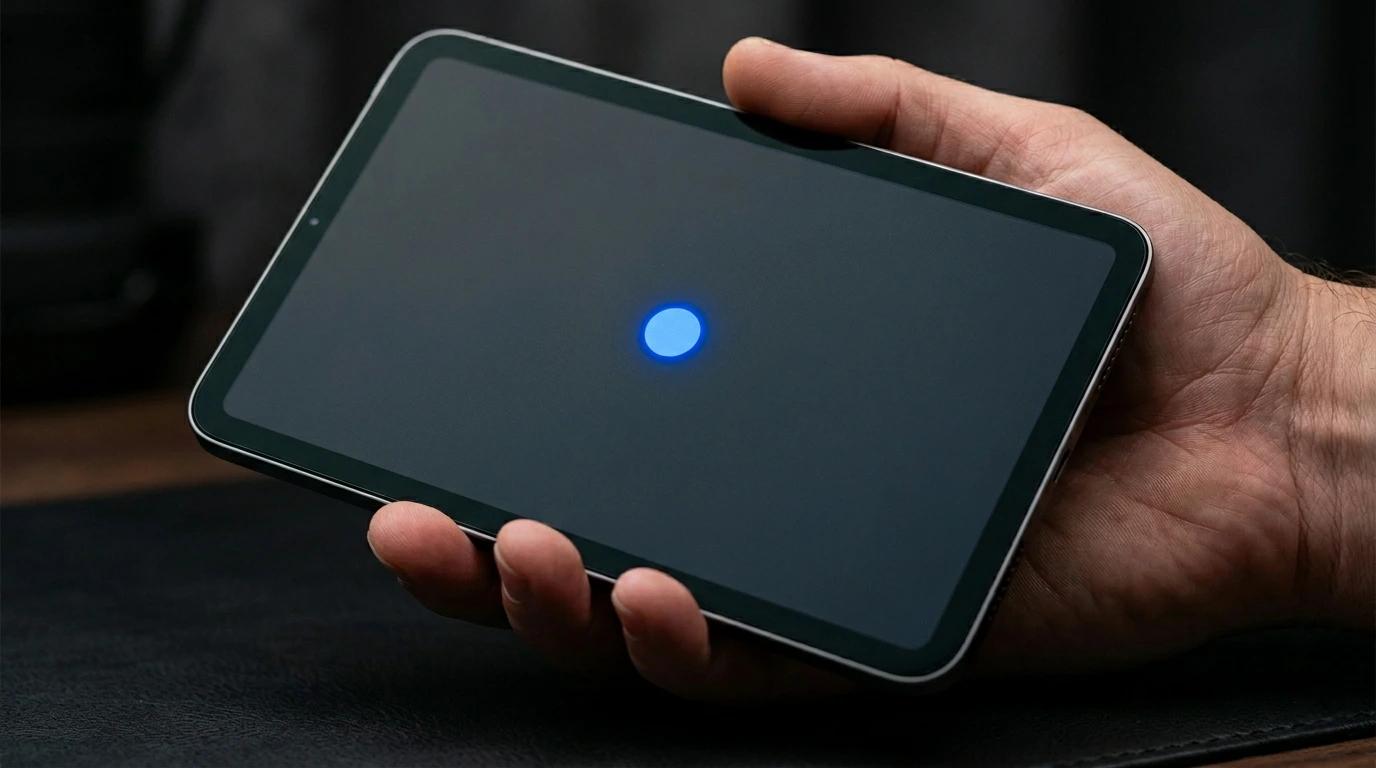
You pick up your iPad and notice a blue dot on the screen. Before you worry, here is the most important thing to know: not every blue dot on an iPad screen is a hardware problem.
A blue dot on an iPad screen has five possible causes, and three of them are not damage at all. The app-update indicator, Vehicle Motion Cues, and AssistiveTouch are all normal iPadOS features, while a stuck pixel or pressure damage points to a real hardware issue.
Do this first: take a screenshot and check if the dot appears in it. If it does, the cause is software. If it does not appear in the screenshot, the cause is hardware. This one check tells you exactly which direction to go.
First: Identify Which Type of Blue Dot You Have

This is the most important step. There are three completely different types of blue dots on iPad screens and each one has a different solution.
Blue Dot Next to an App Icon (Not Screen Damage)
If you see a small blue dot beside an app name on your home screen, this is a normal iPadOS feature. It simply means the app was recently installed or updated and has not been opened yet. It is not a display defect. The dot disappears automatically the moment you open the app. This is the most commonly confused blue dot and requires no fix at all.
Moving Blue Dots Around the Screen Edges
If you see a pattern of moving blue dots appearing near the edges of the screen, this is almost certainly the Vehicle Motion Cues feature introduced in iPadOS 18. Apple designed this accessibility feature to help users who experience motion sickness while using their device in a moving vehicle. The dots appear on screen to provide a visual reference point. Go to Settings > Accessibility > Motion > Show Vehicle Motion Cues and set it to Off. The dots disappear immediately.
A Fixed Blue Dot That Does Not Move
If there is a single blue dot or small cluster of blue dots that stay in exactly the same position regardless of what is on screen, and do not disappear in a screenshot, this is a hardware issue. It is either a stuck pixel, backlight damage, or physical LCD panel damage. This type requires the fixes described in the sections below.
Diagnose the Blue Dot Correctly

Screenshot Test
Press the Top button and Volume Up button at the same time to take a screenshot. Open it in Photos and zoom in. If the blue dot is visible in the screenshot, the cause is software. If it is not visible, the cause is physical hardware.
Background Color Test
Display a fully black image on the screen, then a fully white image, then a solid blue image. A stuck blue pixel will be invisible on a blue background and visible on all other colors. If the dot appears on all backgrounds equally, the cause is LCD pressure damage or backlight bleeding rather than a stuck pixel.
Behavior Check
| What You See | What It Means |
| Blue dot next to app icon | Normal iPadOS feature. Open the app. |
| Moving dots at screen edges | Vehicle Motion Cues feature enabled. |
| Floating blue circle anywhere on screen | AssistiveTouch is turned on. |
| Fixed dot, not in screenshot | Hardware: stuck pixel or LCD damage. |
| Fixed dot, visible in screenshot | Software or graphics rendering bug. |
| Dot changes with lid pressure | Loose internal cable connection. |
| Appeared on brand-new iPad | Manufacturing defect. Claim warranty. |
| Appeared after drop or pressure | Physical impact damage to LCD panel. |
What Causes a Blue Dot on an iPad Screen?

iPadOS App Update Indicator (Most Common)
The most searched blue dot on iPad is not a hardware defect at all. iPadOS places a small blue dot next to app names on the home screen when an app is newly installed or recently updated. This is an intentional design feature. Opening the app once removes the dot permanently.
Vehicle Motion Cues (iPadOS 18 and Later)
Apple introduced Vehicle Motion Cues in iPadOS 18 as an accessibility tool to reduce motion sickness during travel. When enabled, animated blue dots appear around the screen edges as a visual stabilizer. Many users accidentally enable this during an iPadOS update and do not realize it is a feature rather than a bug. Disable it in Settings > Accessibility > Motion > Show Vehicle Motion Cues.
AssistiveTouch
AssistiveTouch creates a floating button on screen that can appear as a white or blue circle. It is an accessibility feature designed to replace physical button functions. If a blue circle appears anywhere on your screen and moves when you drag it, AssistiveTouch is the cause. Go to Settings > Accessibility > Touch > AssistiveTouch and toggle it off.
Stuck Pixel
A stuck pixel is frozen in the blue-on state and displays a constant blue color regardless of what is on screen. It appears as a very small, sharp dot and does not appear in screenshots. Stuck blue pixels are caused by the blue sub-pixel remaining permanently activated while the red and green sub-pixels go off. This is more common on LCD iPads. Stuck pixels sometimes self-correct within a few days and can respond to pixel-fixing software.
Pressure or Impact Damage
Pressing too hard on the iPad screen, dropping it, or carrying it in a tight bag can compress the LCD layers and displace the liquid crystals. This creates a blue or multi-colored spot or patch. Unlike a stuck pixel, pressure damage creates a larger cloudy or irregular area rather than a sharp pinhead dot. The spot does not appear in screenshots and does not respond to software fixes.
Backlight Bleeding
LCD iPads use a backlight layer. If this layer shifts or is damaged, light leaks through unevenly and can create a blue or bright patch near the screen edges. Backlight bleeding is most visible on dark backgrounds in dimly lit rooms. It does not self-correct and typically requires a screen replacement.
Manufacturing Defect
A blue dot that appears on a new iPad within the first few weeks of normal use without any drops or pressure is a manufacturing defect. iPads purchased within the last 12 months are covered under Apple’s standard one-year limited warranty. Contact Apple Support or visit a Genius Bar before spending any money on repair.
How to Fix a Blue Dot on an iPad Screen

Work through these in the correct order. Software fixes first, hardware repair last.
Open the App With the Blue Dot
If the blue dot is next to an app icon on your home screen, simply tap and open the app. The dot disappears instantly. No settings change or restart is needed.
Turn Off Vehicle Motion Cues
If you see animated blue dots near the screen edges, go to Settings > Accessibility > Motion > Show Vehicle Motion Cues and set it to Off. This was introduced in iPadOS 18 and many users encounter it after a system update without realizing they enabled it.
Turn Off AssistiveTouch
If a floating blue or white circle appears anywhere on the screen and can be dragged around, go to Settings > Accessibility > Touch > AssistiveTouch and toggle it off. The floating button disappears immediately.
Restart Your iPad
A full restart clears temporary software glitches that can affect display rendering. On iPad with Face ID: hold the Top button and either Volume button, then slide to power off and restart. On iPad with a Home button: hold the Top button until the power slider appears, power off, wait 30 seconds, and restart. If the blue dot was software-caused, it may disappear after restart.
Update iPadOS
iPadOS now uses year-based numbering, and the current version is iPadOS 26. Install the latest update by going to Settings, then General, then Software Update.
Apple patches display rendering bugs and accessibility feature glitches through point releases like this one. If a blue dot appeared right after an update, the next release may resolve it automatically.
Use a Pixel Fixer Tool
If the blue dot is a stuck pixel (small, sharp, fixed position, not in screenshots), a pixel-fixing tool can help. Open JScreenFix.com in Safari on your iPad. Drag the rapidly flashing color box directly over the blue dot and leave it running for 20 to 30 minutes. The rapidly cycling colors electrically stimulate the frozen pixel sub-component. This works on approximately 60% of soft stuck pixels at no cost.
Check Apple Warranty and AppleCare Plus
Before paying for any professional repair, check your coverage at checkcoverage.apple.com. The standard one-year Apple limited warranty covers manufacturing defects. AppleCare Plus covers accidental screen damage for a service fee.
AppleCare Plus covers accidental iPad screen damage for a flat $49 service fee per incident. Out-of-warranty screen replacement at Apple costs $249 to $349 for iPad Air or $449 to $699 for iPad Pro.
| Coverage Type | What It Covers | Cost in 2026 |
| Standard warranty (1 year) | Manufacturing defects | Free |
| AppleCare Plus | Accidental screen damage | $49 per incident |
| Out of warranty (iPad Air) | Screen replacement at Apple | $249 to $349 |
| Out of warranty (iPad Pro) | Screen replacement at Apple | $449 to $699 |
| Third-party certified shop | All iPad models | 30 to 50% less than Apple |
Always verify your coverage before authorizing any paid repair. Many users pay out of pocket without realizing they are still under warranty.
Which iPad Models Are Most Affected by Blue Dots?

| iPad Model | Screen Type | Most Common Blue Dot Cause |
| iPad (9th gen and earlier) | LCD IPS | Pressure bruising, backlight bleed |
| iPad Air (M1 and earlier) | LCD IPS | Stuck pixel, pressure damage |
| iPad Air (M2 through M4) | LCD IPS | Vehicle Motion Cues, stuck pixel |
| iPad Mini (6th gen and later) | LCD IPS | Stuck pixel, pressure damage |
| iPad Pro 11 inch (M2 and later) | Liquid Retina | Rare stuck pixel, impact damage |
| iPad Pro 12.9 / 13 inch (M4, M5) | Tandem OLED | Very rare, impact damage only |
iPad Pro M4 models use Tandem OLED technology and are not susceptible to LCD backlight bleeding or pressure bruising. A blue dot on an iPad Pro M4 is almost certainly either a software feature or impact damage to the OLED layer.
How to Prevent Blue Dots on Your iPad Screen

- Use a quality case with raised bezels that protect the screen when placed face-down.
- Never carry the iPad in a tight bag alongside books or hard objects that press against the screen.
- Apply a tempered glass screen protector to absorb minor impacts.
- After every iPadOS update, check Settings > Accessibility to see if any new features were enabled automatically.
- Avoid sitting on or placing heavy objects on a closed iPad.
- Check battery health regularly. A swollen battery can push against the screen from inside and cause display spots.
Frequently Asked Questions

What is the blue dot next to app names on my iPad home screen?
It is a normal iPadOS feature that indicates an app was recently installed or updated and has not been opened yet. It is not screen damage. Open the app once and the dot disappears automatically.
What are the moving blue dots appearing around my iPad screen edges?
This is the Vehicle Motion Cues feature introduced in iPadOS 18. It is an accessibility tool designed to reduce motion sickness. Go to Settings > Accessibility > Motion > Show Vehicle Motion Cues and turn it off. The dots disappear immediately.
Can a blue dot on an iPad screen go away on its own?
Yes, sometimes. A soft stuck pixel can self-correct within a few days, and a pressure bruise can partially improve once the pressure source is removed.
Physical LCD damage and backlight bleeding never self-correct. If a fixed dot persists beyond one week, it is unlikely to resolve without a repair.
Is a blue dot on an iPad screen covered by Apple warranty?
Yes, if it is a manufacturing defect. A stuck pixel or display spot on a new iPad under normal use is covered under the standard one-year warranty. Accidental damage from a drop or pressure is not covered by the standard warranty but is covered under AppleCare Plus for a service fee of $49 to $99.
How much does it cost to fix a blue dot on an iPad screen in 2026?
Fixing a blue dot costs nothing under standard warranty for manufacturing defects. With AppleCare Plus, it costs a flat $49 service fee regardless of iPad model.
Out of warranty at Apple, expect $249 to $349 for iPad Air or $449 to $699 for iPad Pro. Third-party certified shops typically charge 30 to 50 percent less than Apple pricing.
Is it safe to use an iPad with a blue dot on the screen?
A single small stuck pixel or minor display dot is safe to continue using. If the dot is accompanied by a swollen or bulging back panel, the screen separating from the frame, or the iPad feeling warm when idle, stop using the device immediately. These are signs of a swollen battery, which is a safety issue.
Final Verdict
A blue dot on an iPad screen has seven possible causes, and three are software features that disappear in under 30 seconds. The rest range from a fixable stuck pixel to physical LCD damage needing professional repair. Run the screenshot test first, since a visible dot means software and a free fix. Check checkcoverage.apple.com before paying for repair, since many users are still under warranty without realizing it.
| About the AuthorBen is the founder of screenproblems.com, a resource dedicated to diagnosing and solving mobile and computer display issues.All content is written without brand sponsorship. Every recommendation is based on what actually works. |