
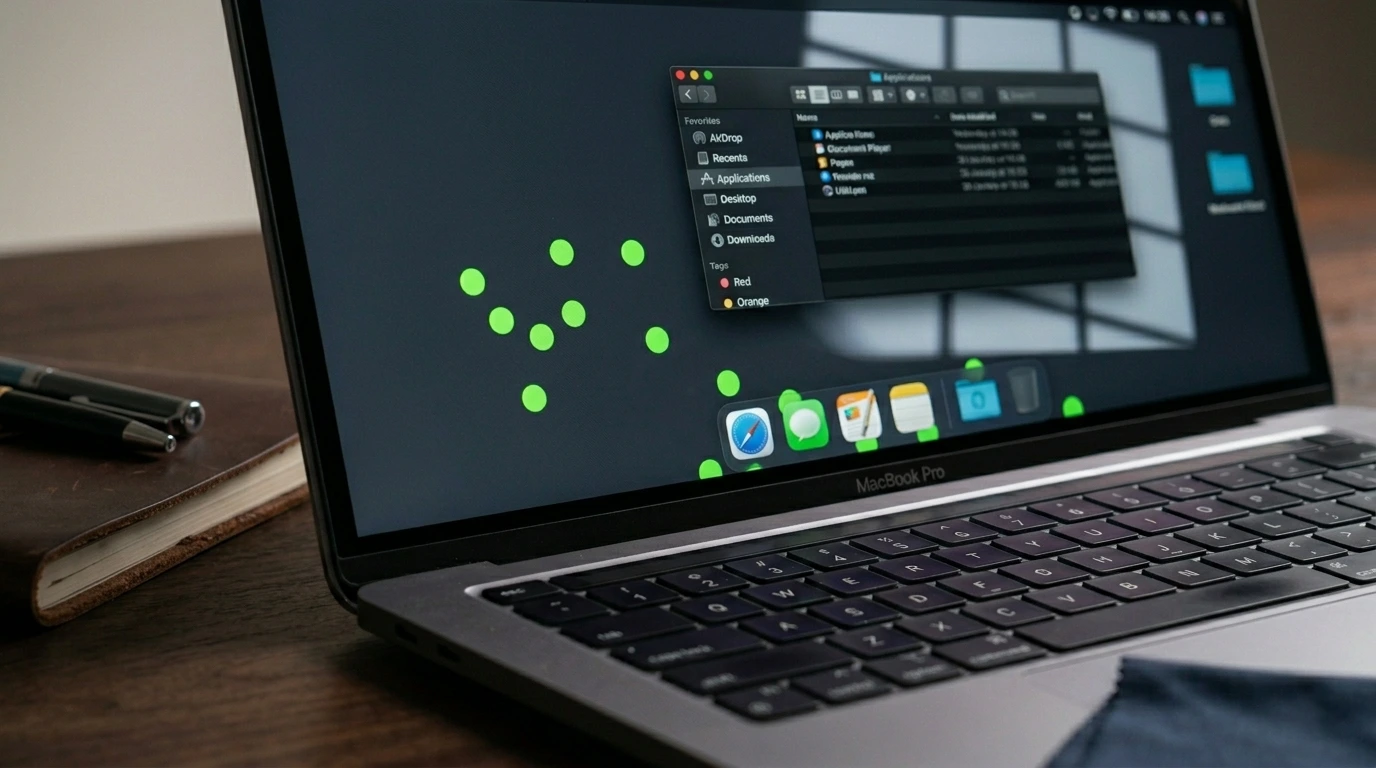
You are working on your laptop and notice small green dots on the screen. One dot or dozens. Either way it is alarming and you want an answer now.
Green dots on a laptop screen have five main causes: a stuck pixel, a corrupted GPU driver, a loose display cable, GPU overheating, or physical impact damage. A screenshot test identifies which one applies in under two minutes.
Do this first: take a screenshot and check if the green dots appear in it. If they do, the cause is software. If they do not appear, the cause is hardware. This single test tells you exactly which fixes to try.
Step 1: Diagnose the Green Dots Before Doing Anything

Two minutes of diagnosis saves hours of wasted effort and prevents unnecessary repair costs.
Screenshot Test
Press Windows + Print Screen on Windows or Command + Shift + 3 on Mac. Open the image and zoom into the problem area. If the green dots appear in the screenshot, the cause is a GPU driver or software issue. If they do not appear, the problem is in the physical display hardware.
External Monitor Test
Connect your laptop to an external monitor via HDMI or USB-C. If green dots appear on the external screen too, the problem is in the GPU or drivers. If the external monitor looks clean, the problem is in your laptop screen or its internal cable.
Behavior Check
| What You See | Likely Cause |
| Visible in screenshot | GPU driver or software bug |
| Not visible in screenshot | Physical hardware issue |
| On external monitor too | GPU or driver problem |
| Only on laptop screen | Display cable or LCD panel |
| Fixed position always | Stuck or dead pixel |
| Flickering or random | Loose cable or driver crash |
| After gaming sessions | GPU overheating or VRAM fault |
| After OS or driver update | Corrupted or incompatible driver |
What Causes Green Dots on a Laptop Screen?

Stuck Pixels
A stuck pixel is frozen in the on position and displays a constant green color regardless of what is on screen. This is the most common cause of a single fixed green dot. Unlike a dead pixel which goes dark, a stuck pixel stays lit. Stuck pixels are more common on LCD screens and sometimes fix themselves within a few days.
GPU Driver Corruption
An outdated, corrupted, or incompatible graphics driver causes the GPU to output incorrect color data, producing green dots, flickering, or color artifacts. This is especially common right after a Windows update or a manual driver installation. Updating or reinstalling the GPU driver resolves this in most cases at zero cost.
Loose or Damaged Display Cable
A thin ribbon cable inside your laptop connects the screen to the motherboard. If this cable becomes loose from a drop, heat stress, or wear over time, it sends corrupted signals that produce flickering green dots or patches. A key sign is dots that shift when you press around the screen bezel or flex the lid. Cable repair is usually cheaper than a full screen replacement.
GPU Overheating
During gaming or heavy workloads, an overheating GPU can temporarily corrupt its video memory output. Green dots or a screen full of small green squares appear suddenly after closing a game and typically disappear within 10 to 20 seconds as the GPU cools. If this happens consistently, cleaning the laptop vents is the first step.
Physical Impact Damage
A drop or heavy pressure on the screen can crack the LCD panel internally without breaking the outer glass. Physical damage creates dots that appear immediately after the impact, stay in a fixed position, and do not change with software fixes. A screen replacement is the only solution for this type of damage.
Manufacturing Defect
A green dot on a brand-new laptop that appeared within the first few weeks of normal use is a manufacturing defect. Check your warranty documentation or contact the manufacturer directly. You should not pay anything to fix a factory defect.
How to Fix Green Dots on a Laptop Screen

Work through these fixes in order from free to paid.
Restart Your Laptop
A full restart clears GPU memory and resets the display driver. If the green dots disappear after restart and do not return, a temporary software glitch caused them and no further action is needed.
Update or Reinstall the GPU Driver
This resolves the majority of software-caused green dot cases. On Windows, right-click the Start button, open Device Manager, expand Display Adapters, right-click your GPU and select Update Driver. If that does not work, select Uninstall Device, restart, and let Windows reinstall the driver automatically. NVIDIA users can download the latest driver from nvidia.com/drivers. AMD users from amd.com/support. On Mac, go to System Settings > General > Software Update since macOS includes GPU drivers in system updates. If dots appeared right after a driver update, use Roll Back Driver in Device Manager to revert to the previous version.
Use a Pixel Fixer Tool
If the green dot is a single small stuck pixel, a pixel-fixing tool can resolve it by rapidly cycling colors across the screen to electrically stimulate the frozen pixel. JScreenFix.com is the best free browser-based option. Open it, drag the flashing box directly over the green dot, and run for 20 to 30 minutes. PixelHealer is a free Windows app with more precise targeting. This method works on roughly 60% of soft stuck pixels and has zero risk since it is entirely software-based.
Check and Reseat the Display Cable
If green dots flicker or shift when you press around the screen bezel, a loose display cable is the likely cause. A technician can open the laptop, locate the ribbon cable connector between the screen and motherboard, and reseat or replace it. This typically costs $30 to $70 at a local repair shop, which is far cheaper than a full screen replacement.
Clean Vents and Monitor GPU Temperature
If dots appear only during or after gaming and disappear after cooling, use compressed air to clean all laptop vents and fan grilles. Download HWiNFO64 on Windows or iStatMenus on Mac to monitor GPU temperature. If the GPU exceeds 90 degrees Celsius under normal gaming load, the thermal system needs professional attention.
Check Your Warranty
Before paying for any repair, check your coverage. Manufacturing defects are covered under the standard one-year warranty. Accidental damage plans cover physical screen damage for a deductible. Dell Premium Support, HP Care Pack, Lenovo Premium Care, and AppleCare Plus all cover screen damage. Check your coverage at the manufacturer’s support website before spending money.
Professional Screen Replacement
If all other fixes fail and no warranty covers the issue, a screen replacement is the final solution.
Laptop screen replacement costs $70 to $899 in 2026, depending on the laptop type and panel technology. Third-party certified shops typically charge 30 to 50 percent less than brand service centers.
| Laptop Type | Official Service | Third-Party Shop |
| Budget laptop LCD | $120 to $200 | $70 to $130 |
| Mid-range IPS LCD | $180 to $280 | $110 to $180 |
| Gaming laptop 144Hz | $250 to $400 | $160 to $280 |
| MacBook Pro 14 inch (M4/M5) | $399 to $699 | $240 to $360 |
| MacBook Pro 16 inch (M5 Pro/M5 Max) | $499 to $599 | $300 to $450 |
| Dell XPS OLED or HP Spectre x360 | $450 to $650 | $280 to $420 |
Third-party certified shops charge 30 to 50% less than brand service centers. Always get a written warranty on parts and labor before approving the repair.
Repair or Replace: Quick Decision Guide

- If repair costs less than 40% of the laptop’s resale value, repair it.
- If the laptop is under 3 years old and the screen is the only problem, repair is almost always worth it.
- If the laptop is 5 or more years old and repair exceeds $200, replacing often makes more sense.
- If green dots appear on the external monitor too, the GPU or logic board is failing and a full replacement may be needed.
How to Prevent Green Dots on Your Laptop Screen

- Keep GPU drivers updated. Outdated drivers cause most software-based display artifacts.
- Do not block laptop vents. Use the laptop on hard flat surfaces and keep fan grilles clear.
- Use a padded laptop sleeve when carrying. Impact damage is a leading cause of physical pixel defects.
- Never place heavy objects on a closed laptop lid.
- Monitor GPU temperatures during heavy workloads. Sustained heat above 90 degrees Celsius accelerates hardware degradation.
- Keep the laptop away from extreme heat and direct sunlight.
Frequently Asked Questions

Can green dots on a laptop screen fix themselves?
Yes, sometimes. A single soft stuck pixel can self-correct within a few days, and driver-crash dots disappear after a restart.
Physical damage, dead pixels, and hardware failures never self-correct and require a repair or replacement.
Why do green dots appear only when gaming?
Green dots that appear only during gaming almost always point to GPU overheating or a VRAM fault. A GPU running above 90 degrees Celsius under full load can temporarily corrupt its video output.
The dots typically disappear within seconds once the GPU cools down. Clean the laptop vents and monitor GPU temperature as the first troubleshooting step.
Does a warranty cover green dots on a laptop screen?
Yes, a standard warranty covers green dots caused by a manufacturing defect on a new laptop. Physical damage from a drop is not covered by a standard warranty but is often covered by an accidental damage plan.
What is the difference between a stuck pixel and a dead pixel?
A stuck pixel is frozen in the on state and shows a constant green, red, or white color, and it is sometimes fixable with software. A dead pixel receives no power and appears permanently black, and it almost always requires a screen replacement.
How much does it cost to fix green dots on a laptop screen in 2026?
A software fix costs nothing, since restarting or updating the GPU driver requires no payment. A warranty repair costs nothing or a deductible of $50 to $150, depending on the plan.
Out-of-warranty screen replacement costs $70 to $899, depending on the laptop and panel type. Third-party shops typically charge 30 to 50 percent less than brand service centers for the same repair.
Final Verdict
Green dots on a laptop screen are almost always caused by a stuck pixel, a corrupted GPU driver, or a loose display cable. Most cases are fixable for free or at low cost.
Start with the screenshot test to confirm whether the cause is hardware or software. Try restart, GPU driver reinstall, and a pixel fixer tool first, since all three are free.
Check your warranty before paying for professional repair, and expect $70 to $899 if replacement becomes necessary.
| About the AuthorBen is the founder of screenproblems.com, a resource dedicated to diagnosing and solving mobile and computer display issues.All content is written without brand sponsorship. Every recommendation is based on what actually works. |