
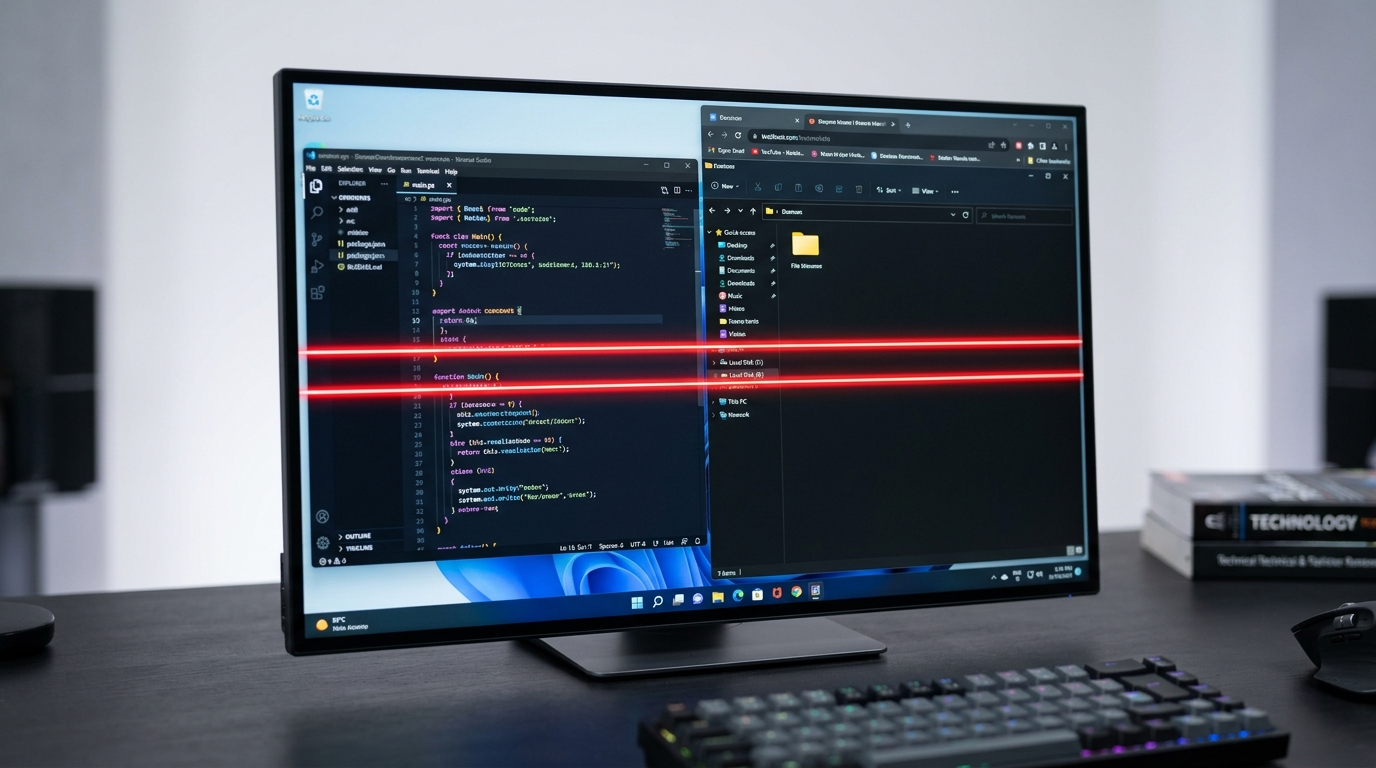
You sit down at your PC and notice one or more red lines running across or down the screen. They stay there no matter what app you open. They appear on every background.
Red lines on a PC screen are caused by a corrupted or faulty GPU driver, a loose or damaged display cable, a TAB bond failure inside the monitor panel, GPU overheating, or physical damage to the LCD or monitor panel itself.
Do this first: take a screenshot and open it on another device. If the red lines appear in the screenshot, the cause is GPU or software. If they do not appear, the cause is hardware in the display panel or cable. This one test tells you which direction to go.
Step 1: Diagnose the Red Lines in 2 Minutes

Two minutes of correct diagnosis prevents wasted effort and unnecessary repair costs.
Screenshot Test
Press Windows + Print Screen to capture your screen. Open the image on your phone or another monitor. If the red lines are visible in the screenshot, the GPU or its driver is producing them. If they are not visible, the cause is in the physical display hardware.
External Monitor Test
Connect your PC to a second monitor using HDMI or DisplayPort. If the red lines appear on the second monitor too, the problem is in the GPU or its drivers. If the second monitor shows a clean image, the problem is in your primary monitor or its cable connection.
Lid Angle Test for Laptops
Open and close the laptop lid slowly while watching the screen. If the red lines change position, flicker, or temporarily disappear at certain lid angles, a damaged display cable at the hinge is the confirmed cause. This is one of the most common causes on laptops.
Diagnosis Table
| What You See | Likely Cause |
| Red lines visible in screenshot | GPU driver bug or GPU hardware fault |
| Red lines not in screenshot | Physical display cable or panel damage |
| Lines on external monitor too | GPU or driver problem |
| Lines only on main screen | Display cable or LCD panel fault |
| Lines change with lid movement | Damaged cable at laptop hinge |
| Horizontal red lines | TAB bond failure or LCD row failure |
| Vertical red lines | Panel column failure or cable signal fault |
| Lines appeared after GPU driver update | Driver corruption or incompatibility |
| Lines appeared after drop or impact | Physical panel or cable damage |
What Causes Red Lines on a PC Screen?

GPU Driver Corruption or Bug
An outdated, corrupted, or newly installed GPU driver that conflicts with your hardware can cause the GPU to output incorrect color data. Red lines, color artifacts, and distorted display output are common symptoms. This is especially frequent right after a Windows Update or a manual driver installation. This is the most fixable cause and costs nothing to address.
Loose or Damaged Display Cable
On desktop PCs, the HDMI, DisplayPort, or VGA cable connecting the monitor to the GPU can come loose or develop internal wire breaks. On laptops, a thin ribbon cable runs through the hinge and connects the screen to the motherboard. If this cable is pinched, frayed, or partially disconnected, it sends incomplete signals to the display and produces colored lines. A key sign is lines that change when you move the monitor or flex the laptop lid.
TAB Bond Failure (Tape Automated Bonding)
This is a hardware failure specific to LCD monitors and laptop screens. TAB bonding connects the driver IC chips to the edges of the LCD panel using a thin adhesive film. When heat, moisture, or age weakens this bond, the connection between the driver chip and the pixel rows or columns breaks down. The result is a persistent horizontal or vertical red line that runs across the full width or height of the screen. TAB bond failure cannot be fixed with software and typically requires a panel replacement.
GPU Overheating
When a GPU runs too hot under heavy load, it can corrupt its video output and produce red lines, flickering artifacts, or random colored dots. This typically happens during gaming or intensive tasks and may temporarily improve when the GPU cools down. If red lines appear consistently after sustained heavy use and then fade, thermal management is the cause.
Failing GPU Hardware
In more serious cases, the GPU itself is failing. VRAM (video memory) errors, solder joint failures on the GPU chip, or degraded GPU components can produce persistent red lines that appear in screenshots and on external monitors. This is the most serious cause and may require a GPU replacement or full system repair.
Physical Impact or Pressure Damage
A drop, impact, or pressure applied to the screen can crack the LCD panel internally or sever the ribbon cable without breaking the outer glass. Physical damage creates lines that appear immediately after the impact, stay in a fixed position, and do not change with software fixes.
How to Fix Red Lines on a PC Screen

Work through these in order from fastest and cheapest to most expensive.
Restart Your PC
A full restart resets the GPU and clears any temporary driver crash or rendering glitch. If red lines disappear after restart and do not return, a temporary software glitch caused them and no further action is needed. If they return on the next boot, continue to the next fix.
Update or Roll Back the GPU Driver
This resolves the majority of software-caused red line cases. On Windows, right-click the Start button, open Device Manager, expand Display Adapters, right-click your GPU and select Update Driver. If that does not work, select Uninstall Device, restart, and let Windows reinstall the driver. Download the latest driver directly from nvidia.com/drivers for NVIDIA GPUs, amd.com/support for AMD GPUs, or through Windows Update for Intel integrated graphics. If red lines appeared immediately after a driver update, use Roll Back Driver in the Driver tab to revert to the previous working version.
Check and Reseat the Display Cable
Power off the PC and monitor completely. Disconnect and firmly reconnect the HDMI or DisplayPort cable at both the monitor end and the GPU end. Try a different cable if you have one available. A damaged cable can be replaced for $10 to $20 and resolves the issue in many desktop PC cases. On laptops, cable reseating requires opening the device and is best done by a technician.
Clean GPU Vents and Monitor Temperature
If red lines appear only during heavy use and improve when the PC cools down, overheating is the cause. Power off the PC. Use compressed air to clean the GPU heatsink and all case fans. Download HWiNFO64 (Windows, free) to monitor GPU temperature during use. A GPU exceeding 95 degrees Celsius under normal gaming load needs thermal attention, either from cleaning, reapplying thermal paste, or improving case airflow.
Test with Another Monitor or GPU
Connect your PC to a different monitor. If the red lines disappear, your primary monitor is faulty. If lines still appear on the second monitor, the GPU is the problem. Connect a different GPU to your PC if one is available. If lines disappear with the replacement GPU, your original GPU is failing. These swap tests precisely identify whether the problem is in the monitor or the GPU, which determines the correct repair path.
Check Warranty Coverage
Before paying for any repair, check your coverage. Most monitors come with a one to three year warranty. Many include a pixel and line defect policy that covers persistent colored lines appearing under normal use. Desktop GPU warranties typically run two to three years. Laptop display warranties are usually one year, with extended coverage under manufacturer protection plans.
| Device | Warranty Coverage | Typical Cost if Out of Warranty |
| Desktop monitor (LCD) | 1 to 3 years for defects | $80 to $250 for replacement |
| Laptop screen | 1 year standard | $100 to $400 for replacement |
| Desktop GPU | 2 to 3 years | $150 to $600 for replacement |
| HDMI or DisplayPort cable | N/A | $10 to $25 replacement |
Professional Screen or GPU Replacement
If all software fixes have failed and the external monitor and cable swap tests confirm the monitor panel or GPU is at fault, professional replacement is the final solution. Screen replacement for a laptop costs $100 to $400 depending on the model. Desktop monitor replacement is often more economical than repair. GPU replacement ranges from $150 to $600 depending on the tier. Third-party certified shops typically charge 20 to 40% less than manufacturer service centers.
Red Lines on Laptop Screen vs Desktop Monitor: Key Differences

The diagnosis and most likely fix differ significantly between laptops and desktops.
| Factor | Laptop | Desktop Monitor |
| Most common cause | Damaged display cable at hinge | Loose HDMI or DisplayPort cable |
| Second most common | TAB bond failure | GPU driver bug |
| Cable fix cost | $30 to $70 at a shop | $10 to $25 DIY |
| Screen replacement cost | $100 to $400 | Often cheaper to replace monitor |
| Software fix works? | Sometimes | Often, if driver-related |
How to Prevent Red Lines on PC Screen

For laptops: if lines change when you slowly open and close the lid, the hinge cable is almost certainly the cause and a technician can reseat or replace it for a fraction of a full screen replacement cost. Always try the lid angle test before authorizing any repair.
- Keep GPU drivers updated. Update directly from NVIDIA or AMD rather than relying on Windows Update alone.
- Ensure all cable connections are tight. Check the HDMI or DisplayPort cable at both ends every few months.
- Do not block PC or laptop vents. Good airflow prevents GPU overheating that causes display artifacts.
- Use a surge protector. Power spikes can damage GPU components and cause permanent display line artifacts.
- Handle laptops carefully at the hinge point. Frequent rough opening and closing is the top cause of display cable failure on laptops.
- Create restore points before GPU driver updates. This lets you roll back instantly if a new driver causes display issues.
Frequently Asked Questions

Can red lines on a PC screen fix themselves?
Software-caused red lines from a driver crash often disappear after a restart. Hardware-caused lines from a TAB bond failure, damaged cable, or failing GPU do not self-correct. If lines persist beyond one restart cycle, a hardware or driver fix is needed.
Are red lines always a sign of serious damage?
Not always. A loose cable or a corrupted driver produces red lines that are completely fixable at low cost. TAB bond failure and panel damage are more serious but still repairable. GPU failure is the most serious cause. The screenshot test and external monitor test tell you which category your problem falls into.
Do red lines mean my GPU is dying?
Only if the red lines appear in screenshots and on an external monitor simultaneously. If lines are only on your primary screen and not in screenshots, the GPU is fine and the problem is in the display or cable. Many users replace GPUs unnecessarily without running the external monitor test first.
How much does it cost to fix red lines on a PC screen in 2026?
Cable replacement: $10 to $25 for desktop, $30 to $70 for laptop. Screen replacement: $100 to $400 for a laptop. GPU replacement: $150 to $600. Third-party certified shops typically charge 20 to 40% less than manufacturer service. Check your warranty before paying for any repair.
What is a TAB bond failure and can it be fixed?
TAB (Tape Automated Bonding) connects the driver chips to the LCD panel edges. When the adhesive bond weakens from heat or age, a persistent full-width or full-height colored line appears. It cannot be fixed with software. Some technicians can apply pressure to the ribbon to temporarily restore the connection, but a panel replacement is the permanent solution.
Final Verdict
Red lines on a PC screen are caused by six main issues ranging from a free driver fix to a full panel or GPU replacement.
Start with the screenshot test and the external monitor test. These two checks confirm in under five minutes whether the cause is software, a cable, or the display panel. Try the free fixes first: restart, update or roll back the GPU driver, and reseat the display cable.
Check your warranty before spending money on any repair. Most monitors and GPUs carry multi-year warranties and many red line cases qualify for a free or discounted fix.
| About the AuthorBen is the founder of screenproblems.com, a resource dedicated to diagnosing and solving display issues on all devices.All content is written without brand sponsorship. Every recommendation is based on what actually works. |