
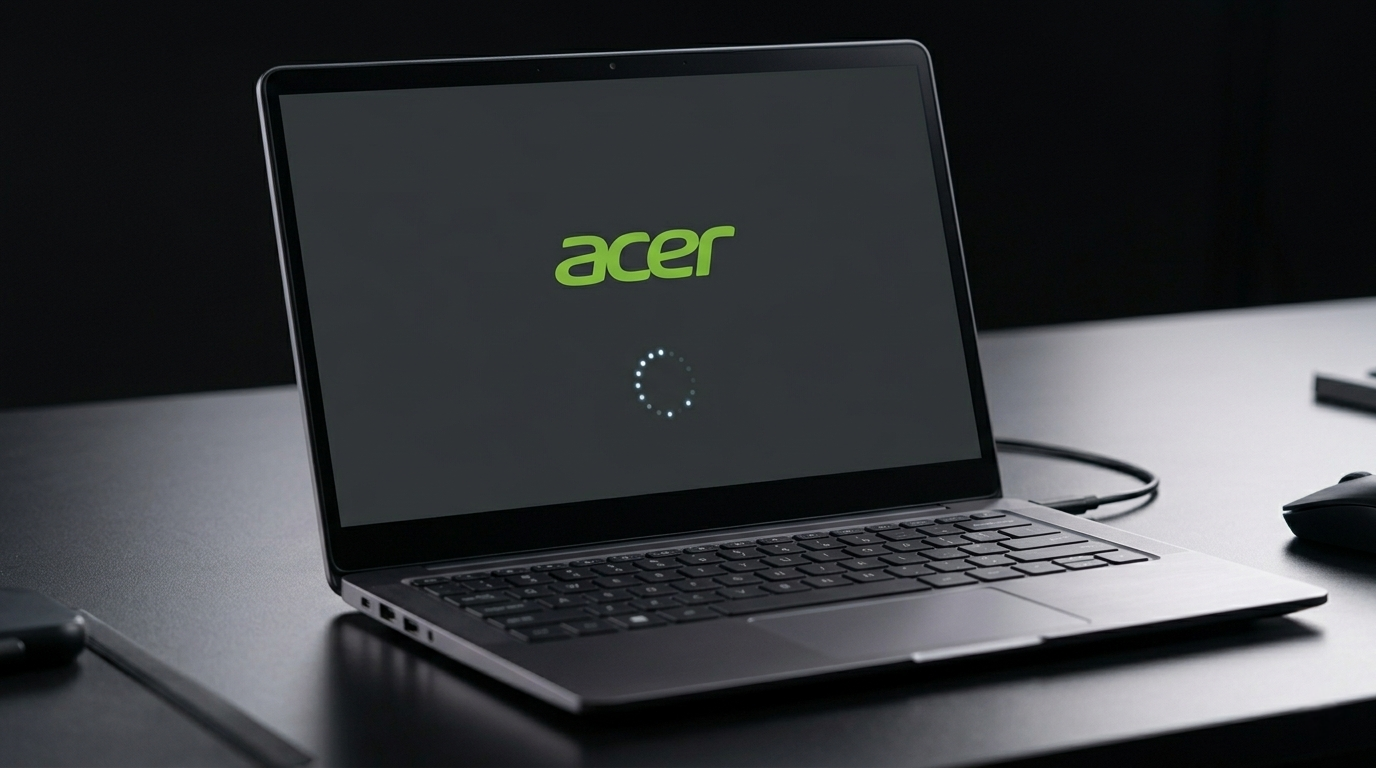
Your Acer laptop turns on but gets stuck on the Acer logo screen. The spinning dots stop. Nothing happens. No matter how long you wait, it does not progress.
An Acer loading screen stuck issue is caused by one of six things: a corrupted Windows update or system file, a failing or full SSD or HDD, incorrect BIOS boot order, a recently connected USB device blocking the boot sequence, RAM or hardware failure, or a corrupted bootloader.
Do this first: disconnect every USB device, external hard drive, and SD card from the laptop. Power off completely and turn back on. Many Acer laptops get stuck on the loading screen simply because the BIOS is trying to boot from an external device instead of the internal drive.
Step 1: Identify the Type of Stuck Screen

Not all stuck loading screens are the same. Knowing which type you have determines the fastest fix.
Acer Logo Appears, Then Freezes Indefinitely
The Acer logo shows and the spinning dots appear but then stop and nothing happens for more than 5 minutes. This is the most common type. It is usually caused by a corrupted Windows boot file, a bad Windows update, or a failing drive.
Acer Logo Appears, Then Restarts in a Loop
The laptop starts, shows the Acer logo, freezes briefly, then restarts and repeats the same loop over and over. This restart loop is almost always caused by a failed Windows update that cannot complete or a corrupted system file that Windows tries and fails to load on every boot.
Stuck After Typing F2 or F12 Does Nothing
If pressing F2 to enter BIOS setup or F12 to access the boot menu does nothing, the keyboard is not being recognized during POST, the CMOS battery may be depleted, or the BIOS itself has become corrupted. This is less common but requires different steps to resolve.
Stuck After a Windows Update
If the Acer loading screen became stuck immediately after a Windows update was installing or restarted, a corrupted or incomplete update is the cause. The update partially modified system files and now Windows cannot boot from its current state.
Diagnosis Table
| What You See | Likely Cause |
| Acer logo then freeze, nothing happens | Corrupted boot file or failing drive |
| Acer logo then restart loop | Failed Windows update or corrupted OS |
| F2 and F12 keys do not respond | CMOS battery dead or BIOS issue |
| Stuck after Windows update | Corrupted or incomplete update |
| Works fine after removing USB devices | USB device in wrong boot order |
| Starts fine sometimes, stuck other times | Failing SSD or HDD beginning to fail |
What Causes an Acer Loading Screen to Get Stuck?

USB Device in Boot Priority (Most Common Quick Fix)
This is the single most overlooked cause. If a USB drive, phone, SD card, or external hard drive is connected to the Acer laptop, the BIOS may try to boot from it instead of the internal Windows drive. It fails to find a bootable OS on the device and freezes at the Acer logo. Disconnecting all external devices before starting solves this instantly with no further repair needed.
Corrupted Windows Update or System Files
A Windows update that is interrupted mid-installation, a failed cumulative update, or a system file corrupted by a power cut during Windows file operations is the most common serious cause. The bootloader or boot configuration data becomes corrupt and Windows cannot load. This requires Safe Mode or Windows Recovery Environment to fix.
Failing or Full SSD or HDD
A drive that is nearly full (less than 5% free space), is beginning to fail mechanically (HDD) or has bad sectors (SSD) can cause extremely slow or stuck boot sequences. The Acer logo hangs because Windows is trying and failing to read boot data from a damaged or overfull drive. This is progressively worse over time and eventually leads to a drive that will not boot at all.
Incorrect BIOS Boot Order
If the BIOS boot priority list has been changed so the internal drive is no longer the first boot device, the laptop searches other boot sources and freezes when it cannot find a bootable operating system. This happens after a BIOS update, an accidental settings change in BIOS, or a CMOS battery reset that cleared settings to factory default.
RAM Failure or Loose RAM Module
Faulty RAM or a RAM module that has become loose in its slot can prevent Windows from loading beyond the initial Acer logo. The boot process reaches a point where Windows needs RAM access and fails. If the Acer laptop makes a beeping sound during the stuck loading screen, RAM failure is strongly indicated.
Corrupted Bootloader or Master Boot Record
The bootloader is the small program that tells Windows where to find itself on the drive. If this is corrupted by a bad update, malware, or a forced shutdown during boot, the laptop displays the Acer logo and freezes because it cannot locate the operating system. Rebuilding the bootloader through Windows Recovery Environment resolves this.
How to Fix Acer Loading Screen Stuck

Work through these fixes in order from simplest to most advanced.
Disconnect All External Devices and Restart
Remove every USB device, SD card, external hard drive, and phone cable from the laptop. Hold the Power button for 10 seconds to force a complete shutdown. Wait 30 seconds and press Power to restart. If the laptop boots normally, an external device was causing the BIOS to attempt booting from the wrong source.
Perform a Hard Reset
A hard reset discharges residual power and resets hardware states without affecting data. Shut down the laptop completely. Remove the power cable. If the battery is removable, remove it. Hold the Power button for 30 seconds with no power connected. Reconnect power and start the laptop. This resolves many transient hardware lock-up states that cause stuck loading screens.
Access Windows Recovery Environment via Force Shutdown
Force the laptop to shut down three times in a row by holding the Power button during the Acer loading screen each time. On the third attempt, Windows automatically opens the Windows Recovery Environment instead of trying to boot normally. From this menu, you can access Safe Mode, Startup Repair, System Restore, and Command Prompt.
Run Startup Repair
Inside the Windows Recovery Environment, select Troubleshoot, then Advanced Options, then Startup Repair. Windows will automatically scan for and attempt to repair corrupted boot files, the bootloader, and the boot configuration data. This takes 5 to 15 minutes and resolves most cases caused by corrupted system files or a failed update. Restart after it completes and check if the laptop boots normally.
Boot into Safe Mode
From the Windows Recovery Environment, select Troubleshoot, then Advanced Options, then Startup Settings, then Restart. Press 4 for Safe Mode or 5 for Safe Mode with Networking. Safe Mode loads Windows with only essential drivers and no third-party software. If the laptop boots successfully in Safe Mode, a recently installed driver, software, or Windows update is causing the stuck loading screen in normal mode.
Once in Safe Mode, uninstall any recently added programs, roll back GPU or driver updates via Device Manager, or uninstall the most recent Windows update via Settings, Windows Update, Update History, Uninstall Updates.
Rebuild Bootloader via Command Prompt
From Advanced Options in Recovery Environment, open Command Prompt and run these commands in order:
- bootrec /fixmbr Repairs the Master Boot Record.
- bootrec /fixboot Writes a new boot sector.
- bootrec /scanos Scans for Windows installations.
- bootrec /rebuildbcd Rebuilds the Boot Configuration Database.
Type exit and restart the laptop. This sequence resolves bootloader corruption in the majority of cases.
Check Drive Health via BIOS Diagnostics
Acer laptops include a built-in hardware diagnostic tool accessible during boot. Power off the laptop, then press and hold F2 while pressing Power to enter BIOS. Navigate to the Diagnostics or HDD Test option. Run the built-in drive health test. If the test reports drive errors or a failing drive, the SSD or HDD needs to be replaced before Windows can be reinstalled.
Reset BIOS to Default Settings
If F2 enters BIOS successfully, navigate to the Exit or Main menu and select Load Setup Defaults or Restore Default Settings. Ensure the first boot device is set to the internal SSD or HDD, not USB or network boot. Save and exit. This resolves stuck loading screens caused by incorrect boot order or corrupted BIOS settings.
Perform a Windows Reset or Clean Install
If all previous fixes fail, resetting Windows through the Recovery Environment is the most reliable resolution. In Recovery Environment, select Troubleshoot, then Reset This PC. Choose Keep My Files to preserve personal data while reinstalling Windows, or Remove Everything for a complete fresh installation. A clean Windows install resolves virtually all software-related stuck loading screen issues.
Hardware Inspection (RAM and Drive)
If the laptop remains stuck after all software fixes, a hardware component is failing. Loose or faulty RAM is a common cause. On Acer Aspire, Nitro, and Swift models where the RAM is user-accessible, opening the bottom panel and reseating the RAM modules resolves stuck loading screens in many cases. If the drive fails the BIOS diagnostic test, replacing the SSD or HDD and performing a clean Windows installation is the final hardware fix.
Acer Models and Common Causes

| Acer Model Series | Most Common Stuck Loading Screen Cause |
| Acer Aspire (budget) | Failing HDD, corrupted Windows update |
| Acer Nitro 5 / 16 (gaming) | Failed Windows update, overheating shutdown corruption |
| Acer Swift (thin and light) | SSD near capacity, Windows update corruption |
| Acer Predator (high performance) | Driver conflict, overheating causing forced shutdown mid-update |
| Acer Chromebook | Chrome OS corruption, recovery mode needed (Ctrl + D or Ctrl + R at logo) |
For Acer Chromebooks: the fix process is different. Hold Ctrl + D at the startup screen to boot from internal storage, or Ctrl + R to reset Chrome OS entirely if the system is corrupted. Chromebooks do not run Windows and the Windows Recovery Environment does not apply.
When to Contact Acer Support

Seek professional help if any of these apply:
- The BIOS diagnostic tool reports a drive failure. The drive must be replaced before any software fix can work.
- The laptop makes beeping sounds during the stuck loading screen. This indicates RAM or motherboard failure.
- The laptop is still under warranty. Acer’s standard warranty is one year. Check your coverage at acer.com/en/support to avoid unnecessary repair costs.
- Every fix has been attempted without success. A technician can diagnose the hardware more thoroughly.
Out-of-warranty repair costs for common Acer loading screen causes in 2026: SSD replacement $80 to $150 installed, RAM replacement $40 to $100, Windows reinstallation $50 to $100 at most repair shops.
How to Prevent Acer Loading Screen Stuck Issues

- Keep Windows updated but ensure the laptop is plugged in during updates. Never allow the battery to die mid-update.
- Keep at least 15% of SSD or HDD space free at all times. Full or near-full drives cause slow and failed boot sequences.
- Do not force-shut down the laptop while Windows is applying updates or showing the Do Not Turn Off Your Computer message.
- Create a Windows recovery USB drive now, before the issue occurs. Use the Windows Media Creation Tool to make one. This gives you access to repair tools even when the laptop cannot boot.
- Back up important files regularly. If a drive failure causes the stuck loading screen, data recovery is significantly harder and more expensive than prevention.
Frequently Asked Questions

Why is my Acer laptop stuck on the loading screen after a Windows update?
The Windows update was interrupted or installed corrupted system files that Windows needs to start. Access the Windows Recovery Environment by force-shutting down three times in a row. Run Startup Repair first. If that does not work, uninstall the latest update from the Recovery Environment’s command prompt or roll back to a system restore point.
How do I get into BIOS if my Acer laptop is stuck on the loading screen?
Hold the F2 key before pressing the Power button, not after. Power off completely, then hold F2 and press Power simultaneously. On some Acer models, pressing F2 repeatedly immediately after pressing Power also works. If F2 does not respond at all, the CMOS battery may be dead or the keyboard has a hardware fault.
Can I fix an Acer stuck loading screen without losing data?
Yes. Startup Repair, bootloader rebuild via Command Prompt, and Safe Mode fixes do not delete personal files. Even resetting Windows with the Keep My Files option preserves documents, photos, and downloads. Only a full clean install or Remove Everything reset deletes data.
How long should I wait before deciding the Acer laptop is stuck?
Wait 10 minutes on the first boot attempt after a Windows update. Updates sometimes run final configuration tasks silently after restart and the Acer logo screen may display for longer than normal. After 10 minutes with no progress or no hard drive activity light, the laptop is stuck and intervention is needed.
Does Acer warranty cover stuck loading screen issues?
Yes, if the cause is a manufacturing defect or hardware failure covered under the standard warranty. Software-related stuck loading screens from user actions, Windows updates, or accidental settings changes are typically not covered. Check your warranty at acer.com/en/support and contact Acer support with your serial number before paying for any repair.
Final Verdict
An Acer loading screen stuck is almost always caused by a corrupted Windows update, an external USB device confusing the boot order, or a failing drive. In the majority of cases it is fixable without data loss and without professional repair.
Start with the simplest checks: disconnect all USB devices and perform a hard reset. If that does not work, access the Windows Recovery Environment and run Startup Repair. Rebuild the bootloader if needed.
Check your Acer warranty before paying for any professional repair. Many stuck loading screen cases qualify for free service if caused by a hardware defect under the standard warranty period.
| About the AuthorBen is the founder of screenproblems.com, a resource dedicated to diagnosing and solving display and screen issues on all devices.All content is written without brand sponsorship. Every recommendation is based on what actually works. |