
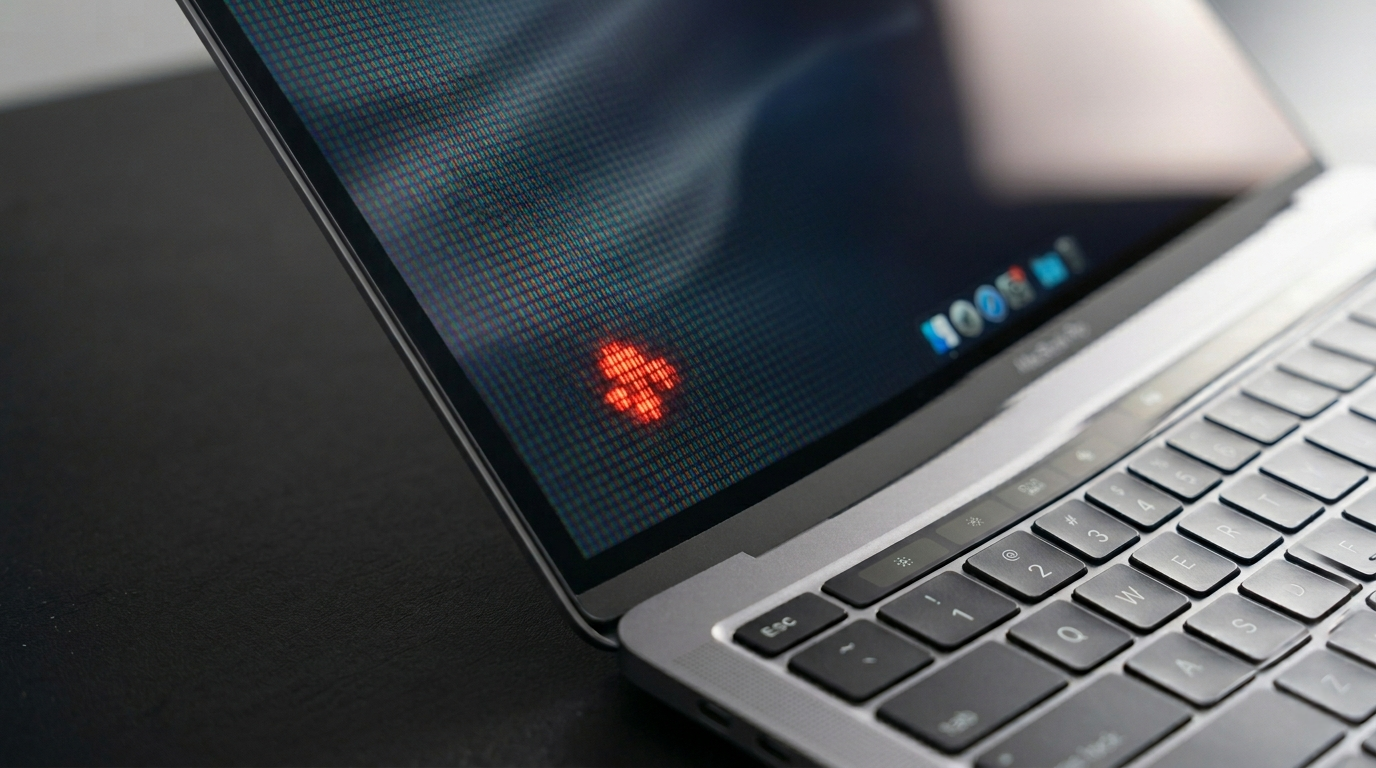
You notice a red dot on your MacBook screen. Before you worry, the most important thing to know is this: not every red dot on a MacBook is screen damage.
A red dot on a MacBook screen can mean one of five things: a macOS microphone indicator dot in the menu bar, a stuck pixel frozen in the red-on state, physical damage to the display panel, a macOS software glitch causing a rendering artifact, or anti-reflective coating damage from cleaning products or pressure.
Do this first: take a screenshot using Command + Shift + 3. Open the image on another device. If the red dot appears in the screenshot, the cause is software. If it does not appear, the cause is hardware in the physical display.
Step 1: Identify Which Type of Red Dot You Have

There are four completely different types of red dots on MacBook screens. Each one has a different fix. Identifying yours takes under two minutes.
Small Red Dot in the Menu Bar (Top Right Area)
If the red dot appears in the top right corner of the menu bar near the time or Control Centre, this is a macOS privacy indicator. It means an app on your MacBook is actively using the microphone. This is a built-in macOS security feature introduced in macOS Catalina and it is not screen damage at all. The dot is your MacBook telling you that audio is being recorded. Look at which apps are open and check which one is using the microphone. Closing that app removes the dot instantly.
Red Circle on App Icons in the Dock or Notification Centre
If small red circles with numbers appear on app icons in the Dock or at the top right of Notification Center in System Preferences, these are notification badges. They indicate unread notifications, unread messages, or pending updates. Open the app or go to System Settings > Notifications and adjust badge settings per app. This is a software feature, not a display defect.
A Fixed Red Dot on the Display That Does Not Move
If there is a single red dot or small cluster of red dots that remain in exactly the same position on screen regardless of what app is open, that do not appear in screenshots, this is a display hardware issue. It is either a stuck pixel in the red-on state, anti-reflective coating damage, or physical damage to the LCD or OLED layer. This type needs the hardware fixes in the sections below.
Red Dot That Appeared After Cleaning
If a red or discolored dot appeared on the MacBook screen shortly after cleaning it, anti-reflective coating damage is the cause. Certain cleaning products including alcohol wipes, window cleaners, and acidic solutions dissolve the anti-reflective coating on MacBook displays, leaving permanent discolored spots. Apple calls this Staingate and it has affected multiple MacBook Pro generations.
Quick Identification Table
| Where the Red Dot Is | What It Is |
| Top right menu bar near time | macOS microphone privacy indicator |
| On app icons with a number | Notification badge. Not screen damage. |
| Fixed position on display, not in screenshot | Stuck pixel or display hardware damage |
| Appeared after cleaning the screen | Anti-reflective coating damage (Staingate) |
| On the display, visible in screenshot | Software or graphics rendering artifact |
| Moving or changing when you flex the lid | Loose display cable signal issue |
What Causes a Red Dot on a MacBook Screen?

macOS Microphone Privacy Indicator
macOS displays a small orange or red dot in the menu bar whenever an app accesses the microphone. This was introduced as a privacy protection feature so users always know when audio recording is active. Zoom, FaceTime, Teams, voice recorders, and some games trigger this indicator. It is not a hardware problem and requires no repair. The dot disappears the moment the microphone access stops.
Stuck Pixel in the Red-On State
A stuck pixel is a pixel frozen in one color state. When it is stuck in the red sub-pixel configuration, it shows as a persistent bright red dot regardless of what is on screen. This does not appear in screenshots. Stuck red pixels are more common on LCD MacBooks (MacBook Pro models before 2019 on the 13 inch, and all models before the M1 transition for many lines). OLED MacBook Pro screens introduced from M4 onward can also develop stuck pixels but this is rarer. A stuck pixel sometimes self-corrects within a few days and can respond to pixel-fixing software.
Anti-Reflective Coating Damage (Staingate)
This is a well-documented Apple display issue that affects multiple MacBook Pro generations, particularly the 2013 through 2019 Retina display models. The anti-reflective coating on the screen glass degrades when exposed to certain cleaning chemicals, oils from fingers repeatedly touching the screen, or the keyboard pressing against the screen when the lid is closed. The result is a milky, discolored, or spotted appearance that can look like a red or brown dot or patch. Apple acknowledged this issue and offered free display replacements for affected models through a repair extension program.
Physical Impact or Pressure Damage
A drop, a hard object pressing against the screen, or carrying the MacBook with the lid closed against a hard surface can fracture the LCD layer or OLED pixels internally without cracking the outer glass. Physical damage creates colored spots that appear immediately after the event, stay in a fixed position, and do not respond to software fixes. On LCD MacBook screens this often appears as a milky or red-tinted patch. On OLED screens this shows as a brighter or differently colored dot.
Heat-Induced Display Degradation
Sustained high temperatures from heavy workloads, leaving the MacBook in a hot car, or using it on a surface that blocks airflow can degrade LCD components. The liquid crystal layer or the display backlight can develop localized hot spots that appear as colored dots or patches. This type of damage is progressive and worsens with continued heat exposure.
macOS Software or Graphics Rendering Glitch
Occasionally a macOS update, a corrupt display driver, or a glitch in the graphics rendering pipeline creates a colored artifact on screen that resembles a hardware dot. Software-caused dots appear in screenshots and typically affect the same position on screen across all apps. A restart or macOS update usually resolves these.
How to Fix a Red Dot on a MacBook Screen

Work through these fixes in order. Start with the ones that cost nothing.
Check and Close Microphone-Using Apps
If the red dot is in the top right menu bar, click on the dot. macOS will show you which app is accessing the microphone. Quit that app and the dot disappears. If you use the app regularly and do not want it accessing the microphone, go to System Settings > Privacy and Security > Microphone and revoke its access.
Clear Notification Badges
If red circles appear on Dock app icons, open the app and read or dismiss the notifications. For persistent badge dots you cannot clear, go to System Settings > Notifications, select the app, and disable the Badge App Icon option. The red circle disappears immediately.
Restart Your MacBook
A full restart clears graphics memory and resets the display subsystem. Hold the Apple menu and select Restart. If the red dot was caused by a temporary software or rendering glitch, it will disappear after restart and not return. If it persists after restart, the cause is hardware.
Update macOS
Go to System Settings > General > Software Update and install any available update. Apple patches display rendering bugs in macOS point releases. If the red dot appeared after a macOS update, the next release may resolve it. Check the Apple Support Community for your specific MacBook model to see if others are reporting the same issue after the same update.
Use a Pixel Fixer Tool
If the red dot is a stuck pixel (small, sharp, fixed position, not in screenshots), a pixel-fixing tool may resolve it by rapidly cycling colors across the display to electrically stimulate the frozen pixel sub-component. Open JScreenFix.com in Safari on your MacBook. Drag the flashing color box directly over the red dot and leave it running for 20 to 30 minutes. This works on approximately 60% of soft stuck pixels at no cost and carries zero risk.
Check Apple’s Staingate Repair Program
If the red dot or discoloration appeared after cleaning or gradually over time without physical impact, check if your MacBook qualifies for Apple’s anti-reflective coating repair program. Visit checkcoverage.apple.com and enter your serial number. Contact Apple Support or visit a Genius Bar. Apple has historically replaced displays affected by Staingate free of charge for qualifying models even after the standard warranty has expired.
Check Apple Warranty and AppleCare Plus
Before paying for any screen repair, check your coverage at checkcoverage.apple.com.
| Coverage | What It Includes | Cost in 2026 |
| Standard 1-year warranty | Manufacturing defects | Free |
| AppleCare Plus | Accidental screen damage | $99 service fee per incident |
| Staingate repair program | Anti-reflective coating defect | Free for qualifying models |
| Out of warranty (MacBook Pro 14 inch) | Screen replacement at Apple | $399 to $499 |
| Out of warranty (MacBook Pro 16 inch) | Screen replacement at Apple | $499 to $599 |
| Third-party certified shop | All MacBook models | 30 to 50% less than Apple |
MacBook Models and Their Red Dot Tendencies

| MacBook Model | Screen Type | Most Common Red Dot Cause |
| MacBook Pro 2013 to 2019 (Retina LCD) | LCD IPS Retina | Staingate coating damage, stuck pixel |
| MacBook Pro 2019 to 2023 (Liquid Retina) | LCD IPS Liquid Retina | Stuck pixel, physical pressure damage |
| MacBook Pro M3 and M4 (OLED models) | Tandem OLED | Stuck pixel rare, impact damage only |
| MacBook Air M1 to M3 | LCD IPS Liquid Retina | Stuck pixel, physical pressure |
| MacBook Air M4 | LCD IPS Liquid Retina | Stuck pixel, software artifact |
MacBook Pro models from 2013 to 2019 are the most affected by Staingate coating damage. If your MacBook is from this era and shows a discolored or spotted appearance, this is the most likely cause. Apple has offered extended repairs for this issue and it is worth contacting Apple Support regardless of how old the device is.
How to Prevent Red Dots on MacBook Screen

- Never use alcohol wipes, window cleaner, paper towels, or household cleaning products on the MacBook screen. Use only a soft dry microfiber cloth or a damp cloth with plain water.
- Do not close the MacBook lid with objects such as a cloth or notebook between the keyboard and screen. Even thin objects can press against the screen and cause anti-reflective coating damage over time.
- Keep macOS updated. Display driver and rendering patches are included in regular updates.
- Avoid using the MacBook in direct sunlight or in very hot environments for extended periods. Heat accelerates display material degradation.
- Use a keyboard cover when traveling. This prevents keyboard keys from contacting the screen when the lid is shut, which is a primary cause of Staingate damage.
- If you notice a small discolored area forming, address it early. Staingate and pressure damage worsen over time.
Frequently Asked Questions

What is the red dot that appears in the top right corner of my MacBook screen?
That is a macOS privacy indicator showing that an app is actively using your microphone. It is not screen damage. Click the dot to see which app is accessing the microphone, then quit that app. The dot disappears instantly when microphone access stops.
Can a red stuck pixel on a MacBook screen fix itself?
Sometimes. Soft stuck pixels occasionally self-correct within a few days without any action. Running a pixel fixer tool like JScreenFix.com for 20 to 30 minutes increases the chance of resolution. Physical impact damage and Staingate coating damage do not self-correct.
Is the red dot on my MacBook screen covered by warranty?
Manufacturing defects including stuck pixels present on a new MacBook are covered under the standard one-year warranty. Staingate anti-reflective coating damage on qualifying models is covered under Apple’s extended repair program regardless of age. Accidental damage from a drop or pressure is covered under AppleCare Plus for a $99 service fee.
What is Staingate and does Apple fix it for free?
Staingate is the common name for anti-reflective coating failure on MacBook Retina displays, primarily affecting 2013 to 2019 models. The coating develops milky, discolored, or spotted areas that look like screen damage. Apple acknowledged this issue and has offered free display replacements for affected models. Contact Apple Support with your serial number to check eligibility even if your MacBook is out of the standard warranty period.
How much does it cost to fix a red dot on a MacBook screen in 2026?
If software-caused: free. If Staingate on a qualifying model: free through Apple’s program. With AppleCare Plus: $99 service fee. Out of warranty screen replacement at Apple: $399 to $599 depending on the model. Third-party certified shops typically charge 30 to 50% less. Always check checkcoverage.apple.com before paying for any repair.
Is it safe to keep using a MacBook with a red dot on the screen?
A small stuck pixel or microphone indicator dot is completely safe to use. If the red dot is growing, is accompanied by discoloration spreading across the screen, or appeared alongside a bulging back panel (indicating a swollen battery), stop using the device and visit Apple or an authorized repair center immediately.
Final Verdict
A red dot on a MacBook screen has five possible causes and most of them are either free to fix or covered under warranty.
Start by identifying which type of dot you have using the identification section above. The macOS microphone indicator in the menu bar is not screen damage and disappears when you close the recording app. App notification badges are cleared by opening the app.
If the dot is a hardware issue, check your Apple warranty and the Staingate repair program at checkcoverage.apple.com before spending money. Many MacBook users pay for repairs they were entitled to receive free.
| About the AuthorBen is the founder of screenproblems.com, a resource dedicated to diagnosing and solving display and screen issues on all devices.All content is written without brand sponsorship. Every recommendation is based on what actually works. |