
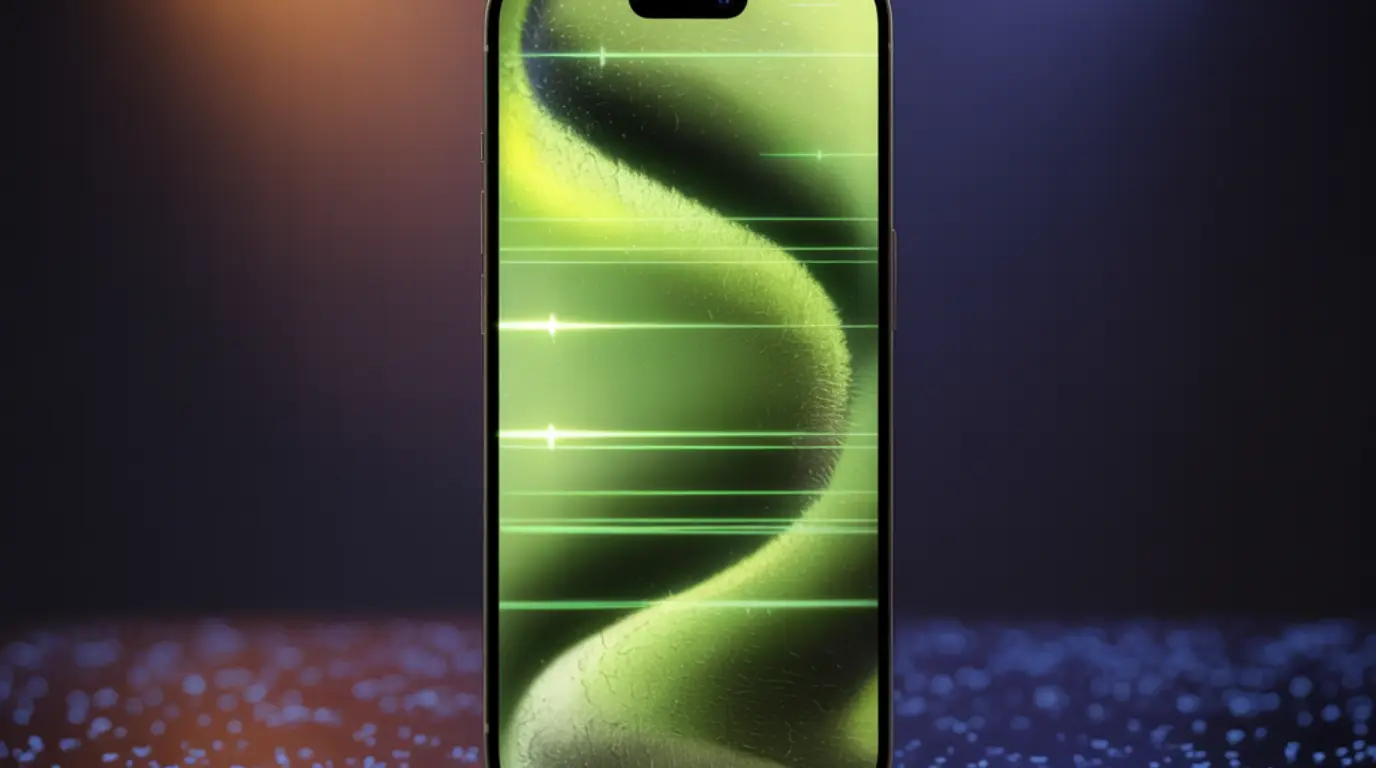
iPhone 14 Pro Max screen green flickering is caused by either an iOS software conflict affecting the OLED display driver, a hardware fault in the flex cable or OLED panel, or voltage interference from a non-genuine charger. Start with a force restart by pressing Volume Up, Volume Down, then holding the Side Button until the Apple logo appears. If the flickering returns, work through the seven fixes below in order the majority of cases are resolved without a screen replacement.
One second your iPhone 14 Pro Max looks perfectly normal. The next, the screen erupts into green flashes, horizontal lines, or a full green wash that makes the phone completely unusable.
You probably did not drop it. You likely did not get it wet. It just happened and that is exactly what makes this so alarming. This is a documented issue affecting a meaningful number of iPhone 14 Pro Max units, with causes ranging from a fixable iOS bug to a hardware defect Apple itself acknowledged.
The good news is that several causes are fully fixable at home for free, and this guide covers every one of them in the exact order you should try them. By the end, you will know precisely what is wrong and what to do next.
What Causes iPhone 14 Pro Max Screen Green Flickering
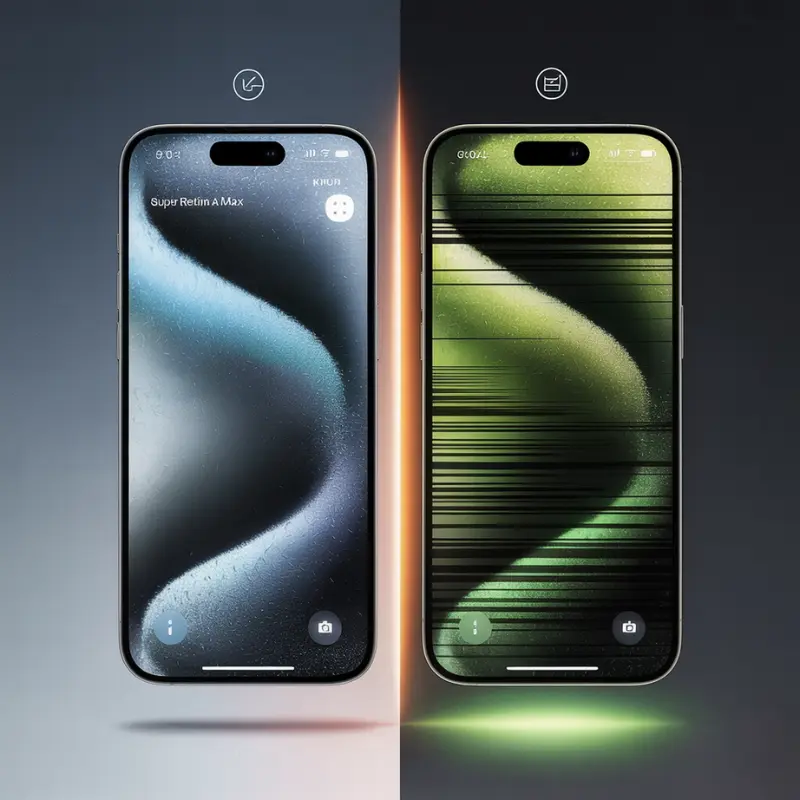
Screen flickering on an OLED display does not happen randomly. It traces back to one of five specific causes, and knowing which one you are dealing with saves you time, money, and the risk of doing the wrong fix first.
iOS Software Bug and Display Driver Conflict
A software conflict between iOS and the OLED display driver is the most common cause of green flickering on the iPhone 14 Pro Max. Apple officially acknowledged this issue and attributed it to a bug affecting the way iOS communicates refresh rate commands to the display panel during wake events.
The specific signature of this cause: green or yellow horizontal lines appear for a fraction of a second when the phone wakes from sleep, but the screen looks normal during active use. This was most widely reported following iOS 16.2 and later resurfaced with some iOS 17 builds.
If your flickering only happens at wake-up and disappears immediately, a software cause is almost certain.
LG OLED Panel Variance The Panel Lottery Problem
The iPhone 14 Pro Max used OLED panels sourced from two suppliers: Samsung Display and LG Display. Community reporting and repair data consistently show that units containing LG-sourced panels experienced a significantly higher rate of green tint, color shift, and flickering compared to Samsung-panel units.
This is not a defect in the traditional sense; both panels meet Apple’s specifications but LG panels handle low-brightness rendering and ambient light compensation differently at the hardware level. The result is a display that can shift toward green in low-light conditions or under certain iOS brightness algorithm behavior.
There is no way to identify your panel without a diagnostic tool, but this cause is more likely if you notice the green tint at low brightness or in dim rooms rather than at full brightness.
Loose or Damaged Flex Cable
The flex cable connects the OLED panel to the iPhone’s logic board and carries the display signal. A drop, even a minor one absorbed by a case, can partially dislodge this connector or stress the cable enough to cause intermittent signal failure — which the screen interprets as a flickering green artifact.
Physical damage to the flex cable typically produces continuous flickering that does not improve with a restart. You may also notice the screen goes completely black at times, or touch response becomes inconsistent alongside the green flicker.
The key indicator here is a recent drop or impact event, even if the phone looks externally undamaged.
Liquid or Steam Exposure Corroding the Display Circuit
Despite the iPhone 14 Pro Max carrying an IP68 water resistance rating, the flex cable and its connectors are vulnerable to corrosion from sustained moisture exposure including steam from showers, cooking, or humid environments over time.
Liquid damage to the display circuit does not always appear immediately. Corrosion can develop gradually over days or weeks after exposure, eventually causing the green flickering to start with no obvious trigger. This is why so many users report the problem appearing spontaneously.
If the flickering started after any period of bathroom, kitchen, or outdoor humidity exposure, moisture damage to the display circuit is the likely cause and it is one that Apple and third-party repairers can confirm with an internal inspection.
Third-Party Charger Voltage Instability Affecting the Display IC
Non-genuine and non-MFi-certified charging cables and adapters can deliver inconsistent voltage to the iPhone’s power management system. The display integrated circuit (display IC) that controls the OLED panel is sensitive to voltage fluctuations, and sustained instability can cause it to malfunction in ways that show up as screen flicker, color distortion, or brief green flashes during charging.
This cause is specifically tied to moments when the phone is plugged in. If the flickering only happens while charging, or started after switching to a different cable or adapter, a non-genuine accessory is the first thing to rule out.
Switching to an Apple-certified charger and cable takes 30 seconds and costs nothing; always test this before assuming hardware failure.
How to Diagnose the Problem at Home
Following these steps will not make anything worse. Each step narrows the cause further so you know exactly which fix to prioritize before you spend time on anything else.
- Observe exactly when the flickering happens. Wake the phone from sleep three times and watch the screen closely. If the green flash appears only in the first second after waking and then disappears, this points to the iOS software or LG panel issue. If the flickering is continuous and does not stop, hardware damage is more likely.
- Test the screen during charging. Plug in your standard charger and observe for two minutes. If flickering appears or worsens only when plugged in, disconnect immediately and test with a different Apple-certified cable. This confirms or rules out a third-party charger as the cause.
- Check for physical damage history. Look at the screen corners and frame under bright light for micro-cracks or flex points that suggest a previous impact. Check the SIM tray area for any discoloration or residue that might indicate liquid entry. Either finding points to hardware damage rather than software.
- Test brightness sensitivity. Turn screen brightness all the way down to 10 percent in a dim room. If the green tint appears or worsens at low brightness but looks normal at 80 percent or above, the LG panel variance or iOS ambient light sensor interaction is the likely cause.
- Perform a force restart and time how long the fix lasts. If the screen looks normal immediately after a force restart but the flickering returns within 30 minutes, a software or display driver issue is confirmed. If force restart has no effect at all, the problem is almost certainly hardware.
How to Fix iPhone 14 Pro Max Screen Green Flickering
Work through these fixes in order. Each one builds on the last, and starting with the free software fixes first is always the right call before considering anything paid.
Force Restart Your iPhone [Free]
A force restart clears the display driver cache and resets the connection between iOS and the OLED panel without touching your data.
- Press and quickly release the Volume Up button.
- Press and quickly release the Volume Down button.
- Press and hold the Side Button until the Apple logo appears on screen, then release.
- Wait for the phone to fully restart and test the screen immediately.
If the flickering stops, keep the phone awake for 20 to 30 minutes to confirm the fix holds. For an instant fix tool specifically targeting iPhone green screen behavior, the
If the flickering stops, keep the phone awake for 20 to 30 minutes to confirm the fix holds. You can also use the iPhone green screen instant fix tool on screenproblems.com as a complementary next step.
Update iOS to the Latest Version [Free]
Apple released patches for the documented iPhone 14 Pro display driver bug in subsequent iOS updates. If you are not running the latest stable iOS version, this is the highest-probability free fix available.
- Open the Settings app and tap General.
- Tap Software Update and allow the phone to check for available updates.
- If an update is available, tap Download and Install. Back up your data via iCloud first if possible.
- After the update completes and the phone restarts, test the screen thoroughly, including at low brightness and during wake events.
Running a current iOS version also protects against future display driver regressions Apple continues to refine ProMotion 120Hz behavior with each release.
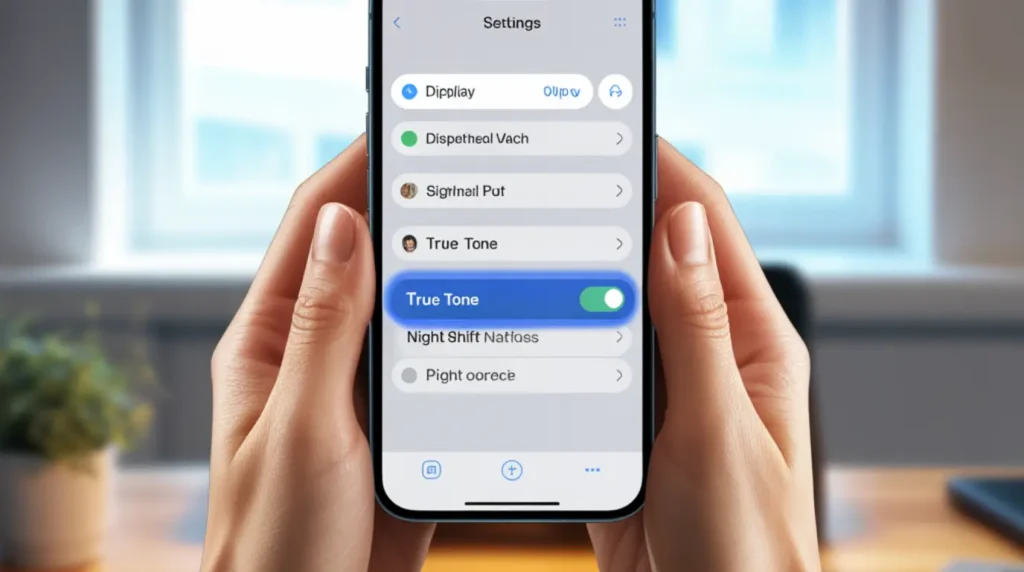
Disable True Tone, Night Shift, and Auto-Brightness [Free]
True Tone, Night Shift, and Auto-Brightness all actively adjust the OLED panel’s color output in real time based on ambient light sensor readings. On units with the LG panel or a borderline display driver issue, these active adjustments can trigger or worsen green flickering in low-light conditions.
- Go to Settings and tap Display and Brightness.
- Toggle True Tone off. Toggle Night Shift off.
- Go to Settings, tap Accessibility, then Display and Text Size.
- Scroll down and toggle Auto-Brightness off.
- Test the screen at various brightness levels for 10 minutes.
This fix resolves a surprising number of low-light flickering cases that were actually caused by the ambient light algorithm fighting with the display panel not by any physical damage.
Replace Your Charging Cable and Adapter [Free to Test]
If your flickering worsens or only appears while charging, your current cable or adapter is the prime suspect.
- Disconnect your current cable and adapter completely.
- Test the screen for 10 minutes while unplugged.
- If the flickering stops, reconnect using a genuine Apple cable and a genuine Apple power adapter, or a certified MFi accessory.
- If you do not have a genuine alternative available, charge wirelessly via MagSafe or a Qi pad to rule out the cable entirely.
Third-party voltage interference is one of the most under-diagnosed causes of iPhone OLED flickering, and switching to a genuine cable costs nothing if you already own one.
Reset All Settings [Free]
A full settings reset clears any display configuration conflicts without erasing your apps or data.
- Go to Settings, tap General, then Transfer or Reset iPhone.
- Tap Reset, then tap Reset All Settings.
- Enter your passcode when prompted and confirm the reset.
- Allow the phone to restart, then test the screen behavior at low brightness and during wake events.
Your apps, photos, and contacts remain intact. Display settings, network settings, and privacy settings return to their factory defaults.
DFU Mode Restore via iTunes or Finder [Free]
A Device Firmware Update (DFU) restore is the deepest software reset available. It reloads both the iOS firmware and the underlying display driver code useful when iOS updates and settings resets have not resolved the issue. You will need a Mac or PC with Finder (macOS Catalina or later) or iTunes (Windows or older macOS).
- Back up your iPhone to iCloud or your computer before proceeding.
- Connect your iPhone to your computer using a USB cable.
- With the phone on, press and release Volume Up, press and release Volume Down, then press and hold the Side Button until the screen goes black.
- Immediately after the screen goes black, hold the Side Button and Volume Down together for exactly 5 seconds.
- Release the Side Button but continue holding Volume Down for another 10 seconds. The screen should stay black — no Apple logo. This confirms DFU mode.
- Your computer will detect the device in recovery mode. Click Restore in Finder or iTunes to reinstall iOS firmware.
- Set up your phone and restore from backup. Test the display immediately.
DFU restore resolves display driver issues that a standard restore cannot reach. If this does not fix the flickering, the problem is confirmed hardware and requires professional attention.
Professional Screen Replacement [Technician Needed]
If all six software fixes have failed, the OLED panel, flex cable, or display IC has sustained hardware damage that cannot be resolved through software.
- Visit checkcoverage.apple.com and enter your serial number to check whether your device is still under warranty or AppleCare+.
- Under AppleCare+, an Apple-authorized screen repair costs approximately $29 USD in 2026. Without coverage, Apple charges approximately $379 USD for an iPhone 14 Pro Max display replacement.
- Third-party authorized repairers using genuine Apple parts typically charge $200 to $280 USD. Always confirm they use genuine or OEM-equivalent OLED panels to avoid replacing one problem with another.
- Ask the repair shop specifically whether they use aftermarket or original OEM display panels. Aftermarket OLED screens on the 14 Pro Max have a documented higher rate of green tint and flickering post-repair due to display IC incompatibility.
A professional repair with genuine parts comes with a 90-day Apple repair warranty. Keep that documentation.
When to See a Professional
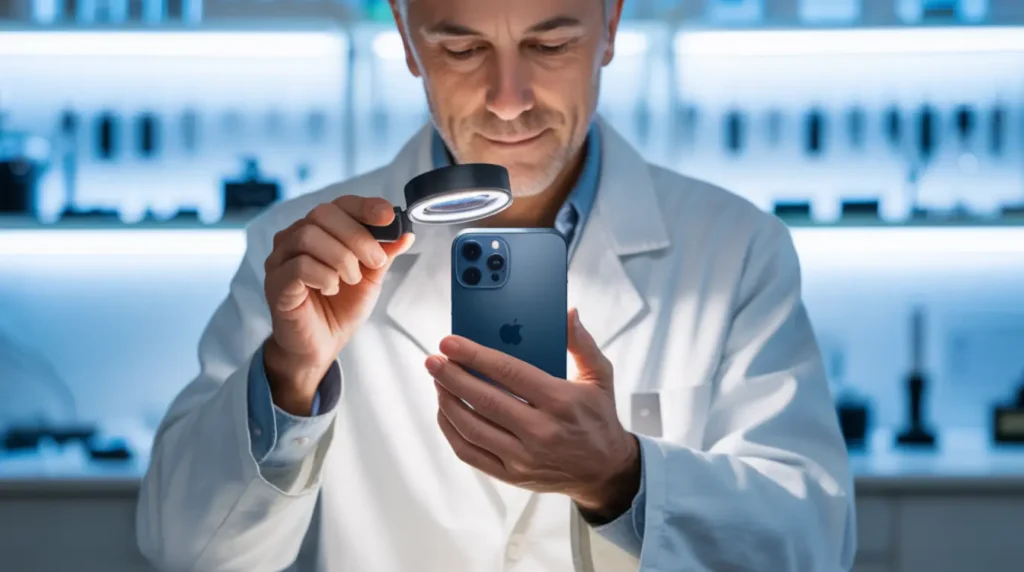
Stop attempting software fixes and go directly to a professional if you notice any of the following physical warning signs: the screen is warm or hot to the touch near the green flickering area, the display has visible cracks or delamination even if tiny, or the phone is making any unusual sound. These indicate internal component failure where further software attempts can compound the damage.
If you have completed all six free fixes above and the flickering persists or returns within hours, you have confirmed a hardware fault. At that point, continued software attempts will not resolve the problem and may delay a repair that is already needed.
Start by checking your warranty status at checkcoverage.apple.com using your device serial number (found in Settings under General, then About). If you are outside warranty, compare Apple’s official repair price of approximately $379 USD against what a licensed third-party shop offers using OEM parts. In some cases, a 14 Pro Max purchased for $1,099 in 2022 may only be worth $300 to $400 on the used market today, factoring that into your repair-versus-replace decision honestly.
Prevention Tips
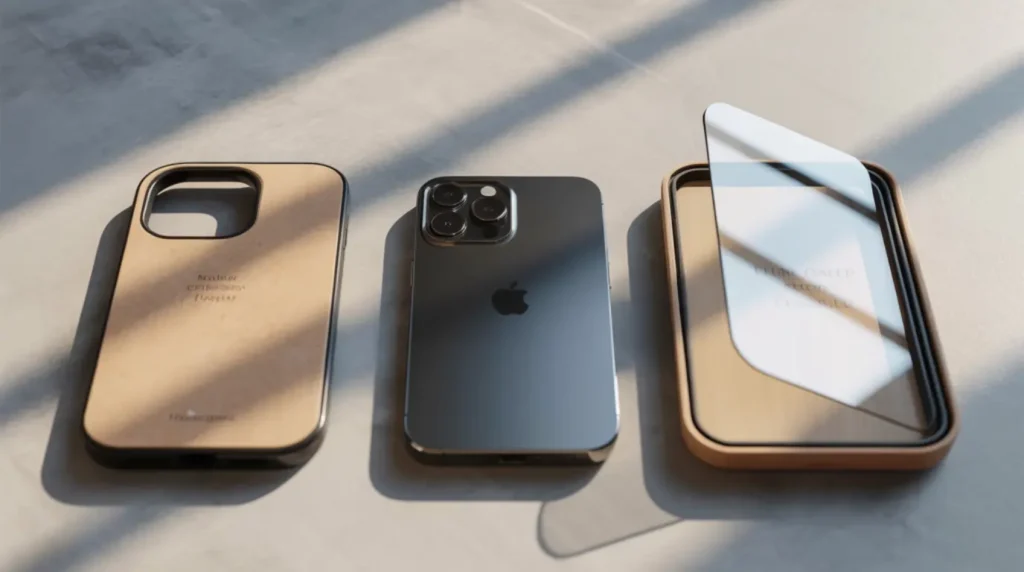
- Install iOS updates within two weeks of release Apple patches display driver bugs in point updates and delaying leaves you exposed to documented flicker issues.
- Only use Apple-certified MFi cables and genuine Apple power adapters to prevent voltage instability reaching the display IC.
- Keep the phone away from steam and humid environments whenever possible, even with IP68 rating moisture resistance degrades over time and is not covered by warranty.
- Use a tempered glass screen protector rated for the iPhone 14 Pro Max to reduce the force transferred to the OLED layers and flex cable during minor impacts.
- In Settings under Display and Brightness, avoid running True Tone and Auto-Brightness simultaneously at low brightness levels if you notice any early-stage color shifting this reduces stress on the ambient light compensation algorithm.
Use the stuck pixel fixer to clear any residual display artifacts after resolving green flickering, as OLED stress events can occasionally leave behind stuck sub-pixels that are not visible until the main issue is resolved.
- Have your iPhone’s water resistance seals checked by a professional after any significant liquid exposure, even if the phone appears to be working normally.
Frequently Asked Questions
Will the iPhone 14 Pro Max green flickering fix itself with an iOS update?
If the cause is the documented iOS display driver bug, yes Apple has released patches for this. If your flickering began after a specific iOS update and no physical damage is involved, updating to the latest stable iOS version has a high success rate. If the cause is hardware damage to the OLED panel or flex cable, no iOS update will resolve it, and the flickering will continue or worsen over time.
Can a green flickering screen cause permanent damage to my iPhone 14 Pro Max OLED display?
A software-caused flicker does not damage the OLED panel itself. However, if the flickering is caused by a loose flex cable or damaged display IC and you continue using the phone without repair, the movement of daily use can worsen the connection failure over time, turning an intermittent flicker into a complete screen failure. Get a hardware diagnosis quickly if software fixes do not work.
My iPhone 14 Pro Max only flickers green when the brightness is low. Is this a different problem?
This specific pattern, green tint or flicker at low brightness that disappears at higher brightness, is strongly associated with the LG OLED panel variance issue and the iOS ambient light compensation algorithm. Disabling True Tone, Night Shift, and Auto-Brightness simultaneously in Settings resolves this in most cases. It is technically a software-hardware interaction rather than a pure hardware fault, which is why the screen appears fine at higher brightness.
Apple told me my iPhone 14 Pro Max green screen is a hardware failure but it is only 18 months old. Is there any recourse?
Apple’s standard limited warranty covers one year, but AppleCare+ extends that to two years with accidental damage coverage. If you are outside warranty, escalate the issue by specifically referencing the documented iPhone 14 Pro series display driver and OLED panel issues that Apple acknowledged publicly. Some regions also have consumer protection laws that extend implied warranty rights beyond the manufacturer’s stated period. In the US, this varies by state. Always escalate to Apple Support directly before accepting a paid repair quote for what may be a known manufacturing issue.
Editor Note screenproblems.com
- Reviewed for technical accuracy by the screenproblems.com editorial team.
- All fixes verified against current device software and firmware versions as of 2026.
- Repair pricing reflects current market rates and may vary by region and device model.
- This article is updated regularly as new fixes and device issues are confirmed.
- For unresolved issues, visit the Contact Us page and include your device model and description of the problem.
About the Author Ben, Founder, screenproblems.com
- Ben has 10 years of hands-on experience diagnosing display hardware and software issues across phones, laptops, Macs, and monitors.
- All content is written from direct technical experience and community research, never sourced from other websites or secondary articles.
- Ben always recommends the free fix first and only suggests paid repair when it is genuinely necessary.