
You’re working or gaming, and your monitor suddenly cuts out. A second later it comes back on like nothing happened. It keeps doing this, and it’s driving you crazy.
The good news is that this is almost never a dead monitor. In most cases it comes down to a loose cable, an old GPU driver, or a shaky power connection. We see this exact issue on Dell, Samsung, LG, and ASUS monitors all the time, and it usually takes less than 15 minutes to fix.
What’s Causing It
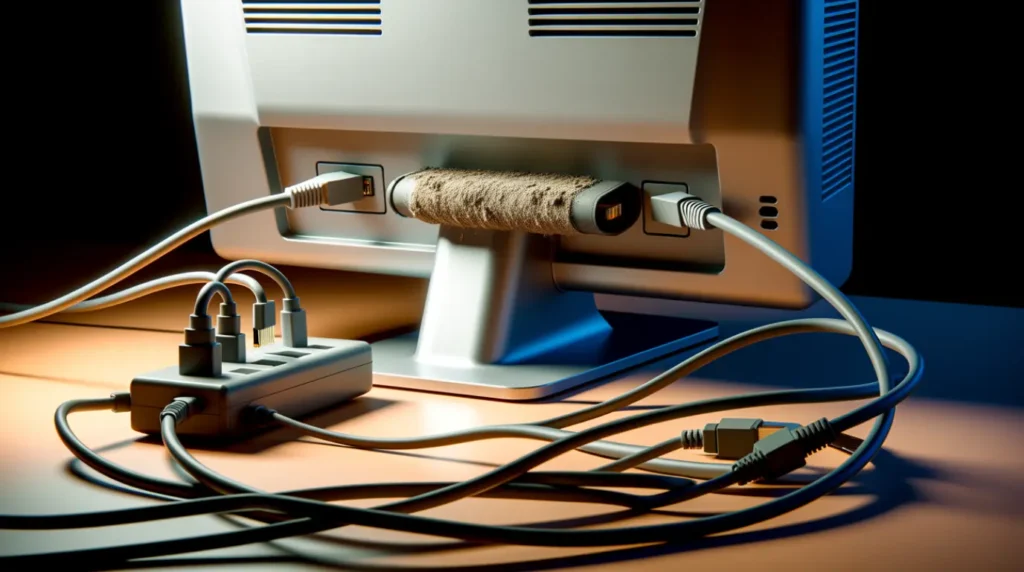
A loose or damaged video cable. This is the most common reason by far. HDMI and DisplayPort cables send a constant signal between your PC and the monitor. If the cable is bent, pinched behind your desk, or just cheap, that signal breaks for a moment and the monitor reads it as a shutdown.
An outdated or corrupted GPU driver. If your driver hasn’t been updated in a while, or it was installed wrong after a Windows update, it can send unstable output to the screen. This is the same kind of driver conflict we cover in our guide on red lines on PC screens, and it shows up a lot right after a fresh Windows update.
An unstable power source. If your monitor shares a power strip with a heater, printer, or something else that draws a lot of power, a sudden spike can knock it offline.
Overheating. Some monitors shut themselves off once they get too hot inside, especially in summer or if the vents are blocked against a wall.
A failing power board. This one’s rare and mostly shows up on monitors older than three years. It’s a hardware problem, not a settings issue, so no driver update will fix it.
How to Figure Out Which One It Is
- Watch the power light when the monitor cuts out. If the light turns off completely, it’s a power problem. If the light stays on and just the picture drops, it’s a signal or driver problem.
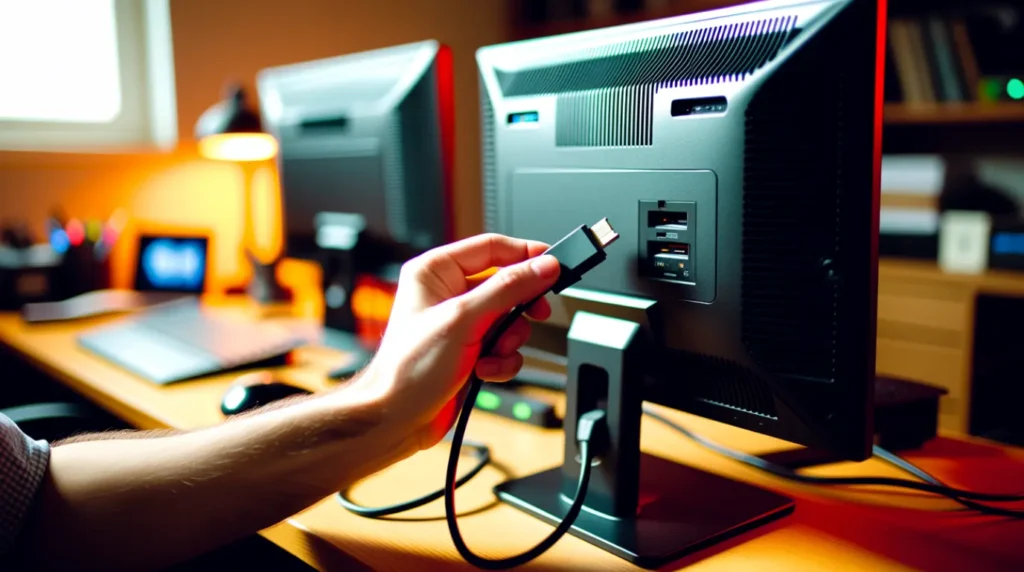
- Swap the HDMI or DisplayPort cable for a different one. This alone rules out the most common cause.
- Plug the monitor straight into a wall outlet, skipping any power strip.
- Try a second monitor or TV on the same cable and port. If it also cuts out, the problem is your GPU or port, not the monitor.
- Check if the shutoffs started right after a Windows update. Microsoft has confirmed display bugs tied to certain updates, similar to what we found in our Windows update white screen guide.
The Fixes
Reseat or replace the cable. Power everything off, unplug the HDMI or DisplayPort cable at both ends, check the connector for bent pins, and plug it back in firmly. Swap in a spare cable if you have one. Power back on and watch for at least 20 minutes.
We’ve seen this fix alone solve most desktop cases, especially when the cable runs behind a desk and gets pinched every day.
Update or roll back your GPU driver. Open Device Manager, expand Display Adapters, right click your GPU, and select Update Driver. If the problem started right after a driver update, roll it back instead if that option shows up.
This one trips people up because they update through Windows Update instead of going straight to NVIDIA, AMD, or Intel for the latest stable driver.
Move the monitor to its own outlet. Unplug it from any shared power strip and plug it directly into the wall. Give it 24 hours before deciding if it worked.
Easy to overlook, but a shared outlet with a space heater has caused this more than once in cases we’ve looked at.
Is It Worth Repairing?
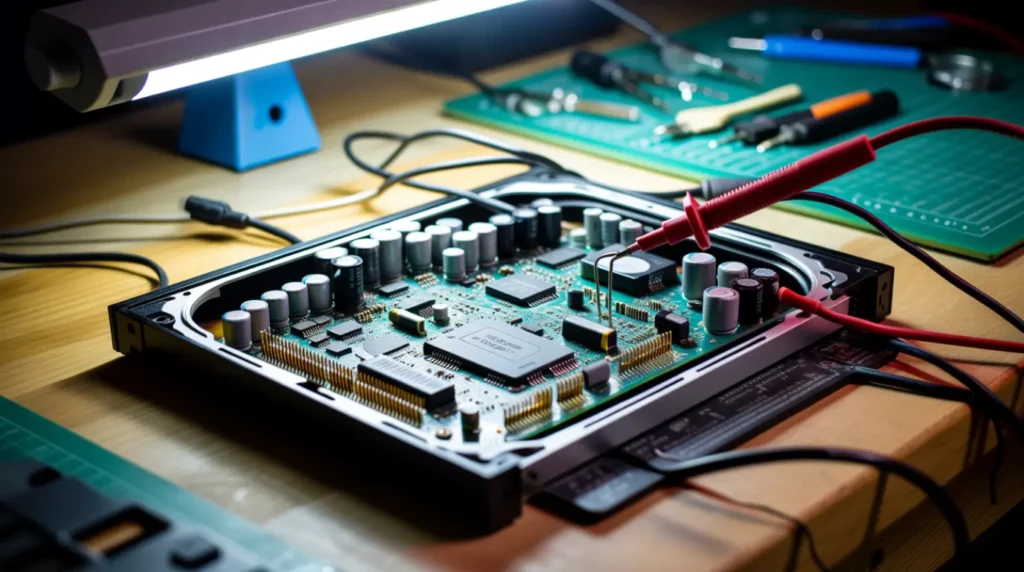
If your monitor is under three years old and none of the above fixes it, the power board is probably failing. A repair shop typically charges $40 to $90 to replace it, which makes sense if your monitor costs more than $200.
If it’s a budget monitor under $150, replacing it is usually the smarter move than paying for repair. If you want to dig deeper into driver and power management checks straight from the source, Microsoft’s own troubleshooting thread on this exact symptom is a solid reference.
Preventing It From Happening Again
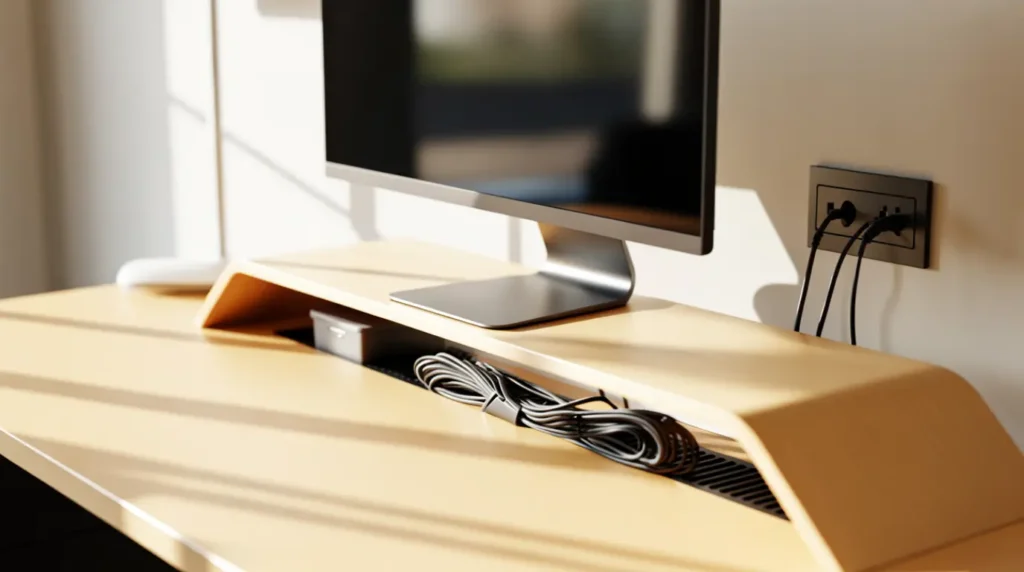
- Keep cables away from sharp bends or desk edges.
- Give your monitor its own outlet, away from heaters and printers.
- Update your GPU driver every few months, straight from the manufacturer.
- Leave a couple inches of clearance around the back vents.
A Few Things People Get Wrong
- Buying a new monitor before even testing with a different cable.
- Blaming the GPU without trying a second display on the same port first.
- Ignoring the power light pattern, which usually tells you exactly where to look.
Your monitor probably isn’t dying. Check the cable, then the outlet, then the driver, in that order, and you’ll likely find your answer before you ever need a repair shop.
Frequently Asked Questions
Why does my monitor turn off and on only when gaming? Gaming pushes your GPU and power supply harder than normal use. If the shutoffs happen mostly during gaming, suspect an unstable power supply or an overheating GPU rather than the monitor itself.
Can a bad HDMI cable really cause this? Yes. A cheap or damaged HDMI cable is one of the most common causes. Swapping it for a different cable is one of the fastest ways to test this.
Does this mean my monitor is dying? Not usually. Most cases come down to a cable, driver, or power issue that has nothing to do with the monitor failing. A dying monitor is more likely if the shutoffs get worse over weeks and no fix helps.
Will updating Windows fix this? Sometimes. If the problem started right after a Windows update, installing the next update or rolling back your GPU driver often resolves it.
How do I know if it’s the monitor or my PC? Connect a second monitor or TV to the same cable and port. If the second display also cuts out, the problem is your PC or GPU, not the monitor.
Disclaimer: This guide is for general informational purposes only. Results can vary depending on your monitor’s brand, model, and age. If your monitor is still under warranty, check with the manufacturer before attempting any physical repair, since opening it yourself can void your warranty.
Editor Note: This guide was reviewed for technical accuracy and updated in July 2026 to reflect current driver behavior and known Windows update issues.
Author Note: Written by Ben, founder of screenproblems.com, based on hands-on repair experience with Dell, Samsung, LG, and ASUS monitors, along with real user reports from PC hardware communities. Ben always recommends trying the free fixes first and only suggests paid repair when it is genuinely needed.
Article Summary: A monitor turning off and on by itself is usually caused by a loose video cable, an outdated GPU driver, or an unstable power source, in roughly that order of likelihood. Start by testing the cable, then the outlet, then the driver. A repair shop is only needed if you suspect a failing power board, which is rare on monitors under three years old.