
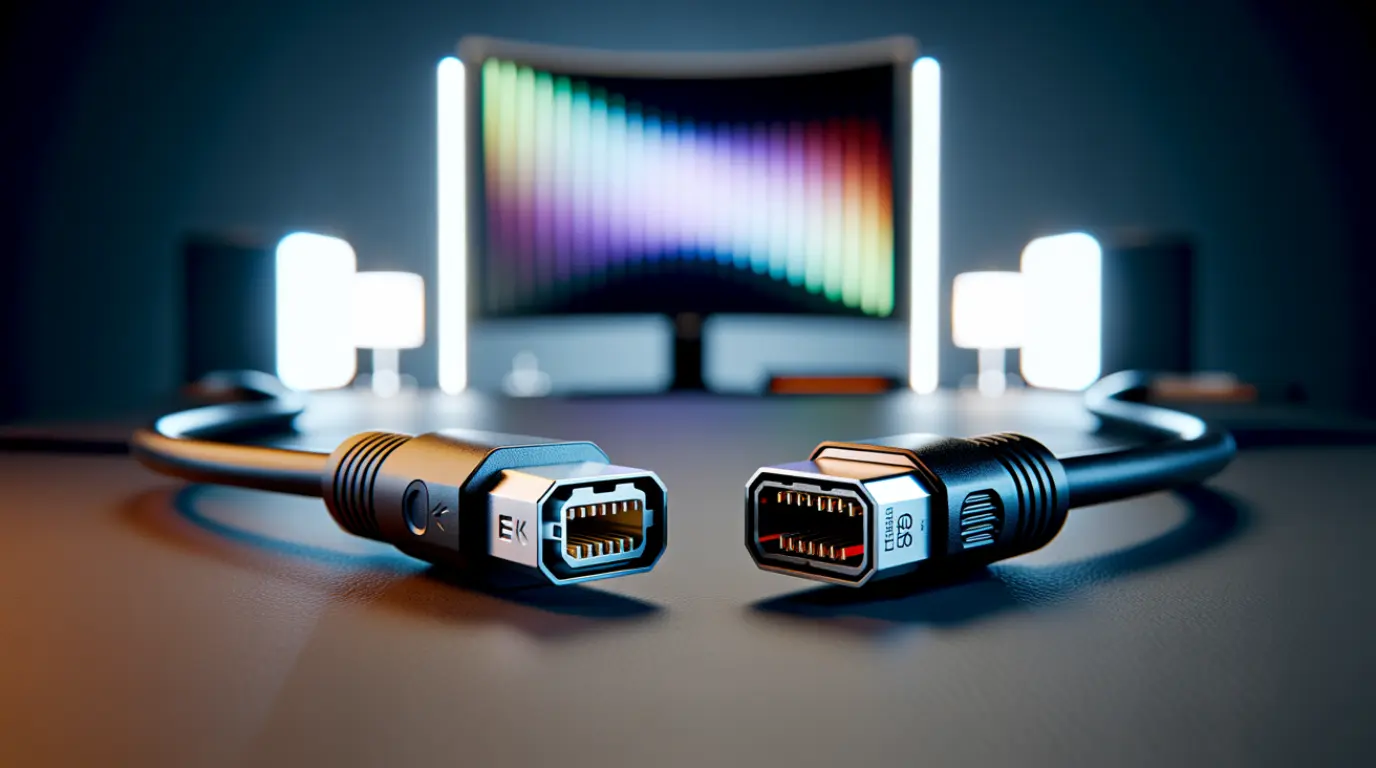
DisplayPort currently wins on raw bandwidth, since DisplayPort 2.1 pushes 80 Gbps against HDMI 2.1’s 48 Gbps ceiling. That gap matters most at high refresh rates above 144Hz on PC monitors. For TVs, consoles, and everyday viewing, HDMI 2.1 already delivers identical picture quality, and the newer HDMI 2.2 standard closes most of the remaining gap anyway.
The Real Difference Isn’t “Quality,” It’s Headroom
I’ve spent ten years testing display connections during repair jobs, and the question I get asked wrong almost every time is “which cable looks better.” Neither HDMI nor DisplayPort adds sharpness or color on its own. Both send a digital signal, pixel for pixel, with zero analog loss.
What actually separates them is bandwidth headroom. That headroom decides whether your monitor can hit its full resolution and refresh rate without the GPU compressing the signal first.
Here’s how the current standards stack up.
| Standard | Max Bandwidth | Typical Ceiling |
| HDMI 2.0 | 18 Gbps | 4K at 60Hz |
| HDMI 2.1 | 48 Gbps | 4K at 120Hz, 8K at 60Hz |
| HDMI 2.2 | 96 Gbps | 4K at 480Hz, 8K at 240Hz |
| DisplayPort 1.4 | 32.4 Gbps | 4K at 120Hz with DSC |
| DisplayPort 2.1 (UHBR20) | 80 Gbps | 4K at 240Hz uncompressed, 8K at 120Hz with DSC |
Notice HDMI 2.2 actually out-numbers DisplayPort 2.1 on paper, at 96 Gbps versus 80 Gbps. But almost no consumer device ships with HDMI 2.2 hardware yet, so this table is more useful as a roadmap than a shopping list for 2026.
When The Difference Shows Up On Your Screen
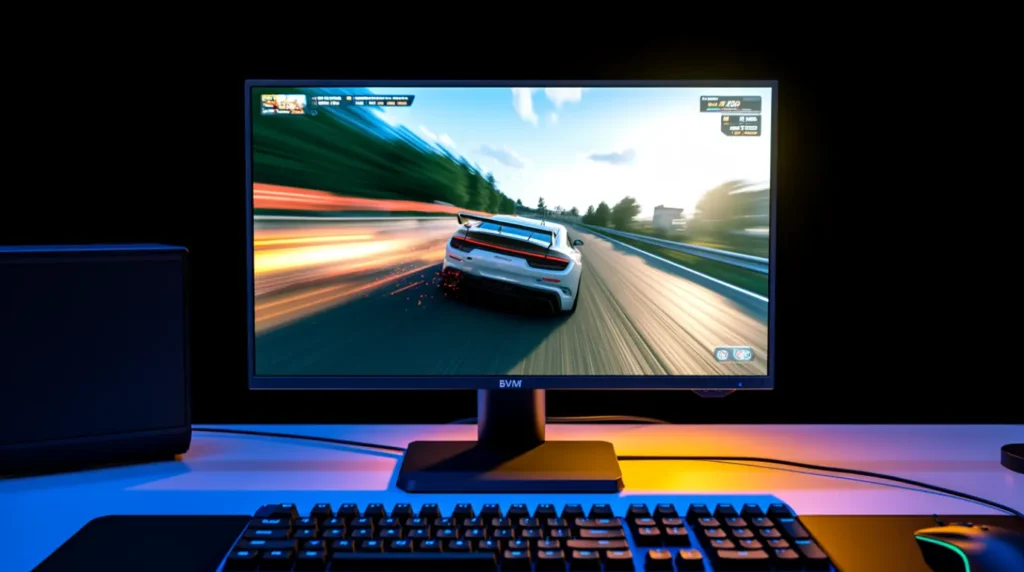
You won’t see a difference at 1080p or standard 4K 60Hz. Both HDMI 2.0 and DisplayPort 1.4 handle that comfortably, and the picture will look identical side by side.
The gap becomes visible in two specific situations. The first is high refresh gaming above 144Hz at 4K resolution, where HDMI 2.1 needs Display Stream Compression to keep up, while DisplayPort 2.1 often doesn’t. The second is running three or more monitors from one GPU port, where DisplayPort’s Multi-Stream Transport handles daisy-chaining that HDMI simply can’t do.
DSC itself isn’t something you’ll notice in normal use. It’s technically lossy, but VESA designed it to be visually indistinguishable in nearly every real-world test. Where it does cause a problem is during mode switching, not picture quality. Alt-tabbing out of a fullscreen game on a DSC connection can trigger a two to five second black screen while the link retrains.
If you use borderless windowed mode instead of exclusive fullscreen, that retraining almost never happens, and the DSC versus uncompressed debate stops mattering for everyday gaming.
Choose HDMI If You’re Connecting To A TV Or Console
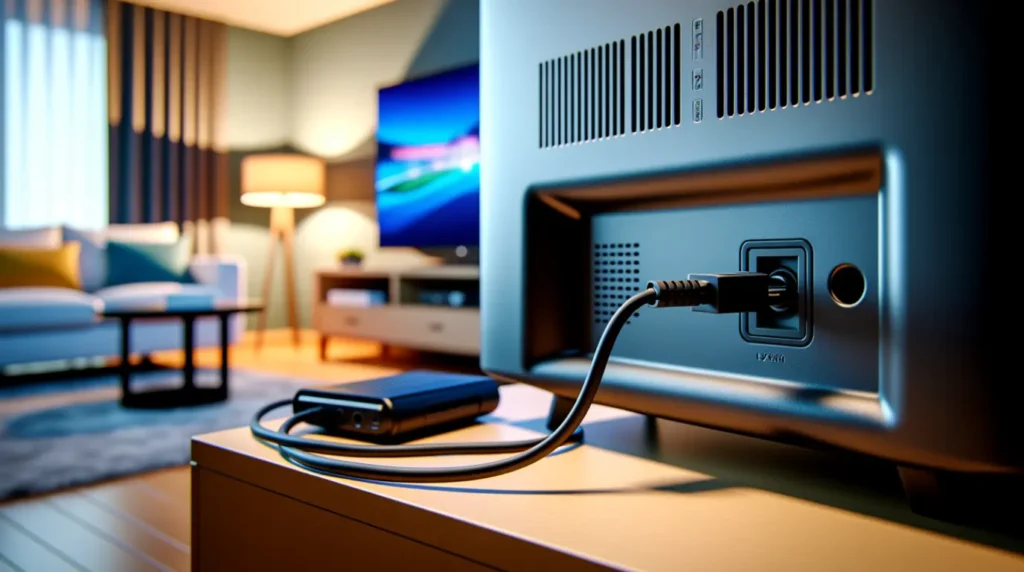
HDMI stays the better default for televisions, AV receivers, soundbars, and consoles like the PS5 or Xbox Series X. It carries Audio Return Channel and enhanced ARC, so your TV can send audio back to a soundbar over the same cable. DisplayPort doesn’t support that at all.
HDMI also dominates licensing on consumer electronics, so almost every TV, projector, and streaming box you’ll ever buy has an HDMI input as standard. DisplayPort ports are rare outside PC monitors and some laptops.
Choose DisplayPort If You’re Building A PC Gaming Setup
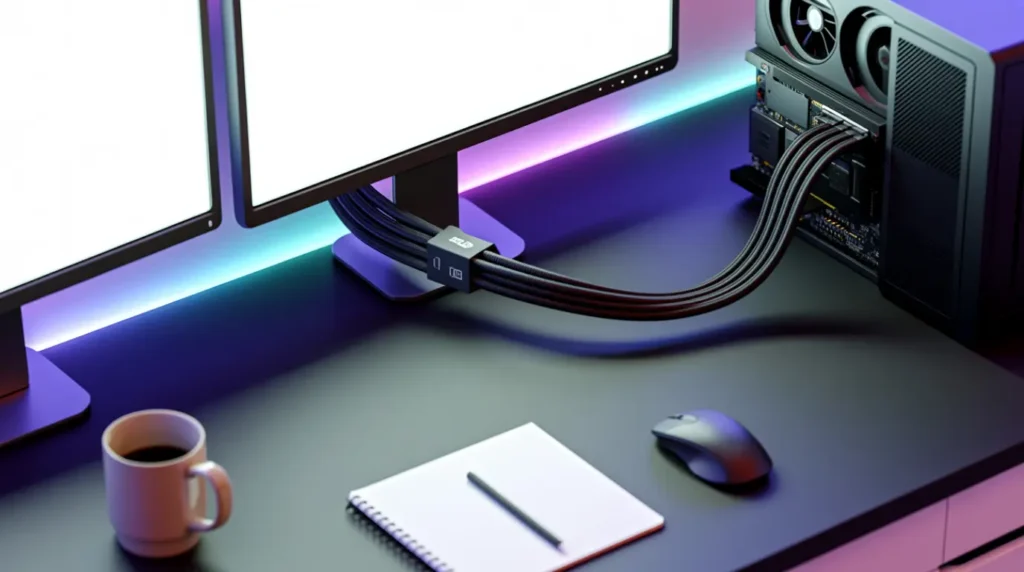
If you’re pairing a desktop GPU with a high-refresh monitor, DisplayPort is the port your graphics card was designed around. Every modern Nvidia and AMD desktop card treats DisplayPort as its primary output, and most gaming monitors default to DisplayPort for their highest advertised refresh rate.
Multi-monitor desks benefit here too. DisplayPort’s MST feature lets you daisy-chain several monitors off one cable run, something HDMI has no real equivalent for. If your monitor supports over 144Hz at 1440p or 4K, plug into the DisplayPort input first and check your refresh rate setting in Windows Display Settings before assuming the panel itself is faulty.
For anyone deciding exactly how far away that monitor should sit once it’s connected, our screendotfix.com <a>Viewing Distance Calculator</a> works out the ideal distance for your resolution and screen size in about ten seconds.
Common Mistakes People Make Choosing Between Them
- Buying a certified HDMI 2.1 cable but plugging it into a port that’s only wired for HDMI 2.0 bandwidth internally, which caps the signal regardless of the cable
- Assuming a longer DisplayPort cable automatically supports UHBR20 speeds, when only DP80LL-rated active cables hold 80 Gbps past one meter
- Blaming “DisplayPort quality” for flickering that’s actually a loose connector or a damaged port pin
- Running 4K 120Hz over an HDMI 2.0 port and not realizing the display is silently dropping to 4:2:0 chroma subsampling to fit the bandwidth
That last one is worth flagging on its own. If text looks slightly soft or colored fine lines look fringed at the edges, open your GPU control panel and check the color format. Chroma subsampling from an underpowered HDMI port is one of the most common “screen quality” complaints we trace back to the cable, not the panel.
If you’re chasing down a flickering issue that turns out to be connection-related rather than a cable standard problem, our full <a>Acer Laptop Screen Flickering Fix</a> guide walks through the exact diagnostic order we use in the shop.
Does A More Expensive Cable Improve Picture Quality?
No, not once the cable meets spec. A certified HDMI 2.1 cable and a generic HDMI 2.1 cable will output the exact same picture, because digital signals are either received correctly or they aren’t. There’s no gradual quality scale like there was with old analog VGA cables.
Where price matters is reliability at length and bandwidth. Cheap cables often fail spec at longer runs or higher data rates, which shows up as flickering, dropouts, or the display falling back to a lower resolution rather than a “worse” picture.
Frequently Asked Questions
Does DisplayPort give better color than HDMI?
No. Both are digital, lossless signals when running within their bandwidth limit. Color accuracy comes from the panel and its factory calibration, not the port type.
Can I use an HDMI to DisplayPort adapter without losing quality?
Passive adapters going from DisplayPort to HDMI generally work fine, since DisplayPort can natively output an HDMI-compatible signal. Going the other direction, from HDMI to DisplayPort, needs an active adapter with a chip inside, or it usually won’t work at all.
Is HDMI 2.1 enough for 4K 120Hz gaming?
Yes, HDMI 2.1’s 48 Gbps ceiling comfortably handles 4K at 120Hz with 10-bit color. You only run into compression territory above that, at 144Hz and beyond.
Will HDMI 2.2 make DisplayPort pointless?
Not for a while. HDMI 2.2 hardware is only just starting to appear in flagship products as of mid-2026. DisplayPort 2.1 remains the more widely available high-bandwidth option on actual PC monitors and graphics cards today.
For the full technical specification behind these bandwidth figures, VESA’s official DisplayPort documentation at vesa.org breaks down UHBR signaling in more depth than any consumer guide needs to cover.
Disclaimer: This article is intended for general informational purposes. Bandwidth figures and refresh rate ceilings reflect standards published by the HDMI Forum and VESA as of the update date above and may change as new versions roll out. Always confirm your specific device and cable specifications before purchasing.
Editor Note: This guide was reviewed for technical accuracy against current HDMI and DisplayPort specifications and updated to reflect the HDMI 2.2 and DisplayPort 2.1b announcements. We revisit comparison guides like this one whenever a new standard reaches consumer hardware.
Author Note: I’m Ben, founder of screenproblems.com. I’ve spent the last ten years repairing displays and diagnosing connection issues across laptops, monitors, and TVs, and cable-versus-port confusion is one of the questions I field most often from readers.
Article Summary: HDMI and DisplayPort both deliver lossless digital picture quality within their bandwidth limits, so neither inherently “looks better.” DisplayPort 2.1 currently offers more headroom at 80 Gbps versus HDMI 2.1’s 48 Gbps, which matters for high-refresh PC gaming and multi-monitor setups. HDMI remains the better choice for TVs, consoles, and home theater gear thanks to ARC support and wider device compatibility. Most reported “quality” problems trace back to an underpowered port, an uncertified cable, or chroma subsampling rather than the standard itself.