
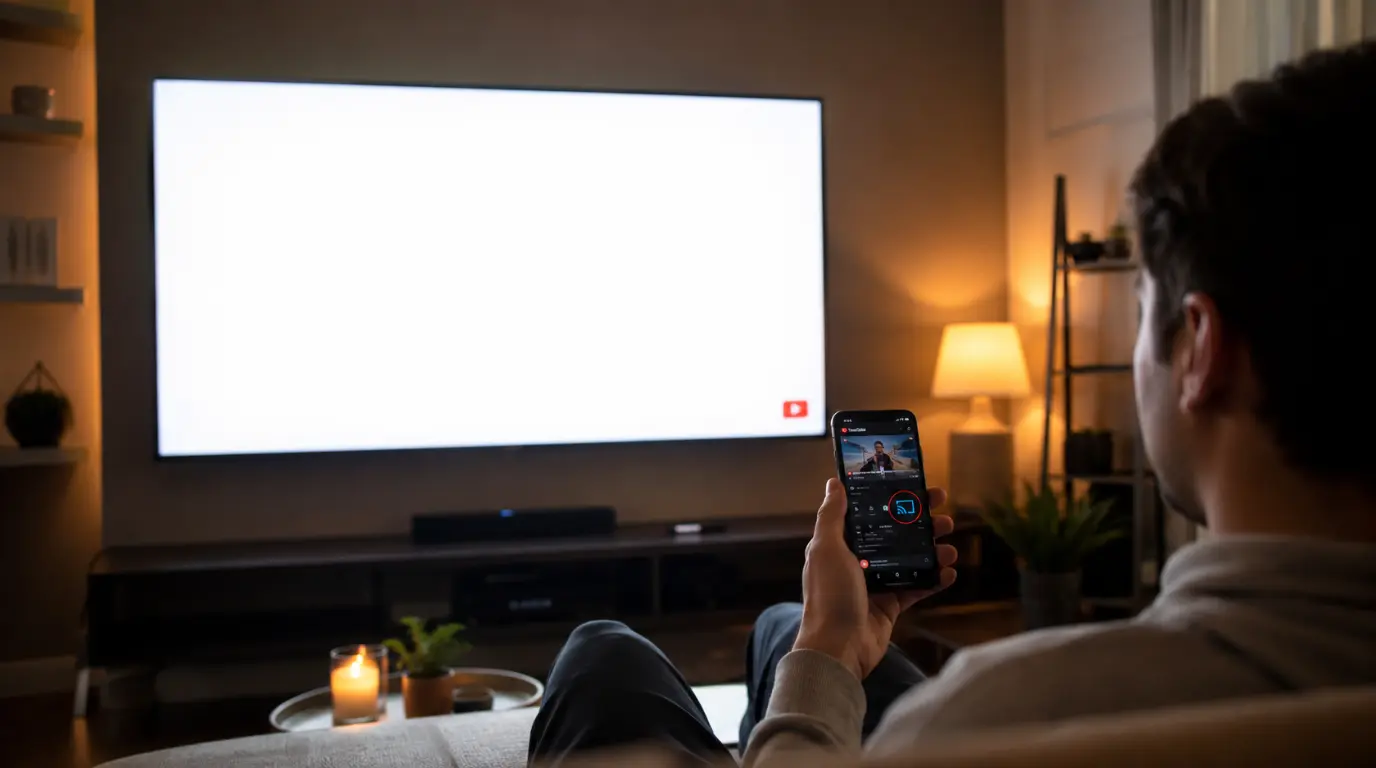
A white screen during YouTube casting almost always means the TV received the audio stream but failed to decode or render the video frame. It’s rarely a broken screen. The most common causes are a stale Cast session, an outdated TV app, a Wi-Fi band mismatch between your phone and TV, or an HDR video the TV chipset can’t decode correctly. Restarting the cast session and updating the YouTube app fixes most cases in under three minutes.
This guide is specifically for white screens that appear on your TV or streaming device when casting from a phone, tablet, or the TV’s own YouTube app. If the white screen is only on your laptop or phone browser and you never cast to a TV, that’s a different problem with different causes our browser-based YouTube white screen guide covers that instead.
Which Device Are You Casting To?
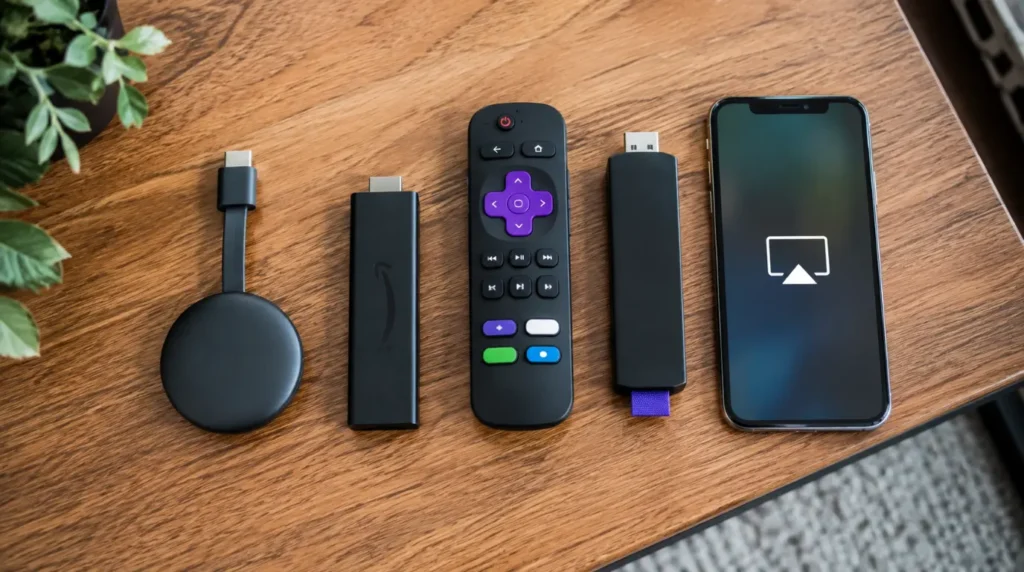
The fix depends on how you’re casting, because each method fails for a different reason. Find your setup below.
- Chromecast or Google TV see Section 1
- Built-in smart TV YouTube app (Samsung, LG, Sony, Vizio, Hisense) see Section 2
- Fire TV Stick or Roku see Section 3
- AirPlay or screen mirroring from iPhone/iPad see Section 4
- Only the laptop or phone screen is white, not the TV; this isn’t a casting issue. Our browser-based YouTube white screen guide walks through those fixes instead.
Section 1: Chromecast and Google TV
Cause: [Most Common] Stuck Cast session on the receiver
Chromecast keeps a small cache of the last video’s rendering data. If the app crashed mid-stream on your last cast, that cache can load corrupted on the next attempt, leaving audio but no picture.
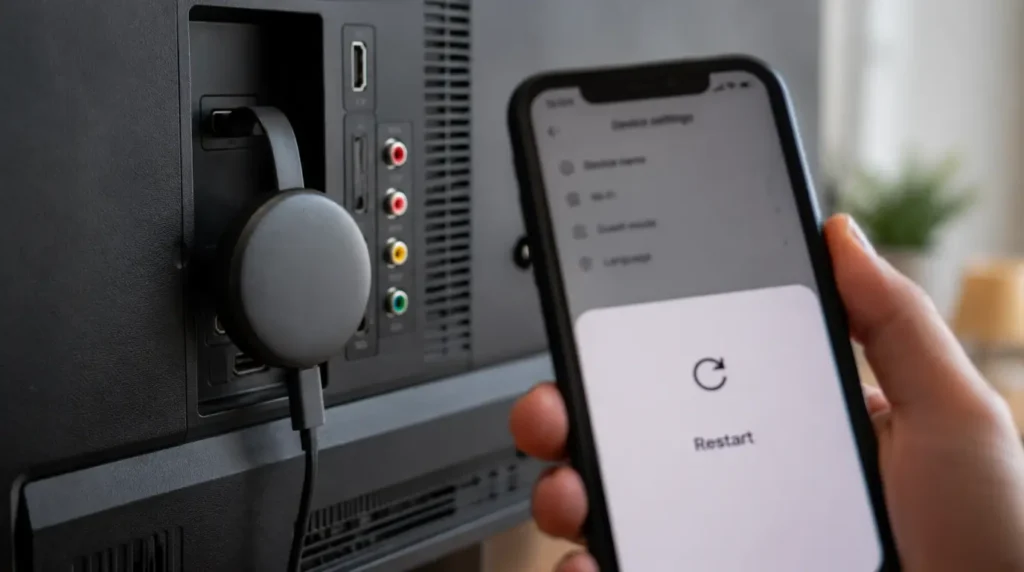
Fix: Force-restart the Chromecast
- Cost: Free
- Time: 2 minutes
- Open the Google Home app on your phone.
- Tap your Chromecast device, then the gear icon for Settings.
- Scroll down and tap “Restart.”
Technician note: This clears the frame buffer without wiping any settings, and it resolves the white-screen-with-audio pattern in the large majority of cases we’ve walked people through.
Cause: [Common] Phone and TV on different Wi-Fi bands
Chromecast uses your phone as the remote control, not as the video source. If your phone connects to the 5GHz band and the Chromecast is stuck on 2.4GHz (or the reverse), the two devices can technically “see” each other through the router but negotiate a broken stream handshake.
Fix: Match both devices to the same band
- Cost: Free
- Time: 5 minutes
- On your phone, go to Wi-Fi settings and note the network name.
- On the TV, open the Chromecast settings under Google TV > Network and check which band it’s joined.
- If your router broadcasts separate “5G” and regular network names, connect both the phone and the Chromecast to the same one.
Technician note: Dual-band routers that auto-steer devices are the most common source of this mismatch, and it often shows up only with 4K HDR videos, not standard 1080p ones.
Cause: [Less Common] Outdated Chromecast firmware
Google pushes Chromecast firmware updates silently, but a device that’s been in standby for weeks can fall behind. An old firmware version sometimes can’t decode a newer VP9 or AV1 encoding that YouTube serves for a specific video.
Fix: Manually trigger a firmware update
- Cost: Free
- Time: 10-15 minutes
Leave the Chromecast plugged in and connected to Wi-Fi overnight, or check for a pending update inside Google Home > device Settings > About > System Update. Updates install automatically once detected but can take longer than expected on slower connections.
Section 2: Built-In Smart TV YouTube App
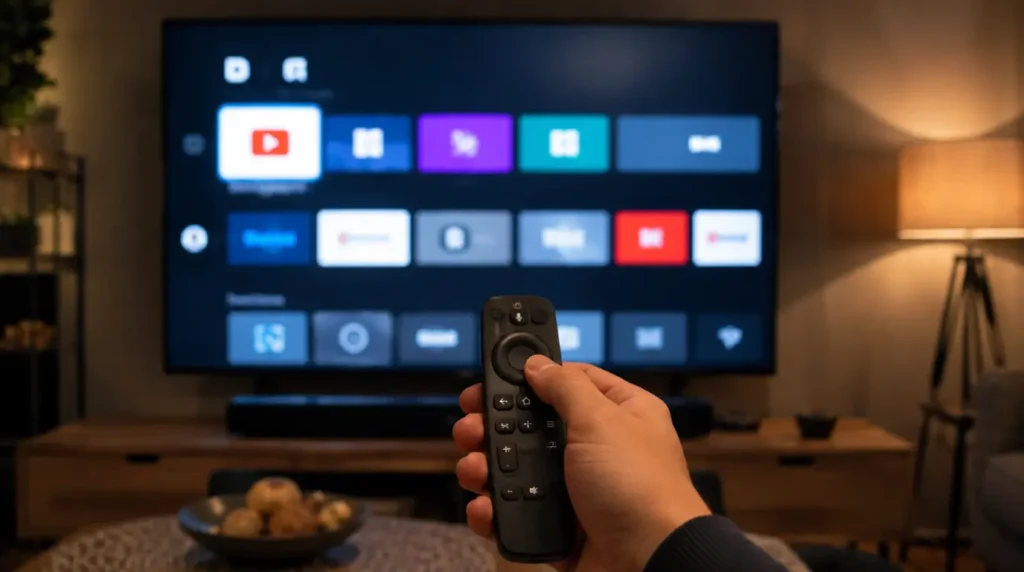
If you’re casting directly through the TV’s own YouTube app rather than mirroring from a phone, the white screen usually points to the app itself, not the network.
Cause: [Most Common] Corrupted app cache
Smart TV operating systems (Tizen on Samsung, webOS on LG, Google TV on Sony) rarely clear app cache automatically. Over months of use, a partially downloaded thumbnail or a broken player asset can sit in that cache and block video rendering while audio still streams fine.
Fix: Clear the YouTube app cache from TV settings
- Cost: Free
- Time: 3 minutes
- Samsung: Settings > Apps > YouTube > Clear Cache. If that doesn’t help, also select Clear Data, which will require signing back in.
- LG webOS: Settings > General > Apps > YouTube, then choose Reset.
- Sony/Google TV: Settings > Apps > See all apps > YouTube > Storage > Clear Cache.
Technician note: Clear Cache first and test before jumping to Clear Data, since Clear Data logs you out and removes your watch history sync.
Cause: [Common] The TV app is running an old version
Smart TVs don’t always auto-update apps the way phones do. YouTube periodically ships player updates that assume a newer app version, and an old build can misinterpret the video stream header, producing exactly this white-screen-with-sound symptom.
Fix: Manually update or reinstall the YouTube app
- Cost: Free
- Time: 5 minutes
Go to your TV’s app store, search YouTube, and check for an update button. If none appears but the problem persists, uninstall the app entirely and reinstall it fresh. This resolves version mismatches that a simple update sometimes doesn’t catch.
Section 3: Fire TV Stick and Roku
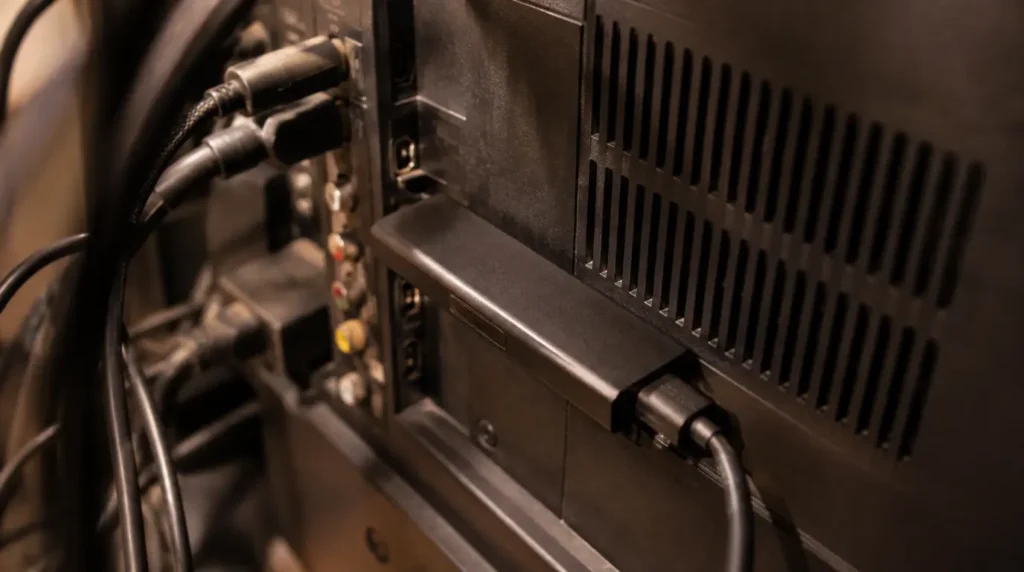
Cause: [Most Common] Streaming device overheating during long sessions
Fire TV Sticks and Roku Streaming Sticks are small enough to sit directly against a hot HDMI port on the back of the TV. After an hour or more of continuous playback, thermal throttling can cause the device to drop video frames while continuing to pass audio through.
Fix: Use an HDMI extender cable and reboot
- Cost: Free to $8 USD / £6 GBP for an extender cable
- Time: 5 minutes
Unplug the streaming device, wait 30 seconds, and plug it back in using a short HDMI extender so it hangs away from the TV’s rear vents instead of pressing flush against them.
Technician note: This one is easy to miss because the picture looks fine for the first 20-30 minutes, then goes white right around the point the device has warmed up.
Cause: [Common] HDMI-CEC conflict
HDMI-CEC lets your TV remote control connected devices, but on some TV and streaming-stick combinations it also causes the two devices to renegotiate the HDMI handshake mid-playback, briefly dropping the video signal to white.
Fix: Disable CEC on both the TV and streaming device
- Cost: Free
- Time: 3 minutes
On the TV, look for “Anynet+” (Samsung), “SimpLink” (LG), or “Bravia Sync” (Sony) under external device settings and turn it off. On Fire TV, go to Settings > Display & Sounds > HDMI-CEC Device Control and disable it.
Section 4: AirPlay and Screen Mirroring
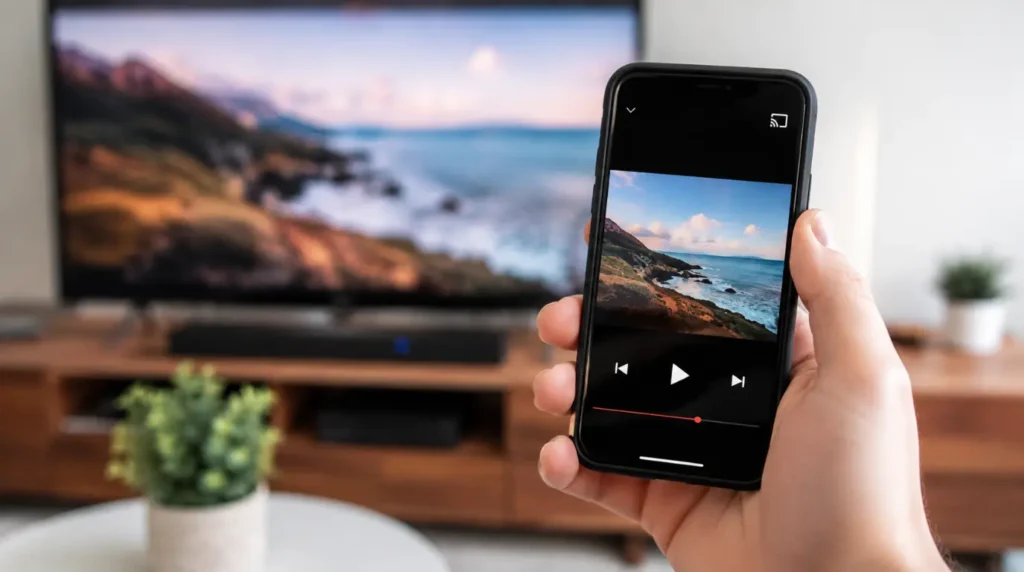
Cause: [Most Common] DRM-protected frame blocked over screen mirroring
Some YouTube videos, particularly certain movies, rentals, or age-restricted content, carry copy-protection flags that intentionally block the video portion of a mirrored screen while allowing audio through. This is by design, not a fault.
Fix: Use the AirPlay icon inside the YouTube app instead of full mirroring
- Cost: Free
- Time: 1 minute
Open YouTube on your iPhone, tap the AirPlay icon inside the video player itself (not the Control Center mirroring toggle), and select your Apple TV or AirPlay-compatible TV. This casts the video stream directly rather than mirroring your screen pixel-for-pixel, which avoids the DRM block entirely.
Technician note: We see this mistaken for a broken TV constantly. The moment someone switches from full-screen mirroring to the in-app AirPlay button, the white screen disappears immediately.
Causes Summary Table
| Cause | Devices Affected | Fix Difficulty |
|---|---|---|
| Stuck Cast session | Chromecast, Google TV | Easy |
| Wi-Fi band mismatch | Chromecast | Easy |
| Corrupted app cache | All smart TV apps | Easy |
| Outdated app or firmware | All devices | Easy |
| Streaming device overheating | Fire TV, Roku | Easy |
| HDMI-CEC handshake conflict | Fire TV, Roku, smart TVs | Moderate |
| DRM block over mirroring | AirPlay, screen mirroring | Easy |
Common Mistakes That Make This Worse
- Restarting only the phone and never the TV or streaming device, which leaves the corrupted cache on the receiving end untouched
- Assuming the TV screen is physically damaged because of a white panel, when the same TV plays Netflix or a Blu-ray normally
- Using full-screen mirroring for YouTube instead of the app’s native Cast or AirPlay button, which triggers the DRM restriction described in Section 4
- Reinstalling the phone’s YouTube app when the actual fault is on the TV or streaming stick side
Prevention Tips
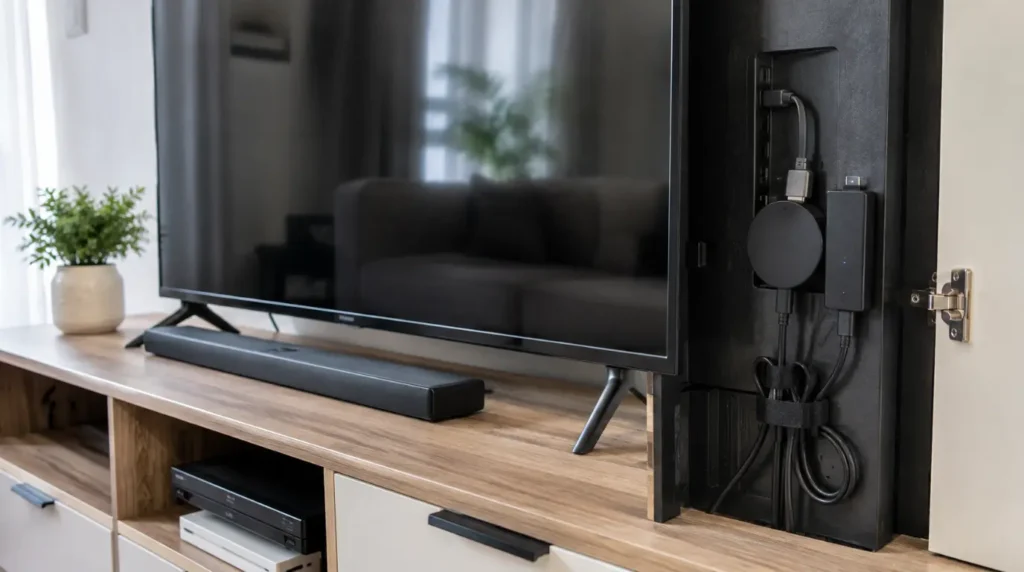
- Restart your Chromecast, Fire TV Stick, or Roku device roughly once a month to clear accumulated cache
- Keep your TV’s YouTube app on auto-update if the TV’s app store supports it
- Avoid mirroring your entire phone screen for video playback when the app offers a dedicated Cast or AirPlay button instead
Frequently Asked Questions
Why does the audio play but the video stays white?
The TV is successfully receiving the audio stream, which confirms the network connection and casting handshake worked. The video specifically fails because of a decoding, cache, or DRM issue downstream of that handshake, not a connection failure.
Does this mean my TV screen is broken?
Almost never. A genuinely damaged TV panel produces flickering, discoloration, or partial lines, not a clean white screen limited to one app while everything else on the TV displays normally.
Will restarting my router fix it?
Sometimes, but only if the underlying cause is a Wi-Fi band mismatch or a dropped connection. If the audio is playing smoothly with no buffering, your network is working fine and the issue sits with the app or the receiving device instead.
Why does this only happen with certain videos?
4K, HDR, or DRM-protected videos use different encoding and licensing than standard uploads. A device that handles regular videos fine can still fail specifically on these, which points toward a decoding or protection issue rather than a general fault.
Expert Verdict
Start with the Chromecast or streaming device restart described above regardless of which device you’re using. It resolves the stuck-cache pattern behind most of these reports without touching any settings you’d need to redo. If the white screen returns specifically on 4K or HDR titles after that, move to the firmware or app update fix next, since that’s the pattern most often tied to decoding failures on older device generations.
For a general (non-casting) YouTube white screen on a laptop or phone browser, our white screen repair tool covers the browser-specific causes instead. For the official Chromecast troubleshooting reference, Google maintains a support page at support.google.com/chromecast.
Disclaimer: This guide covers common software and connectivity causes of a white screen during casting. If your TV also shows problems outside the YouTube app, the fault may be with the display panel itself rather than the casting setup.
Editor Note: Reviewed for accuracy against current Chromecast, Fire TV, Roku, and smart TV app behavior as of August 2026. Menu paths may shift slightly after future firmware or app updates.
Author Note: Written by Ben at screenproblems.com, based on repeated troubleshooting sessions across Chromecast, Fire TV, Roku, and smart TV casting setups.
Article Summary: A white screen while casting YouTube usually comes from a stuck cache, an outdated app, a Wi-Fi band mismatch, or a DRM restriction on mirrored video, not a broken TV. Restarting the receiving device and switching from full mirroring to the app’s native Cast or AirPlay button resolves the majority of cases.