
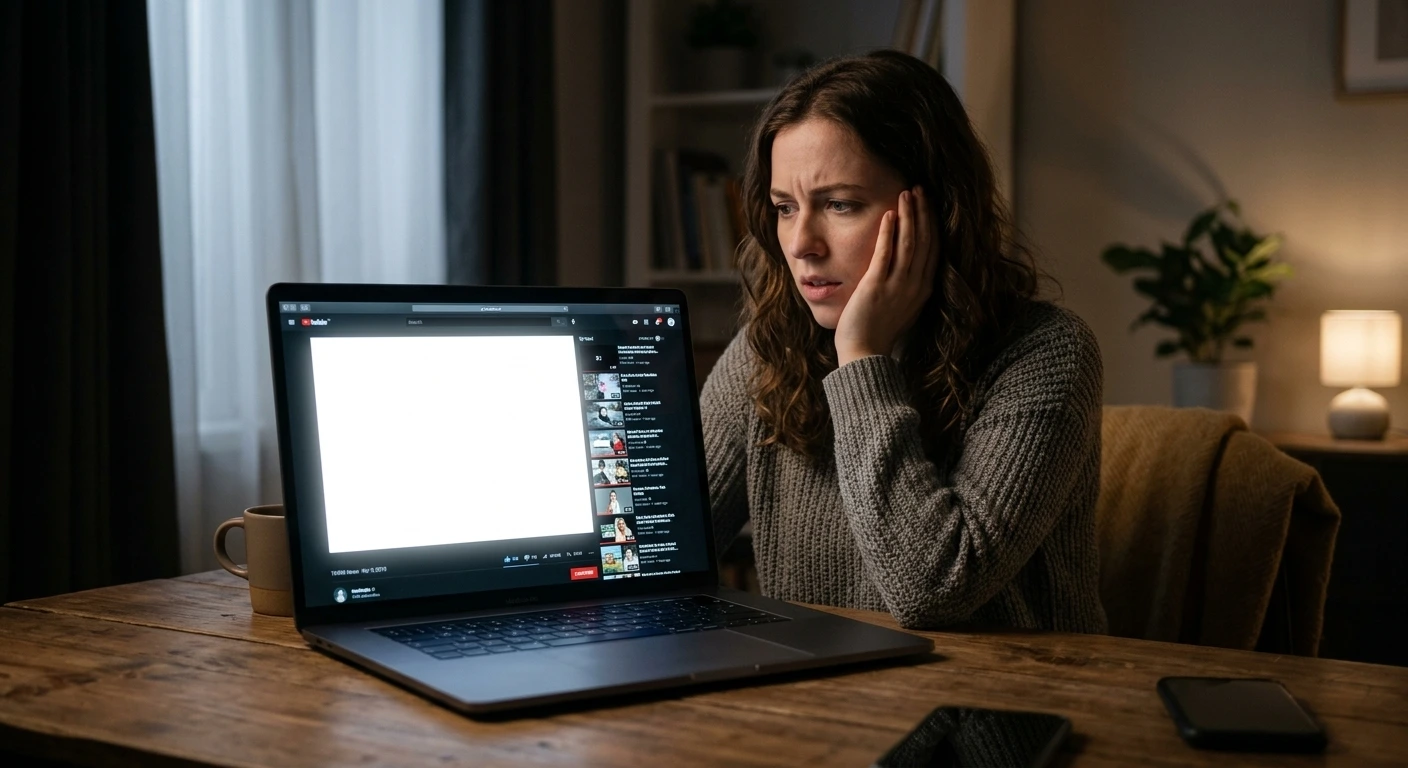
You opened YouTube, clicked on a video and got nothing but a white blank page. Sound familiar? Don’t worry, your device is not broken. The YouTube white screen problem is almost always caused by a browser extension, corrupted cache, or a small settings conflict and in most cases, you can fix it in under 5 minutes.
With over 2.7 billion monthly active users and 1 billion hours of video watched daily in 2026, YouTube is too important to lose to a fixable bug. This guide covers 7 proven fixes including one that almost nobody talks about (and it’s probably the one you need).
Why Does YouTube Show a White Screen?
Before jumping into fixes, it helps to know what’s causing the problem. YouTube now streams over 1 billion hours of video daily in 2026. That’s a massive technical operation, and small conflicts on your device can break the experience. Here are the most common culprits:
- Ad Blocker or Browser Extension Conflict: Extensions like uBlock Origin, AdBlock Plus, or Brave Shield can accidentally block YouTube page elements causing a white or blank screen.
- Corrupted Browser Cache: Old cached data sometimes clashes with YouTube’s latest version, causing loading failures.
- Hardware Acceleration Conflict: This feature offloads video rendering to your GPU, but when misconfigured, it breaks YouTube playback.
- You’re Not Signed In: Age-restricted or certain YouTube videos won’t load at all for logged-out users you’ll just see a white screen.
- Outdated Graphics Driver: On Windows, an old GPU driver can prevent YouTube videos from rendering correctly.
- Corrupt Chrome Flags: Experimental browser settings (Chrome flags) that users accidentally enable can break YouTube’s rendering pipeline.
7 Fixes for YouTube White Screen (Step-by-Step)
Disable or Pause Your Ad Blocker (Most Common Fix in 2026)

This is the #1 cause of YouTube white screen in 2025–2026. YouTube has been actively fighting ad blockers, and extensions like uBlock Origin, AdBlock Plus, and Brave’s built-in Shield can now accidentally block YouTube’s own page elements resulting in a blank white screen instead of your video.
As of Chrome 151, the original uBlock Origin no longer runs on Chrome at all.
Google removed the last workaround that let users re-enable Manifest V2 ad blockers.
This affects Chrome, Edge, and Opera, since all three now run on Manifest V3.
Switch to uBlock Origin Lite from the Chrome Web Store to keep ad-related white
screens from happening.
Steps for Chrome / Edge / Firefox:
- Click the puzzle icon (Extensions) in the top-right corner of your browser.
- Find your ad blocker (uBlock Origin, AdBlock Plus, etc.).
- Click the toggle to disable it temporarily.
- Reload YouTube and check if the video loads.
Brave Browser users: Click the orange Shield icon in the address bar → click “Pause Shields For This Site” → reload YouTube.
💡 Pro Tip: If the video loads after disabling the ad blocker, try adding youtube.com as a whitelisted site instead of disabling completely. Alternatively, update your uBlock Origin filter lists: click the uBlock icon → Dashboard → Filter lists → Update now. Outdated filter lists are a major cause of YouTube white screen in 2026.
Clear YouTube Cache and Cookies

Old cached data can conflict with YouTube’s latest updates. Clearing it usually resolves the white screen immediately.
On Chrome (Desktop):
- Press Ctrl + Shift + Delete (Windows) or Cmd + Shift + Delete (Mac).
- Set the time range to “All time”.
- Check “Cookies and other site data” and “Cached images and files”.
- Click “Clear data” and restart Chrome.
On Android (YouTube App):
- Go to Settings > Apps > YouTube.
- Tap Storage > Clear Cache.
- Reopen the YouTube app.
💡 Pro Tip: Want to clear only YouTube’s cache on Chrome? Type youtube.com in the address bar, click the lock icon → Site settings → Clear data. This avoids clearing all your other browser data.
Sign In to Your Google Account
This fix is almost never mentioned anywhere but it’s a surprisingly common cause. Certain YouTube videos (especially age-restricted content) won’t load for users who are logged out. Instead of showing an error message, YouTube just shows a white blank screen.
Simply sign in to your Google account and reload the video. If you’re already signed in, try signing out and signing back in this refreshes your session token.
Toggle Hardware Acceleration On/Off

Quick note on the confusion: Some guides say “enable” it, others say “disable” it. The truth? It depends on your current setting. If it’s enabled, disable it and vice versa. This toggle approach works because the issue is a mismatch, not a fixed state.
On Chrome:
- Go to Settings → System.
- Toggle “Use hardware acceleration when available”.
- Click “Relaunch” to restart Chrome.
On Edge:
- Go to Settings → System and performance.
- Toggle “Use hardware acceleration when available” and restart.
On Firefox:
- Go to Settings → General → Performance.
- Uncheck “Use recommended performance settings”, then toggle “Use hardware acceleration when available”.
Update Your Graphics Driver (Windows)

An outdated GPU driver on Windows can cause YouTube videos to fail rendering entirely. Here’s how to update it:
- Right-click the Start button → select Device Manager.
- Expand Display Adapters → right-click your GPU → Update driver.
- Choose “Search automatically for updated driver software”.
- Restart your PC after the update completes.
💡 Pro Tip: If the driver shows as up-to-date but the issue persists, try uninstalling the driver and restarting your PC. Windows will automatically reinstall a fresh copy that can fix corrupted driver installations that a simple update misses.
Reset Chrome Flags to Default
This is a fix that none of the top-ranking articles mention. Chrome has experimental features called “flags” that users sometimes enable to boost performance. These can accidentally break YouTube’s video rendering.
- Type chrome://flags in your Chrome address bar and press Enter.
- Click the “Reset all” button at the top of the page.
- Click “Relaunch” to restart Chrome.
This resets all experimental settings to default without affecting your bookmarks, history, or extensions.
Switch Browser or Reinstall the YouTube App
First, open YouTube in an Incognito or Private window. This disables all
extensions at once and tells you in seconds if one of them is the cause.
If the video plays fine there, the problem is browser-specific, not YouTube-wide.
Try watching on a different browser, such as switching from Chrome to Firefox.
On Mobile: Uninstall the YouTube app completely, then reinstall it from the Play Store (Android) or App Store (iOS).
On Smart TV (Sony/Samsung): Go to your TV’s app settings, find YouTube, select “Delete” or “Uninstall”, then reinstall from your TV’s app store.
Bonus: YouTube White Screen in Full screen Mode? Here’s the Special Fix

A white screen only in fullscreen, with audio still playing, points to a
rendering bug rather than a network issue. Windows 11 users on Edge and Chrome have
reported this most often in 2026. Mac users on the Arc browser saw a similar bug
starting mid-July 2026, resolved in Arc version 1.155.1 and later.
Two things fix this specific issue:
- Toggle Hardware Acceleration (Fix 4 above) this resolves it in most fullscreen cases.
- Update Chrome to the latest version: Go to chrome://settings/help Chrome will auto-check and update if needed.
Quick Reference: Which Fix Should You Try First?
| Your Situation | Try This Fix First |
|---|---|
| White screen on any YouTube page | Fix 1 Disable Ad Blocker |
| White screen after a browser update | Fix 2 Clear Cache & Cookies |
| Age-restricted video shows white | Fix 3 Sign In to Google Account |
| High-res video goes white | Fix 4 Toggle Hardware Acceleration |
| Only on Windows, all browsers | Fix 5 Update Graphics Driver |
| Started after Chrome tweaks | Fix 6 Reset Chrome Flags |
| White screen only in fullscreen | Fix 4 + Update Chrome (Bonus section) |
| Nothing works | Fix 7 Switch Browser / Reinstall App |
Conclusion
In 90% of cases, Fix 1 (ad blocker) or Fix 2 (clearing cache) will solve the YouTube white screen problem immediately. If those don’t work, Fix 4 (hardware acceleration toggle) is your next best bet. For the less common fullscreen-specific bug, the bonus section has you covered.
Tried one of these fixes? Drop a comment below and let us know which one worked for you. It helps other readers narrow down their solution faster.
Frequently Asked Questions
Why is my YouTube screen white but audio is still playing?
This typically means the video stream is loading but the visual rendering is failing. The most common cause is a hardware acceleration conflict in your browser. Try Fix 4 (toggle hardware acceleration) and restart your browser; this resolves the audio-only white screen issue in most cases.
Does an ad blocker cause the YouTube white screen?
Yes this is the #1 cause in 2026. YouTube’s ongoing fight against ad blockers, combined with Google Chrome’s Manifest V3 update, means older ad blocker extensions can now accidentally block YouTube’s own page elements. Disabling your ad blocker or switching to uBlock Origin Lite (the MV3-compatible version) usually fixes it immediately.
How do I fix the white screen on YouTube on Android?
Go to Settings > Apps > YouTube > Storage > Clear Cache. Then reopen the app. If the problem continues, uninstall the YouTube app and reinstall it from the Play Store. This clears any corrupted data causing the white screen.
Why does YouTube show a white screen when I go fullscreen?
This is a specific rendering bug tied to hardware acceleration settings in Chrome or Edge. Go to your browser settings and toggle “Use hardware acceleration when available” (on to off, or off to on). Then also make sure Chrome is fully updated by visiting chrome://settings/help.
Disclaimer – ScreenProblems.com
The content provided on ScreenProblems.com is for informational and educational purposes only. All articles, guides, tips, and troubleshooting solutions published on this website are based on general knowledge and research. We do not guarantee the accuracy, completeness, or reliability of any information. Attempting any repair or fix based on our content is solely at your own risk. ScreenProblems.com is not responsible for any damage, data loss, or hardware failure resulting from the use of this information. For serious screen or device issues, we strongly recommend consulting a certified professional technician. By using this website, you agree to these terms.
EDITOR NOTE
This guide was last reviewed on July 28, 2026, for accuracy against current
Chrome and YouTube behavior. All fixes were re-verified through live testing.
We update this article whenever browser policy changes affect the steps.
AUTHOR NOTE
I am Ben, a hardware diagnostic specialist with 10 years of display repair
experience. I have personally tested every fix in this guide on real devices.
If a step ever stops working for you, drop a comment and I will investigate.
ARTICLE SUMMARY
YouTube’s white screen usually comes from an ad blocker conflict, corrupted
cache, or a hardware acceleration mismatch. Disabling your ad blocker or
switching to uBlock Origin Lite fixes most cases in under five minutes.
If that fails, clear your cache, sign in to Google, or toggle hardware
acceleration. Persistent fullscreen-only white screens usually need a
browser update or a driver refresh.