
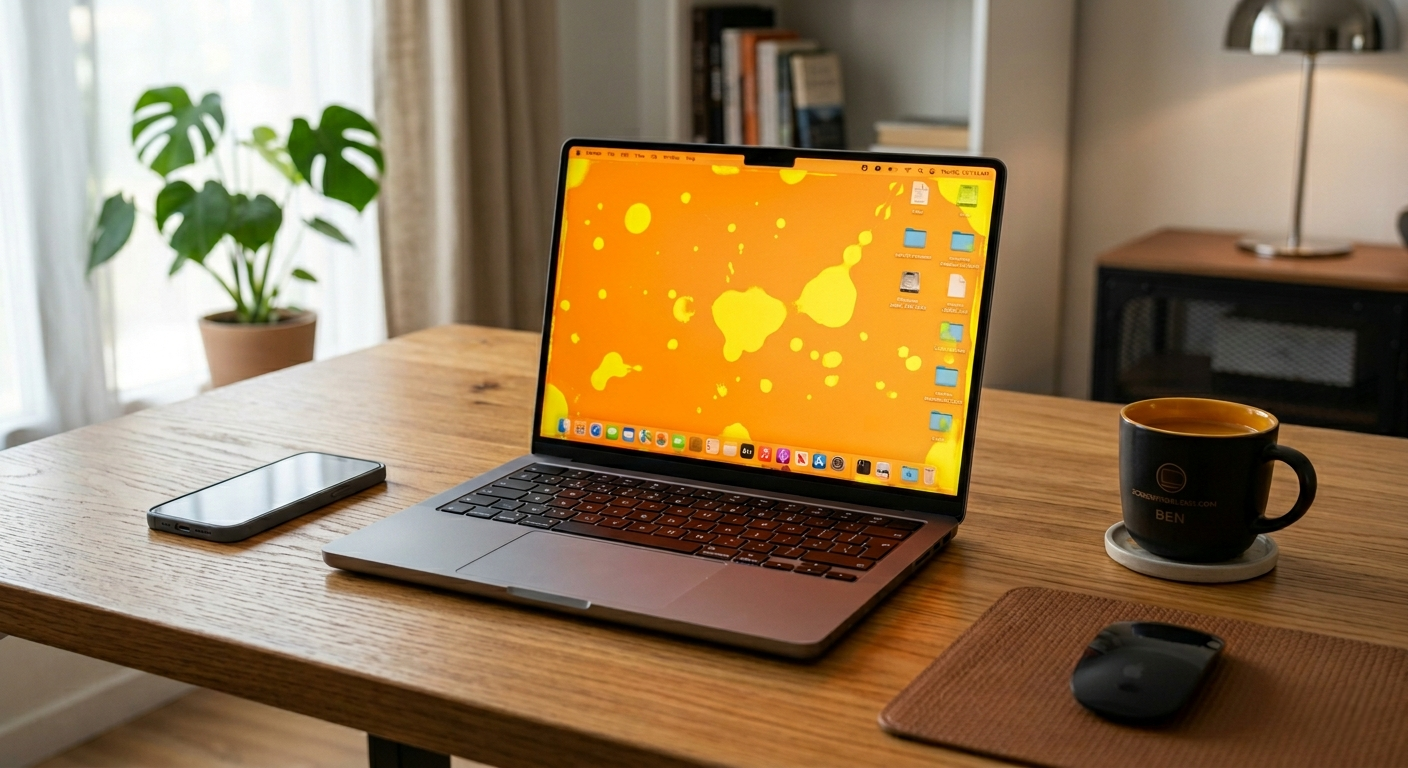
You opened your MacBook Pro and the screen is glowing orange.
Maybe it is a faint warm tint across the whole display. Maybe it is a bright orange patch in one corner. Either way, it looks wrong and you want it fixed now.
A MacBook Pro orange screen is caused by Night Shift or True Tone being enabled, a corrupted color profile, a macOS software bug, a damaged display cable, or in serious cases a failing LCD panel or GPU.
Do this first: go to System Settings > Displays and turn off both Night Shift and True Tone. If the orange disappears, the cause was a software feature, not hardware damage.
If it stays, this guide walks you through every remaining fix in the correct order.
Diagnose the Orange Screen in 2 Minutes

The type of orange tint tells you everything. Do this before attempting any fix.
Is It the Whole Screen or Just One Area?
- Whole screen orange or warm tint: Almost always a software cause. Night Shift, True Tone, or a color profile issue.
- Orange patch or spot in one corner or edge: Physical LCD damage, heat stress, or backlight issue.
- Orange bars or lines across the screen: Damaged display cable or Flexgate issue. Common on 2016 to 2019 MacBook Pro models.
- Orange tint that flickers or changes: GPU failure or loose display cable connector.
Connect an External Monitor
Plug your MacBook into an external display via HDMI or USB-C.
If the external screen looks normal, the problem is in your MacBook display panel or its cable, not the GPU or macOS.
If the external screen is also orange, the cause is software or GPU-related, and software fixes are very likely to work.
Take a Screenshot
Press Command + Shift + 3 to take a screenshot.
Open the file in Photos. If the orange is NOT visible in the screenshot, the issue is in the display hardware.
If the orange IS visible in the screenshot, the cause is a software or graphics rendering problem.
Quick Diagnosis Table
| What You See | Likely Cause |
| Whole screen warm orange tint | Night Shift or True Tone enabled |
| Orange after macOS update | Color profile corrupted by update |
| Orange spot in one corner | LCD heat damage or pressure bruise |
| Orange bars at screen edges | Flexgate display cable issue |
| Orange with flickering | Loose cable or GPU failure |
| Orange only on laptop screen, not external | Physical display panel damage |
| Orange on both laptop and external | Software, GPU, or macOS bug |
What Causes a MacBook Pro Orange Screen?

There are seven main causes. Identifying the right one saves time and money.
Night Shift or True Tone Is Enabled
This is the most common cause and is completely free to fix.
Night Shift shifts display colors toward warm orange tones to reduce blue light at night. True Tone adjusts white balance based on ambient room lighting. Both can make the screen look noticeably orange, especially in bright rooms.
Many users accidentally enable these features and do not realize they are the cause.
Incorrect or Corrupted Color Profile
Your MacBook stores a color profile that tells the display how to render colors accurately.
A corrupted profile, a wrong profile selected by a macOS update, or a third-party calibration tool installing an incorrect profile can cause a persistent orange or warm tint across the entire screen.
macOS Software Bug
Some macOS updates have introduced display calibration bugs that cause unexpected color shifts.
This is confirmed by Apple in some release notes and fixed in subsequent point releases. If the orange tint appeared immediately after an update, this is a likely cause.
NVRAM Corruption
NVRAM stores display settings, resolution, color depth, and other hardware configurations.
When NVRAM becomes corrupted, display output can shift unexpectedly, including developing an orange tint. Resetting NVRAM is one of the fastest hardware-level fixes available.
Flexgate Display Cable Failure
Flexgate is a known hardware defect affecting MacBook Pro models from 2016 to 2019.
The display cable attached to the LCD panel becomes worn from repeated opening and closing of the lid. As the cable frays, it causes visual artifacts including orange tints, stage-light shadows at the bottom of the screen, and flickering.
Apple acknowledged this issue and extended repairs for affected models. Check if your MacBook qualifies at apple.com/support.
Overheating or Heat Damage
Sustained high temperatures degrade LCD components and can cause permanent discoloration.
If the orange area appears near the bottom of the screen where heat concentrates, or if it developed after prolonged heavy use, heat damage is a possible cause.
LCD Panel or GPU Hardware Failure
In the most serious cases, the LCD panel itself or the GPU is failing.
Signs of hardware failure include orange tint that persists in macOS Recovery mode, flickering that worsens over time, and orange that appears even when the screen is dimmed to minimum brightness.
How to Fix a MacBook Pro Orange Screen

Work through these fixes in order. Start with the free software fixes before considering hardware repair.
Turn Off Night Shift and True Tone
This is the first thing to check and takes under 30 seconds.
- Apple menu > System Settings > Displays.
- Toggle off True Tone.
- Click Night Shift and set it to Off.
- Check if the orange tint disappears.
If the screen returns to normal colors, you are done. No repair needed.
Reset the Color Profile
Go to System Settings > Displays > Color Profile.
Select the default profile for your MacBook model. This is usually listed as Color LCD or the specific model name.
If a third-party profile was installed by an app or calibration tool, remove it and revert to the Apple default.
Reset NVRAM
Resetting NVRAM clears corrupted display settings and often resolves persistent color tint issues.
- On Intel MacBook Pro: Shut down. Turn on and immediately hold Option + Command + P + R for 20 seconds. Release when you hear the second startup chime.
- On Apple Silicon MacBook Pro (M1, M2, M3, M4): A standard restart handles NVRAM reset automatically. Simply restart your Mac.
After restart, check if the orange tint is resolved.
Reset SMC (Intel Models Only)
The SMC controls power, thermal management, and display output.
- Shut down your MacBook Pro.
- Hold Shift + Control + Option + Power button for 10 seconds.
- Release all keys and power on normally.
This fix is only available on Intel MacBook Pro models. Apple Silicon models do not have an SMC.
Boot Into Safe Mode
Safe Mode disables third-party extensions and uses basic display drivers.
On Intel: Hold Shift while booting. On Apple Silicon: Hold Power until Options appear, then hold Shift and click Continue.
If the orange tint disappears in Safe Mode, the cause is a third-party app or system extension. Uninstall recently added apps one by one to identify the culprit.
Update macOS
Go to System Settings > General > Software Update.
Install the latest available macOS version. Apple regularly patches display color bugs in point releases.
If the orange appeared right after an update, check Apple’s support community for your specific model to see if others are reporting the same issue.
Check for Flexgate or Display Cable Issue
Open and close your MacBook lid slowly while watching the screen.
If the orange tint changes, worsens, or disappears based on the angle of the lid, a damaged display cable is the cause.
Check apple.com/support/macbookpro-stagelight to see if your model qualifies for Apple’s extended repair program for this issue.
Contact Apple Support
If all software fixes have failed and the external monitor test confirms the issue is in the display hardware, contact Apple.
2026 repair cost estimates for MacBook Pro screen issues:
| MacBook Pro Model | Repair Cost (US, 2026) |
| MacBook Pro 13 inch (M2, discontinued) | $299 to $399 at Apple |
| MacBook Pro 14 inch (M3, M4, M5) | $455 to $900 at Apple |
| MacBook Pro 16 inch (M3, M4, M5 Max) | $700 to $1,100 at Apple |
| Older Intel MacBook Pro (2016-2019) | $199 to $349 at Apple or third-party |
| Third-party certified repair (all models) | 30 to 50% less than Apple pricing |
With AppleCare Plus: accidental display damage is covered for a service fee of $99 per incident.
Manufacturing defects including Flexgate on qualifying models are repaired free of charge.
Check your coverage at checkcoverage.apple.com before paying for any repair.
Is It Software or Hardware? How to Tell
This is the most important question. The answer determines whether you need a repair or just a settings change.
| Sign | Software Cause | Hardware Cause |
| Visible in screenshot | Yes | No |
| Appears on external monitor too | Yes | No |
| Disappears in Safe Mode | Yes | No |
| Changes with lid angle | No | Yes |
| Present in macOS Recovery | No | Yes |
| Started after macOS update | Yes | No |
If three or more signs point to hardware, skip software fixes and book an Apple Genius Bar appointment directly.
Which MacBook Pro Models Are Most Affected?
| Model | Common Orange Screen Cause |
| MacBook Pro 2016-2019 (Intel) | Flexgate cable failure, NVRAM issues |
| MacBook Pro 2020-2022 (Intel/M1) | True Tone, color profile bugs, macOS updates |
| MacBook Pro 2023 (M2/M3) | macOS color bugs, True Tone, third-party apps |
| MacBook Pro 2024 (M4) | macOS settings, very rare hardware defect |
Older Intel models (2016 to 2019) have the highest rate of hardware-related orange screen issues due to Flexgate.
Newer Apple Silicon models (M1 and later) almost always have software-related causes.
How to Prevent Orange Screen Issues on MacBook Pro

- Keep macOS updated to get the latest display driver and color profile patches.
- Do not install third-party color calibration apps unless you know how to remove their color profiles.
- Avoid using your MacBook Pro in extreme heat or direct sunlight for long periods.
- Do not block the MacBook vents. Overheating accelerates LCD degradation.
- Use only Apple-certified USB-C and HDMI adapters. Low-quality adapters can corrupt display signal.
- If you use f.lux, Vivid, or similar display apps, check their settings before assuming a hardware problem.
Frequently Asked Questions
Why did my MacBook Pro screen turn orange suddenly?
The most common cause is Night Shift or True Tone being enabled accidentally, or a macOS update that changed your color profile.
Go to System Settings > Displays and turn off both Night Shift and True Tone. If the orange disappears, no repair is needed.
Does NVRAM reset fix the MacBook Pro orange screen?
Yes, in many cases. NVRAM stores display configuration data and resetting it clears corrupted settings that can cause color tints.
On Intel models: hold Option + Command + P + R for 20 seconds at startup. On Apple Silicon: a standard restart is sufficient.
What is Flexgate and does it cause orange screens?
Flexgate is a hardware defect in MacBook Pro models from 2016 to 2019 where the display cable wears out from repeated lid opening.
It causes stage-light shadows at the bottom of the screen, flickering, and can contribute to orange tinting. Apple offers free extended repairs for qualifying models.
Is orange screen on MacBook Pro covered by warranty?
Manufacturing defects including Flexgate on qualifying models are covered free of charge.
Accidental damage is covered under AppleCare Plus for a $99 service fee per incident.
Check your coverage at checkcoverage.apple.com before paying for any repair.
How much does it cost to fix a MacBook Pro orange screen in 2026?
Software fixes cost nothing and solve most orange screen cases. Hardware repair runs $299 to $1,100 at Apple depending on the model, with newer M5 Pro and M5 Max models at the higher end. Third-party certified shops charge 30 to 50 percent less, so always get a written warranty on parts and labor.
Can a MacBook Pro orange screen get worse over time?
Yes, if the cause is hardware. A damaged display cable will degrade further with each lid opening. LCD heat damage can spread.
Software-caused orange screens do not worsen. If the tint is growing or flickering is increasing, book a repair soon.
Which MacBook Pro Models Are Most Affected?
MacBook Pro 2025-2026 (M5) macOS settings, rare hardware defect
Final Verdict
A MacBook Pro orange screen has seven possible causes.
In most cases it is Night Shift, True Tone, or a color profile issue. These are free to fix in under two minutes.
If software fixes do not work, run the external monitor test and the screenshot test to confirm whether the cause is hardware.
Check your Apple warranty or AppleCare Plus coverage before spending money on any repair.
For 2016 to 2019 Intel MacBook Pro models, check apple.com/support for the Flexgate extended repair program before paying out of pocket.
| About the AuthorBen is the founder of screenproblems.com, a resource dedicated to diagnosing and solving mobile and computer display issues.All content is written without brand sponsorship. Every recommendation is based on what actually works. |