
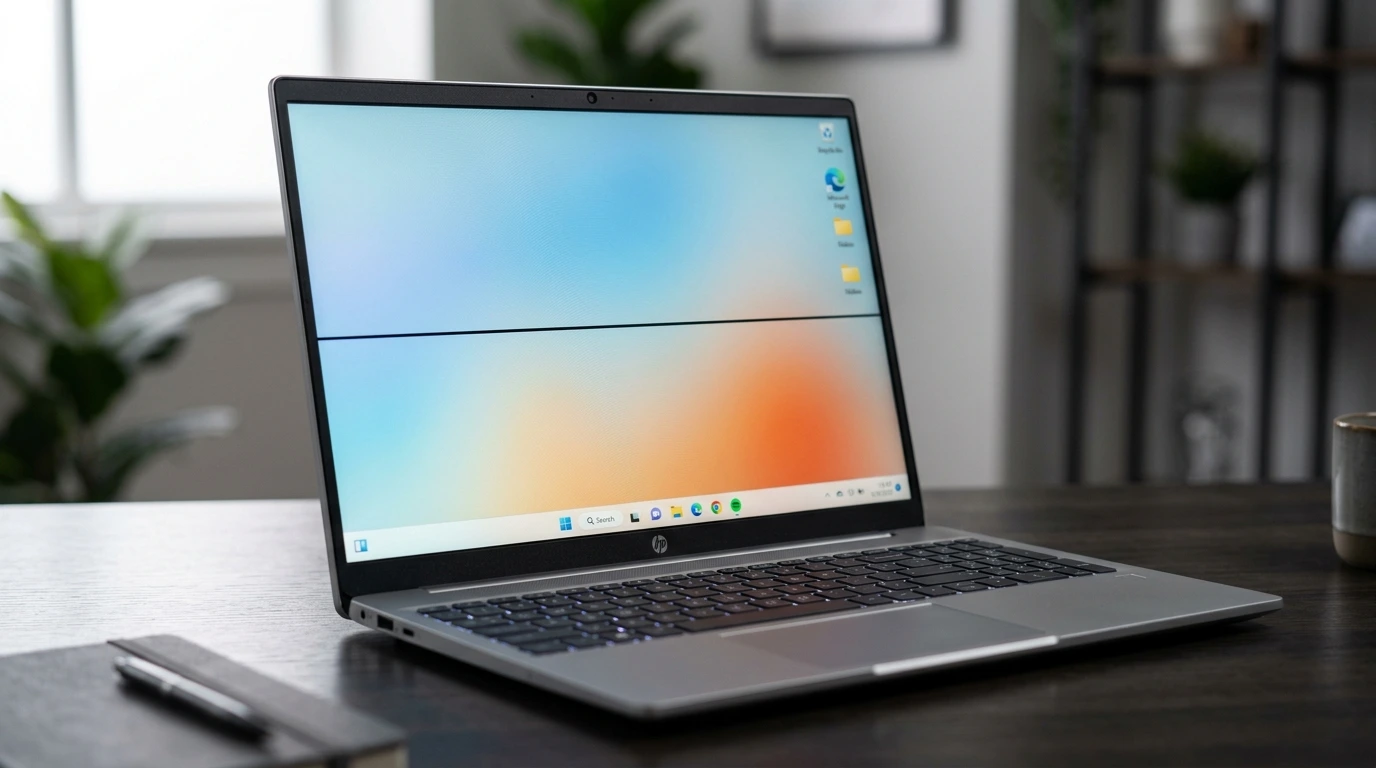
You are using your HP laptop and notice one or more black lines running across or down the screen. They stay in the same position no matter what app is open.
A black line on an HP laptop screen is caused by a damaged display cable inside the hinge, a cracked or fractured LCD panel, a dead pixel row or column inside the display, a GPU driver conflict, or physical impact damage. Black lines on OLED HP screens are more common from physical impact, while LCD models are more prone to cable and panel row failures.
Do this first: take a screenshot and open it on another device. If the black line appears in the screenshot, the cause is GPU or software. If it does not appear, the cause is physical hardware in the display.
Step 1: Diagnose the Black Line on Your HP Screen

Two minutes of correct diagnosis prevents wasted time and incorrect repairs.
Screenshot Test
Press Windows + Print Screen to capture the screen. Open the image file on your phone or another computer. If the black line is visible in the screenshot, the GPU or its driver is producing it. If the line is absent from the screenshot, the problem is in the physical display panel or its cable.
External Monitor Test
Connect your HP laptop to an external monitor via HDMI. If the external monitor shows a clean display with no black line, the problem is in the laptop screen or its internal cable. If the black line appears on the external monitor too, the GPU is the source and a driver fix is likely to work.
BIOS Screen Test
Restart the laptop and press F10 immediately after powering on to enter BIOS. Look at the screen before Windows loads. If the black line is visible in the BIOS screen before Windows starts, it is confirmed hardware. If the line only appears after Windows loads, the cause is a driver or software issue.
Lid Flex Test
Slowly open and close the HP laptop lid while watching the screen. If the black line shifts, disappears at certain angles, or appears and reappears as you move the lid, a damaged display cable at the hinge is the cause. This is one of the most actionable findings because cable repair is cheap.
Diagnosis Table
| What You See | Likely Cause |
| Black line visible in screenshot | GPU driver or software issue |
| Black line not in screenshot | Physical display cable or panel |
| Line on external monitor too | GPU hardware or driver fault |
| Line only on HP laptop screen | Internal cable or LCD panel |
| Line visible in BIOS screen | Confirmed hardware problem |
| Line shifts when you move the lid | Damaged hinge cable |
| Line appeared after drop | Physical LCD panel fracture |
| Line appeared after driver update | GPU driver conflict |
| Line slowly spreading over days | Progressive LCD panel failure |
What Causes a Black Line on an HP Laptop Screen?

Damaged Display Cable at the Hinge
This is the most common cause of a black line on HP laptop screens. The display cable runs through the hinge and connects the screen to the motherboard. Every time you open and close the lid, this cable flexes. Over time it develops micro-fractures or pulls loose from its connector. When a section of the cable fails, the rows or columns of pixels it serves stop receiving signals and display as a permanent black line. Lines that change when you flex the lid confirm this cause. Cable repair costs $30 to $80 and is far cheaper than a screen replacement.
Cracked or Fractured LCD Panel
A drop, impact, or pressure applied to the screen can crack the LCD matrix inside the panel without shattering the outer glass. When the LCD cracks, the pixel rows or columns at the fracture line stop functioning and appear as a black line. HP Community forums consistently report this as the second most common cause, especially following drops even when the laptop was inside a bag. Physical damage creates a fixed line that does not change with software fixes and requires a screen replacement.
Dead Pixel Row or Column
Inside the LCD, horizontal and vertical lines of pixels are controlled by shared driver circuits. If the driver circuit for one row or column fails, every pixel in that row goes dark simultaneously, creating a perfectly straight black line. This appears without any physical cause and is confirmed when the line is not in screenshots. It is classified as a manufacturing or hardware defect and is sometimes covered under HP’s pixel defect policy.
GPU Driver Conflict
An outdated or corrupted graphics driver can cause the GPU to output incorrect data to specific lines of the display, producing a persistent black line or bar. This type appears in screenshots and typically affects the same position across all apps. It is the most fixable cause and costs nothing to address.
Physical Pressure Damage
Carrying the HP laptop in a tight bag, placing heavy objects on it, or pressing on the lid while closed compresses the LCD layers. Sustained pressure creates dead pixel lines where the display panel was compressed. HP Envy, HP Spectre, and HP Pavilion thin models are more vulnerable because their thinner bezels offer less protection to the LCD from pressure applied through the lid.
How to Fix a Black Line on an HP Laptop Screen

Work through these in order from free to paid.
Restart Your HP Laptop
Hold the Start menu and select Restart. A full restart resets the GPU and display driver. If the black line disappears after restart and does not return, a temporary software glitch caused it. If it appears on the very first boot screen before Windows loads, the cause is confirmed hardware.
Update or Roll Back the GPU Driver
Right-click the Start button and open Device Manager. Expand Display Adapters, right-click your GPU, and select Update Driver then Search Automatically. If updating does not fix it, select Properties > Driver > Roll Back Driver if a roll back option is available. For HP laptops, HP also provides driver updates through HP Support Assistant, which you can download from hp.com/support. If the line appeared right after a driver update, rolling back to the previous version is the fastest fix.
Run HP Hardware Diagnostics
HP laptops include a built-in hardware diagnostic tool. Restart the laptop and press F2 repeatedly immediately after powering on to open HP PC Hardware Diagnostics. Run the display test. If the test confirms a display hardware failure, this official documentation supports a warranty claim with HP Support. The diagnostic result also tells you whether the display panel or the cable is flagged as the fault.
Check and Reseat the Display Cable
If the lid flex test confirmed the cable is the cause, a technician opens the HP laptop hinge area and reseats or replaces the display cable. This costs $30 to $80 at most repair shops. For HP Pavilion and HP Envy models, display cable guides are available on iFixit.com for the specific model if you have electronics repair experience and want to attempt it yourself. The connector and cable are fragile and require care.
Check HP Warranty and HP Care Pack
Before paying for any repair, check your HP warranty status at support.hp.com. Enter your serial number to see what is covered. HP’s standard one-year limited warranty covers manufacturing defects including display line defects that appear under normal use. HP Care Pack extends this coverage and some plans cover accidental damage.
| Coverage | What It Covers | 2026 Cost |
| HP 1-year standard warranty | Manufacturing defects, display failures | Free |
| HP Care Pack (accidental) | Physical damage from drops | Deductible fee |
| Out-of-warranty (HP Pavilion) | Screen replacement at HP service | $150 to $300 |
| Out-of-warranty (HP Spectre/Envy) | Screen replacement at HP service | $280 to $450 |
| Third-party certified shop | All HP models | 30 to 50% less than HP |
Check your coverage before authorizing any paid repair. HP Community users consistently report that contacting HP Support directly with the hardware diagnostic result leads to faster warranty claims.
Professional Screen Replacement
If all software fixes fail and the warranty does not cover the issue, a screen replacement is the final solution. HP laptop screen replacements at third-party shops in 2026 range from $90 to $300 depending on the model and screen type. HP Spectre OLED screens cost more than HP Pavilion LCD replacements. Always ask for a written warranty on parts and labor before approving the repair.
HP Models and Common Black Line Causes

| HP Model Series | Screen Type | Most Common Black Line Cause |
| HP Pavilion (budget/mid) | LCD IPS | Display cable, physical pressure damage |
| HP Envy (thin and light) | LCD IPS or OLED | Cable failure, LCD panel fracture |
| HP Spectre (premium) | OLED or LCD | Impact damage, dead pixel column |
| HP EliteBook (business) | LCD IPS | Cable wear, GPU driver conflict |
| HP Omen / HP Victus (gaming) | IPS 144Hz | Driver conflict, physical impact |
How to Prevent Black Lines on HP Laptop Screen

- Handle the laptop carefully at the hinge. Do not open or close the lid using only one corner which torques the hinge cable.
- Never place heavy objects on top of a closed HP laptop lid.
- Use a padded laptop sleeve with a rigid back panel when carrying in a bag.
- Keep GPU drivers updated via HP Support Assistant or directly from the GPU manufacturer.
- Create a system restore point before installing GPU driver updates so you can roll back if a new driver causes display issues.
- Keep at least 10% of the SSD free. An overfull drive slows Windows significantly and can cause display driver errors at startup.
Frequently Asked Questions

Why did a black line appear on my HP laptop screen after a drop?
A drop fractures the LCD panel internally even when the outer glass appears undamaged. The fracture cuts through a row or column of pixel circuits and those pixels display as a permanent black line. The impact force travels through the laptop body and concentrates at the LCD panel. Even a drop inside a bag can cause this if the laptop lands at the right angle.
Can a black line on an HP laptop screen fix itself?
A software or driver-caused black line can disappear after a restart or driver update. A physical black line from a cracked panel or damaged cable does not self-correct. If the line is visible in the BIOS screen or on an external monitor during the diagnostic tests, it is permanent without hardware repair.
Does HP warranty cover black lines on the screen?
Yes if the line is a manufacturing defect appearing under normal use. Physical damage from a drop is not covered by the standard warranty but may be covered by HP Care Pack accidental damage plans. Run the HP Hardware Diagnostics tool and use the result when contacting HP Support at support.hp.com.
How much does HP laptop screen repair cost in 2026?
Third-party shops: $90 to $300 depending on the HP model. HP service center: $150 to $450 depending on screen type. Cable reseating only: $30 to $80. Always check your HP warranty at support.hp.com before paying for any repair. The HP Hardware Diagnostics report can support a warranty claim even after the standard warranty period for confirmed defects.
What is the difference between a black line and a dead pixel on HP laptops?
A dead pixel is a single dot that goes dark. A black line is an entire row or column of pixels that have failed simultaneously, creating a straight line across or down the screen. Lines indicate a failure at the circuit level controlling that entire row or column, which is a more significant hardware issue than a single dead pixel. Lines that run the full height or width of the screen are typically caused by a cable failure or LCD driver IC issue, not individual pixel failures.
Final Verdict
A black line on an HP laptop screen is almost always caused by a damaged display cable at the hinge or a cracked LCD panel from physical impact. Both are hardware problems with clear, affordable repair paths.
Run the screenshot test and the BIOS screen test first. These confirm in under two minutes whether the cause is hardware or software. Run HP Hardware Diagnostics for an official result you can use in a warranty claim.
Check your HP warranty at support.hp.com before paying for any repair. Many HP laptop users are still under warranty or have HP Care Pack coverage and do not realize it until after they have paid out of pocket.
| About the AuthorBen is the founder of screenproblems.com, a resource dedicated to diagnosing and solving display issues on all devices.All content is written without brand sponsorship. Every recommendation is based on what actually works. |