
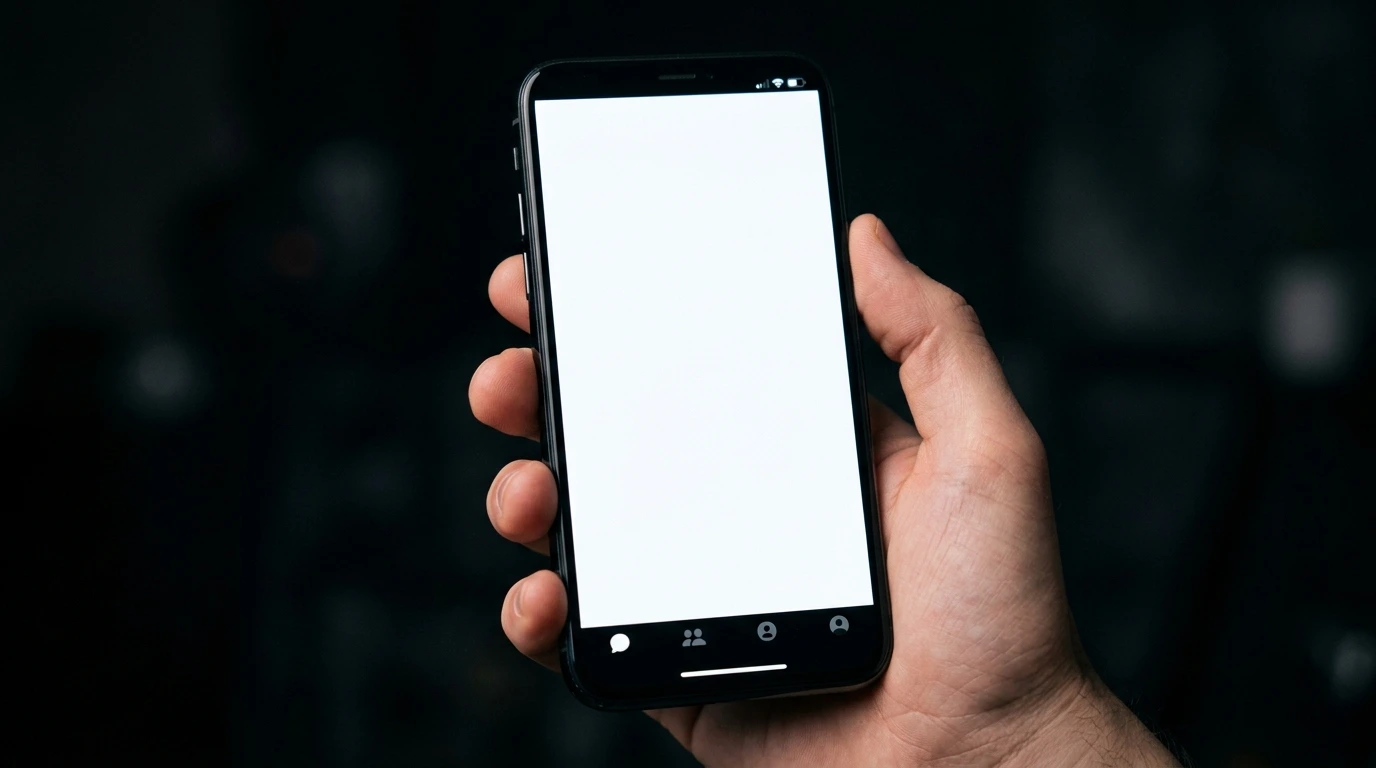
You open Facebook Messenger and see a completely white or blank screen. No chats, no icons, just white. The app appears to have opened but nothing loads.
A Messenger white screen is caused by a corrupted app cache, an outdated app version that is incompatible with the current Facebook servers, a slow or failed internet connection, a Facebook server outage, or a conflict with a recent iOS or Android system update.
Do this first: close Messenger completely and reopen it. If the white screen persists, check if Facebook and Messenger servers are down by visiting downdetector.com. If the servers are fine, work through the fixes below in order. All of them are free.
Step 1: Identify the Type of Messenger White Screen

Not all Messenger white screens are the same. Identifying yours takes under one minute and points you to the correct fix.
White Screen on Every Open
If Messenger shows a white screen every single time you open it, the app cache is almost certainly corrupted or the app version is outdated. This is the most common type and is resolved by clearing the cache or updating the app.
White Screen Only on Specific Chats
If the app opens normally but specific chat threads show a white screen when you tap them, the data for that conversation failed to load. This is usually caused by a slow internet connection or a temporary server-side error. Switching to a different network or waiting and retrying typically resolves it.
White Screen After an iOS or Android Update
If the white screen appeared immediately after updating your phone’s operating system, a compatibility issue between the new OS version and the current Messenger app version is the cause. Updating the Messenger app to the latest version almost always resolves this immediately.
White Screen on Browser (Facebook.com/messages)
If Messenger shows a white screen in a browser on a computer or laptop, a browser extension or cached browser data is usually the cause. This is separate from the mobile app issue and has its own set of fixes.
Quick Diagnosis Table
| What You See | Likely Cause |
| White screen every time app opens | Corrupted cache or outdated app |
| White screen on specific chats only | Network error or server issue |
| Appeared after iOS or Android update | App-OS compatibility conflict |
| Appeared after Messenger app update | New app version has a bug |
| White screen in browser only | Browser cache or extension conflict |
| Works on Wi-Fi, white on mobile data | Mobile data connection issue |
| All Meta apps affected | Facebook server outage |
What Causes Messenger White Screen?

Corrupted App Cache (Most Common)
Every time you use Messenger, it stores temporary data called cache to load faster next time. Over weeks and months this cache can become corrupted, grow too large, or contain outdated data that conflicts with the current app version. When Messenger tries to load using corrupted cache data, it fails to render the interface and shows a white blank screen instead. Clearing the cache resolves this in the majority of cases and takes under 30 seconds.
Outdated App Version
Facebook and Messenger update their apps frequently. An older app version may no longer be compatible with the current server API, data formats, or security certificates. When an outdated Messenger app tries to communicate with Facebook’s servers, the request fails and the app renders a blank white screen because it has no data to display. Updating to the latest version from the App Store or Google Play Store resolves this completely.
Internet Connection Problems
Messenger requires a stable internet connection to load messages, media, and the app interface. A slow Wi-Fi connection, weak mobile data signal, or a network that blocks Facebook’s servers can prevent the app from loading its content. The interface shell opens but the content stays white because the data never arrived. Switching networks or moving to a stronger signal area resolves this.
Facebook Server Outage
Facebook and Messenger experience occasional server outages that affect all users simultaneously. During an outage, Messenger may show a white or blank screen because it cannot reach the servers it needs. This is completely outside your control and resolves itself when Facebook restores service. Major outages are typically resolved within one to three hours.
iOS or Android Compatibility Issue
A new major iOS or Android update can temporarily break Messenger if the app has not yet been updated to handle the new OS changes. Facebook usually releases a compatibility patch within days of a major OS update, but in the gap period users may experience white screens, crashes, or loading failures. The fix is to update Messenger to the latest version.
Browser Extensions or Cache (Web Version)
If you use Messenger through a web browser, extensions such as ad blockers, privacy tools, or dark mode apps can interfere with how the Messenger page renders. Cached browser data can also cause the page to load an outdated version of the interface that fails to display correctly. Disabling extensions or clearing browser cache resolves this.
App Permissions Revoked
Messenger requires certain permissions to function correctly, including access to storage, network, and background data. If these permissions were recently changed by a system update or manually, Messenger may fail to load data and show a white screen. Checking and restoring app permissions takes under a minute.
How to Fix Messenger White Screen

Work through these fixes in order. Every single fix is free.
Force Close and Reopen Messenger
On iPhone: swipe up from the bottom to see open apps, swipe Messenger off the screen. On Android: tap the square recents button, find Messenger, and swipe it away. Reopen Messenger. A force close clears the active memory session and often resolves temporary rendering glitches that cause the white screen.
Check if Facebook Servers Are Down
Visit downdetector.com and search for Facebook or Messenger. If large numbers of users are reporting outages, the problem is on Facebook’s side and no action is needed on your device. Wait one to three hours and try again. You can also check Meta’s official status page at metastatus.com.
Check Your Internet Connection
Switch from Wi-Fi to mobile data or from mobile data to Wi-Fi. If Messenger loads on the alternative connection, the original network was blocking or too slow to load Facebook’s servers. Restart your router if using Wi-Fi at home. On mobile data, move to an area with a stronger signal. If both connections produce a white screen, the cause is the app itself rather than the network.
Update Messenger to the Latest Version
On iPhone: open the App Store, tap your profile icon at the top right, scroll down to see pending updates, and update Messenger. On Android: open Google Play Store, tap the profile icon, select Manage Apps, find Messenger, and tap Update. Always keep Messenger updated to avoid compatibility issues with the current server version.
Clear Messenger Cache (Android)
On Android: go to Settings, then Apps or Application Manager, find Messenger, tap Storage, and select Clear Cache. Do not select Clear Data as this removes your login and local message history. Clearing cache removes corrupted temporary files without affecting any of your messages or account. Reopen Messenger after clearing cache.
On iPhone: iOS does not have a manual cache clear option. Instead, offload the app by going to Settings > General > iPhone Storage, finding Messenger, and selecting Offload App. This removes the app but keeps your data. Reinstall from the App Store. This achieves the same result as clearing cache on Android.
Uninstall and Reinstall Messenger
If clearing cache did not work, a full uninstall removes all app data including corrupted files that a cache clear may have missed. Delete Messenger from your device completely. Restart your phone. Download and install Messenger fresh from the App Store or Google Play Store. Sign back in. This resolves the majority of persistent white screen issues that survive a cache clear.
Check and Restore App Permissions
On Android: go to Settings > Apps > Messenger > Permissions. Ensure that storage, contacts, and background data are all enabled. On iPhone: go to Settings, scroll to Messenger, and check that Background App Refresh is on and any relevant permissions are granted. Revoked permissions prevent Messenger from loading its full interface.
Fix Messenger White Screen in Browser
If you use Messenger at messenger.com or facebook.com in a browser, try these steps in order: open Messenger in a private or incognito window first. If it loads, a browser extension is the cause. Disable extensions one at a time to find the culprit. If the private window also shows white, clear the browser cache and cookies by pressing Ctrl + Shift + Delete on Windows or Command + Shift + Delete on Mac. Select All Time and clear cached images and cookies.
Restart Your Phone
A full device restart clears system RAM, refreshes background processes, and resets network connections. Hold the power button and select Restart or Power Off, wait 30 seconds, and power on again. After restarting, open Messenger before any other app to give it a clean start.
Check for iOS or Android System Update
If the Messenger white screen appeared right after an iOS or Android update, check the App Store or Google Play Store for a Messenger update. Facebook typically releases a patch within 24 to 72 hours of a major OS release that resolves compatibility-related white screens. If no update is available yet, check back the following day.
Messenger White Screen on PC or Mac (Browser)

If Messenger shows a white screen in a web browser, the causes are different from the mobile app and the fixes are also different.
| Browser | How to Clear Cache |
| Google Chrome | Settings > Privacy and Security > Clear Browsing Data > Cached images and files |
| Mozilla Firefox | Settings > Privacy and Security > Clear Data > Cached Web Content |
| Safari (Mac) | Develop menu > Empty Caches (enable Develop menu in Safari Preferences > Advanced) |
| Microsoft Edge | Settings > Privacy, Search and Services > Clear Browsing Data > Cached images and files |
If clearing cache does not fix it, disable all browser extensions temporarily and reload messenger.com. If Messenger loads without extensions, re-enable them one at a time to identify the conflicting one.
When to Contact Facebook Support
Contact Meta Support at facebook.com/help if the white screen persists after trying all fixes above, if you see a specific error code alongside the white screen, or if the issue began after a recent Messenger account action such as changing your password or email address.
You can also report a problem directly from within the Messenger app if it opens at all. Tap your profile photo, then Help and Support, then Report a Problem. This sends diagnostic data to Facebook’s engineering team.
How to Prevent Messenger White Screen

- Update Messenger regularly. Do not skip app updates. Most Messenger white screen bugs are fixed in newer versions within days.
- Clear Messenger cache every two to four weeks on Android to prevent buildup of corrupted temporary data.
- Keep your iOS or Android system updated. An updated OS reduces compatibility conflicts with apps.
- Avoid using too many aggressive browser extensions when accessing Messenger on a computer. Ad blockers and privacy extensions frequently interfere with Facebook’s interface rendering.
- Maintain stable internet access. Messenger loaded over a weak or intermittent connection frequently produces white or partially loaded screens.
- If you experience a white screen, check downdetector.com first before attempting any fixes. A Facebook server outage requires no action on your device.
Frequently Asked Questions

Why does Messenger show a white screen when I open it?
The most common causes are a corrupted app cache, an outdated app version, or a brief Facebook server issue. Clear the app cache on Android or offload and reinstall the app on iPhone. Update Messenger to the latest version. Check downdetector.com to rule out a server outage before attempting other fixes.
Does Messenger white screen mean my messages are deleted?
No. A white screen means the app failed to load its interface, not that your messages were deleted. Your messages are stored on Facebook’s servers. Once the app loads correctly after a fix, all your conversations will be visible exactly as before.
Why does Messenger work on Wi-Fi but show white screen on mobile data?
Your mobile data network may be blocking Facebook’s servers, have insufficient speed to load the app, or be routing through a network with Facebook restrictions. Try toggling mobile data off and on. Check if other apps load normally on mobile data. If only Facebook and Messenger are affected on mobile data, contact your mobile carrier.
How do I fix Messenger white screen without losing my messages?
Clearing the app cache on Android does not delete messages. Offloading on iPhone does not delete messages either. Only selecting Clear Data on Android or deleting account data removes local message copies. Your messages are always backed up on Facebook’s servers and reappear when you sign back in after a reinstall.
Why does Messenger show a white screen after an iOS update?
A new iOS version sometimes changes how apps interact with the operating system. If Messenger has not yet been updated to be compatible with the new iOS version, it may fail to render correctly. Check the App Store for a Messenger update immediately after an iOS update. Facebook typically releases a compatibility fix within 24 to 72 hours.
Is there a Messenger white screen bug in 2026?
As of March 2026, there are no widespread confirmed Messenger white screen bugs affecting all users. The issue appears on individual devices due to cache corruption, outdated app versions, or network problems. Check downdetector.com for any active outages. If the issue affects only your device, the fixes in this guide resolve it in the majority of cases.
Final Verdict
Messenger white screen is almost always caused by a corrupted cache, an outdated app version, or a temporary server issue. All three causes are free to fix.
Start by checking downdetector.com to rule out a server outage. Then force close the app, update Messenger to the latest version, and clear the app cache on Android or offload and reinstall on iPhone.
If the white screen persists through all fixes, a full uninstall and reinstall resolves the issue in the overwhelming majority of remaining cases. Your messages are safe on Facebook’s servers throughout this entire process.
| About the AuthorBen is the founder of screenproblems.com, a resource dedicated to diagnosing and solving display and app issues on all devices.All content is written without brand sponsorship. Every recommendation is based on what actually works. |