
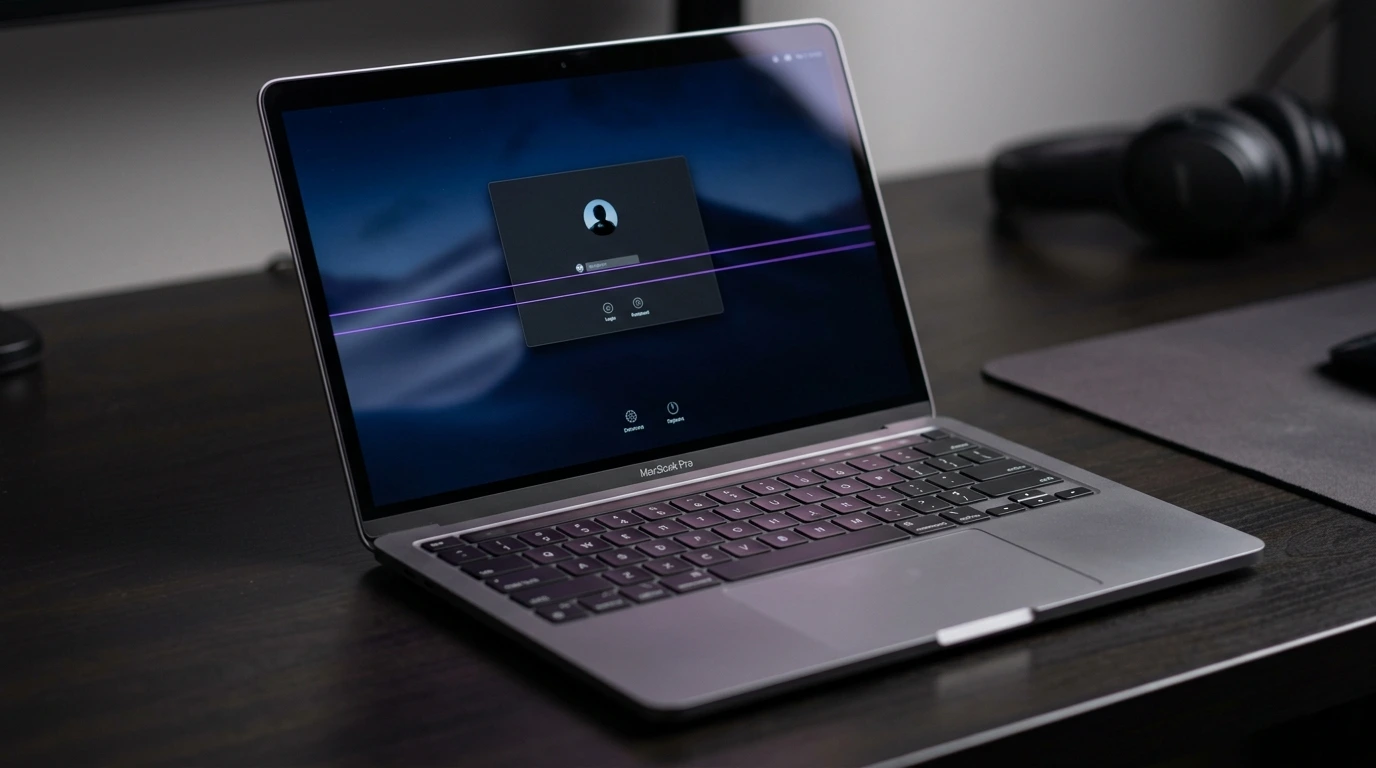
You look at your Mac screen and see purple lines running horizontally or vertically across the display. They may be faint on light backgrounds and clearly visible on dark content.
Purple lines on a Mac screen are caused by a damaged or loose display cable, a macOS graphics driver bug, GPU overheating, physical impact damage to the LCD or OLED panel, or a magnetic object placed near the screen.
Do this first: take a screenshot using Command + Shift + 3. Open it on another device. If the purple lines appear in the screenshot, the cause is GPU or software. If they do not appear, the cause is the physical display hardware.
Step 1: Diagnose the Purple Lines Correctly

Two minutes of correct diagnosis prevents wasted money on the wrong repair.
Screenshot Test
Take a screenshot and open it on your phone or another screen. Purple lines visible in the screenshot mean the GPU or macOS is producing them. Purple lines absent from the screenshot mean the physical panel or cable is the cause.
External Monitor Test
Connect your Mac to an external monitor via HDMI, Thunderbolt, or USB-C. If the external monitor shows a clean image, the problem is in the MacBook display panel or its cable. If the purple lines also appear on the external monitor, the GPU or macOS is the source.
Recovery Mode Test
Restart your Mac and hold Command + R to boot into macOS Recovery. If the purple lines are gone in Recovery Mode, the cause is a macOS software or driver issue, not hardware. If they appear even in Recovery Mode, the cause is confirmed hardware failure.
Lid Flex Test
Slowly open and close the MacBook lid while watching the screen. If the purple lines shift, intensify, or disappear at certain lid angles, a damaged display cable at the hinge is confirmed. This is one of the cheapest hardware fixes available.
Diagnosis Table
| What You See | Likely Cause |
| Purple lines visible in screenshot | GPU driver or macOS software bug |
| Purple lines not in screenshot | Physical display panel or cable damage |
| Lines on external monitor too | GPU hardware failure |
| Lines gone in Recovery Mode | macOS or driver issue |
| Lines shift when you move the lid | Damaged display cable at hinge |
| Lines only on dark backgrounds | Backlight bleed or LCD layer issue |
| Appeared after nearby magnet or phone | Magnetic field disruption, usually temporary |
| Appeared after macOS update | Graphics driver conflict from update |
What Causes Purple Lines on a Mac Screen?

Damaged or Loose Display Cable
This is the most common hardware cause. The display cable runs through the MacBook hinge and connects the panel to the motherboard. Repeated lid opening and closing stresses the cable over time. On MacBook Pro 2016 to 2019 models, Apple’s Flexgate design flaw caused specific cable wear that produces colored lines including purple. Lines that change when you flex the lid confirm this cause. Cable reseating or replacement typically costs $50 to $100 at a shop.
macOS Graphics Driver Bug
Some macOS updates contain rendering bugs that affect color output. Purple lines can appear immediately after a macOS update and be visible in screenshots. They are not hardware-related and updating macOS to the next point release resolves this in most cases.
GPU Overheating
The GPU on older Intel MacBooks can overheat under sustained heavy workloads. When the GPU exceeds safe thermal limits it produces corrupted display output including purple lines and flickering. Lines that appear during video editing or gaming and fade after cooling are a sign of GPU thermal stress and progressive degradation on Intel models.
Physical Impact or Pressure Damage
A drop or pressure on the MacBook screen can fracture the LCD panel internally without breaking the outer glass. This creates fixed purple lines not visible in screenshots that do not change with software fixes. Some Apple Community users also report purple lines appearing after placing a phone or magnetic object directly against the MacBook screen.
Magnetic Field Disruption
LCD displays are sensitive to strong magnetic fields. Placing a phone, speaker, or magnetic case directly on the MacBook screen can temporarily disturb the liquid crystal alignment and produce purple lines. These are usually temporary and disappear once the magnetic source is removed and you wait a few minutes.
GPU Hardware Failure
On Intel MacBook Pro models particularly 2011 to 2013, Apple acknowledged GPU failures causing colored lines and kernel panics. Apple offered extended repair programs for these models. In 2026 the M-series MacBook Pros are not affected by the same failure patterns but severe impact can still damage GPU connections on any model.
How to Fix Purple Lines on a Mac Screen

Work through these fixes in order from free to paid.
Restart Your Mac
Hold the Apple menu and select Restart. A restart clears GPU memory and resets the display driver. If lines disappear after restart and do not return, a temporary rendering glitch caused them.
Reset NVRAM
NVRAM stores display configuration data. Corrupted NVRAM can cause incorrect color output. On Intel Mac: shut down, then hold Option + Command + P + R immediately after pressing Power for 20 seconds. On Apple Silicon Mac: a standard restart handles NVRAM automatically.
Reset SMC (Intel Macs Only)
Shut down the Mac. Hold Shift + Control + Option + Power button simultaneously for 10 seconds. Release all keys and power on normally. This resets display power states and resolves lines caused by SMC corruption. Apple Silicon Macs do not have a separate SMC.
Update macOS
Go to System Settings > General > Software Update and install any available update. Apple patches graphics driver bugs in every point release. If lines appeared after a recent update, check the Apple Support Community for your model and watch for a patch.
Boot in Safe Mode
Intel Mac: hold Shift at startup. Apple Silicon Mac: hold Power until startup options appear, then hold Shift and click Continue. If purple lines disappear in Safe Mode, a third-party app or extension is causing a graphics conflict. Uninstall recently added apps to identify the culprit.
Remove Nearby Magnetic Objects
If lines appeared after placing a phone, speaker, or magnetic case near the screen, remove the object immediately. Move the Mac to a clean workspace. Wait 5 minutes. If lines fade or disappear, magnetic disruption was the cause and no repair is needed.
Check Apple Repair Programs and Warranty
Visit support.apple.com and enter your serial number before paying for any repair. Apple has offered free repairs for display cable issues on 2016 to 2019 MacBook Pro models and GPU problems on 2011 to 2013 models. Check your coverage at checkcoverage.apple.com.
| Coverage | What It Covers | 2026 Cost |
| Standard 1-year warranty | Manufacturing defects | Free |
| AppleCare Plus | Accidental display damage | $99 per incident |
| Apple extended repair programs | Known design defects on qualifying models | Free |
| MacBook Pro 14 inch (M3 or M4) | Screen replacement at Apple | $399 to $499 |
| MacBook Pro 16 inch (M3 or M4) | Screen replacement at Apple | $499 to $599 |
| Third-party certified shop | All Mac models | 30 to 50% less than Apple |
Which Mac Models Are Most Affected?

| Mac Model | Most Common Purple Line Cause | Apple Program Available? |
| MacBook Pro 2016 to 2019 | Flexgate display cable failure | Yes, check support.apple.com |
| MacBook Pro 2011 to 2013 | GPU hardware failure | Extended program, check eligibility |
| MacBook Air M1 to M3 | macOS driver bug or magnetic disruption | Standard warranty only |
| MacBook Pro M2 to M4 | GPU driver bug, rare physical damage | Standard warranty only |
| iMac (all years) | Loose display cable or GPU thermal stress | Standard warranty or AppleCare |
How to Prevent Purple Lines on Mac Screen

- Keep macOS updated. Graphics driver patches are included in every point release.
- Never place phones, speakers, or magnetic objects directly on the MacBook screen.
- Open and close the MacBook lid gently and evenly to reduce hinge cable stress.
- Use the Mac on hard flat surfaces to ensure proper GPU ventilation and prevent overheating.
- Do not close the lid with anything resting on the keyboard as this presses against the display.
- If lines appear during heavy workloads, monitor GPU temperature with iStatMenus and reduce load.
Frequently Asked Questions

Can purple lines on a Mac screen disappear on their own?
Yes if caused by a temporary GPU rendering glitch or magnetic field disruption. Software-caused lines often disappear after a restart. Magnetic-induced lines disappear when the source is removed. Hardware-caused lines from a damaged cable or panel do not disappear on their own and worsen over time.
Are purple lines on Mac always a hardware problem?
No. Many cases are software-related, particularly after a macOS update. Always run the screenshot test and the Recovery Mode test before concluding hardware is at fault. If lines disappear in Recovery Mode or appear in screenshots, the fix is free on the software side.
Does Apple warranty cover purple lines on Mac screen?
Yes if caused by a manufacturing defect or known design issue. The standard one-year warranty covers display defects under normal use. AppleCare Plus covers accidental damage for $99. Apple has also offered free extended repair programs for specific models with known display cable or GPU issues. Check support.apple.com with your serial number before paying for any repair.
How much does it cost to fix purple lines on a Mac screen in 2026?
Display cable reseating: $50 to $100. Screen replacement at Apple: $399 to $599 depending on the MacBook model. Third-party certified shops charge 30 to 50% less. If covered by Apple’s extended repair program: free. Always check checkcoverage.apple.com first.
Is it safe to keep using a Mac with purple lines?
A faint purple line that appears only on dark backgrounds is generally safe to use temporarily. If the lines are multiplying, spreading, or the Mac is experiencing kernel panics or unexpected restarts, book a diagnostic appointment soon. Progressive GPU failure can lead to complete display failure if ignored.
Final Verdict
Purple lines on a Mac screen are caused by either a damaged display cable, a macOS graphics driver bug, GPU overheating, or physical damage. In many cases the fix is completely free.
Start with the screenshot test and the Recovery Mode test. If lines disappear in Recovery Mode, the fix is software-side and free. If lines are confirmed hardware, the lid flex test tells you whether the cable is the cause before assuming the full panel needs replacement.
Check support.apple.com for active extended repair programs before spending money. Many MacBook Pro users receive free display cable repairs they did not know were covered.
| About the AuthorBen is the founder of screenproblems.com, a resource dedicated to diagnosing and solving display issues on all devices.All content is written without brand sponsorship. Every recommendation is based on what actually works. |