
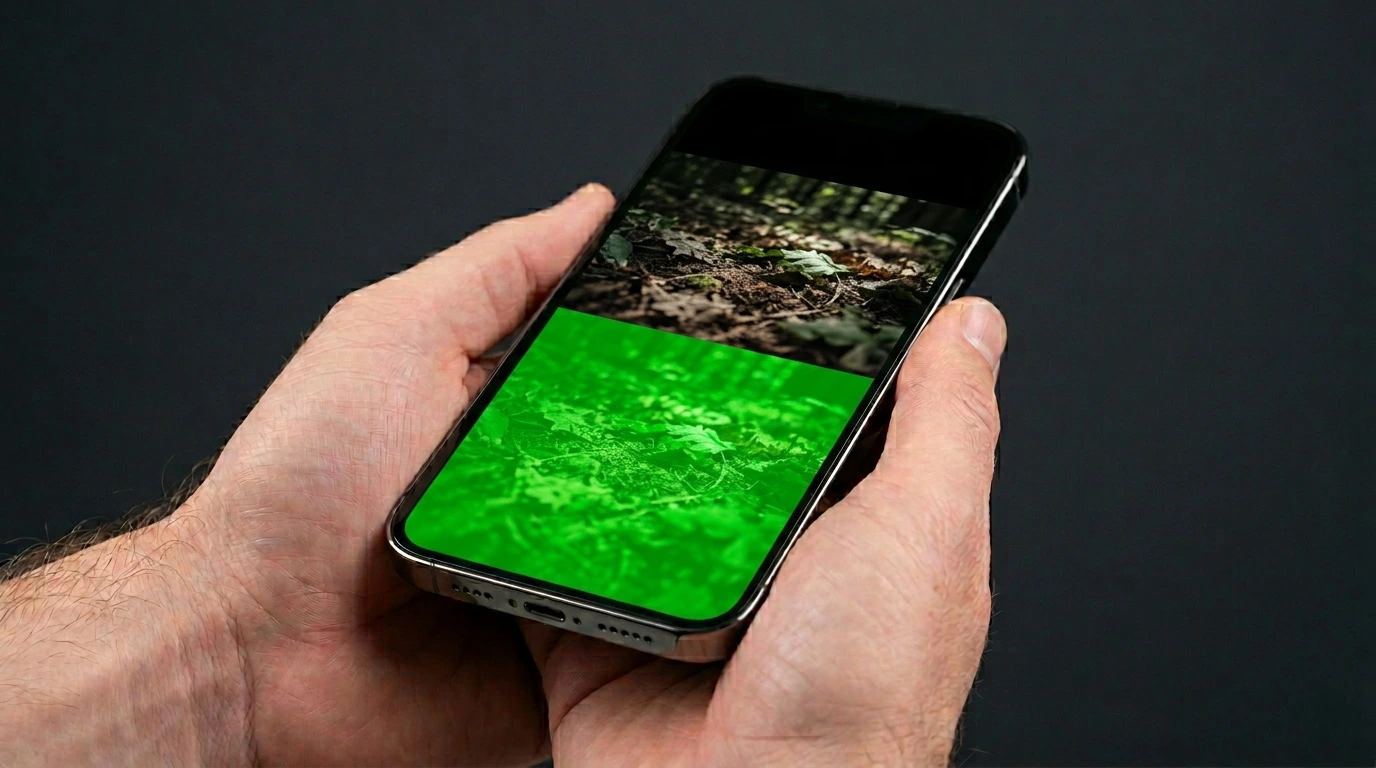
You unlock your iPhone and the entire screen is covered in a green tint, green lines, or a solid green display. It appeared out of nowhere and nothing responds normally.
An iPhone green screen is caused by an iOS software glitch or rendering bug, physical damage to the OLED panel from a drop or pressure, a failed iOS update, water or moisture exposure, or in rarer cases a hardware fault in the display connector. The green screen is more commonly reported on iPhone 11, 12, 13, and 14 models due to the OLED display technology used in these devices.
Do this first: take a screenshot by pressing the Side button and Volume Up together. Open the screenshot on another device. If the green tint appears in the screenshot, the cause is software. If the screenshot looks normal, the cause is in the physical display hardware.
Identify the Type of Green Screen

The type of green screen you see determines the correct fix. There are four distinct types.
Green Tint Across the Whole Screen
The entire display has a green or warm-green color cast. Everything on screen looks normal in shape and layout but with a green overlay. This is almost always a software or iOS rendering issue. It is the most common type and most frequently reported after an iOS update.
Solid Green Screen with No Content
The screen shows only solid green with no icons, apps, or interface visible. This is sometimes called the iPhone Green Screen of Death. It is caused by a severe iOS crash, a failed update, or physical damage where the display driver has completely failed.
Green Lines on the Screen
One or more vertical or horizontal green lines run across the display while the rest of the screen shows normally. Lines that appear in screenshots indicate a software or GPU rendering issue. Lines not visible in screenshots indicate physical display panel damage or a loose connector.
Green Screen Only in Specific Conditions
The screen looks normal most of the time but shows green when the brightness is low, in dark environments, or after restart. This is a known OLED characteristic issue on certain iPhone models where the display driver behaves incorrectly at specific brightness levels. Apple has acknowledged this on some models.
Quick Identification Table
| What You See | Likely Cause |
| Green tint across whole screen | iOS software bug or rendering glitch |
| Solid green, no interface visible | iOS crash or severe hardware failure |
| Green tint in screenshot | Confirmed software cause |
| Normal screenshot, green only on screen | Physical display or connector damage |
| Green lines not in screenshot | LCD or OLED panel hardware damage |
| Green only at low brightness | OLED driver calibration issue |
| Appeared after iOS update | iOS update bug affecting display rendering |
| Appeared after drop | Physical OLED panel damage |
What Causes an iPhone Green Screen?

iOS Software or Rendering Bug (Most Common)
This is the most reported cause across Apple Community forums, Reddit, and Quora discussions. Certain iOS updates contain bugs that affect how the display subsystem renders colors, particularly on OLED-equipped iPhones. The green tint appears across the entire display and is typically visible in screenshots. Apple usually releases a fix in the next iOS point update. Users of iPhone 11, 12, 13, and 14 models reported green screen issues after specific iOS 15, 16, and 17 updates.
OLED Panel Damage from Drop or Impact
iPhones from iPhone X onward use OLED displays. OLED screens are more sensitive to physical impact than LCD panels. A drop or knock can damage the organic pixel layer or the display connector internally without visibly cracking the outer glass. The result is a green discoloration, green lines, or a partial green overlay that appears permanently and does not show in screenshots.
Failed or Interrupted iOS Update
If an iOS update is interrupted mid-installation by a battery dying, a crash, or a forced restart, the display driver or rendering system files can become corrupted. The iPhone may boot to a green screen because the partial update left the display system in an inconsistent state. Recovery Mode or DFU Mode restore resolves this.
Water or Moisture Damage
Although iPhones carry water resistance ratings, this protection weakens with age and use. Moisture reaching the OLED panel or its connector can cause green discoloration that develops gradually or appears suddenly after liquid exposure. Liquid damage-related green screens often worsen over time as the moisture causes corrosion inside the display connector.
Loose or Damaged Display Connector
Inside the iPhone, the OLED display connects to the logic board via a small ribbon connector. If this connector becomes partially disconnected from a drop, thermal expansion, or manufacturing stress, the display may render with green artifacts or a full green tint. This is confirmed when the green screen changes after pressing on the screen or when the phone is flexed slightly.
True Tone or Display Calibration Issue
True Tone technology adjusts the display color temperature based on ambient lighting. On some iPhones, particularly after a software update, True Tone can produce an unexpected warm or greenish tint if the display calibration profile becomes corrupted. Toggling True Tone off in Settings confirms whether this is the cause.
How to Fix an iPhone Green Screen

Work through these fixes in order. Every fix marked as free costs nothing.
Restart Your iPhone
A standard restart often clears the software glitch causing a green tint. On iPhone 8 and later: hold the Side button and Volume Down until the power slider appears, then slide to power off. Wait 30 seconds and press the Side button to restart. On iPhone 7: hold the Side button until the slider appears. If the green screen disappears after restart and does not return, a temporary software glitch caused it.
Force Restart Your iPhone
A force restart is more thorough than a standard restart. It resets the display hardware subsystem without erasing any data. On iPhone 8 and later: quickly press and release Volume Up, quickly press and release Volume Down, then hold the Side button until the Apple logo appears. On iPhone 7: hold Volume Down and the Side button together until the Apple logo appears. On iPhone 6s and earlier: hold Home and the Side button together.
Turn Off True Tone and Check Display Settings
Go to Settings > Display and Brightness. Toggle off True Tone. Check if the green tint changes or disappears. Also check that Night Shift is disabled under the same menu. If disabling True Tone resolves the green tint, the display calibration profile may have been corrupted by a software update. Turning True Tone off and on again sometimes resets the calibration.
Update iOS
Go to Settings > General > Software Update and install any available update. If the green screen was caused by a bug in the current iOS version, Apple almost always patches it in the next point release. Many iPhone 13 and 14 green screen cases reported in 2025 were resolved by a subsequent iOS update within one to two weeks.
Reset All Settings
Go to Settings > General > Transfer or Reset iPhone > Reset > Reset All Settings. This resets display settings, color filters, accessibility settings, and True Tone calibration without deleting any personal data. It resolves green screen issues caused by misconfigured display settings in most software-related cases.
Check Accessibility Color Settings
Go to Settings > Accessibility > Display and Text Size. Check that Color Filters is turned off. A color filter accidentally set to a green channel can make the entire screen appear green. Also check that Reduce White Point and Color Tint are not enabled. Any of these accessibility options can produce a persistent green cast that mimics a hardware problem.
Restore iPhone via Recovery Mode
If all other fixes fail and the iPhone cannot be used normally, Recovery Mode allows a full iOS restore without data loss in most cases. Connect your iPhone to a Mac or PC with a USB cable. Open Finder on Mac or iTunes on Windows. Perform the button sequence for your iPhone model to enter Recovery Mode: iPhone 8 and later press Volume Up, Volume Down, then hold the Side button until the recovery mode screen appears. Click Update in Finder or iTunes. This reinstalls iOS without erasing data. If Update fails, Restore is the final step which does erase data.
Check AppleCare Plus and Apple Warranty
Before paying for a screen replacement, check your coverage at checkcoverage.apple.com. The standard one-year warranty covers manufacturing defects. AppleCare Plus covers accidental display damage for a service fee.
| iPhone Model | AppleCare Plus Fee | Out-of-Warranty Screen Repair |
| iPhone 13 series | $29 | $229 to $279 at Apple |
| iPhone 14 series | $29 | $249 to $299 at Apple |
| iPhone 15 series | $29 | $279 to $329 at Apple |
| iPhone 16 series | $29 to $99 | $299 to $379 at Apple |
| Third-party certified shop (all models) | N/A | 30 to 50% less than Apple |
Always verify your coverage before authorizing any paid repair.
iPhone Models Most Affected by Green Screen Issues

| iPhone Model | Screen Type | Most Common Green Screen Cause |
| iPhone 11 | LCD (Liquid Retina) | Software glitch, display connector |
| iPhone 12 series | OLED (Super Retina XDR) | iOS update bug, OLED panel damage |
| iPhone 13 series | OLED (Super Retina XDR) | iOS 15 and 16 update bugs, physical damage |
| iPhone 14 series | OLED (Super Retina XDR) | iOS 16 and 17 update bugs, moisture |
| iPhone 15 and 16 series | OLED (Super Retina XDR) | iOS update glitch, rare hardware defect |
iPhone 13 Pro and Pro Max had the highest reported rate of green screen issues in 2022 and 2023, linked specifically to iOS 15.4 and 15.6 updates. Apple addressed these through software patches. In 2026 the most common green screen reports come from iPhone 14 and 15 users following iOS 17 and 18 point updates.
How to Prevent iPhone Green Screen

- Keep iOS updated to the latest version. Apple patches display rendering bugs in regular updates.
- Use a quality case with raised bezels to protect the OLED screen from drops and direct surface contact.
- Apply a tempered glass screen protector to absorb minor impact forces.
- Avoid using the iPhone in conditions that exceed its water resistance rating, particularly in saltwater or under running water.
- Do not use third-party display replacement screens that are not Apple-certified. Uncertified replacements are the most common cause of green screen issues after a screen repair.
- Before any iOS update, check Apple community forums for reports of display issues on your specific model.
Frequently Asked Questions

Why did my iPhone screen turn green suddenly?
A sudden green screen is almost always caused by a software glitch, particularly if it appeared after an iOS update or restart. Force restart the iPhone first. If the green screen appeared after a drop or liquid exposure, physical damage is the likely cause and a hardware inspection is needed.
Does the iPhone green screen mean the phone is broken?
Not necessarily. A green tint visible in screenshots is a software issue and is fully fixable for free. A green screen not visible in screenshots or a solid green display with no interface may indicate hardware damage, but Recovery Mode restore resolves many of these cases without a screen replacement.
Is the iPhone green screen covered by Apple warranty?
Yes if it is a manufacturing defect or caused by a known iOS bug. Apple has acknowledged green screen issues on iPhone 13 and 14 models and resolved them through iOS updates. AppleCare Plus covers accidental display damage for a $29 service fee. The standard one-year warranty covers display defects appearing under normal use. Check checkcoverage.apple.com before paying for any repair.
Can the iPhone green screen come back after being fixed?
If fixed with a software update or reset, it can return if the underlying iOS bug is not fully patched. This is why keeping iOS current is important. If fixed through a hardware screen replacement with a genuine Apple display, the green screen will not return from that cause. However using a third-party non-certified replacement screen is a leading cause of recurring green screen issues after a repair.
Why does my iPhone 13 keep getting a green screen?
iPhone 13 models were particularly affected by green screen bugs in iOS 15.4 and 15.6 updates. If you are still on an older iOS version, update to the latest iOS release immediately. If the green screen persists on the latest iOS, the OLED display may have a hardware fault. Visit an Apple Store for a free diagnostic if the device is under warranty.
How much does it cost to fix an iPhone green screen in 2026?
If software-caused: free. With AppleCare Plus: $29 service fee. Out of warranty at Apple: $229 to $379 depending on the iPhone model. Third-party certified shops: typically 30 to 50% less than Apple. Always check your warranty and AppleCare Plus coverage before paying for a screen replacement.
Final Verdict
An iPhone green screen is alarming but is fixable in the majority of cases without paying for a screen replacement.
Start with the screenshot test to confirm hardware or software. Force restart the iPhone. Check True Tone and accessibility color settings. Update iOS. If those steps do not resolve it, use Recovery Mode to reinstall iOS before considering hardware repair.
Check your Apple warranty and AppleCare Plus coverage at checkcoverage.apple.com before authorizing any paid repair. Many iPhone green screen cases are covered under warranty or resolved for a $29 AppleCare Plus service fee.
| About the AuthorBen is the founder of screenproblems.com, a resource dedicated to diagnosing and solving display issues on all devices.All content is written without brand sponsorship. Every recommendation is based on what actually works. |