
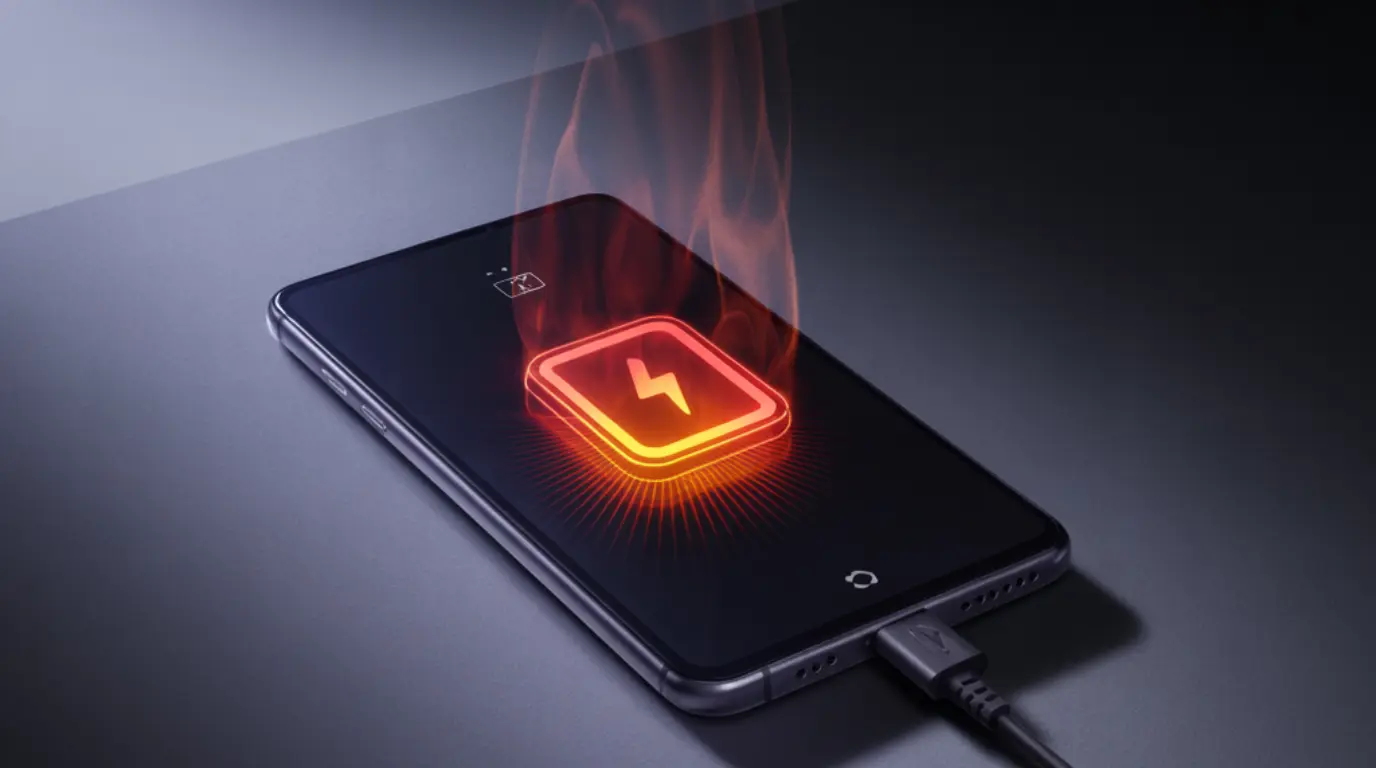
Screen overheating while charging is most commonly caused by a faulty third-party charger, background apps running during charge, or a degraded battery that can no longer hold power efficiently. The fix is usually free: switch to your original charger, close all apps before plugging in, and always charge your device in open air away from direct sunlight or soft surfaces that trap heat around it.
You just plugged in your phone or laptop, and within minutes the screen feels uncomfortably warm under your fingertips. That heat is real, and your instinct to investigate is exactly right. Screen overheating while charging is one of the most widely reported device problems today, and in most cases it is completely fixable in under five minutes without spending a single penny.
What Causes Screen Overheating While Charging
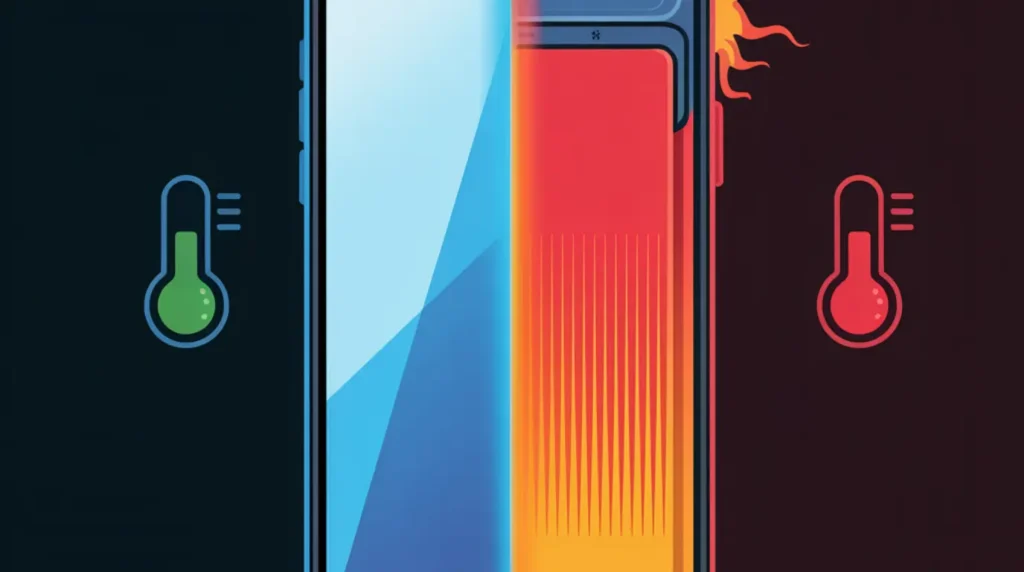
Using a Faulty or Incompatible Charger
When a charger delivers incorrect voltage or amperage, your device’s battery absorbs the excess energy as raw heat instead of storing it as charge. Third-party chargers that skip the safety chips found in genuine adapters are the single biggest cause of charging heat spikes across all device types. The confirming sign: your screen runs noticeably hot with one specific charger but stays completely cool with another.
Background Apps Running During Charge
Every app running in the background while your device charges forces the processor to work simultaneously with the charging circuit. This dual load pushes the CPU and GPU harder than they should work at rest, and that extra processing generates real, measurable heat that travels outward through the screen panel. The confirming sign: the device heats up even with a quality charger and a cool room temperature.
Charging in a Hot or Poorly Ventilated Space
Lithium batteries naturally produce warmth during a charge cycle, and that warmth needs a clear path out of the device. Charging under a pillow, inside a thick rubber case, on a car dashboard, or in direct sunlight traps that heat around the device and prevents normal thermal dissipation entirely. The confirming sign: removing the case or moving to open air brings the screen temperature down within a few minutes.
An Aging or Degraded Battery
A battery that has completed hundreds of charge cycles becomes chemically less efficient and must work significantly harder to accept the same amount of charge as it did when new. That extra chemical effort generates extra heat, and because the battery sits directly behind the display, the heat radiates outward through the screen surface. The confirming sign: your device is two or more years old and heats up even during a slow overnight charge with no apps running at all.
Fast Charging Combined with Active Screen Use
Fast charging is engineered for quick top-ups, not for simultaneous heavy screen activity. Streaming video, playing games, or staying on a video call while fast charging forces your device to push high wattage into the battery and run the display and processor at full load at the same time. The screen surface absorbs heat from both the battery below and the processor behind it simultaneously, and the temperature rises fast. The confirming sign: the device stays cool when charging with the screen off but heats up immediately the moment you start using it.
How to Diagnose the Problem at Home
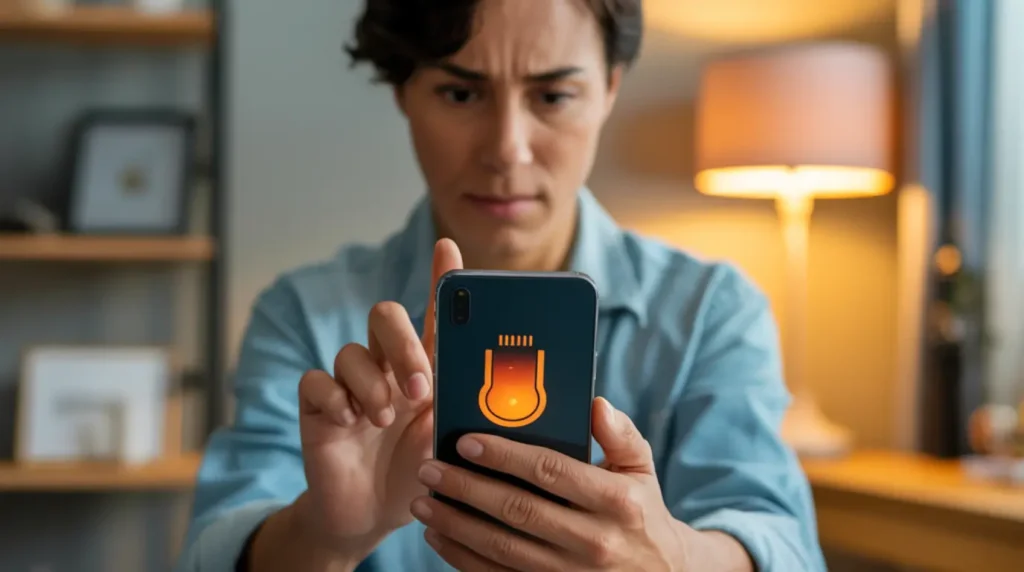
You do not need any tools or technical background to narrow down the exact cause. Work through these steps one at a time and you will have a clear answer in under ten minutes.
- Plug in your original manufacturer charger and cable only. If heat drops, a faulty third-party charger was the direct cause.
- Fully close every app before connecting the charger and let the device charge at rest. If heat drops, background app processing was overloading the system.
- Remove the case and charge on a hard flat surface away from direct sunlight. If temperature drops quickly, poor ventilation is trapping heat around the device.
- Check battery health in settings. On iPhone: Settings > Battery > Battery Health and Charging. On Android: Settings > Battery > Battery Usage or the manufacturer diagnostic app. A health reading below 80 percent points to battery degradation as the primary cause.
- Charge overnight with the screen completely off and no apps running. If overheating only occurs during active use while plugged in, the combination of screen load and fast charging is your problem rather than the charger or the environment.
How to Fix Screen Overheating While Charging
Switch to Your Original or Certified Charger Free
The fastest fix for most people is replacing a cheap third-party charger with the original adapter that came with the device, or a properly certified replacement. For iPhones, look for MFi-certified cables and adapters. For Android devices, look for USB-IF certified accessories from your manufacturer or a reputable brand.
- Unplug the third-party charger completely.
- Locate the original adapter and cable that shipped with your device.
- Plug in and monitor the screen temperature for five minutes.
If the device cools down, your diagnosis is confirmed and the problem is solved with zero cost.
Close Background Apps and Disable Idle Features Free
Before plugging in each time, close every running app completely, switch off Bluetooth if unused, lower screen brightness to minimum, and enable Airplane Mode if calls are not needed during the charge session.
- Double-tap Home or swipe up from the bottom edge to open the recent apps list.
- Swipe each app card upward or tap Close All to clear every running process at once.
- Pull down the quick settings panel and disable Bluetooth, Wi-Fi, and mobile data if not needed.
- Connect the charger and leave the device completely alone.
Your device will charge faster and run measurably cooler at the same time.
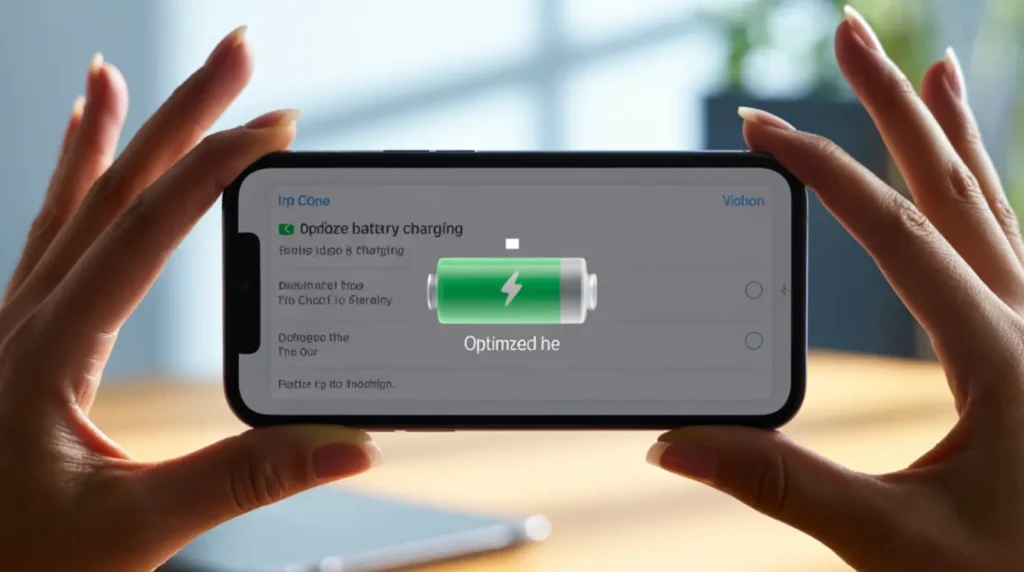
Enable Optimized or Adaptive Charging Free
Both iPhone and most modern Android phones include a built-in setting that slows the charge rate during overnight sessions to reduce thermal stress on the battery and display. This feature learns your routine and holds the battery at 80 percent until just before you typically wake up, cutting the time spent in the high-heat zone above 80 percent.
- On iPhone: Open Settings > Battery > Battery Health and Charging > turn on Optimized Battery Charging.
- On Samsung Galaxy: Open Settings > Battery and Device Care > Battery > turn on Protect Battery.
- On other Android devices: Search for Adaptive Charging or Scheduled Charging inside the Battery settings menu.
If repeated charging heat has already caused pixel stress on your display, running a stuck pixel fixer session can help you catch early display stress before it develops further.
Use a Lower-Wattage Charger for Long Sessions Free to Low Cost
If you routinely use a 45W, 65W, or higher fast charger for overnight charging, you are pushing far more power through the battery than a slow overnight session needs. Swapping to a standard 5W or 10W adapter for overnight charges reduces peak battery temperature substantially and extends long-term battery health.
- Find a lower-wattage adapter from a previous device or a household spare.
- Use that adapter exclusively for overnight charging sessions going forward.
- Reserve your fast charger for quick daytime boosts when speed is what you actually need.
This one habit change is among the most underrated and most effective long-term fixes for chronic screen heat during charging.
Replace the Degraded Battery $40 to $100
If your battery health is below 80 percent, no software setting or charger swap will fully stop the overheating. The battery physically cannot hold charge efficiently anymore and will keep generating excess heat on every charge cycle until it is replaced with a fresh unit.
- Back up your device completely before any repair work begins.
- Contact the manufacturer or an authorized service center for a battery replacement quote.
- Insist on a genuine OEM battery rather than a third-party replacement to avoid reintroducing the same overheating problem.
Battery replacement typically costs between $40 and $100 depending on your device model and region, and it usually restores both battery life and normal charging temperatures in a single repair.
When to See a Professional

Stop attempting self-fixes and book a professional appointment if your screen surface is too hot to hold comfortably for more than ten seconds, if new discoloration, green tinting, or color banding is appearing on the display after charging sessions, or if the back cover or screen edge is beginning to lift slightly because of internal swelling beneath it. These are hardware-level failures that no settings change can fix.
A swollen battery is not just a repair issue; it is a safety issue. A battery that has expanded internally is under real physical pressure and is at genuine risk of rupture if charged further. Do not plug the device in again under any circumstances and take it to a certified repair center as quickly as possible.
Overheating that has reached the display layer can cause symptoms very similar to those seen in heat-related OLED damage. You can learn more about those specific display symptoms in the iPhone Green Screen Fix guide on screenproblems.com. Always check your warranty before paying for any repair out of pocket devices under one year old in most markets qualify for a manufacturer warranty claim at no charge if overheating is traced to a component defect.
Prevention Tips
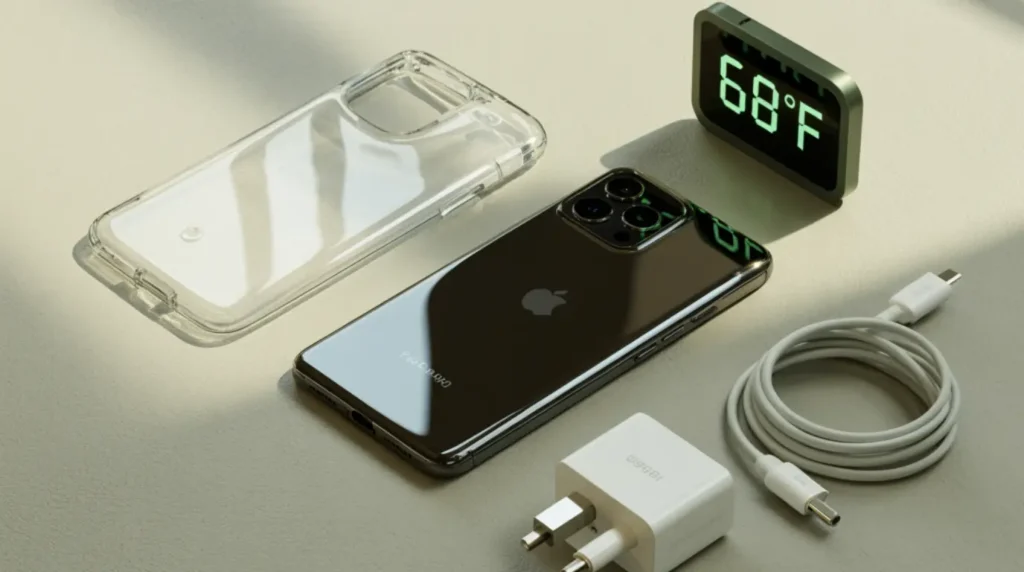
- Always charge your device flat on a hard open surface with clear airflow around all sides, never under bedding, inside a bag, or on a soft couch cushion that blocks heat from escaping.
- Remove your phone or tablet case during long charging sessions, especially thick silicone or rubber cases designed to insulate they trap charging heat efficiently.
- Avoid using the screen for gaming, video streaming, or video calls while the device is plugged in, particularly with fast charging enabled on an older battery.
- Charge before the battery drops below 20 percent remaining deep charge cycles generate more heat and stress battery chemistry harder than partial top-ups.
- Keep all device software fully updated since manufacturers regularly push thermal management improvements through standard firmware updates.
- Store and charge away from direct sunlight, hot windowsills, and car interiors where ambient temperatures can push a charging device well past its safe operating range.
Frequently Asked Questions

Is it dangerous if my screen gets hot while charging?
Mild warmth during charging is normal and expected in any lithium battery device. If the screen is hot enough that you cannot hold it comfortably for more than a few seconds, that level of heat is a warning sign of an underlying problem. Unplug immediately, let the device cool fully in open air, and work through the diagnosis steps before charging again.
Why does my phone only overheat when using a fast charger?
Fast chargers deliver significantly more watts in a short window, and if your battery has degraded even slightly it cannot absorb that power cleanly and convert the excess into heat. Switching to a standard charger for everyday use while saving fast charging for quick daytime top-ups usually resolves this entirely without any hardware repair.
Can screen overheating while charging permanently damage my display?
Yes, sustained high temperatures degrade the OLED or LCD layer over time and can cause color shift, permanent screen dimming, dead zones, or early burn-in. Occasional warmth during charging is unlikely to cause immediate damage, but repeated overheating sessions that go unaddressed will noticeably shorten your display’s lifespan. Catching and fixing the cause early is always the right call.
Why does my laptop screen overheat specifically while the laptop is plugged in?
Laptops run the CPU, GPU, and battery charging circuit simultaneously when plugged in, and all three generate heat that rises directly toward the display panel above them. A clogged cooling vent, a slowing fan, or a background process consuming heavy resources while charging amplifies this heat significantly. Cleaning the vents with compressed air, checking Task Manager or Activity Monitor for runaway processes, and elevating the laptop on a stand for clear airflow underneath typically solves laptop screen heat during charging.
Editor Note screenproblems.com
- Reviewed for technical accuracy by the screenproblems.com editorial team.
- All fixes verified against current device software and firmware versions.
- Pricing reflects current market rates and may vary by region.
- This article will be updated whenever new fixes are confirmed.
- For unresolved issues visit the Contact Us page with your device details.
About the Author Ben, Founder of screenproblems.com
- Ben has 10 years diagnosing display hardware and software issues.
- All content is written from direct technical experience, not sourced from other websites.
- Ben always prioritizes free fixes before recommending any paid repair.