
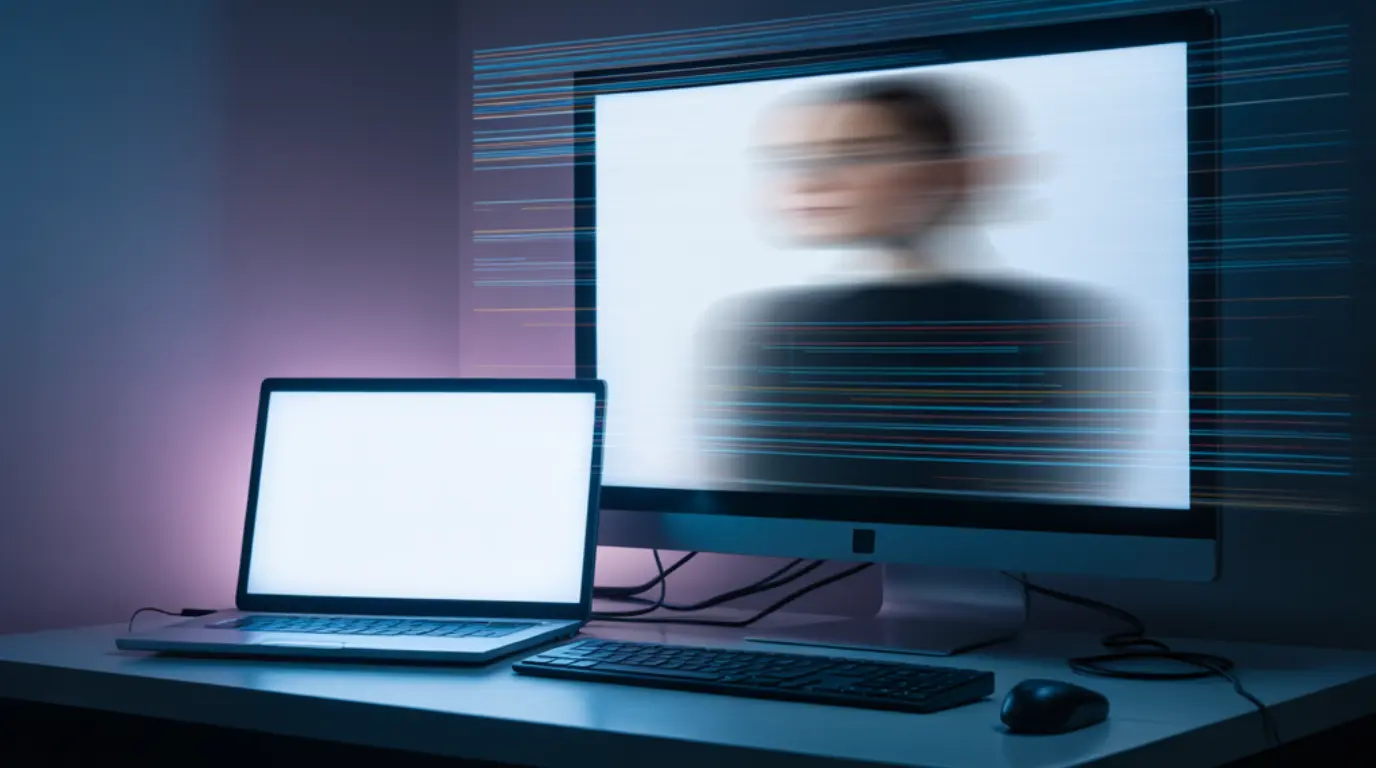
Second screen projection lag happens when your extended or mirrored display falls behind the main screen, causing choppy or delayed visuals. The most common causes are refresh rate mismatches, outdated GPU drivers, and low-quality cables. Fixing it usually takes under 10 minutes and costs nothing.
You plugged in your second screen, started your presentation or work session, and now everything on that display looks like it is one step behind reality. The lag is distracting, sometimes embarrassing, and it makes you feel like your whole setup is broken. The good news is that second screen projection lag is almost always a software or settings issue, and you can fix it right now.
What Causes Second Screen Projection Lag
Refresh Rate Mismatch
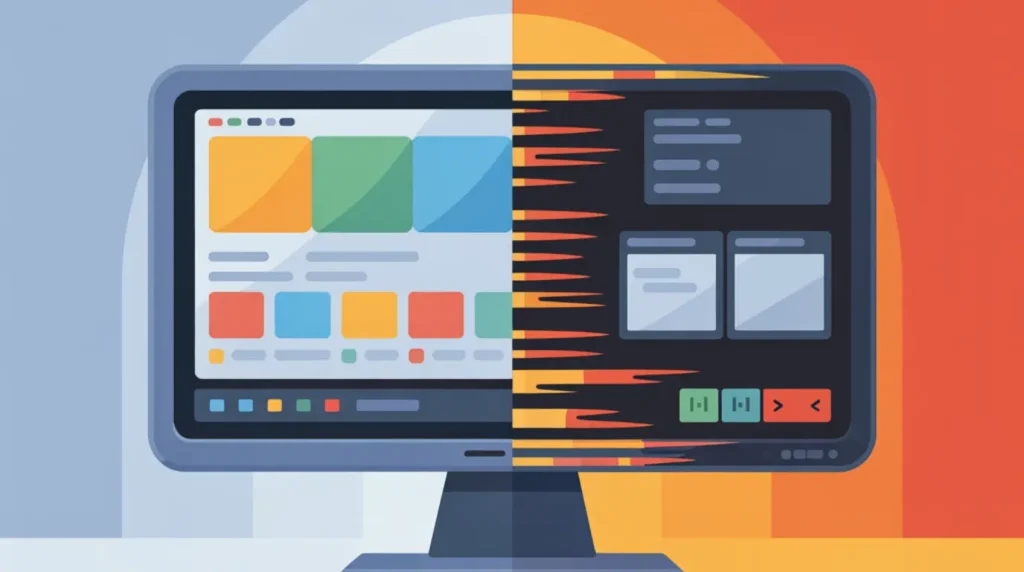
When your primary monitor runs at 144Hz and your second screen is set to 60Hz, your GPU has to manage two completely different timing cycles at once. This mismatch creates a processing bottleneck that shows up as stuttering or delayed output on the extended display. The confirming sign is lag that appears consistently during motion, like scrolling or moving windows, while the static screen looks perfectly fine.
Outdated or Corrupt Display Drivers
Your GPU driver is the bridge between your hardware and both screens. When that driver is outdated or has become corrupted after an update, it struggles to push frames to a second display efficiently. You will notice the dual monitor stuttering gets worse after a Windows or macOS update, which is the clearest sign drivers are your problem.
Insufficient GPU Bandwidth
Every GPU has a maximum bandwidth it can push across all connected displays. If you are running a high-resolution primary monitor alongside a second screen at high refresh rates, you may be hitting that ceiling. The sign here is that display output delay only appears when both screens are actively showing content simultaneously, and it gets worse when you play video or run animations.
Faulty or Low-Quality Cable
A cheap HDMI 1.4 cable cannot carry the data needed for a smooth 4K or high refresh rate connection. Even HDMI 2.0 cables can develop internal breaks that cause intermittent signal drops which appear as HDMI display delay on the second screen. The confirming sign is that wiggling the cable at either end momentarily changes or fixes the lag.
Wireless Connection Interference
Miracast, AirPlay, and other wireless projection protocols are highly sensitive to network congestion and physical distance. When other devices compete for bandwidth on the same frequency, your projected image suffers from wireless projection delay that can reach several hundred milliseconds. The sign is that the lag is inconsistent and gets noticeably worse when more devices are active on your network.
How to Diagnose Second Screen Projection Lag at Home
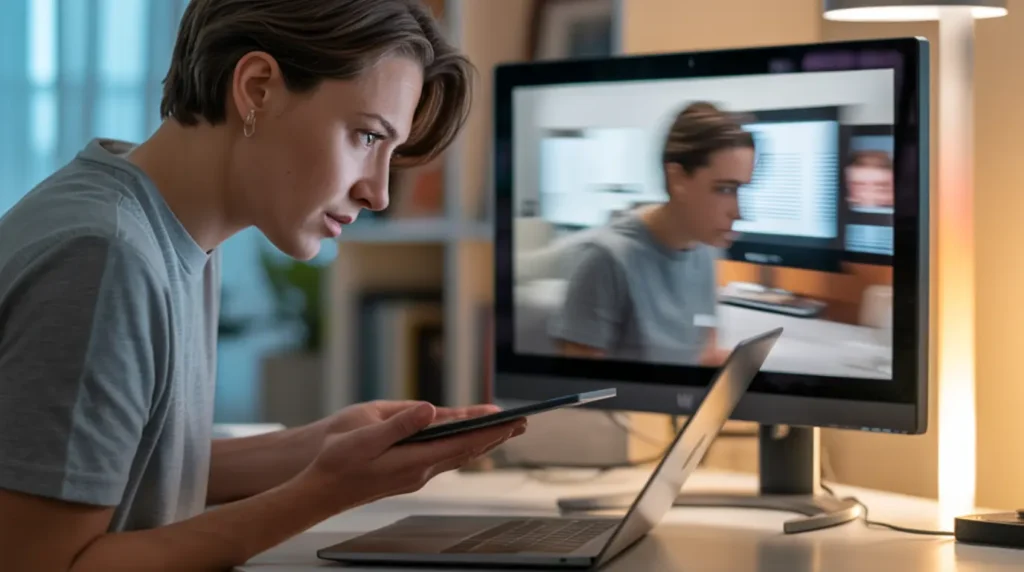
You do not need any special tools to figure out exactly what is causing your lag. Work through these steps in order and you will have your answer in a few minutes.
- Open a video on your second screen and play it while watching both displays. If the audio and video are out of sync only on the second screen, this confirms a display output delay rather than a software rendering issue.
- Disconnect the second screen and reconnect it using a different cable or port. If the lag disappears or changes, the cable or connection port is your cause.
- Right-click your desktop, open Display Settings on Windows or System Preferences on Mac, and check the refresh rate assigned to each screen. If they are different values, you have found a refresh rate mismatch.
- Open Device Manager on Windows or System Information on Mac and check your GPU driver version. Compare it against the latest version on the manufacturer website. An outdated driver is confirmed if you are more than two versions behind.
- Switch from wireless projection to a wired HDMI or DisplayPort connection. If the lag vanishes completely, wireless interference was the entire problem.
How to Fix Second Screen Projection Lag
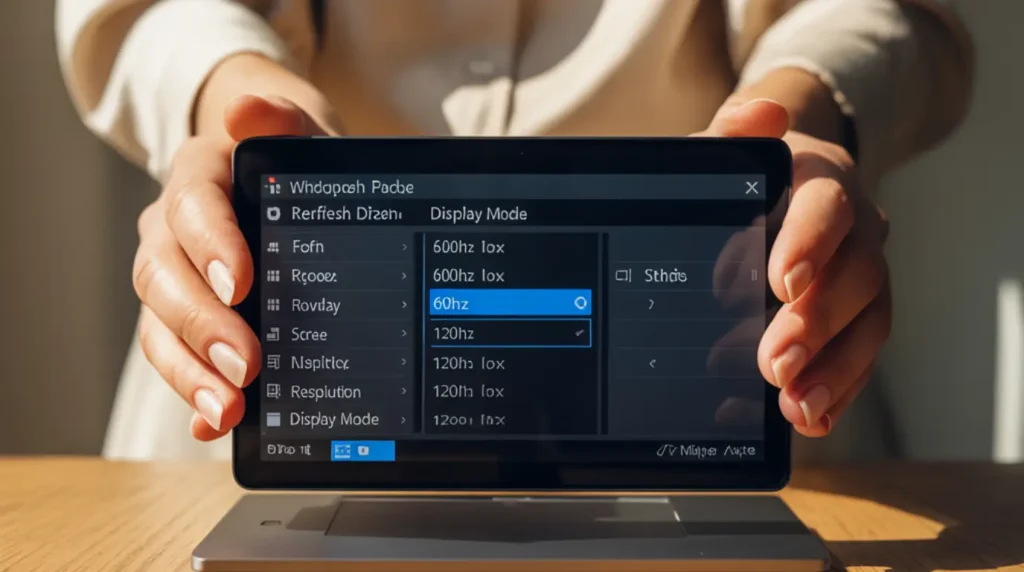
Start from the top of this list. Most people fix the problem within the first two steps without spending anything.
Match the Refresh Rates on Both Screens Cost: Free, Time: 2 minutes
- Right-click your desktop and select Display Settings on Windows, or go to System Preferences and choose Displays on Mac.
- Click on the second screen in the display layout shown at the top of the settings panel.
- Scroll down to find the refresh rate dropdown and set it to match your primary monitor exactly.
- Click Apply and observe the second screen immediately.
- If prompted to keep the changes, confirm within the countdown timer.
Matching both screens to the same refresh rate removes the timing conflict from your GPU in one move.
Update Your GPU and Display Drivers Cost: Free, Time: 5 to 10 minutes
- On Windows, open Device Manager and expand the Display Adapters section.
- Right-click your GPU and select Update Driver, then choose Search Automatically.
- On Mac, go to System Preferences, then Software Update, and install any pending updates.
- For NVIDIA or AMD cards, download the latest driver directly from the manufacturer website for the most reliable result.
- Restart your computer after the driver installs and reconnect the second screen.
Updated drivers fix more second screen problems than any other single action, especially after operating system updates.
Replace the Cable or Switch the Port Cost: Under $15, Time: 2 minutes
- Unplug the cable from both the laptop or PC and the second monitor.
- Try a different port on your device if one is available, for example switching from HDMI to DisplayPort or USB-C.
- If you only have one port type, swap the cable for a newer certified version such as HDMI 2.1 or DisplayPort 1.4.
- Reconnect and test by playing motion content on the second screen immediately.
- If you notice any improvement, the old cable was degraded or insufficient for your resolution and refresh rate combination.
Using the right cable for your setup is one of the most overlooked fixes for extended display lag.
Reduce the Second Screen Resolution or Refresh Rate Cost: Free, Time: 2 minutes
- Open Display Settings and click on the second monitor in the layout.
- Lower the resolution by one step, for example from 4K down to 1440p.
- If resolution is already appropriate, reduce the refresh rate from 144Hz to 60Hz on the second screen only.
- Apply the change and test with motion content immediately.
- This reduces GPU bandwidth demand and often eliminates lag when you are near the hardware limit.
If you are running a high-resolution main display, your GPU may simply need less to push to the second screen.
Switch from Wireless to Wired Projection Cost: Free to Low, Time: 5 minutes
- Disconnect your wireless projection session completely from both devices.
- Connect the second screen directly using an HDMI, DisplayPort, or USB-C cable.
- On Windows, press the Windows key plus P and select Extend from the panel that appears.
- On Mac, go to Displays in System Preferences and confirm the screen arrangement.
- Test with motion content and compare the result against your previous wireless experience.
Wireless projection will always carry more latency than a direct wired connection, and switching is the single fastest way to eliminate wireless display delay permanently. If you want to optimize your overall setup after resolving the lag, the Viewing Distance Calculator can help you confirm your screen size and distance are properly matched for your workspace.
When to See a Professional
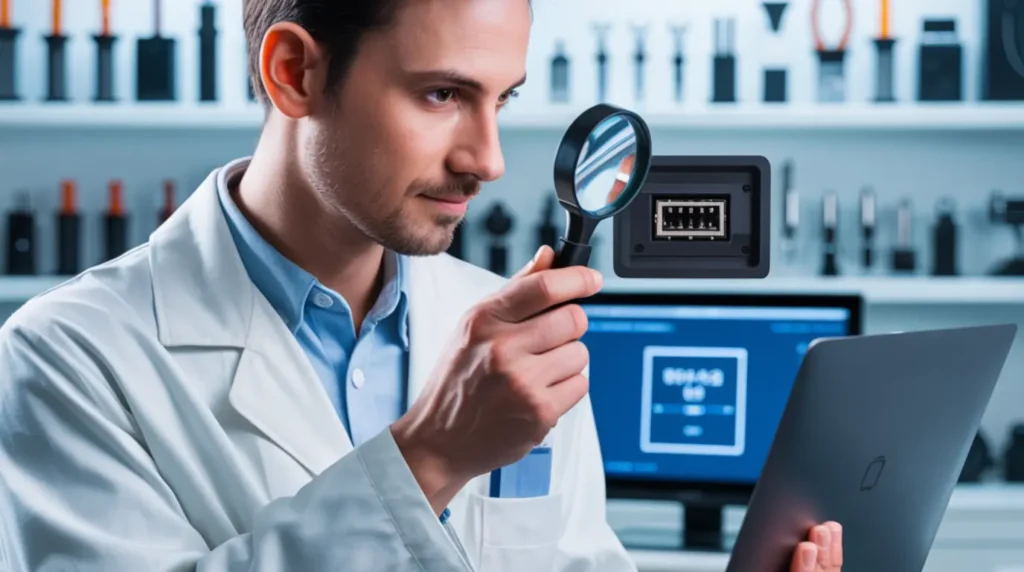
If you have worked through every fix above and the lag persists, the problem has moved beyond software. A damaged GPU, a failing display output port, or a defective monitor panel can all cause persistent projection lag that no setting change will resolve.
Check whether your laptop or GPU is still under warranty before spending anything on a repair. Most manufacturers cover display output hardware failures under the standard warranty period, and a warranty claim costs you nothing. If your screen also flickers or shows visual artifacts alongside the lag, this is a strong signal of hardware failure rather than a settings problem. You may also want to read about Acer laptop screen flickering if your device is showing both symptoms together, as the root cause is often the same underlying display hardware issue.
A qualified repair technician can test your GPU output ports directly and confirm whether a hardware replacement is needed. Repair costs for port damage typically range from $50 to $150 depending on device and region. Always get a written quote before authorizing any hardware work.
Prevention Tips
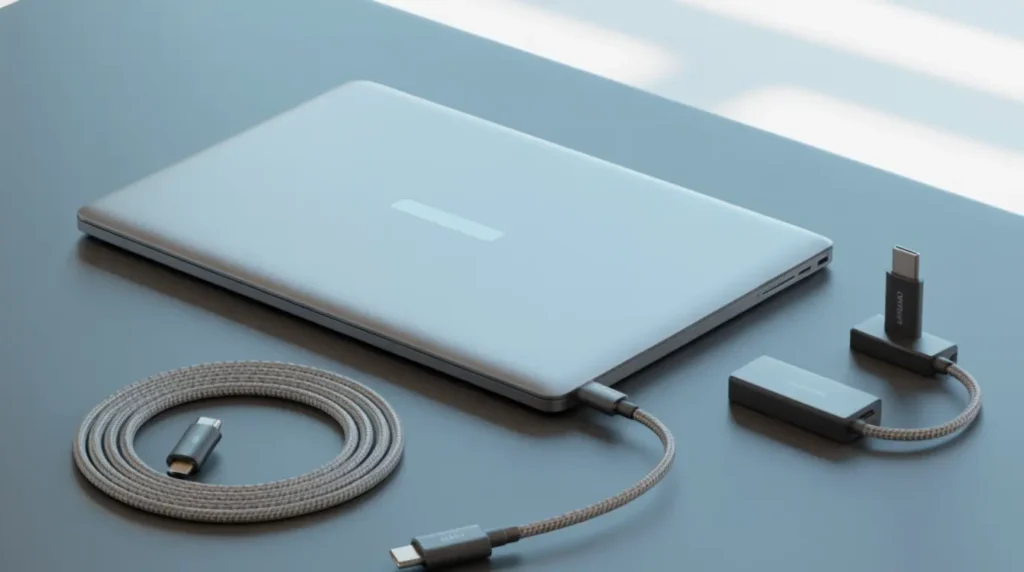
- Always use certified HDMI 2.1 or DisplayPort 1.4 cables rated for your resolution and refresh rate combination.
- Keep GPU drivers updated on a monthly schedule rather than waiting for problems to appear.
- Set both monitors to the same refresh rate from the moment you first connect the second screen.
- Avoid wireless projection for work-critical or motion-heavy tasks and use wired connections instead.
- Do not run high-resolution video on both screens simultaneously if your GPU is an integrated or entry-level card.
- Secure cables firmly at both ends and replace any cable that shows physical bending, fraying, or connector wear.
Frequently Asked Questions

Why does my second screen lag only when I play video?
Video playback puts significantly more demand on GPU bandwidth than static content. When both screens are active during video, your GPU may hit its bandwidth ceiling and start dropping frames on the second display. Lowering the second screen resolution or refresh rate usually resolves this immediately.
Does using HDMI instead of DisplayPort cause more lag?
Yes, for high refresh rate setups DisplayPort generally handles bandwidth more efficiently than HDMI at equivalent specs. If you are running 144Hz or higher on the second screen, switching from HDMI to DisplayPort can reduce or eliminate projection display latency without any other changes. This is especially noticeable when both screens are running at different resolutions.
Why does my wireless second screen have so much more lag than wired?
Wireless projection protocols like Miracast and AirPlay add inherent latency because the video signal must be compressed, transmitted over Wi-Fi, and decoded on the receiving end. This process adds anywhere from 50 to 500 milliseconds of delay depending on your network conditions. A direct wired connection bypasses all of this completely and is always the better choice for lag-sensitive tasks.
Can a cheap HDMI cable really cause second screen projection lag?
Absolutely, and it is one of the most common causes people overlook. HDMI 1.4 cables cannot support the bandwidth needed for resolutions above 1080p at 60Hz, and even HDMI 2.0 cables can develop internal failures that cause intermittent signal drops. Replacing a low-cost cable with a certified HDMI 2.1 version often fixes the screen mirroring lag instantly.
Editor Note screenproblems.com
Reviewed for technical accuracy by the screenproblems.com editorial team.
All fixes verified against current device software and firmware versions.
Pricing reflects current market rates and may vary by region.
This article will be updated whenever new fixes are confirmed.
For unresolved issues visit the Contact Us page with your device details.
About the Author Ben, Founder of screenproblems.com
Ben has 10 years diagnosing display hardware and software issues.
All content is written from direct technical experience, not sourced from other websites.
Ben always prioritizes free fixes before recommending any paid repair.