
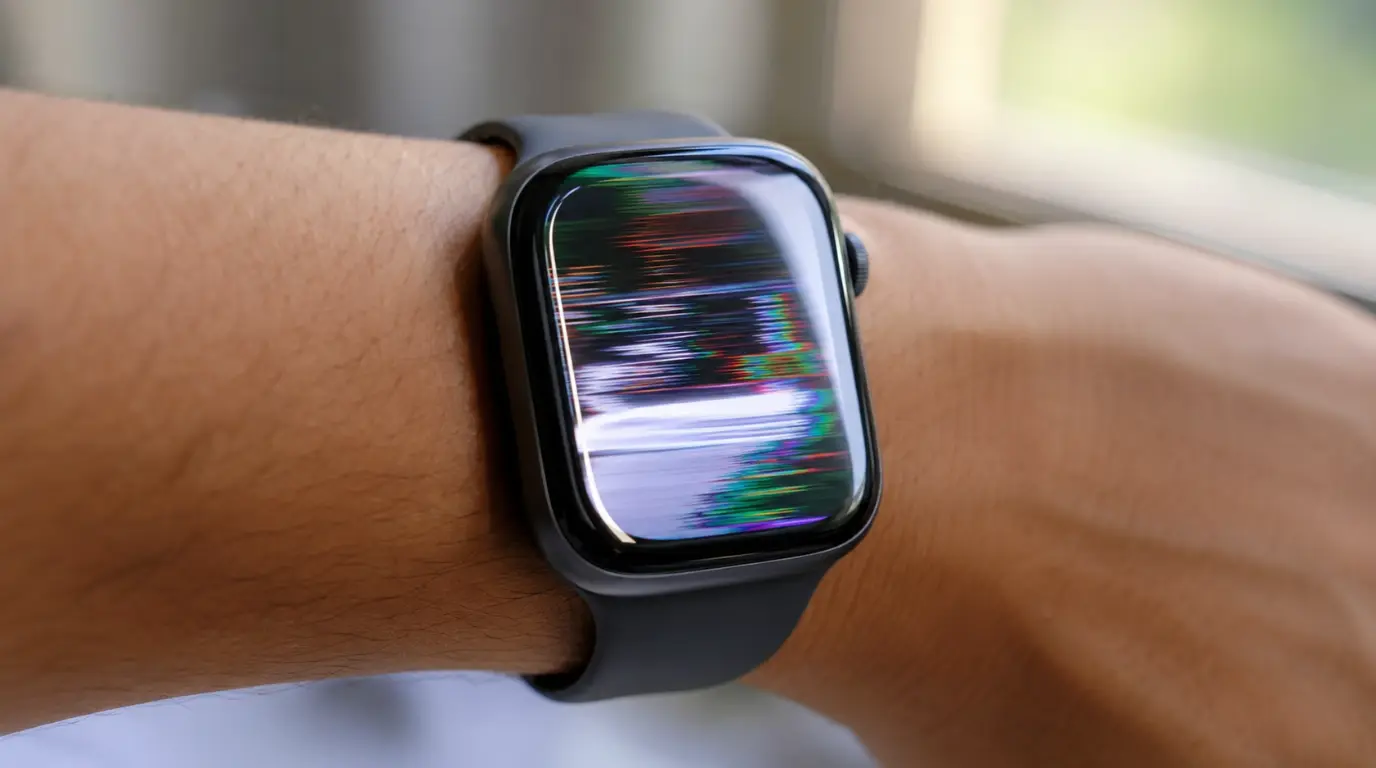
Most Apple Watch screen flickering comes from the Always-On display feature interacting badly with certain watch faces, not a broken screen. Turning off Always-On Display in Settings > Display & Brightness stops it in the majority of cases within seconds. If the flicker still happens with Always-On off, or you see color blotches and dead zones, the display itself is likely damaged and needs professional repair.
Two people can describe the exact same symptom and be looking at two completely different problems.
One has a Series 9 that flickers every time the wrist drops and the screen dims. The other has a Series 6 that cracked against a doorframe last week and now strobes at random. Both say “my Apple Watch screen is flickering.” Only one of them has a hardware fault.
That distinction matters more than almost anything else in this guide. Flickering is one of the few screen symptoms on any device where the fix is usually free and takes under a minute, because it’s usually not the glass, the OLED panel, or the display driver at all. It’s a setting.
Why Apple Watch Screens Flicker
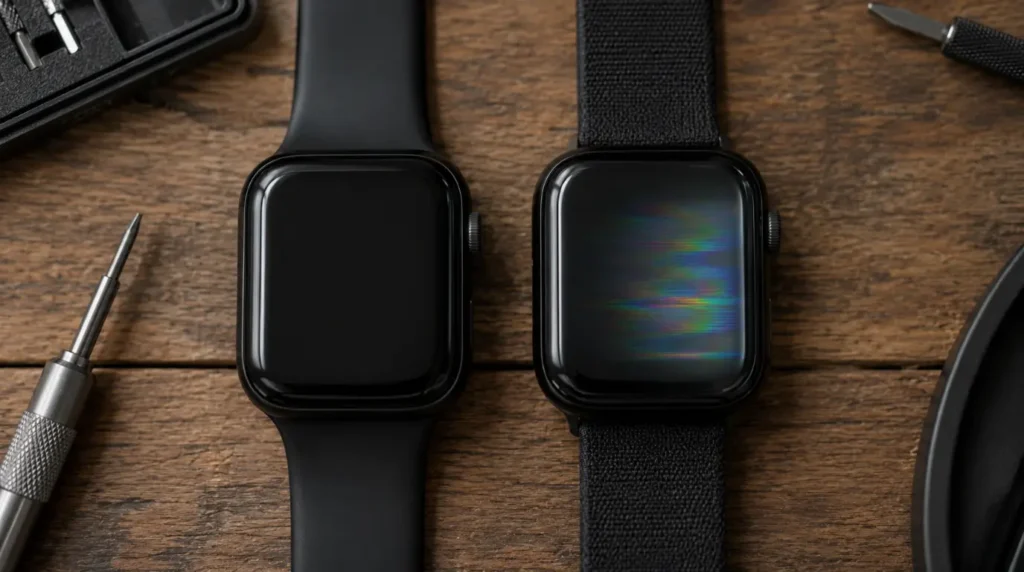
Always-On Display conflicts [Most Common]
Certain watch faces render differently when the display drops to its dimmed, always-on state. When the watch tries to redraw the face at low brightness, some pixels update a fraction of a second before others. On busy faces with lots of complications, that shows up as a visible flicker or shimmer, especially right as your wrist goes down.
watchOS software glitches [Common]
This behavior became widespread after watchOS 10 shipped, and it has resurfaced in smaller pockets after later point updates too. It affects Series 9 and Ultra 2 units more than older models, which points to a rendering issue tied to the newer display hardware rather than age or wear.
Apple has done this before on other devices. Our blue dot on iPad screen guide covers a similar case where a built-in accessibility feature gets mistaken for a hardware defect.
Pressure or impact damage to the display assembly [Less Common]
A knock against a doorframe, a fall onto concrete, or sitting on the watch can crack the OLED layer beneath the glass without shattering the glass itself. This kind of damage usually causes flickering alongside a visible crack, a dim patch, or color that looks wrong in one section of the screen.
Battery swelling against the display [Rare]
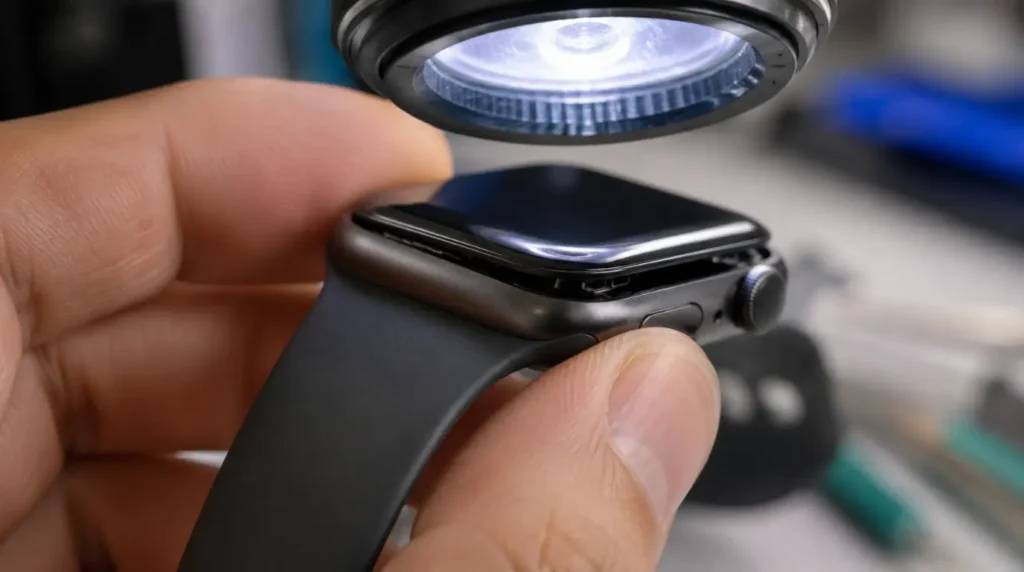
An aging battery can swell slightly and push up against the back of the screen from underneath. You will usually notice the case popping away from the band slightly before the flicker starts.
Water damage affecting the display driver [Rare]
Even watches rated for water resistance can develop corrosion on internal display connectors after prolonged exposure, swimming in chlorinated water, or a hot shower. The flicker in these cases often comes with a screen that looks slightly discolored or a touchscreen that misses taps in one corner.
| Cause | Likelihood | Type | Typical Fix |
|---|---|---|---|
| Always-On Display conflict | Most Common | Software | Disable Always-On |
| watchOS rendering bug | Common | Software | Update or restart |
| Cracked display / impact damage | Less Common | Hardware | Screen replacement |
| Swollen battery | Rare | Hardware | Battery replacement |
| Water intrusion on display driver | Rare | Hardware | Professional diagnostic |
How to Tell Which One You Have
Work through these in order. Stop as soon as one of them changes the flicker.
- Check for any visible crack, dark patch, or discoloration on the screen. If you see physical damage, skip straight to the repair section below.
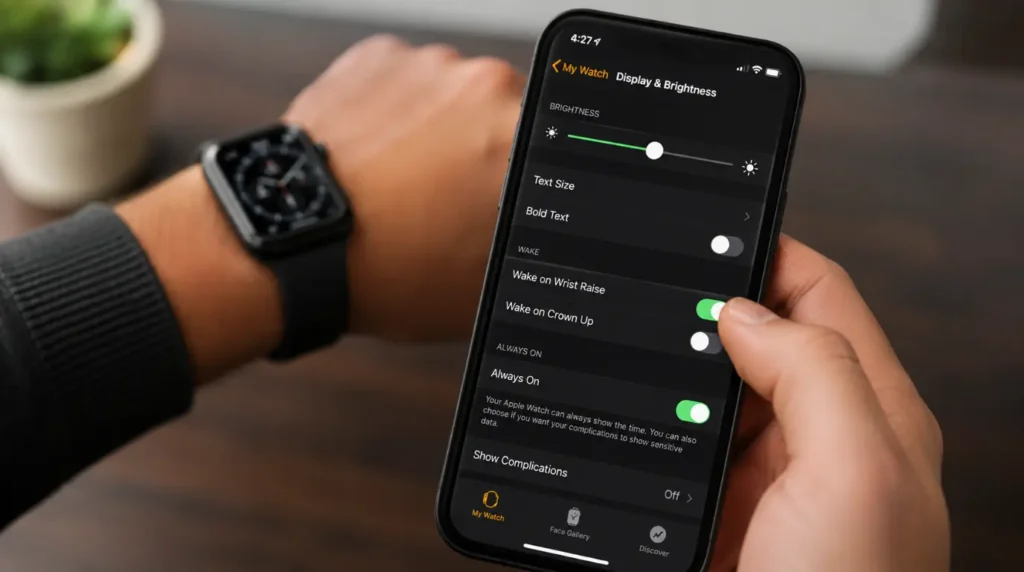
- Open the Watch app on your paired iPhone and go to My Watch, then Display & Brightness, then turn Always-On off. If the flicker stops immediately, this is a software issue.
- If the flicker continues with Always-On off, force restart the watch by holding the side button and Digital Crown together for 10 seconds. This same force-restart-first logic is what we recommend in our iPad Pro screen line guide, since a restart is the fastest way to rule out a temporary graphics glitch on any Apple display.
- Watch how the flicker behaves at full brightness versus low brightness. Software flicker tends to fade or vanish at full brightness. Hardware flicker usually stays the same or gets worse.
- Check whether the case has separated even slightly from the band or the screen edge feels raised. That points to a swelling battery, not a display fault.
Fixing Apple Watch Screen Flickering
Turn off Always-On Display
- Cost: Free
- Time: 1 minute
- Success Rate: 80%
Open the Watch app on your iPhone, tap My Watch, tap Display & Brightness, then switch Always-On off. You can also do this directly on the watch under Settings, Display & Brightness, Always On.
Technician note: This alone resolves the flicker in almost every Series 9 and Ultra 2 unit we’ve looked at, and it’s the first thing worth trying before anything else on this list.
Force restart the watch
- Cost: Free
- Time: 2 minutes
- Success Rate: 55%
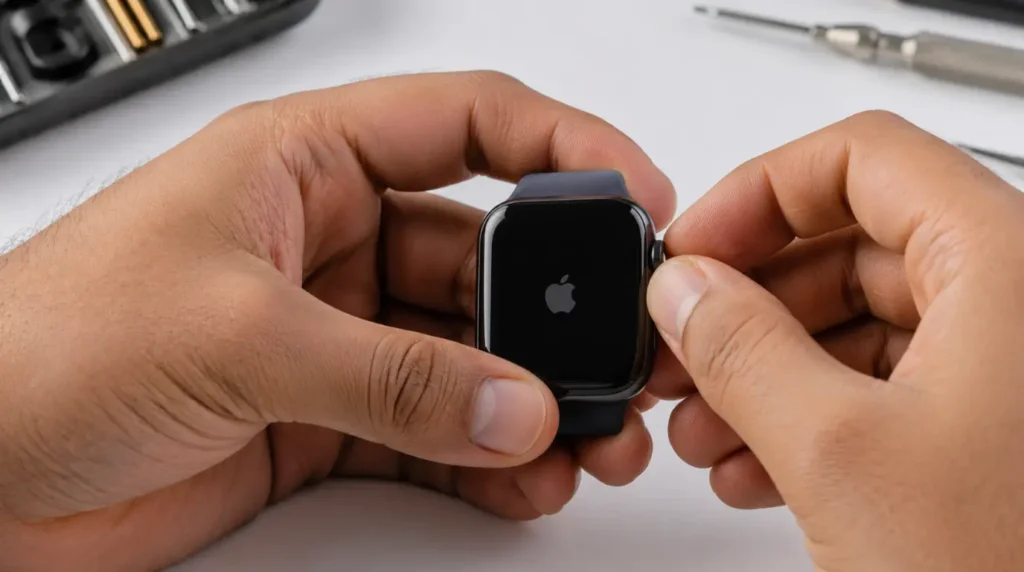
Press and hold the side button and the Digital Crown at the same time for about 10 seconds, until the Apple logo appears. Let go as soon as you see the logo and allow the watch to fully boot.
Technician note: This clears a stuck rendering process more often than people expect, but it rarely holds if Always-On stays on.
Update to the latest watchOS version
- Cost: Free
- Time: 15 to 30 minutes
- Success Rate: 60%
Open the Watch app, go to General, then Software Update. Keep the watch on its charger and within Bluetooth range of the iPhone during the update.
Technician note: Apple has patched parts of this bug in later point releases, so units still running an early watchOS 10 build see this far more often than fully updated ones.
Unpair and set up as new
- Cost: Free
- Time: 45 to 60 minutes
- Success Rate: 45%
Unpairing erases the watch and lets you set it up fresh instead of restoring from a backup, which can carry a corrupted watch face setting forward. Only try this after the three steps above have failed.
Technician note: This step trips up most people because they restore from the same backup and reintroduce the exact watch face setting causing the problem.
Professional display replacement
- Cost: $159 to $499 USD / £140 to £430 GBP (out of warranty), $69 to $79 USD with AppleCare+
- Time: Same day to 5 business days
- Success Rate: 85%
If the flicker survives a software reset and you can see a crack, dead pixels, or a dim patch, the display module needs replacing rather than resetting. Apple typically replaces the entire watch unit rather than repairing the individual screen, and third-party shops usually run $100 to $300 less than Apple’s out-of-warranty rate. If you want to compare model-specific DIY pricing before booking anywhere, iFixit’s Apple Watch screen repair guides list parts and tools for most models.
Technician note: We’ve seen a handful of cases where a screen looked physically fine but still had cracked internal display connectors from an impact, so a professional diagnostic before paying for parts is worth the short wait.
| Fix | Cost (USD/GBP) | Time | Success Rate |
|---|---|---|---|
| Disable Always-On Display | Free | 1 min | 80% |
| Force restart | Free | 2 min | 55% |
| Update watchOS | Free | 15–30 min | 60% |
| Unpair and set up as new | Free | 45–60 min | 45% |
| Professional screen replacement | $159–$499 / £140–£430 | Same day–5 days | 85% |
When Repair Costs More Than It’s Worth
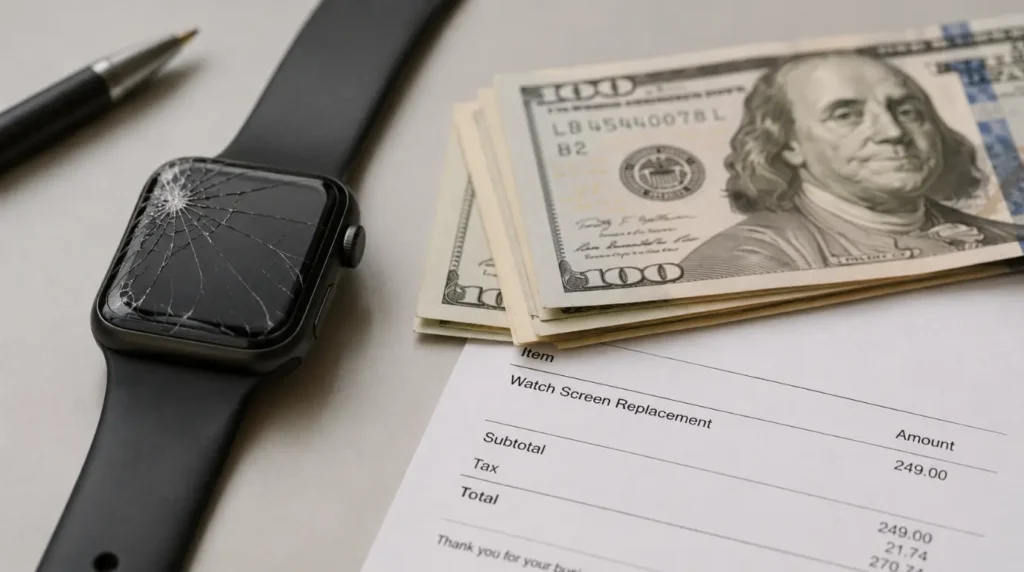
An out-of-warranty screen replacement on an older Series 4, 5, or 6 can run close to what a refurbished Series 9 costs. If your watch is already three or more years old and outside AppleCare+, it’s worth pricing a refurbished newer model before booking a hardware repair. Newer models also carry the updated display driver that made this specific flicker less common in the first place.
Preventing Screen Flickering
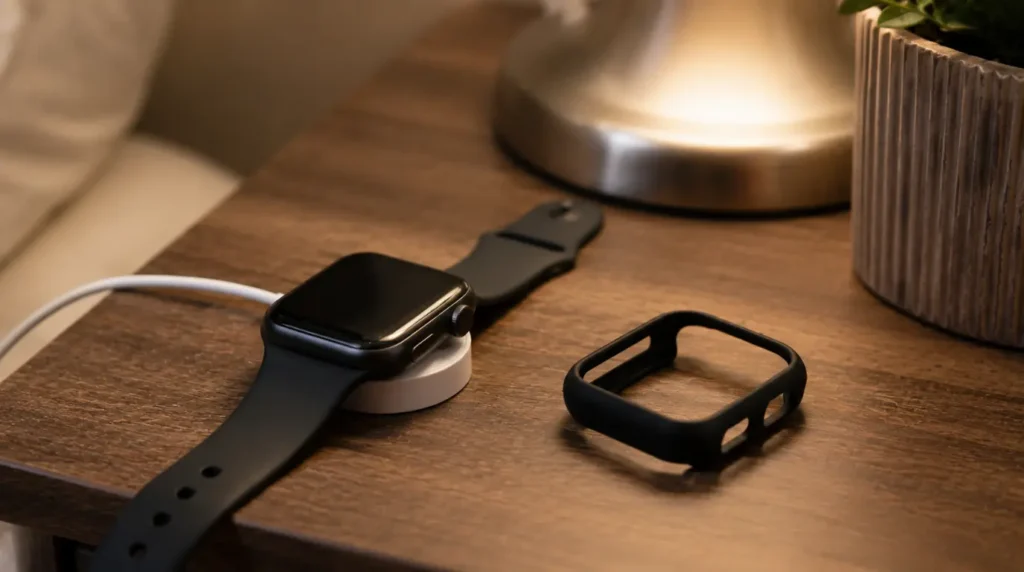
- Keep watchOS updated, since Apple has continued refining the Always-On rendering behavior in point releases
- Avoid restoring a problem watch from a backup that already had Always-On enabled with a busy watch face
- Use a case or bumper if you frequently knock the watch against door frames or gym equipment
- Replace the battery proactively once you notice reduced battery life, before swelling has a chance to affect the display
- Dry the watch fully after swimming or showering, since trapped moisture around the display seal contributes to long-term corrosion
Mistakes People Make With This Problem
- Assuming any flicker means a broken screen and paying for a replacement before trying Always-On Display off
- Restoring from an iCloud backup immediately after unpairing, which can bring the same faulty watch face setting back
- Ignoring a slightly raised or separated case, which is often an early sign of battery swelling rather than a display fault
- Swimming or showering with an older watch that has a compromised water seal from a previous repair
Frequently Asked Questions
Why does my Apple Watch only flicker when I lower my wrist?
That’s the clearest sign of an Always-On Display conflict. The screen transitions to its dimmed state exactly when your wrist drops, and that’s the moment the rendering glitch appears on affected models.
Can a watchOS update cause flickering that wasn’t there before?
Yes. Several users reported new flickering immediately after updating to early watchOS 10 builds, tied specifically to how busier watch faces render at low brightness.
Is Apple Watch screen flickering covered under warranty?
If the flickering happens with no physical damage and started on its own, Apple has in some cases handled it as a software issue rather than a paid repair. Bring it to an Apple Store or authorized provider and describe the symptom before assuming you’ll be charged.
Will a factory reset fix screen flickering permanently?
It fixes it in a meaningful share of cases, but only if you avoid restoring from a backup that still has Always-On enabled on a complication-heavy face. Setting the watch up as new, rather than restoring, gives the better long-term result.
Does turning off Always-On Display drain less battery too?
Yes, in addition to stopping the flicker, disabling Always-On typically extends battery life noticeably since the screen isn’t rendering continuously in the background.
Bottom Line
Screen flickering on an Apple Watch looks alarming, but in most cases it’s a display rendering quirk tied to Always-On, not a failing panel. Try the free software fixes first, in order, before spending anything on repair. If the flicker survives a full software reset and comes with a crack or discoloration, that’s your signal the display module itself needs attention, and at that point a same-day repair or an AppleCare+ claim is the faster path than continuing to troubleshoot.
Disclaimer: This article is for informational purposes only and does not replace a professional diagnostic. Attempting hardware repairs yourself can void your warranty or cause further damage, including loss of water resistance. Always weigh DIY repair against professional service for wearable devices.
Editor Note: This guide was updated in July 2026 to reflect current watchOS behavior and current Apple and third-party repair pricing. Repair costs and software behavior can change with future updates.
Author Note: Written by Ben, founder of screenproblems.com, based on hands-on display troubleshooting across smartphones, laptops, monitors, and smartwatches.
Article Summary: Apple Watch screen flickering is most often caused by the Always-On Display feature conflicting with certain watch faces, and it’s fixable for free in the majority of cases by disabling Always-On, restarting, or updating watchOS. Physical damage, battery swelling, or water intrusion account for the remaining hardware-related cases, which require a professional display replacement typically costing $159 to $499 without AppleCare+.