
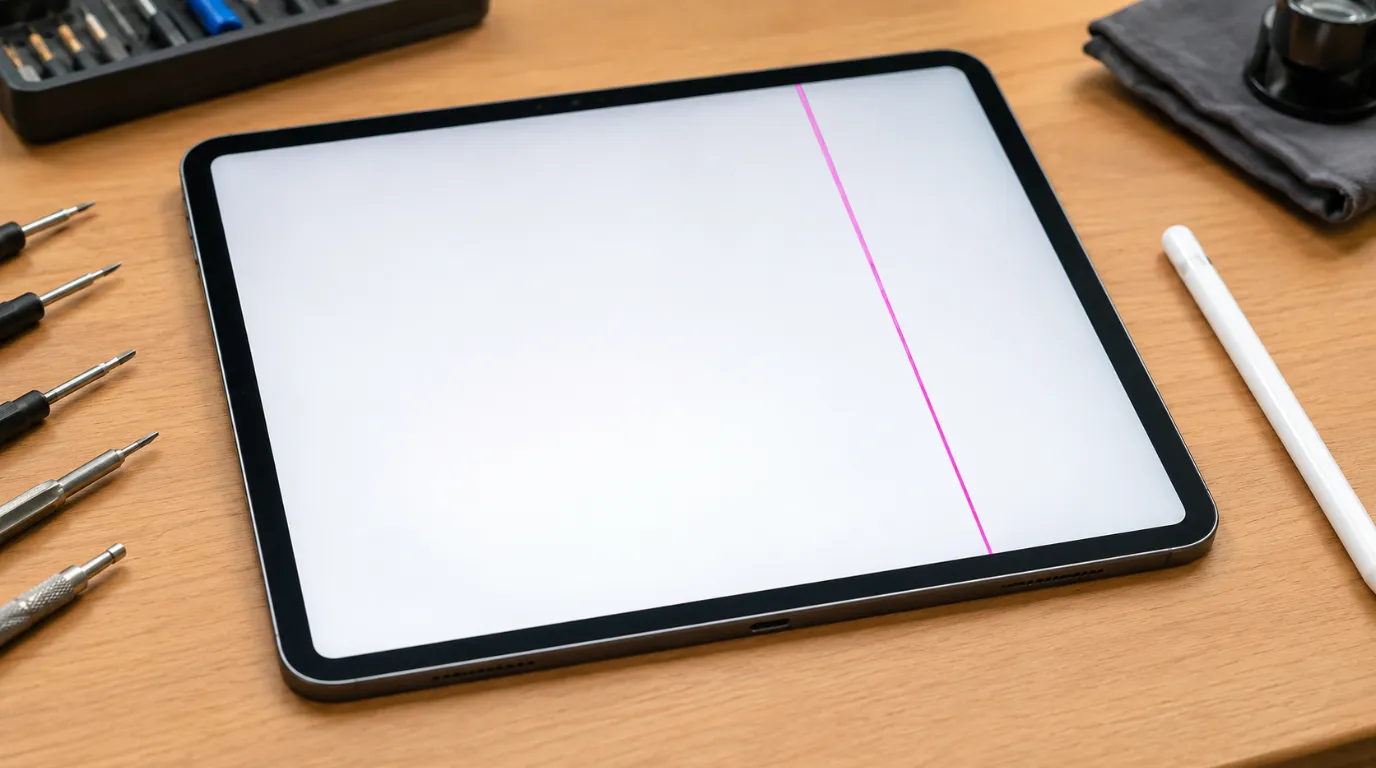
A line on an iPad Pro screen almost never means the same thing twice. Sometimes it’s a single hairline streak that fades in and out depending on how you’re holding the tablet. Sometimes it’s a solid colored bar that never moves, no matter what app you open. The difference between those two matters more than most guides admit, because one is usually a software hiccup you can clear in five minutes, and the other is a hardware fault that no software update will ever touch and honestly, that distinction is the whole point of this guide, so let’s start there before anything else.
Why does a line suddenly appear on an iPad Pro screen?

A line appears on an iPad Pro screen for one of two broad reasons: a software or graphics glitch confusing the display output, or a loose, damaged, or stressed connection inside the panel itself.
Software-related causes
Software-related lines tend to show up after an iPadOS update, after the iPad has been running hot for a while, or randomly during use with no clear trigger. They often disappear after a restart, only to come back hours or days later, which is itself a clue, not a coincidence. A line that vanishes completely and never returns was probably a one-off rendering glitch. A line that keeps coming back after every restart is telling you something deeper is wrong.
Hardware-related causes
Hardware-related lines usually show up after the iPad was dropped, sat on, squeezed in a bag with something heavy, or bent slightly; even a small flex that didn’t crack the glass can still damage the ribbon cable or connector underneath. These lines tend to get worse over days or weeks rather than appearing and disappearing. Pressing gently near the edge of the screen, or flexing the iPad slightly while it’s on, will often make the line shift, widen, or change color if the cause is mechanical. That single test tells you more than almost anything else you can do at home.
| Cause | Type | How Common | Fixable Without a Repair Shop |
| iPadOS update bug | Software | Common | Yes |
| Overheating during use | Software | Common | Yes |
| Corrupted display setting | Software | Less Common | Yes |
| Dropped or bent iPad | Hardware | Common | No |
| Loose internal display connector | Hardware | Common | No |
| Pressure damage from a bag or case | Hardware | Less Common | No |
| Aging flex cable on an older unit | Hardware | Rare | No |
Why is the line more obvious on white screens or light backgrounds?
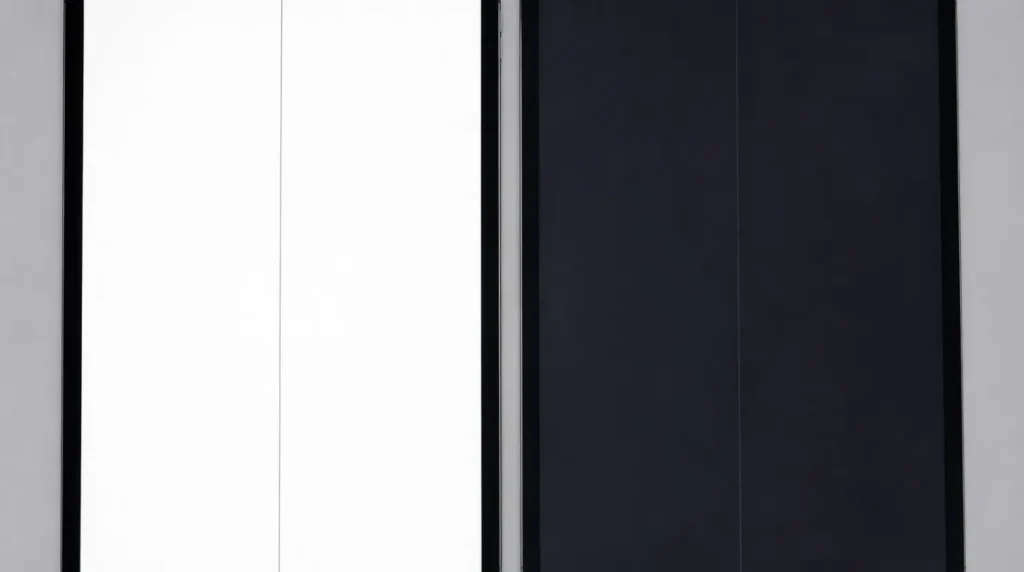
A faint line that’s invisible while you’re watching a dark movie can suddenly look obvious the second you open Notes or Safari on a white page. This isn’t your imagination, and it isn’t a separate problem from the one you already have.
Display lines caused by connector or panel issues are usually a difference in voltage or signal reaching one row or column of pixels. Light backgrounds expose tiny brightness or color differences far more than dark ones do, the same way a smudge on a window is invisible at night but obvious in daylight. If you only notice the line on bright apps, that doesn’t mean the problem is smaller, it just means it’s been there the whole time and you hadn’t found the right background to see it.
Can a line on the screen fix itself, or get worse?
A software-caused line can disappear on its own after a restart or update and never come back; this happens more often than people expect, especially after a buggy iPadOS release gets patched. A hardware-caused line will not fix itself, and in most cases it gradually gets worse rather than staying the same size.
The pattern to watch for is simple: if the line is identical in size, position, and color every single time you turn the screen on, and a restart makes no difference at all, that’s consistent with a hardware fault. If the line changes size, comes and goes, or responds to a software update, you’re more likely dealing with something that will resolve on its own or with a clean reinstall.
How to tell if it’s hardware or software before you spend any money
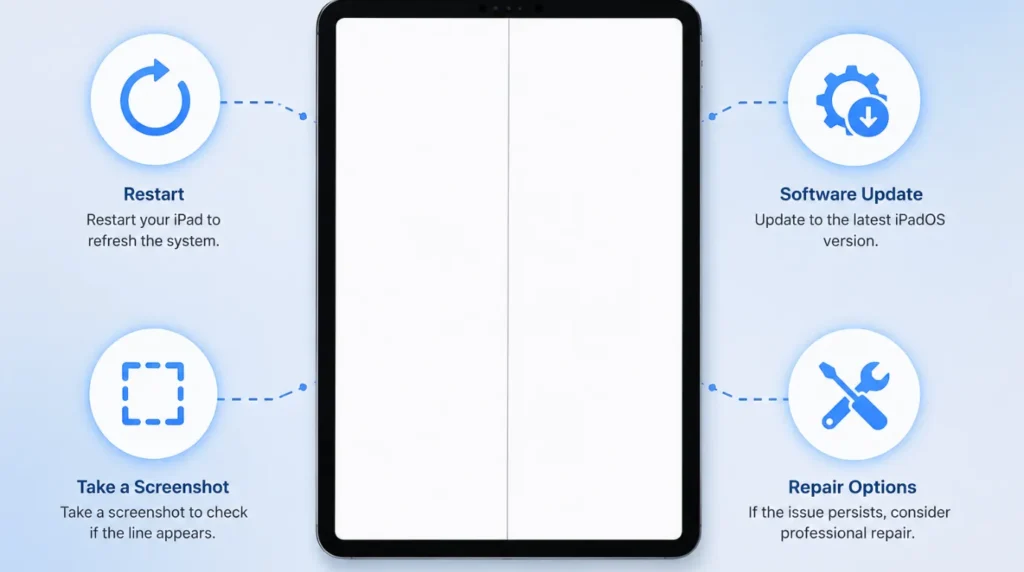
Work through these in order. Each one rules something out.
- Force restart the iPad. Press and quickly release volume up, then volume down, then hold the top button until the Apple logo appears. If the line is gone after this, it was very likely a temporary graphics glitch, not a hardware fault.
- Check for a pending iPadOS update. Go to Settings, then General, then Software Update. A display bug introduced in one update is sometimes quietly fixed in the next one.
- Take a screenshot while the line is visible. If the line shows up in the screenshot, it’s a true hardware or system-level fault. If the screenshot is clean and the line is missing from it, the issue is happening at the display panel itself, after the image has already been generated which almost always points to a connector or panel problem rather than software.
- Gently flex the edges of the iPad near where the line appears. If the line shifts, splits, or changes color when you apply light pressure, that’s a strong sign of a loose internal connection rather than a dead row of pixels.
- Restore from a backup using a computer, not just an on-device reset. A full restore through Finder or the Configurator app clears more corrupted system files than an on-device “Erase All Content” does, and it’s worth doing before assuming the worst.
It’s also worth running a quick dead pixel checker tool over the screen at full brightness, since pixel-level damage and a connector line can look similar at a glance but point to different fixes.
If you’ve gone through all five steps and the line is still there, unchanged, you’re almost certainly looking at a hardware repair rather than a setting to adjust.
How to fix a line on your iPad Pro screen
Software-caused line free fix
Cost: Free Time: 10 to 20 minutes
Start with the force restart and update check above. If the line returns after a day or two even though it disappeared briefly, the next step is a full restore rather than another restart. Plug the iPad into a Mac or PC, open Finder (or iTunes on older Windows machines), and choose Restore iPad rather than Update. This wipes the device and reinstalls iPadOS cleanly, which clears corrupted display drivers that a normal restart can’t touch.
This fix works well for genuine software glitches flickering after an update, a line that only appears in one specific app, or a streak that showed up right after the iPad overheated in a hot car. It does nothing for a line caused by a damaged display cable, and if you try it expecting a hardware fix, you’ll just end up with a freshly restored iPad that still has the exact same line.
Hardware-caused line repair costs and options
Cost: roughly $300–$800 through Apple out-of-warranty, $150–$400 through an independent shop Time: same-day to about a week
If your iPad is still under AppleCare+, a screen issue is usually covered for a flat service fee rather than the full retail cost, so it’s worth checking your coverage at checkcoverage.apple.com before paying anyone for a diagnosis. Out of AppleCare+, you’re choosing between Apple or an authorized provider using genuine parts at a higher price, or an independent shop using third-party screens at a lower price with more variation in quality.
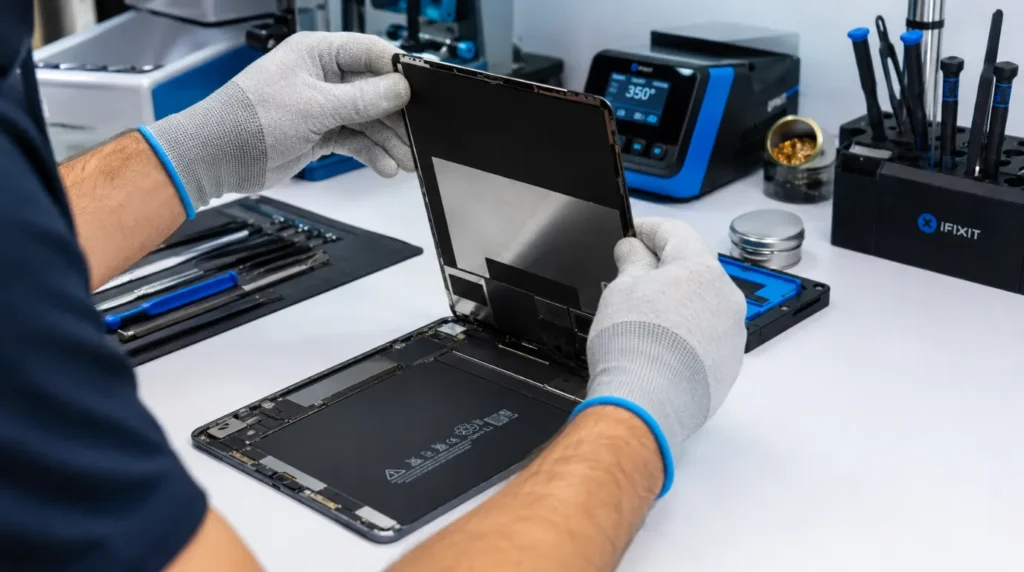
DIY screen replacement kits exist for the iPad Pro, but laminated displays on these models combine the glass, digitizer, and panel into one assembly, so there’s no cheap “just the glass” option the way there is on some older, non-laminated iPads. A DIY kit on a Pro model means replacing the entire screen assembly yourself, which is a real repair, not a quick fix, and it’s not the right starting point if you’ve never opened a tablet before.
One thing worth saying plainly: if your iPad Pro is more than three or four years old and the repair quote is approaching half the price of a current model, it’s reasonable to put that money toward a replacement device instead. A repaired four-year-old tablet still has an aging battery and a chip several generations behind the line on the screen might just be the symptom that makes you notice the device is due for retirement anyway.
| Fix | Cost | Time | Best For |
| Force restart | Free | 2 minutes | Temporary glitches |
| iPadOS software update | Free | 10–15 minutes | Bugs already patched by Apple |
| Full restore via computer | Free | 20–30 minutes | Corrupted display drivers |
| AppleCare+ screen claim | Flat fee, around $29–$49 | Same day to about a week | Covered devices with a hardware fault |
| Apple or authorized provider repair | Roughly $300–$800 | Same day to about a week | Genuine parts, no AppleCare+ |
| Independent repair shop | Roughly $150–$400 | Same day to about a week | Lower cost, third-party parts |
Common mistakes people make with this problem
- Pressing firmly on the line repeatedly to “see if it goes away,” which can worsen a loose connector instead of fixing it
- Assuming a screen protector is the cause without removing it first to actually check
- Restoring the iPad from an old backup instead of a clean install, which can carry the same corrupted display settings forward
- Paying for a full diagnostic at a repair shop before trying the five free steps above
- Ignoring a line that comes and goes, assuming it will eventually stop on its own without checking for a pattern
Preventing this from happening again

- Use a case with raised edges so pressure from drops lands on the frame, not the glass
- Avoid stacking heavy items like keyboards or books directly on top of the iPad in a bag
- Keep the iPad out of direct, prolonged heat a hot car dashboard is a common, avoidable cause of temporary display glitches
- Update iPadOS within a week or two of release rather than waiting months, since display-related bugs are usually patched quickly
- If you ever bend the iPad even slightly while removing it from a tight bag pocket, check the screen carefully over the next few days rather than assuming no harm was done
Frequently asked questions

Does a line on the screen mean my iPad Pro is dying? No. A line by itself usually points to one component, the connector, the cable, or one section of the panel, not a failing device overall. Plenty of iPads with a screen line still run perfectly otherwise and get years more use after a repair.
Can cleaning the screen make a line worse? Cleaning itself won’t damage the display, but pressing hard while cleaning can shift a loose connector that was already on the edge of failing. Wipe gently and avoid pressing into the exact spot where the line appears.
Will Apple replace my iPad instead of repairing the screen? Sometimes. Apple often treats iPad repairs as a whole-unit swap for a refurbished replacement rather than fixing your individual unit, especially for older models where individual parts are harder to source. You’ll usually be told which option applies before you pay anything.
Is it safe to keep using an iPad with a line on the screen? For a faint software-related line, yes, there’s no safety concern. For a hardware-related line that’s spreading or accompanied by flickering, keep using it if you need to, but back up your data soon a worsening connector issue can eventually affect touch response too, not just the display.
What if I see a dot instead of a line? A small, fixed colored dot is a different fault than a line, and it usually points to a localized panel defect rather than a connector problem. Our blue dot on iPad write-up walks through what causes it and when it’s worth fixing versus living with.
Summary
A line that disappears after a restart and stays gone is a software issue to fix it for free with an update or a clean restore. A line that’s identical every time, gets worse over days, or shifts when you flex the iPad near the screen is a hardware issue, and the fix depends on whether AppleCare+ is still active and how old the device is. Run through the five diagnostic steps above before paying anyone for a repair quote; they’ll tell you which category you’re actually in, and that’s the only thing that determines what happens next.
Disclaimer
This guide is based on general repair patterns seen across many iPad Pro screen issues, not an inspection of your specific tablet. It’s meant to help you understand what’s likely going on and decide your next step; it isn’t a substitute for an in-person diagnosis. If anything you’re seeing doesn’t match what’s described here, that’s a sign to get the device looked at directly rather than to force one of these fixes to fit.
Editor’s Note
This article is reviewed periodically and updated whenever Apple’s repair pricing, AppleCare+ terms, or iPadOS display behavior change enough to matter. It was last checked against current iPad Pro repair pricing in June 2026.
Author Note
Screenproblems.com puts these guides together from real repair patterns and reader feedback, focused on what actually fixes a problem versus what just sounds like it should.
Ben