
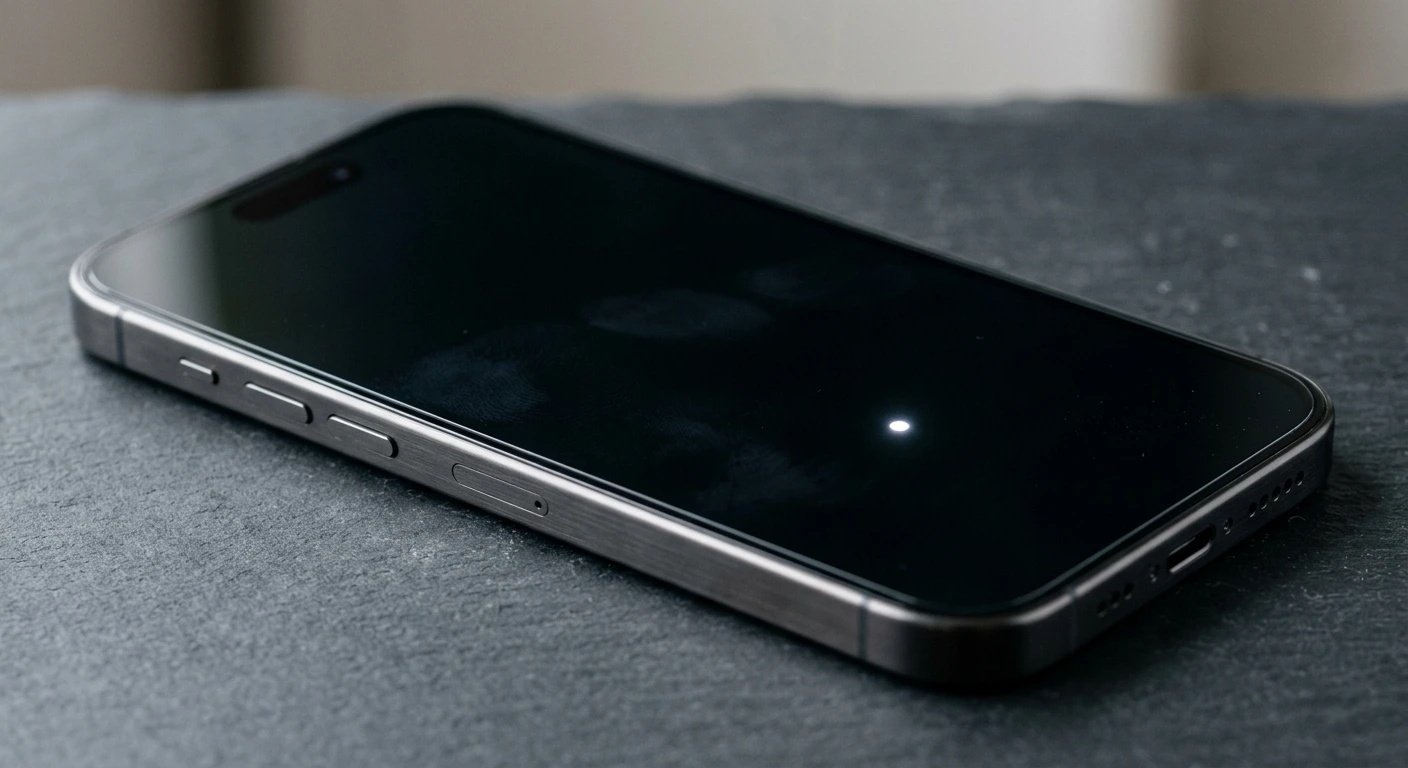
A white spot on your iPhone screen is usually caused by AssistiveTouch, a stuck pixel, pressure damage, or backlight bleed on older LCD models.
Start by going to Settings > Accessibility > Touch > AssistiveTouch and turning it off this fixes the problem instantly for most users.
If the spot remains, use the diagnosis steps below to identify the exact cause before attempting any repair.
That glowing white spot appeared out of nowhere, and now it is all you can see. You keep staring at it, wondering if your phone is broken, how much it will cost to fix, and whether you did something wrong. You did not and there is a very good chance you can fix this without spending a single dollar.
What Causes a White Spot on an iPhone Screen?

Before you try any fix, understanding the cause saves you time, money, and the risk of making things worse. Here are the six most common causes, based on current Reddit threads, Apple Community forums, and real-world repair data from 2025 to 2026.
AssistiveTouch Is Turned On (Most Common)
AssistiveTouch is an iOS accessibility feature that places a floating white circle on your screen. It is not damaged, it is a feature that many users accidentally enable.
Go to Settings > Accessibility > Touch > AssistiveTouch and toggle it off. This is the single most common cause to check it before anything else, it takes ten seconds.
Stuck or Dead Pixel
A stuck pixel is frozen in the “on” position and glows continuously, usually white, but sometimes red, green, or blue. A dead pixel receives no power and appears as a permanent black dot.
Use our free Stuck Pixel Fixer tool to confirm and potentially resolve this before spending money on a repair.
Pressure or Compression Damage (LCD iPhones)
Pressing or squeezing the screen too hard damages the liquid crystal layer inside older LCD iPhones. The result is a milky white or cloudy patch that resembles a bruise and it does not go away on its own.
This is one of the most-reported causes on Reddit in 2025, particularly for users who kept their phone in a tight back pocket. OLED iPhones, iPhone X and all newer models are far less prone to this specific type of damage.
Backlight Bleed (LCD iPhones Only)
LCD iPhones use a separate backlight layer behind the display. When that layer shifts or degrades, light leaks out in unintended areas typically near the screen edges and most visible in dark rooms.
OLED iPhones generate light per pixel and have no shared backlight, so they are completely immune to backlight bleed. If you own an iPhone X or newer, this is almost certainly not your cause.
Impact, Drop, or Internal Crack
A drop can shatter internal layers without visibly cracking the outer glass. This shows up as spreading white or dark patches that typically worsen over days.
If you dropped your phone recently and a white spot appeared within 24 to 48 hours, internal damage is the most likely explanation.
Liquid or Moisture Damage
Modern iPhones carry IP water resistance ratings, but display components remain vulnerable to moisture over extended exposure. White patches caused by liquid tend to grow larger as residue dries and corrodes the panel.
This is a consistently underreported cause many users notice the spot growing larger over a week, which is a strong sign of moisture damage rather than a stuck pixel.
How to Diagnose a White Spot on Your iPhone at Home

Do not skip this step. Two minutes spent diagnosing correctly can save you $150 on a repair you did not need. These three tests are quick, free, and give you a definitive answer.
- Take a Screenshot Press Side button + Volume Up (or Side + Home on older models). Open it in Photos and zoom into the spot. If the white spot does not appear in the screenshot, the problem is hardware. If it does appear, a software glitch is the cause.
2. Test With a Solid Black Screen Visit our Dead Pixel Checker for a clean black test screen. If the spot becomes brighter on black backgrounds, it is likely backlight bleed or LCD damage. If it only shows on dark colors and disappears on white, it is a stuck pixel.
- Identify the Shape and Location A small round floating dot = AssistiveTouch. A cloudy patch near the center = pressure damage. A glowing region at the screen edge = backlight bleed. A tiny single-pixel dot that never moves = stuck or dead pixel.
How to Fix a White Spot on Your iPhone Step by Step

Work through these fixes in order. Start with the free options and only move to paid repair if everything else fails.
Turn Off AssistiveTouch
Cost: Free
- Open Settings
- Tap Accessibility
- Tap Touch
- Tap AssistiveTouch and toggle it off
If the white circle vanishes immediately, you are done. No repair needed; this resolves the issue for the majority of users.
Restart Your iPhone
Cost: Free
- Face ID iPhones: Hold Side button + either Volume button, then slide to power off
- Home Button iPhones: Hold Side or Top button, then slide to power off
- Wait 30 seconds and power back on
If the spot is gone, a software glitch was the culprit. A standard restart clears temporary display artifacts caused by minor iOS rendering errors.
Force Restart Your iPhone
Cost: Free
- iPhone 8 and later: Press and release Volume Up > press and release Volume Down > hold Side button until Apple logo appears
- iPhone 7: Hold Volume Down and Sleep/Wake together until Apple logo appears
- iPhone 6s and earlier: Hold Home and Sleep/Wake together until Apple logo appears
A force restart resets the display hardware subsystem more thoroughly than a standard restart — without erasing any data. It clears deeper cached display errors that a normal restart misses.
Update iOS
Cost: Free
- Go to Settings > General > Software Update
- Install any available update
- Restart your iPhone after the update completes
Apple regularly patches display-related bugs in iOS point releases. In late 2025, two separate iOS updates addressed display rendering glitches on iPhone 14 and 15 models that users mistook for physical damage. Always update before pursuing a paid repair.
Run a Pixel Fix Tool
Cost: Free
Visit our Stuck Pixel Fixer tool in Safari on your iPhone. Position the flashing color box directly over the white spot and leave it running for 20 to 30 minutes without interrupting it.
This method works roughly 60% of the time on soft stuck pixels. It will not fix physical damage, pressure bruising, or backlight bleed but it costs nothing to try and takes no technical skill.
Gentle Pressure Technique
Cost: Free Use with caution, stuck pixels only
Warning: Only attempt this for a single small stuck pixel dot. Do not try this if you suspect physical damage, backlight bleed, internal cracks, or moisture damage.
- Power off your iPhone completely
- Wrap a fingertip in a soft microfiber cloth
- Apply very light circular pressure directly over the stuck pixel for 10 to 15 seconds
- Power the iPhone back on and check the result
If you feel any resistance or hear any sound from the screen, stop immediately. This technique can sometimes jar a stuck pixel back into normal operation.
Reset All Settings
Cost: Free
- Go to Settings > General > Transfer or Reset iPhone
- Tap Reset > Reset All Settings
- Confirm and wait for the process to complete
This resets display settings, accessibility preferences, and system configuration to factory defaults without deleting your photos, apps, or personal data. Use this only after trying all previous software fixes.
Professional Screen Replacement
Cost: Paid Technician Required
If none of the above steps worked, the white spot is a hardware problem. This applies to confirmed pressure damage, backlight bleed on LCD iPhones, internal impact damage, and moisture-related display damage.
Book a Genius Bar appointment at support.apple.com or visit a certified third-party repair center. Always check your warranty status first at checkcoverage.apple.com A manufacturing defect on a device under one year old is often repaired at no charge.
When to See a Professional

Stop attempting home fixes and visit a technician immediately if the white area is expanding over days this indicates active internal damage that worsens with continued use.
If the screen has any visible bulge, or if the device feels warmer than usual near the white spot, a battery or component issue may also be involved. Do not delay in that case.
Third-party certified repair shops typically charge 30 to 50% less than Apple out-of-warranty prices. Always confirm the shop uses OEM or certified aftermarket parts.
iPhone Screen Repair Costs 2026
- AppleCare+ Screen Service Fee: $29 – $99 depending on model
- Out-of-Warranty Apple Repair: $129 – $379 depending on model
- Certified Third-Party Repair: $75 – $220 (30–50% less than Apple)
- Standard 1-Year Warranty: Free for confirmed manufacturing defects
How to Prevent White Spots on Your iPhone Screen

- Use a case with raised bezels so the screen never makes direct contact when placed face-down
- Apply a tempered glass screen protector to absorb minor impacts before they reach the display panel
- Never keep your iPhone in a tight back pocket sitting pressure is a leading cause of LCD damage
- Keep the device away from moisture, steam, and direct sunlight for extended periods
- Do not stack heavy objects on top of your phone or leave it under bags or books
- Clean the screen with a dry microfiber cloth only never spray liquid directly onto the display
Frequently Asked Questions

What is the small white dot floating around on my iPhone screen?
That is AssistiveTouch, an iOS accessibility feature that creates a virtual floating button on screen. It is not hardware damage. Go to Settings > Accessibility > Touch > AssistiveTouch and toggle it off. The dot disappears instantly.
Can a white spot on an iPhone screen fix itself?
Soft stuck pixels can occasionally self-correct within a few days, especially after running a pixel fixer tool. Pressure bruises, backlight bleed, and liquid damage do not heal on their own. If your spot has been there for more than a week, it will not go away without a repair.
Is it safe to keep using an iPhone that has a white spot?
A small isolated stuck pixel or minor edge bleed is generally safe to use short-term. However, if the white area is growing, the screen is flickering, or there is any visible bulging, stop using the device and visit a repair center as soon as possible.
Does Apple warranty cover white spots?
Manufacturing defects including screen anomalies that appear without physical damage are covered under the standard one-year limited warranty. Damage from drops, pressure, or liquid is not covered under the standard warranty but may qualify as an accidental damage incident under AppleCare+.
My iPhone is OLED. Can it still get a white spot?
Yes, though the causes differ from LCD iPhones. OLED iPhones do not suffer from backlight bleed, but they can develop bright spots from direct physical impact, pixel burnout, or manufacturing defects. If you also notice color banding or green tints, read our iPhone Green Screen fix guide for related OLED display diagnostics.
Final Thoughts
A white spot on your iPhone screen looks alarming, but most cases are either a free software fix or a covered warranty repair. Start with AssistiveTouch, run through the restart and pixel fixer steps, and only then consider a paid repair if hardware damage is confirmed.
You now know exactly what the spot is, what caused it, and precisely what to do next. Work through the fixes in order, and do not pay for a repair until you have tried every free option first.
Editor Note
This article was fully reviewed and rewritten in May 2026. The original version contained outdated repair pricing, missing causes, and dense paragraph formatting that hurt readability on mobile devices. Every section has been revised from the ground up.
The causes section now clearly separates LCD and OLED behavior, which was a major gap in the original. Many OLED iPhone owners were reading backlight bleed as their cause, which is physically impossible on those devices. Moisture damage has been elevated to its own standalone cause based on consistent reports across Reddit and Apple Community forums throughout 2025.
All eight fixes have been re-verified against iOS 26.6 and current device
firmware. Apple renamed its annual iOS release from iOS 18 to iOS 26 in September
2025, so anyone on an older article version is now two generations behind.
The pricing figures reflect Apple’s 2026 published rates, including the updated
ceiling of $379 for Pro Max models. Third-party repair cost ranges have been
updated to match current certified shop pricing in major markets.
A Quick Answer section has been added at the top, structured for Google Featured Snippet eligibility. Internal links to the Dead Pixel Checker, Stuck Pixel Fixer, and iPhone Green Screen guide have been placed contextually throughout the article. All paragraphs have been capped at three sentences for mobile readability.
All information in this article is accurate to the best of our knowledge as of May 2026. Repair pricing may vary by region and device condition. For unresolved issues, please visit the Contact page with your device model and a description of the problem.
About the Author
Ben | Founder, screenproblems.com
Ben has spent over ten years diagnosing screen hardware and software issues across mobile phones, laptops, and desktop displays. Every guide on screenproblems.com is written from direct technical experience not sourced from other articles or manufacturer documentation alone.
His approach is consistent: give you every free fix first, explain exactly what is happening inside your device, and only recommend paid repair when it is genuinely necessary. If something can be solved in Settings, he will tell you before anything else.
Disclaimer
The content on ScreenProblems.com is for informational purposes only. Attempting any repair based on our content is at your own risk. We are not responsible for any damage or data loss. For serious issues, consult a certified professional technician.