
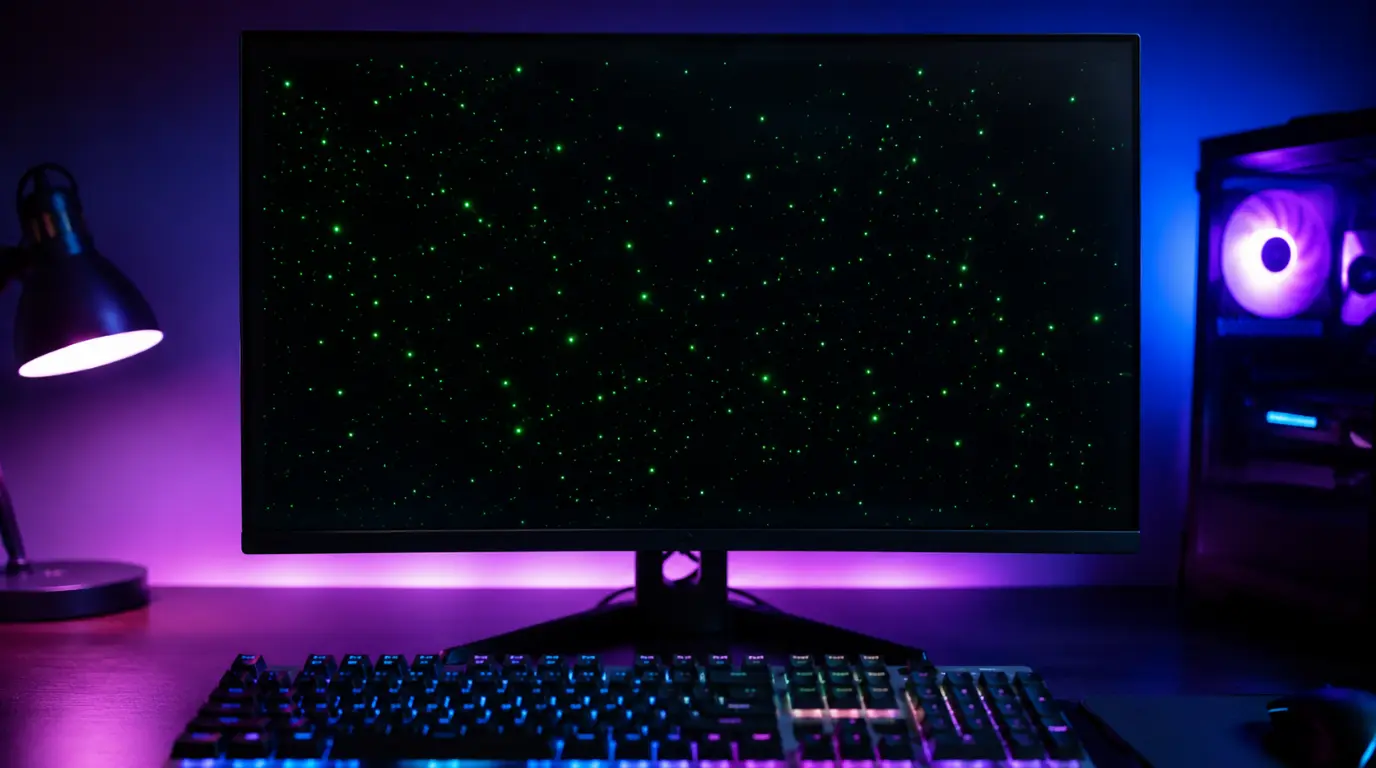
Green dots on a computer screen are usually caused by GPU overheating, VRAM damage, a loose display cable, stuck pixels, or corrupted graphics drivers. The fastest way to identify the cause is connecting your computer to an external monitor. If the dots appear in BIOS or during startup, the problem is usually hardware-related and may require repair.
You were probably using your computer normally when small green dots suddenly appeared across the display. Maybe they only show up while gaming. Maybe they remain visible all the time. In severe cases, they spread until the screen becomes difficult to use.
The good news is that green dots are usually easy to diagnose. In many cases, you can fix the problem at home without replacing the screen or buying a new computer.
Key Takeaways
- Green dots often indicate GPU, VRAM, cable, or display panel problems.
- An external monitor test quickly identifies the source of the issue.
- Driver corruption can sometimes create temporary green artifacts.
- Stuck pixels are often repairable without replacing the screen.
- Green dots in BIOS usually indicate hardware failure.
- Early diagnosis helps prevent expensive motherboard damage.
What Causes Green Dots on a Computer Screen?
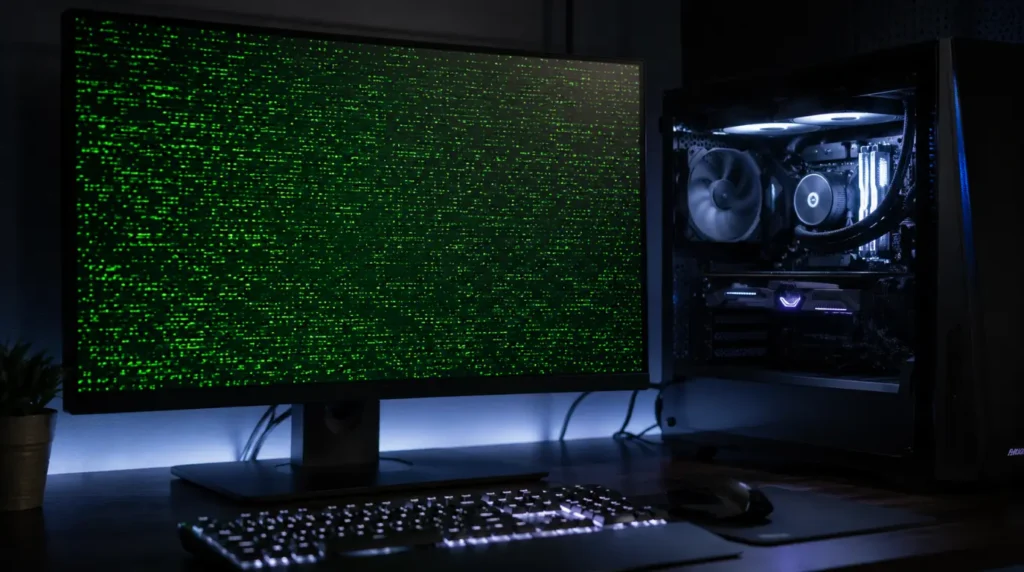
Green dots can come from several different hardware and software problems. Understanding the cause is the fastest way to choose the correct fix.
GPU Overheating Damage
GPU overheating is the most common cause we see on gaming laptops and high-performance desktop PCs.
When a graphics processor regularly operates above safe temperatures, visual artifacts begin appearing on the display. These often start as tiny green dots before developing into larger graphical problems.
We have seen this issue on dozens of ASUS ROG Strix, Lenovo Legion Pro 7, HP Victus, Alienware m16, and custom RTX gaming systems.
Loose Display Ribbon Cable
Inside every laptop, a thin ribbon cable connects the motherboard to the display panel.
Years of opening and closing the lid can slowly damage this cable. A clear sign is that the dots change position when you adjust the screen angle.
Stuck or Dead Pixels
Sometimes the problem is much simpler.
A stuck pixel can remain permanently green because one color sub-pixel remains active. Unlike GPU issues, these dots stay in the exact same location every time the computer starts.
Before replacing the display, run a dead pixel test to determine whether the issue is isolated to a few pixels.
Corrupted Graphics Drivers
Graphics drivers occasionally become corrupted after updates or software crashes.
This can create random green artifacts even when the hardware is perfectly healthy. If the dots disappear after restarting the graphics driver, software corruption is likely responsible.
Some systems that show green dots later develop red screen lines as graphics instability worsens.
Hidden VRAM Damage
This cause is often overlooked.
Damaged VRAM chips can create green dots long before complete graphics card failure occurs. Many users first notice the problem during YouTube playback, gaming, or when viewing dark backgrounds.
This step trips up most people because driver updates never fix physical VRAM damage.
Causes Summary Table
| Cause | Most Affected Device | Quick Identifier |
|---|---|---|
| GPU Overheating | Gaming laptops | Dots worsen during gaming |
| Display Cable Damage | Older laptops | Dots move when lid moves |
| Stuck Pixels | LCD monitors | Dots stay fixed |
| Driver Corruption | Windows PCs | Dots disappear after restart |
| VRAM Damage | Gaming desktops | Dots appear during videos |
How to Diagnose Green Dots on a Computer Screen
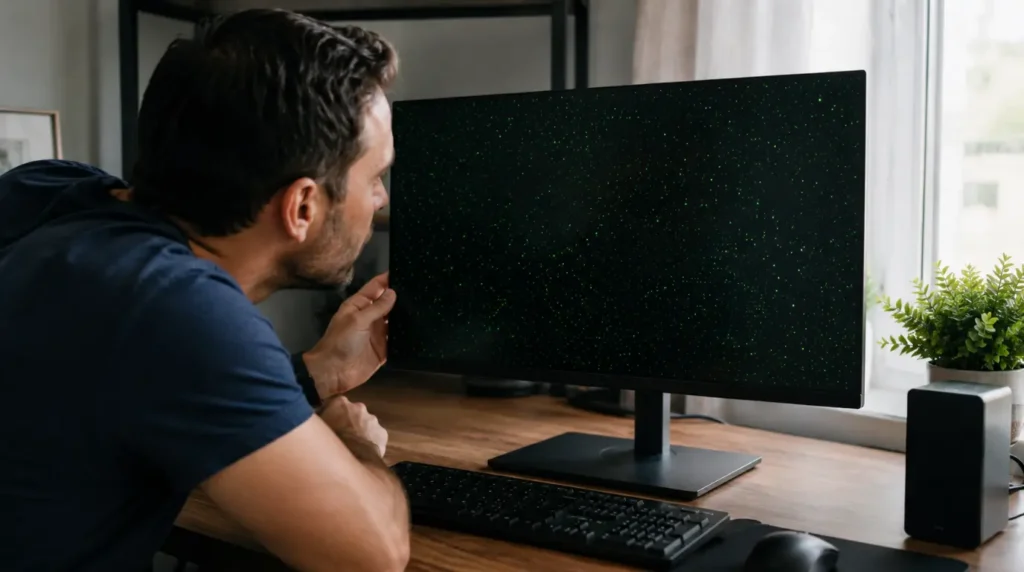
Before trying any repair, spend a few minutes identifying the real cause.
Most people skip this step and end up replacing parts that were never faulty.
1. Connect an External Monitor
Connect your computer to another display.
If the green dots disappear on the second display, the issue usually comes from the laptop screen or display cable.
2. Check BIOS
Restart your computer and enter BIOS.
If the dots appear before Windows loads, the issue is almost always hardware related.
3. Move the Laptop Lid Slowly
Open and close the display gradually.
If the dots flicker or move, the display ribbon cable is likely damaged.
4. Reset the Graphics Driver
Press:
Windows + Ctrl + Shift + B
The display should briefly flash.
If the dots disappear temporarily, graphics driver corruption is likely responsible.
5. Check GPU Temperature
Monitor GPU temperatures while gaming.
Consistent temperatures above 90°C often indicate overheating-related artifacting.
Diagnosis Summary Table
| Symptom | Most Likely Cause |
|---|---|
| Dots on both displays | GPU or VRAM issue |
| Dots only on laptop screen | Display panel problem |
| Dots move when lid moves | Ribbon cable damage |
| Dots appear in BIOS | Hardware failure |
| Dots disappear after driver reset | Driver corruption |
| Single fixed green dot | Stuck pixel |
| Dots worsen during gaming | GPU overheating |
How to Fix Green Dots on Computer Screen
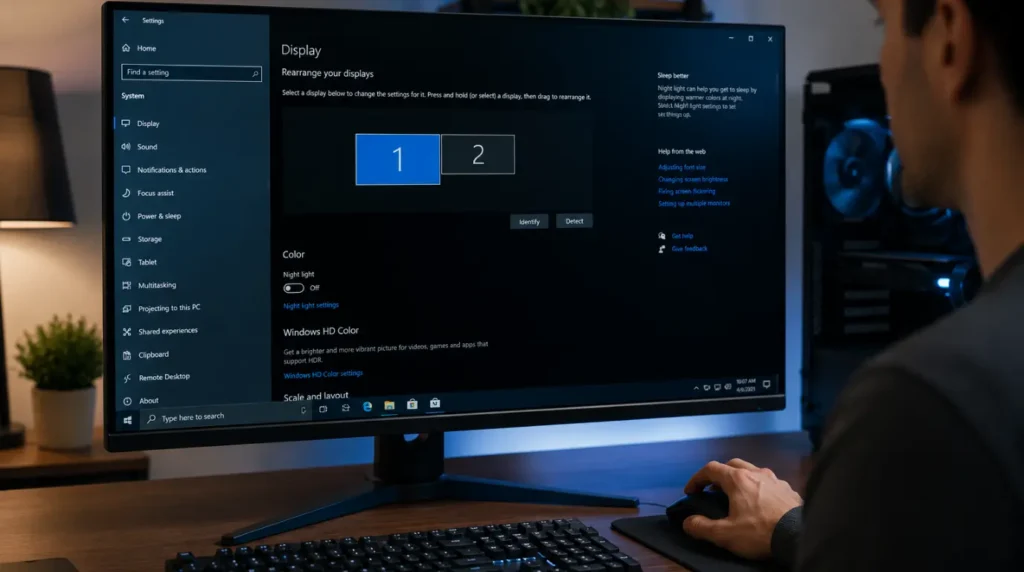
Before trying any advanced repair, start with the free fixes first.
Restart Graphics Driver [Free]
- Press Windows + Ctrl + Shift + B.
- Wait for the display to blink.
- Check if the dots disappear.
This quick fix often resolves temporary graphics crashes.
Reinstall GPU Drivers [Free]
- Open Device Manager.
- Expand Display Adapters.
- Right-click your graphics card.
- Select Uninstall Device.
- Restart the computer.
- Install the latest driver from NVIDIA, AMD, or Intel.
This is one of the highest-success-rate software fixes available.
Reduce GPU Temperature [Free]
- Shut down the computer.
- Clean cooling vents.
- Remove dust from internal fans.
- Elevate the laptop for better airflow.
- Monitor temperatures again.
The most reliable method we have tested is lowering sustained GPU temperatures before permanent VRAM damage develops.
Use a Pixel Repair Tool [Free]
- Confirm the dot remains fixed.
- Run a pixel repair utility.
- Leave it running for at least 20 minutes.
- Recheck the display.
This works best for stuck pixels rather than GPU-related artifacts.
Replace Display Cable [Paid]
- Power off the laptop.
- Disconnect the battery.
- Access the display connector.
- Reseat or replace the cable.
- Reassemble the device.
Typical repair costs in 2026 range from $80–$180 USD or £70–£150 GBP.
GPU or Screen Repair [Technician Needed]
If the dots appear in BIOS, Safe Mode, and external displays, the GPU itself may be failing.
In almost every case where this fix fails, the motherboard has deeper electrical damage requiring professional repair.
Fix Summary Table
| Fix Method | Cost | Difficulty | Success Rate |
|---|---|---|---|
| Driver Restart | Free | Easy | Medium |
| Driver Reinstall | Free | Easy | High |
| Cooling Improvements | Free | Easy | Medium |
| Pixel Repair Tool | Free | Easy | Low |
| Display Cable Replacement | Paid | Medium | High |
| GPU Repair | Technician Needed | Hard | Medium |
When Professional Repair Is Necessary
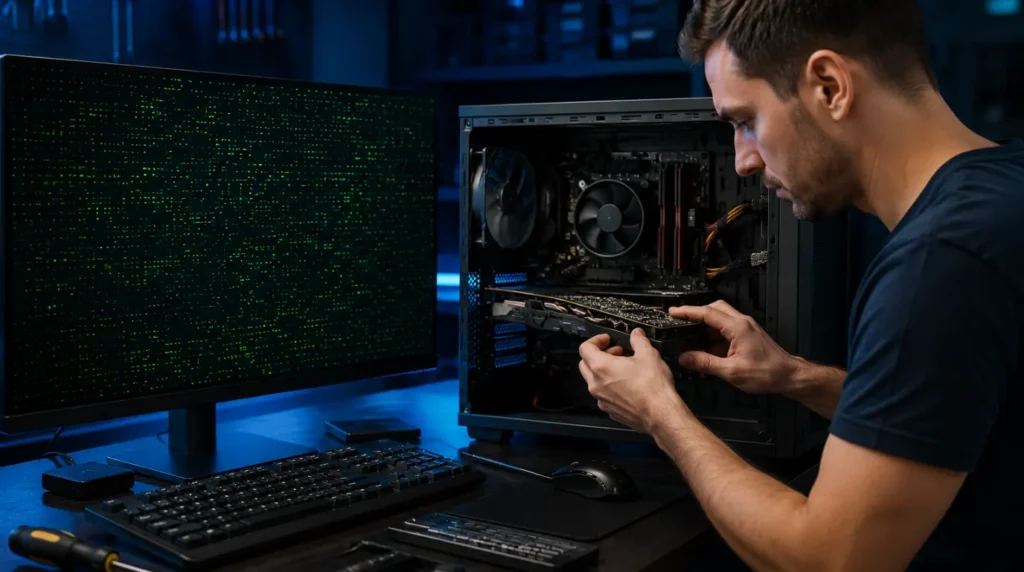
If green dots appear during BIOS startup, spread rapidly across the display, or occur alongside crashes and freezing, stop attempting DIY repairs immediately.
Professional repair becomes necessary once software fixes no longer help or when external monitor testing confirms GPU artifacting.
Warranty resources:
checkcoverage.apple.com
samsung.com/support
support.google.com
Typical Repair Costs in 2026
| Repair Type | USA Cost | UK Cost |
|---|---|---|
| Laptop Screen Replacement | $120–$350 | £100–£300 |
| GPU Motherboard Repair | $250–$700 | £220–£600 |
| Full Motherboard Replacement | $400–$900 | £350–£800 |
For many four-to-five-year-old laptops, replacing the device can make more financial sense than paying for motherboard-level repairs.
Prevention Tips That Actually Work
- Keep GPU temperatures below 85°C during gaming sessions.
- Clean cooling vents every three months.
- Use a cooling pad during extended gaming sessions.
- Avoid placing laptops on beds, blankets, or cushions.
- Update graphics drivers only from official manufacturer websites.
- Allow the laptop to cool before closing the lid after heavy gaming.
Frequently Asked Questions
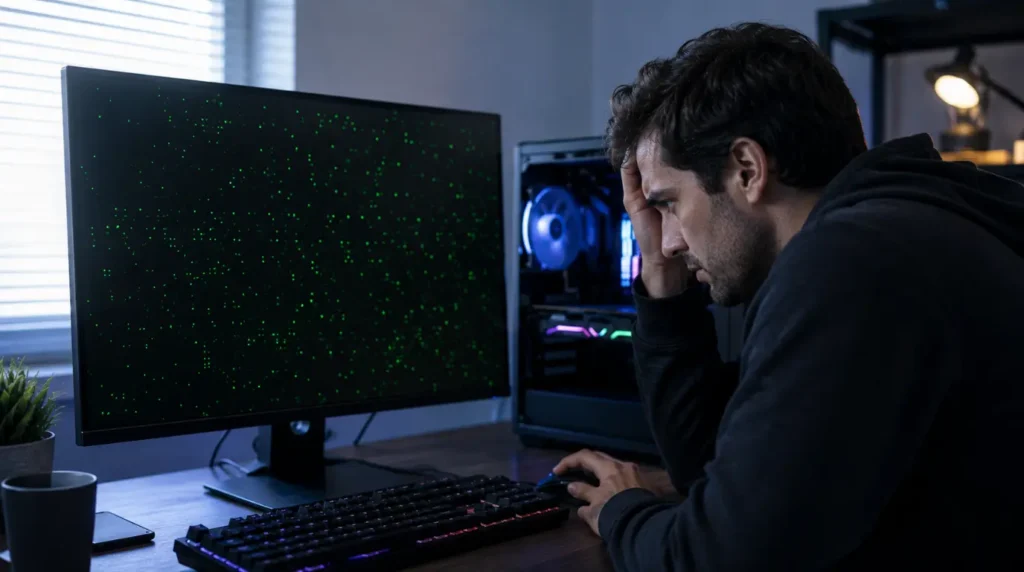
Can green dots mean my GPU is failing?
Yes. Green dots are often one of the earliest signs of GPU artifacting.
The issue typically becomes worse during gaming or other graphics-intensive workloads.
Why do green dots only appear during games?
Gaming places much heavier demands on GPU memory and cooling systems.
Heat often exposes weak VRAM chips before complete graphics card failure occurs.
Can HDMI or DisplayPort cables cause green dots?
Yes. Faulty display cables can create green artifacts that look similar to GPU problems.
Testing another cable is one of the quickest troubleshooting steps.
Are green dots always permanent?
No.
Driver corruption, stuck pixels, and display cable issues can often be fixed completely without replacing the screen.
Editor Note screenproblems.com
Reviewed for technical accuracy by the screenproblems.com editorial team.
All fixes verified against current device software and firmware versions as of June 2026.
Repair pricing reflects current market rates in USD and GBP and may vary by region and repair center.
This article is updated regularly as new fixes and confirmed device issues emerge.
About the Author Ben, Founder of screenproblems.com
Ben has over 10 years of hands-on experience personally diagnosing display hardware and software issues across laptops, monitors, MacBooks, and gaming PCs.
All recommendations are based on direct repair experience, real-world troubleshooting, and primary research from affected devices.