
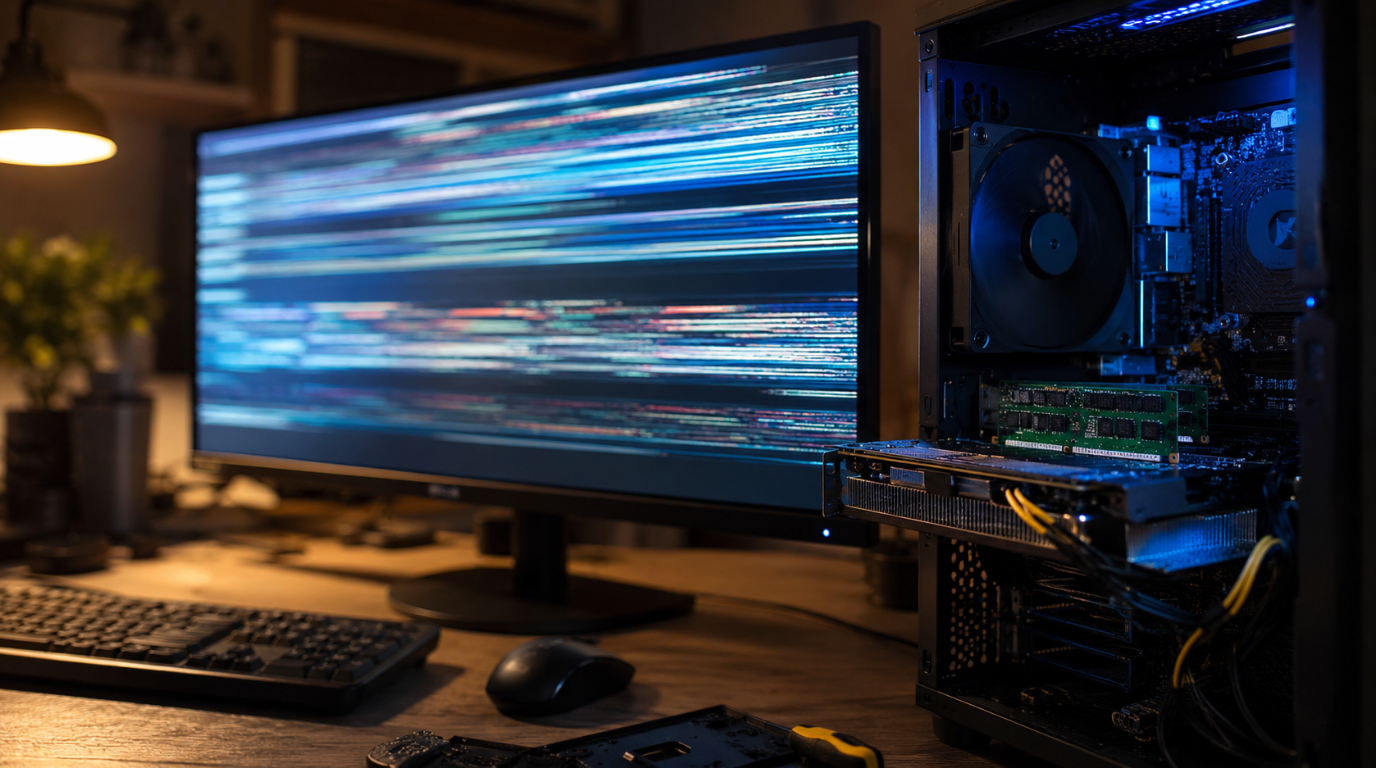
Installing new RAM or a new graphics card should boost your PC’s performance. Instead, many users see their screen flickering, flashing, or going black right after the upgrade.
This is a common issue and rarely means your new hardware is defective. In most cases, the flickering comes from a seating problem, a driver conflict, or an unstable RAM overclock setting.
Screen flickering after installing new RAM or a new GPU is usually caused by improper seating, leftover GPU drivers conflicting with new hardware, or an aggressive XMP or DOCP profile. Reseating the component and doing a clean driver install fixes most cases within minutes.
Why Your Screen Flickers After a RAM or GPU Upgrade
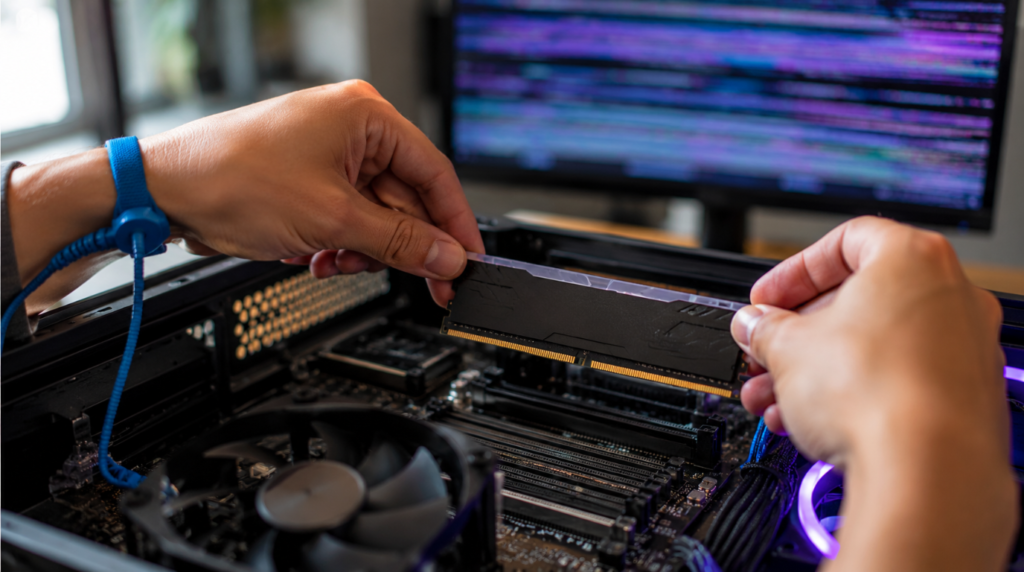
Several hardware and software factors can trigger flickering right after a new install. Understanding the exact cause saves you time and prevents unnecessary part replacements.
RAM or GPU not fully seated. A DIMM stick or graphics card that is not clicked fully into its slot causes intermittent signal loss. This shows up as flickering, black screen flicker, or the display disconnecting and reconnecting on its own.
Unstable XMP or DOCP profile. New RAM often defaults to an XMP profile on Intel boards or a DOCP profile on AMD boards. These profiles overclock the RAM frequency and timings, and an unstable profile can cause screen flickering, freezing, or a blue screen after RAM upgrade.
Leftover GPU drivers. Installing a new graphics card while old NVIDIA, AMD, or Intel graphics drivers remain on your system creates a driver conflict. This is one of the most common causes of graphical glitches and screen flashing after a GPU swap.
Insufficient PSU wattage or a loose power cable. New graphics cards draw significantly more power than integrated graphics. A weak power supply unit or a loose 6-pin or 8-pin GPU connector can starve the card and cause flickering under load.
Mixed or mismatched RAM kits. Combining RAM sticks with different frequency, timings, or voltage causes memory instability. This often shows up as monitor flickering, pixel artifacts, or random freezing during normal use.
Wrong display port. If your motherboard has onboard graphics, plugging your monitor cable into the motherboard port instead of the new GPU port causes display issues. The screen may flicker, show no signal, or use the wrong graphics output entirely.
| Cause | Likelihood | Quick Sign |
|---|---|---|
| Not fully seated | Very high | Flicker at boot, screen reconnects |
| Unstable XMP or DOCP | High | Flicker under load, BSOD |
| Leftover GPU drivers | High | Glitches after new GPU install |
| Weak PSU or loose cable | Medium | Flicker during gaming |
| Mismatched RAM kits | Medium | Random freezing, artifacts |
| Wrong display port | Low | No signal or flicker at login |
How to Diagnose the Exact Cause
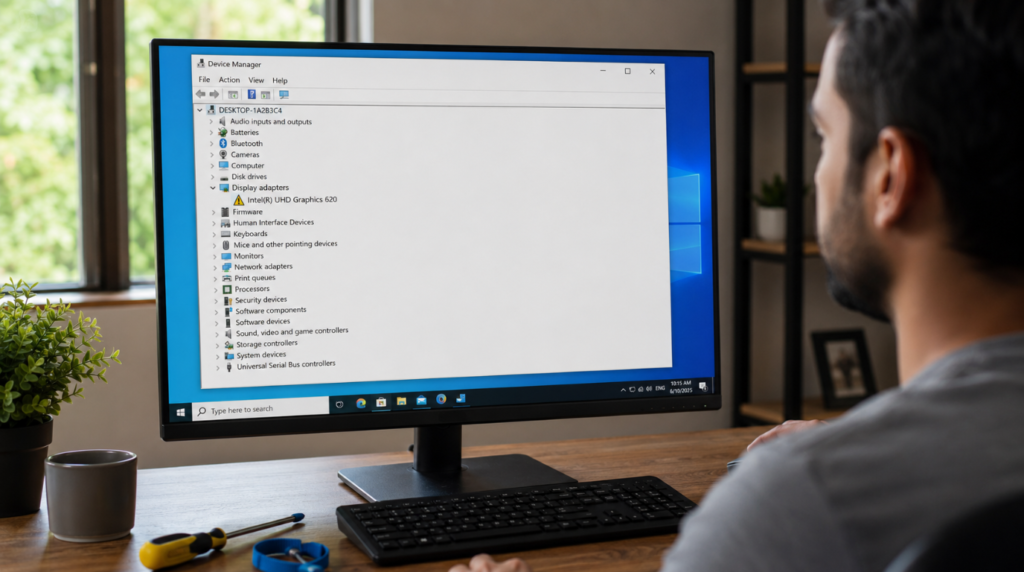
Follow these steps in order to narrow down the source of the flickering.
- Open Task Manager with Ctrl, Shift, and Escape. If everything on screen flickers including Task Manager, the issue is hardware or driver related.
- Power off your PC and reseat the RAM sticks and GPU firmly into their slots.
- Enter BIOS and check whether XMP or DOCP is enabled. Disable it temporarily to test.
- Boot with one RAM stick installed at a time to isolate a faulty module.
- Open Device Manager and check the Display Adapters section for a yellow warning icon.
- Connect your monitor cable directly to the GPU port and confirm the flickering pattern.
- Run MemTest86 or Windows Memory Diagnostic overnight to rule out memory errors.
Fix Screen Flickering After Installing New RAM or GPU
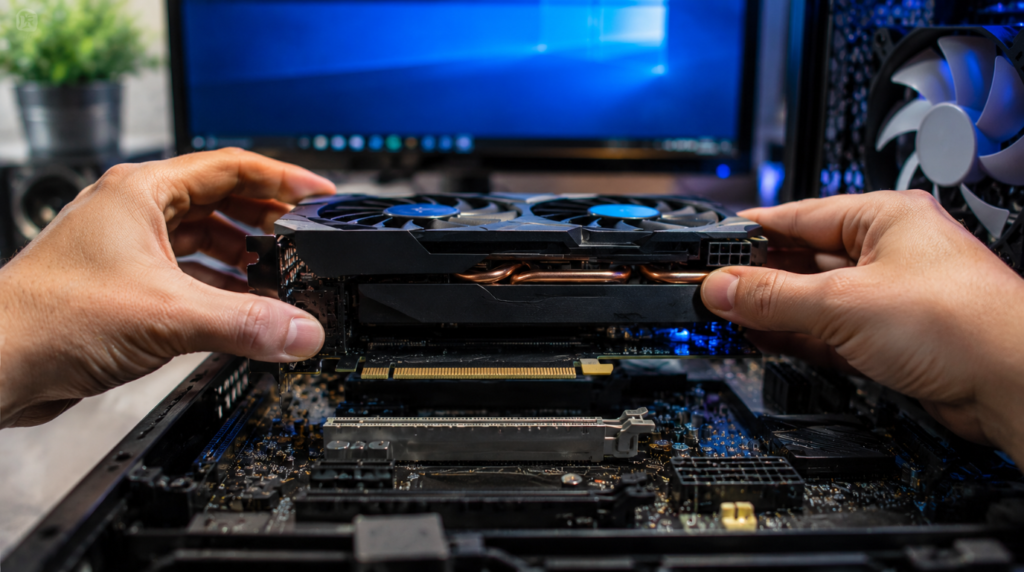
Reseat the RAM and GPU Properly
Cost: Free
Time: 5 to 10 minutes
Success Rate: 70%
Power off your PC and unplug it from the wall. Remove the RAM sticks and GPU, then reinsert them until you hear a firm click on both ends.
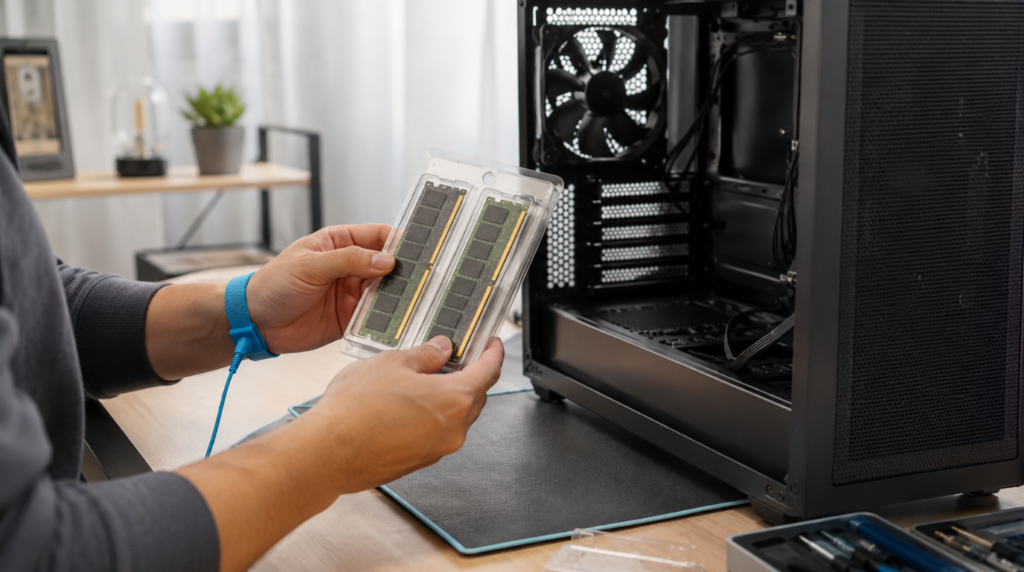
Technician Note: Ground yourself before touching internal components to avoid static discharge damage.
Reset BIOS and Disable XMP or DOCP
Cost: Free
Time: 5 minutes
Success Rate: 60%
Enter BIOS during boot and load default optimized settings. Disable XMP or DOCP first, then re-enable it once the flickering stops to confirm the profile was the cause.
Technician Note: Some RAM kits need a manual voltage bump of 0.05V to run stable at rated speed.
Clean Install the GPU Driver Using DDU
Cost: Free
Time: 15 to 20 minutes
Success Rate: 85%
Boot into Safe Mode and run Display Driver Uninstaller to remove all traces of old NVIDIA, AMD, or Intel drivers. Restart normally and install the latest driver directly from the manufacturer’s website.
Technician Note: Never install GPU drivers through Windows Update after a hardware swap, since it often installs an outdated version.
Check PSU Wattage and Cable Connections
Cost: Free to $80
Time: 10 minutes
Success Rate: 65%
Confirm your power supply meets the minimum wattage listed for your new GPU. Reseat every PCIe power cable connector until it clicks fully into place.
Technician Note: A budget PSU rated at the correct wattage can still cause flickering under sustained load.
Match RAM Kit Specifications
Cost: $0 to $150
Time: Varies
Success Rate: 90%
Confirm all installed RAM sticks share the same frequency, timings, and voltage. Replace any mismatched stick with one from the same kit or a verified compatible pair.
Technician Note: Check your motherboard’s QVL list before buying replacement RAM to avoid another compatibility issue.
Switch to the Correct Display Port
Cost: Free
Time: 2 minutes
Success Rate: 95%
Move your monitor cable from the motherboard’s display port to the port on your new graphics card. Restart your PC and confirm the display now runs through the dedicated GPU.
Technician Note: Some motherboards disable onboard graphics automatically once a GPU is detected, causing a blank screen if the cable stays on the wrong port.
| Fix | Cost | Time | Success Rate |
|---|---|---|---|
| Reseat RAM and GPU | Free | 5-10 min | 70% |
| Reset BIOS, disable XMP/DOCP | Free | 5 min | 60% |
| Clean install GPU driver | Free | 15-20 min | 85% |
| Check PSU and cables | Free to $80 | 10 min | 65% |
| Match RAM kit specs | $0-$150 | Varies | 90% |
| Switch display port | Free | 2 min | 95% |
Prevention Tips
- Buy RAM as a matched kit instead of mixing individual sticks.
- Check your PSU wattage headroom before buying a new GPU.
- Uninstall old GPU drivers using DDU before installing a new graphics card.
- Ground yourself before handling RAM or a GPU to prevent static discharge.
- Check your motherboard’s QVL list before purchasing new RAM.
Common Mistakes to Avoid
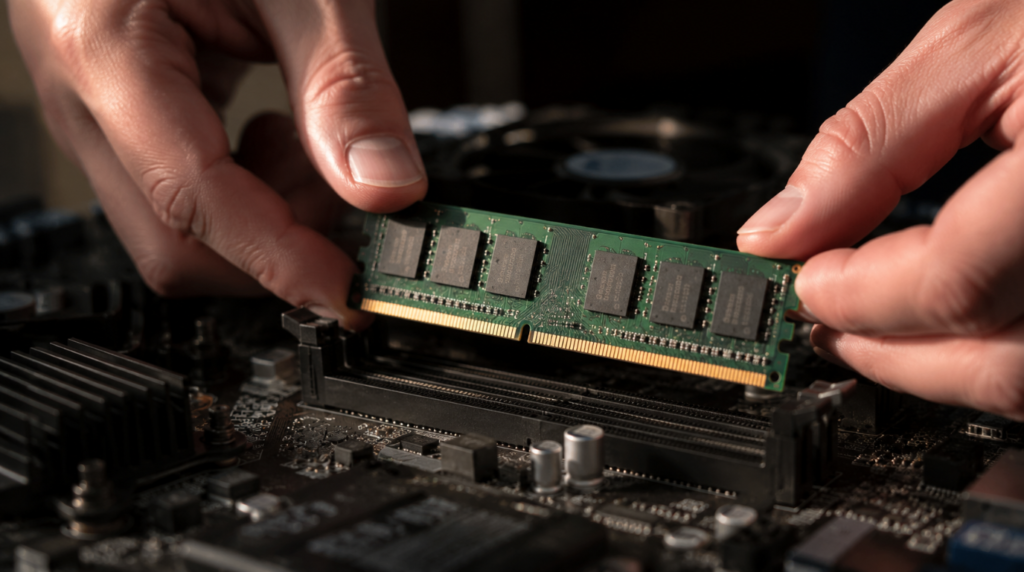
- Force-fitting a RAM stick that does not align with the slot notch.
- Ignoring BIOS beep codes after a new hardware install.
- Skipping a driver uninstall before switching to a new GPU brand.
- Enabling XMP or DOCP without testing system stability first.
- Assuming flickering means the new part is defective before running diagnostics.
Frequently Asked Questions
Can new RAM cause screen flickering?
Yes, new RAM can cause screen flickering through improper seating, mismatched timings, or an unstable XMP or DOCP profile.
Can a new GPU cause screen flickering?
Yes, a new GPU can cause flickering if it is not fully seated, lacks adequate power, or conflicts with leftover drivers.
Is screen flickering a sign of bad RAM?
Not always, since most flickering after installation comes from seating or software conflicts rather than a defective module.
How long does it take to fix flickering after a GPU upgrade?
Most fixes take between 5 and 20 minutes, though a full driver reinstall can take up to 30 minutes.
Disclaimer
This guide provides general troubleshooting steps for screen flickering after hardware installation. Always power off and unplug your PC before opening the case, and consult a professional technician if you are uncomfortable performing these steps yourself.
Editor Note
This article was reviewed for technical accuracy and updated to reflect current BIOS terminology, including XMP and DOCP naming conventions used on modern motherboards.
Author Note
I have spent 10 years diagnosing display and hardware issues, and screen flickering after a RAM or GPU install is one of the most common problems I see. Follow the diagnostic steps in order, and you will identify the cause without needing to replace any parts unnecessarily.
Article Summary
Screen flickering after installing new RAM or a GPU is usually caused by improper seating, an unstable XMP or DOCP profile, or a leftover GPU driver conflict. Reseating the hardware, resetting BIOS settings, and running a clean driver install resolve most cases within 20 minutes. If flickering continues after these fixes, check your PSU wattage and confirm your RAM kit specifications match across all installed sticks.