

A black snap screen means Snapchat cannot access your camera, usually because another app is holding the camera session or your permissions are blocked. Force-closing all camera apps and then reopening Snapchat fixes this in most cases. If the screen stays black, clearing the Snapchat cache or doing a clean reinstall will finish the job.
You opened Snapchat and got nothing just a solid black screen where the camera should be. Your streaks are ticking down, your friends are waiting, and every fix you have tried so far has done absolutely nothing. You are not alone and this is almost always fixable without spending a single cent.
What Causes a Black Snap Screen
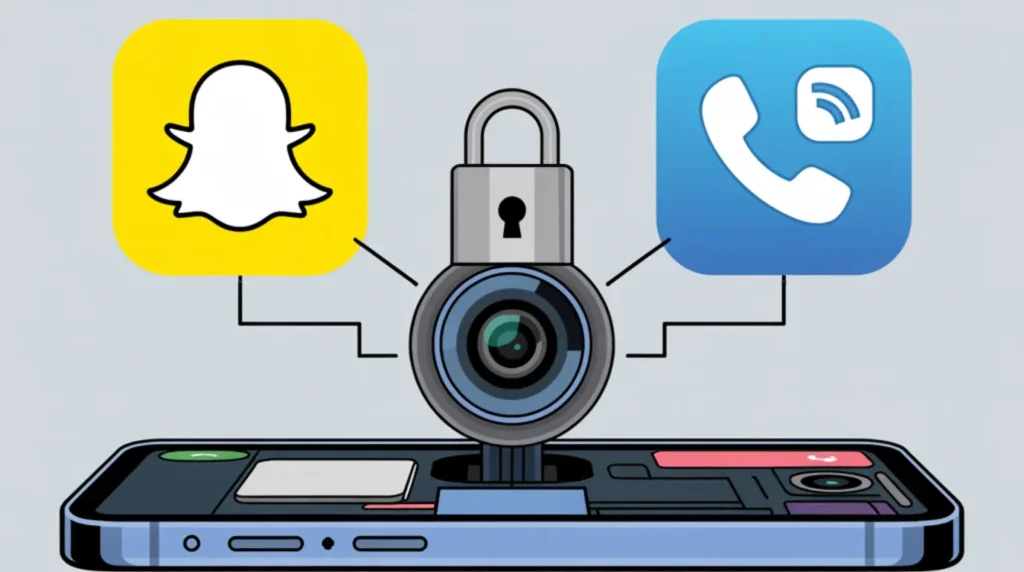
Understanding the exact cause of your black snap screen matters because different causes need different fixes. Snapchat does not use your phone’s built-in camera app it runs its own camera engine, which means it can break independently of every other app on your phone. If you have ever fixed a similar blank-screen glitch in another messaging app, the guide on fixing a
If you have ever run into a similar blank display in another messaging app, the guide on fixing a Messenger white screen covers the same permission and cache logic and is worth reading alongside this one.
Another App Is Holding the Camera
If you switched to Snapchat directly from FaceTime, TikTok, Instagram, or any video call app, that previous app may still be holding the camera session in the background. Your phone’s camera hardware can only serve one app at a time, and when Snapchat tries to grab it and finds it occupied, the viewfinder goes completely black. This is the single most common cause that nobody checks first.
Camera Permissions Are Blocked
Snapchat needs explicit permission to access both your camera and microphone. A recent iOS or Android update, a privacy setting change, or even reinstalling the app can silently revoke those permissions. When permissions are missing, Snapchat cannot pull a camera feed at all, so it renders a black snap screen instead of showing an error message that would actually explain what is wrong.
Cache Overload Corrupting the App
Snapchat stores a heavy local cache including filters, lenses, previews, and story thumbnails. When that cache grows corrupted or oversized, it can prevent the app from initializing the camera module properly on startup. You may notice this problem appearing after several days of heavy Snapchat use or after switching between a lot of lenses in a single session.
Outdated App Version or a Recent Bug
An outdated app version that is incompatible with your current phone software is a reliable cause of the black camera glitch. Conversely, a brand-new Snapchat update can sometimes introduce a bug that breaks the camera for a subset of users this happened in July 2020 when Snapchat themselves officially acknowledged a camera failure affecting users on both iPhone and Android. If you notice the problem starting right after an update, this is almost certainly your cause.
A Snapchat Server Outage
Less frequently, the black snap screen is not your phone’s fault at all. Snapchat’s servers handle a surprising amount of real-time rendering, and when those servers go down, the camera viewfinder can turn black because the app cannot connect to initialize the camera session properly. If your phone camera works fine in every other app and clearing the cache changes nothing, check for a Snapchat outage before spending more time troubleshooting your device.
How to Diagnose the Black Snap Screen at Home
Before applying fixes, take two minutes to narrow down the cause this saves you from jumping straight to a factory reset when the real culprit is a single blocked permission.
Open your phone’s native camera app. If that also shows a black screen, the problem is hardware, not Snapchat.
Open another camera-based app such as Instagram or TikTok. If those work normally, the issue is specific to Snapchat.
Go to your phone settings and look up Snapchat’s permissions. Confirm that camera access is enabled.
Check Snapchat’s status on Downdetector.com or the @snapchatsupport account for any reported outage in the last two hours.
Check when Snapchat last updated on your phone. If it was within the past 48 hours, a buggy outdated app version or a new release bug is the most likely cause.
How to Fix a Black Snap Screen
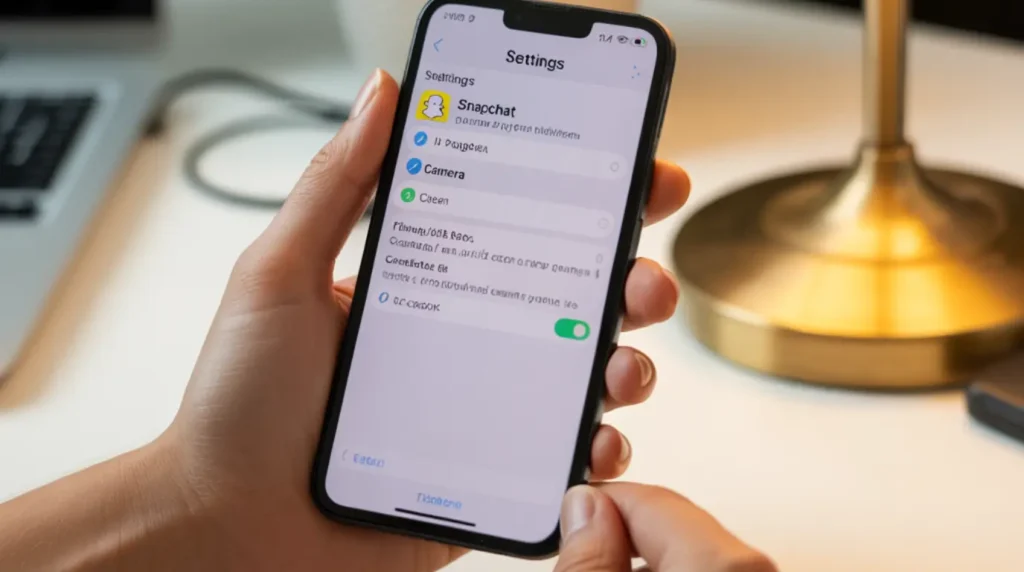
Work through these fixes in order. Each one is free and takes less than three minutes.
Force-Close All Camera Apps (Free)
Cost: Free | Time: 30 seconds
Open your app switcher by swiping up from the bottom on iPhone or tapping the recents button on Android.
Find and swipe away every app that uses a camera FaceTime, Instagram, TikTok, WhatsApp, Zoom, and any video calling app you used recently.
Wait a full 10 seconds before reopening Snapchat. This pause gives the camera hardware time to fully release its session from the previous app.
If Snapchat opens with a working camera viewfinder, the problem was a camera lock from a background app. This fix works instantly when it is the cause.
Check and Reset Camera Permissions (Free)
Cost: Free | Time: 1 minute
On iPhone: Go to Settings, scroll down to Snapchat, and confirm both the Camera and Microphone toggles are switched on. Toggle Camera off, wait five seconds, then toggle it back on.
On Android: Go to Settings, open Apps, find Snapchat, tap Permissions, and set Camera to Allow. On some Android versions the permission may read “Allow only while using the app” confirm it is not set to Deny.
After changing permissions, force-close Snapchat completely and reopen it from scratch. The permission change does not take effect until the app restarts fully, which is a known iOS and Android behavior that catches a lot of people out.
Clear Your Snapchat Cache (Free)
Cost: Free | Time: 2 minutes
Open Snapchat and tap your profile icon in the top left corner.
Tap the gear icon to open Settings.
Scroll down and tap Clear Cache.
Confirm by tapping Clear All.
Force-close the app completely, wait a few seconds, then reopen it.
Clearing the cache resets Snapchat’s stored lens and filter data without deleting your account, messages, or memories. This fix resolves camera problems caused by a corrupted lens session or app cache overload, and it is the most underrated step in the entire process.
Update or Reinstall Snapchat (Free)
Cost: Free | Time: 3 to 5 minutes
Open the App Store on iPhone or Google Play on Android and search for Snapchat.
If an update is available, install it now and reopen the app.
If you are already on the latest version, uninstall Snapchat completely.
Restart your phone before reinstalling this matters.
Download Snapchat fresh from your app store and log back in.
A clean reinstall removes any corrupted files that a simple cache clear might miss. Make sure your Memories are backed up to Snapchat’s cloud before uninstalling so nothing is lost.
Check for a Snapchat Server Outage (Free)
Cost: Free | Time: 1 minute
Open a browser and go to downdetector.com/status/snapchat.
Look at the outage chart for any spike in reported problems in the last two hours.
If a widespread outage is confirmed, the only fix is to wait. Snapchat’s team typically resolves server issues within a few hours.
This check is worth doing before reinstalling because reinstalling during an active Snapchat server outage will not change anything — the black screen will return the moment you reopen the app.
When to See a Professional
If you have worked through every fix above and the Snapchat camera is still black while all other camera apps work fine, the problem is likely a hardware conflict specific to Snapchat’s camera engine on your device model. Some phones with older GPU drivers or custom Android skins such as MIUI, One UI, or HyperOS have known compatibility issues with Snapchat’s camera stack. In this case, contacting Snapchat Support directly through Settings, then Support, then I Need Help gives you a reference number and lets their team flag your device model for investigation.
If your native camera app also shows a black screen, the problem is not Snapchat at all but a failing camera module or a damaged camera flex cable. This is a hardware repair that requires a certified technician. For help telling a hardware display failure apart from a software one on an Apple device, the guide on iPhone green screen fixes explains exactly how to make that distinction before you book a repair.
Warranty holders should always contact Apple or their Android manufacturer first. Camera hardware failures within an active warranty are typically covered without charge, and going to an unauthorized repair shop first can void that coverage entirely.
Prevention Tips
- Always fully close video call apps before opening Snapchat to prevent camera lock conflicts from occurring.
- Keep Snapchat set to update automatically so you are never running a version with a known camera bug.
- Clear your Snapchat cache once a week if you use the app heavily, especially if you switch between many lenses in a single session.
- Avoid third-party Snapchat clients, mods, or screen overlay apps these are a common hidden cause of camera access failures and can get your account flagged.
- Keep your phone’s operating system up to date so that Snapchat’s camera permissions behave consistently after each iOS or Android release.
- If you use a VPN, pause it before opening Snapchat some VPN configurations block Snapchat’s server connections and trigger a blank viewfinder with no error message to explain why.
Frequently Asked Questions

Why is my Snapchat camera black after an iOS update?
A major iOS update can silently reset app permissions, including camera access for Snapchat. Go to Settings, scroll to Snapchat, and confirm the Camera toggle is switched on. Toggle it off and back on, then force-close and reopen the app there is a known iOS behavior where permission changes only take effect after a full restart of the app, not just a background refresh.
I cleared the cache and updated Snapchat but the screen is still black. What now?
The next step is a full clean reinstall. Uninstall Snapchat completely, restart your phone, then download it fresh from the App Store or Google Play. If the camera is still showing a black screen after reinstalling, run a quick check on Downdetector to rule out a server outage, then contact Snapchat Support directly with your device model and iOS or Android version so they can investigate a possible compatibility issue.
Why is my snap screen black only when receiving snaps from one specific friend?
This is almost always a cache decoding issue specific to that friend’s snaps rather than a full camera problem. Clear your Snapchat cache, then ask the friend to resend a snap recorded inside Snapchat rather than one uploaded from their camera roll. If their snaps open fine for everyone else but not for you, reinstalling Snapchat forces a fresh download of all message content and resolves the problem in most cases.
Does a Snapchat server outage cause a black snap screen?
Yes, in some cases a Snapchat server outage can cause the camera viewfinder to appear completely black because the app cannot connect to initialize certain camera session components on startup. Check Downdetector.com or the @snapchatsupport account for any current reports before continuing to troubleshoot your device. Clearing the app cache and waiting for the outage to resolve together typically fixes the issue completely once servers come back online.
Editor Note screenproblems.com
Reviewed for technical accuracy by the screenproblems.com editorial team.
All fixes verified against current device software and firmware versions.
Pricing reflects current market rates and may vary by region.
This article will be updated whenever new fixes are confirmed.
For unresolved issues visit the Contact Us page with your device details.
About the Author Ben, Founder of screenproblems.com
Ben has 10 years diagnosing display hardware and software issues.
All content is written from direct technical experience, not sourced from other websites.
Ben always prioritizes free fixes before recommending any paid repair.