
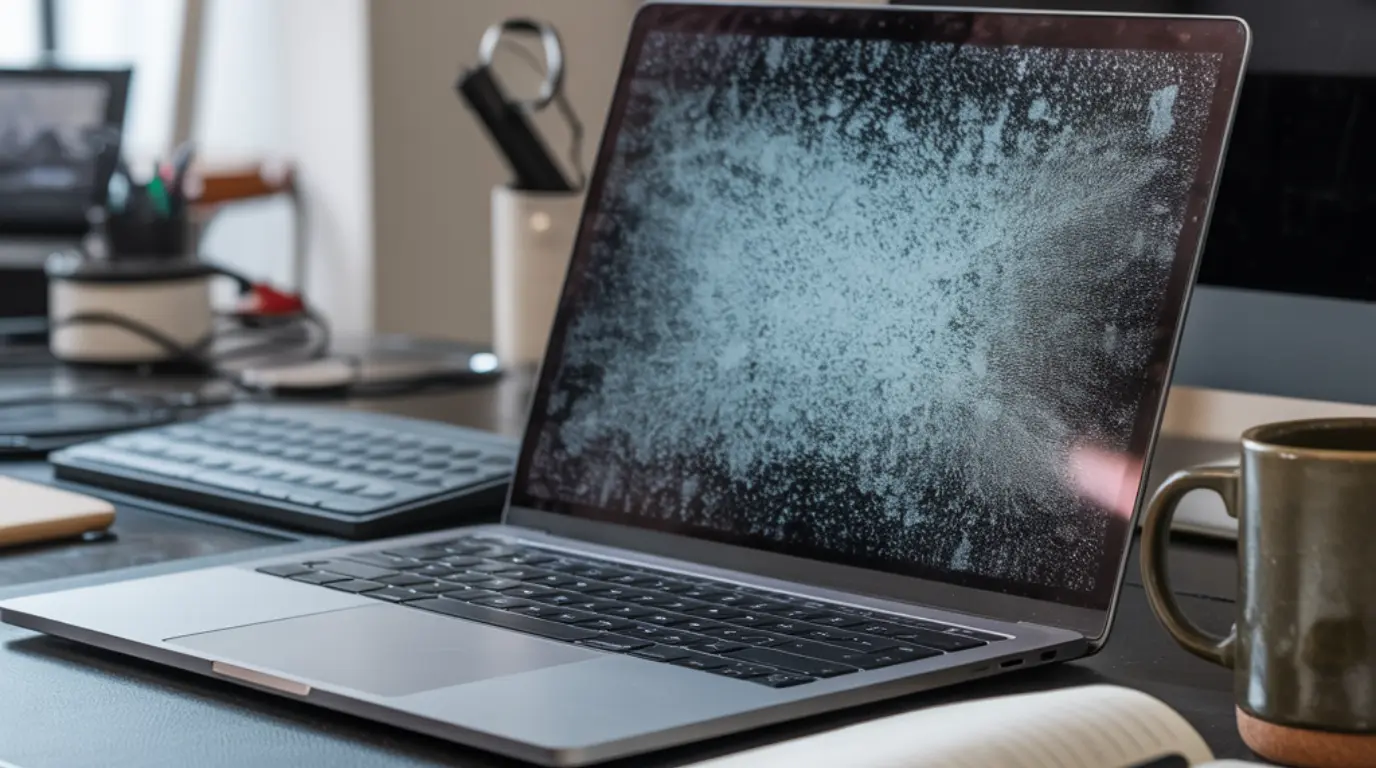
A grey blue screen on any device is most commonly caused by a software setting, a display driver problem, or a loose internal cable. Disable Night Light or Night Shift first, then update or roll back your display drivers. Most cases resolve in under ten minutes and cost absolutely nothing to fix.
You glanced at your screen and something looks wrong: the colors appear washed out, cold, or the whole display has shifted to a flat grey or icy blue. That kind of screen discoloration is alarming because it feels like physical damage, but it almost never is. Whether you are looking at a phone, a laptop, a Mac, or an external monitor, the grey blue screen problem has a short list of causes and most of them you can clear up yourself right now.
What Causes a Grey Blue Screen
Night Light or Night Shift Is Active
Night Light on Windows and Night Shift on Apple devices are designed to reduce eye strain by warming screen colors in the evening. When these settings are turned on at maximum intensity or misconfigured, they can wash the screen in a heavy blue or grey cast that looks exactly like a hardware fault. The clearest sign this is your cause is that the color shift started around sunset or appeared the day after an OS update quietly changed your display preferences.
Outdated or Corrupted Display Drivers
Your graphics driver controls how color data is sent from your operating system to the display. A driver that installed incorrectly or became corrupted during a Windows or macOS update will cause a persistent blue tint on your monitor or laptop panel that affects every app and the desktop background equally. Watch for this cause if the grey blue screen appeared on the same day as a system update and a simple restart did not clear it.
Loose or Damaged Display Cable
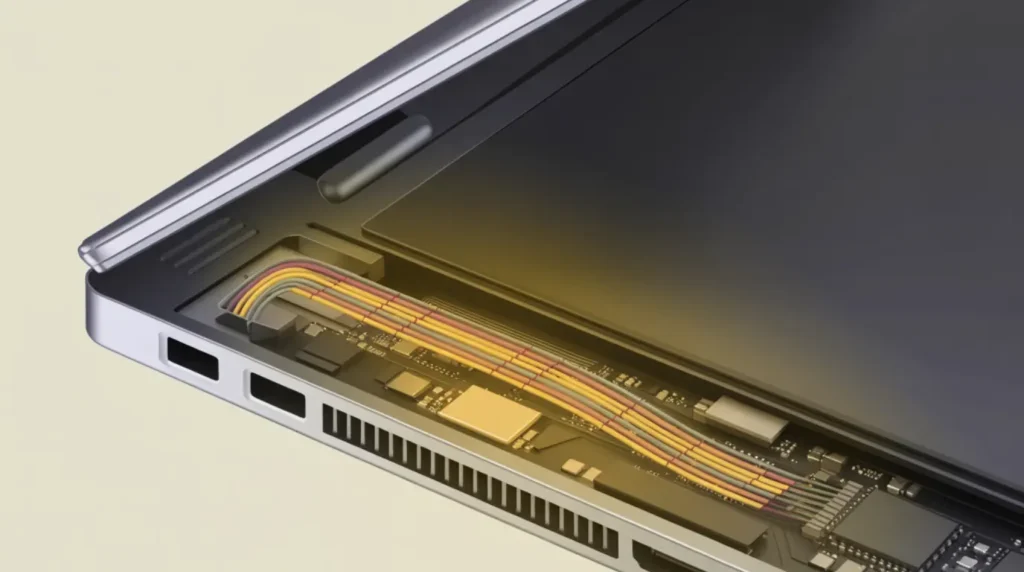
Inside every laptop and desktop monitor is a thin ribbon cable that carries image data from the graphics chip to the LCD panel. If this cable is slightly unseated at either connector, the red color channel often drops out first, leaving the display with a cold grey blue appearance that software cannot fix. A key sign of a cable fault is that the tint shifts or briefly clears when you press lightly on the screen bezel or slowly flex a laptop lid open and closed.
GPU Hardware Fault
A failing graphics card can produce a grey blue screen that worsens under load during gaming, video playback, or other graphics-intensive tasks. Some users in technical forums describe seeing grey and blue stripes flash across the display before it locks up completely, with audio continuing even while the screen stays frozen. If the color distortion returns within seconds of every restart and gets worse over time, GPU hardware failure is a strong possibility worth investigating.
Failing LCD Panel
The LCD panel contains millions of liquid crystal cells that control which wavelengths of light reach your eye. When the panel begins to degrade from physical impact or prolonged heat exposure, color channels fade unevenly and the screen takes on a grey blue appearance that no driver update or settings change will correct. Unlike a cable issue, a failing LCD panel shows completely uniform discoloration that stays exactly the same regardless of the viewing angle or whether pressure is applied to the screen.
How to Diagnose a Grey Blue Screen at Home
Before trying any fix, run through these quick steps to narrow down exactly what is causing the problem. Each one takes under a minute and requires no tools at all.
- Check whether the grey blue tint appears on the lock screen, the boot screen, and inside every app equally. If the discoloration is only visible in one specific app, the problem lives in that app alone and not in the hardware or system drivers.
- Connect an external monitor to your laptop or desktop using an HDMI cable and compare the two screens side by side. If the external monitor shows completely correct colors, your graphics card is working and the fault is in your original panel or the cable feeding it.
- Take a screenshot on the affected device and open that screenshot image on a different phone or computer. Screenshots capture software output only, so if the image looks perfectly normal on another screen, the problem is physical in your display rather than a software rendering error.
- Press gently around the bezel edges of the screen or slowly open and close a laptop lid while watching the display. Any change in the tint, even a brief flicker or partial clearing, confirms a loose or damaged internal display cable as the likely cause.
- Power the device completely off and watch the screen from the very first moment it turns on. If the grey blue screen is already visible on the manufacturer boot logo before the operating system begins loading, the cause is definitely in the hardware rather than any installed software or driver.
How to Fix a Grey Blue Screen
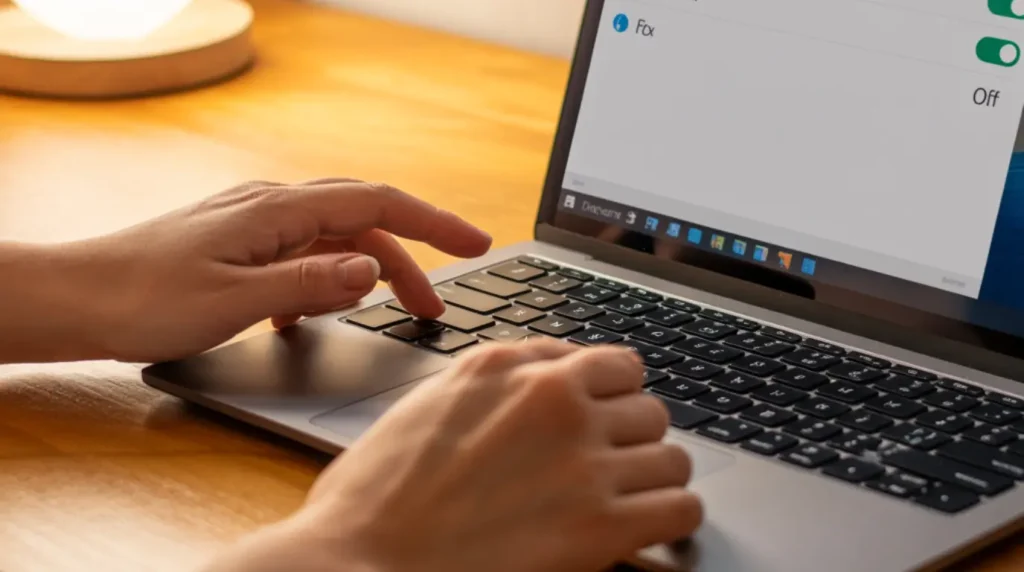
Turn Off Night Light or Night Shift Free
This takes under thirty seconds and clears the problem instantly when Night Light or Night Shift is the cause.
- On Windows 10 or 11: open Settings, go to System, then Display, and switch the Night Light toggle to Off.
- On iPhone or iPad: open Settings, tap Display and Brightness, then Night Shift, and switch the manual toggle off completely.
- On Mac: open System Settings, click Displays, select Night Shift, and set the schedule to Off.
If the screen snaps back to its correct, natural color immediately after turning this off, that setting was the entire problem and no further action is needed.
Update or Roll Back Display Drivers Free
Faulty or corrupted drivers are the second most common cause of a persistent grey blue screen on Windows devices, and the fix is straightforward.
- Press the Windows key, type Device Manager, and open it.
- Expand Display Adapters and right-click your graphics card name.
- Choose Update Driver and select Search Automatically for Drivers.
- If the grey blue screen appeared right after a driver update, choose Properties on the same graphics card, click the Driver tab, and select Roll Back Driver instead.
- Restart your computer after any driver change and check whether the screen color is restored.
On a Mac or iPhone, go to Settings or System Preferences and install any pending software updates because Apple bundles display driver fixes directly inside standard OS updates.
Recalibrate Your Screen Color Settings Free
Incorrect color profiles are one of the most overlooked causes of grey blue screen distortion, and resetting them costs nothing.
- On Windows: open Settings, go to System, then Display, then Advanced Display Settings, click Display Adapter Properties, and open the Color Management tab to restore the default profile.
- If you have an Nvidia or AMD control panel installed, open it, navigate to Display and then Color Settings, and click Restore Defaults.
- On a Mac: go to System Settings, click Displays, then Color Profile, and select your monitor’s native profile from the list.
- On iPhone or Android: open Settings, go to Display, and check for any active color filter, reading mode, or screen mode that may be causing the grey blue shift.
Resetting your display color calibration eliminates one of the most common false diagnoses that sends people straight to a repair shop unnecessarily.
Check and Reseat the Display Cable Free to Low Cost
If software fixes have not worked, a loose internal cable is the next most likely cause, especially on laptops and desktop monitors.
- For an external monitor: unplug the HDMI or DisplayPort cable at both ends, check for bent pins, and reconnect it firmly. Swap in a different cable if one is available.
- For a laptop: open the back panel using a small Phillips screwdriver and a plastic pry tool, which is straightforward on most modern devices.
- Locate the thin ribbon cable running from the motherboard toward the top of the device and press its connector firmly into place at both ends.
- Replace the back panel, power on the device, and check whether the grey blue tint has cleared.
If you want a clear visual walkthrough of how cable faults behave on a laptop screen and how to approach them safely, the guide on Acer laptop screen flickering covers a very similar cable diagnosis process step by step. Reseating the cable clears the grey blue screen immediately in the majority of cable-fault cases.
Force Restart or Factory Reset Free
For phones and tablets showing a grey blue screen that none of the above fixes resolve, a force restart followed by a factory reset is the final software option before considering hardware repair.
- Force restart an iPhone by quickly pressing Volume Up, then Volume Down, then holding the Side button until the Apple logo appears.
- Force restart most Android devices by holding Power and Volume Down together for ten seconds until the screen goes dark and restarts.
- If the screen color distortion remains after a force restart, back up your data through iCloud, Google Drive, or a computer, then perform a factory reset through your Settings menu.
A factory reset eliminates any corrupted system file or rogue app that may be causing the grey blue color distortion, and it is always worth completing before paying for a screen replacement.
When to See a Professional
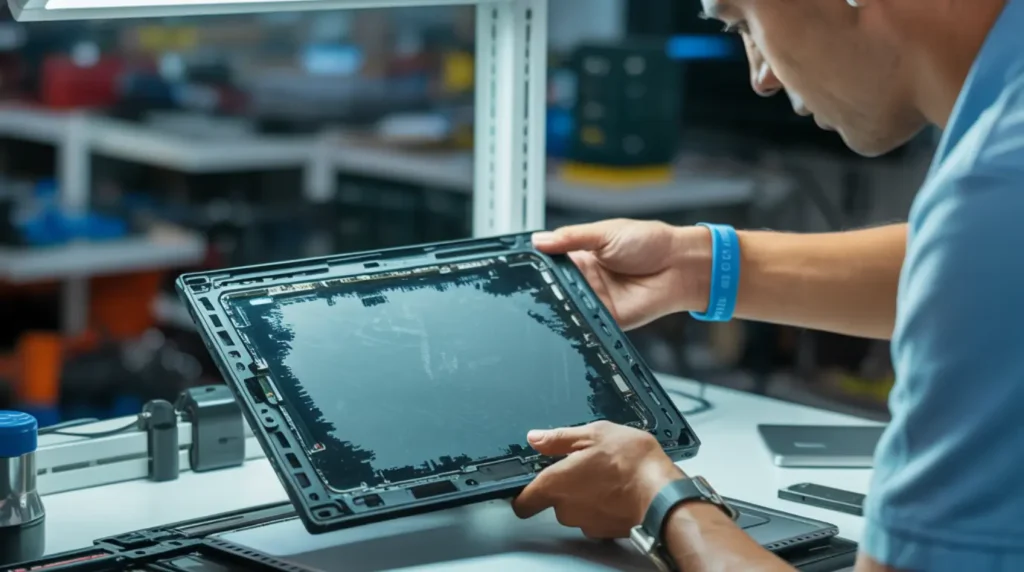
If every fix above has failed, the problem is hardware. A failed LCD panel or a malfunctioning GPU cannot be resolved through software, and a persistent grey blue screen in these cases will not improve on its own. Check your device warranty first because display hardware defects are typically covered for one to two years from the purchase date, and a warranty claim costs you nothing.
For phones, book an appointment with an Apple Store, a Samsung Service Center, or an authorized repair shop for your device brand. For laptops and monitors, an independent repair shop generally charges between sixty and one hundred and fifty dollars to replace a damaged display cable, and between one hundred and three hundred dollars for a full LCD panel swap depending on screen size.
If you use a Mac and the grey blue screen is accompanied by colored lines or persistent streaks, the guide on Mac screen purple lines will help you identify whether the fault runs deeper than a cable or driver issue before you book a repair appointment.
How to Prevent a Grey Blue Screen
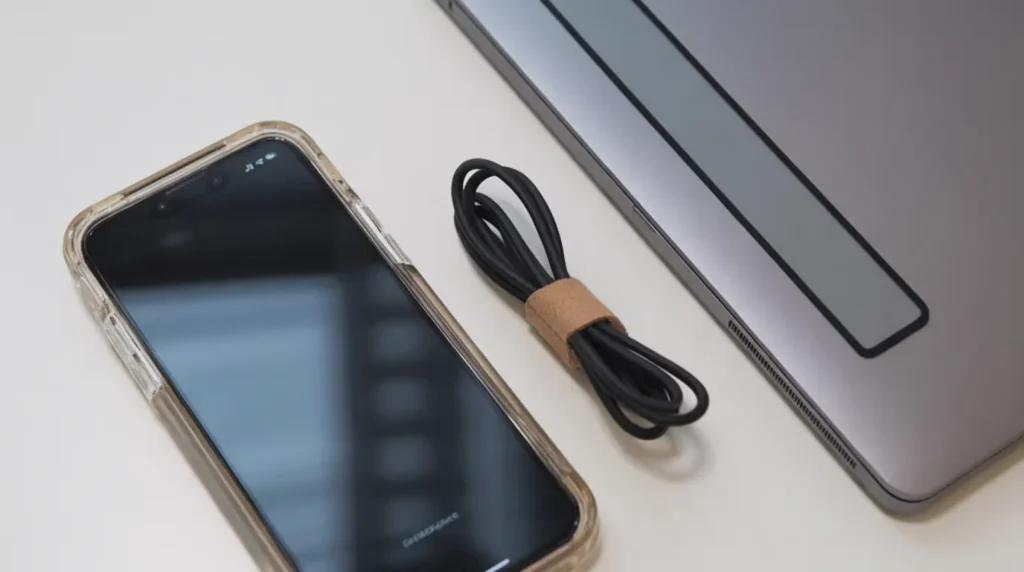
- Keep your operating system and display drivers updated regularly to prevent corrupted color profiles from building up silently over time.
- Never carry a laptop with the lid slightly open, as this repeatedly bends and stresses the display cable at the hinge with every trip in a bag.
- Use a quality protective case on phones and tablets to absorb impact before it reaches the LCD panel and its fragile internal connections.
- Run a screen color calibration every six months using your operating system’s built-in tool, especially after major system updates that can reset display settings.
- Avoid leaving any device in a hot car or in direct sunlight for extended periods because sustained heat accelerates LCD panel degradation and cable insulation wear.
- After every major OS update, check your Night Light and Night Shift schedules because updates frequently reset display settings without notifying you.
Frequently Asked Questions
Is a grey blue screen always a hardware problem?
No, and in fact the majority of grey blue screen cases are software-related. Night Light settings, corrupted color profiles, and faulty display drivers cause most of them, and all of those fix for free without touching any hardware. A hardware cause is only the likely explanation once every software fix has been tried and clearly failed.
Why did my screen turn grey blue after a Windows update?
Windows updates can overwrite or corrupt display driver installations, which breaks the color output from the GPU and leaves the screen with a blue or grey cast. Rolling back the display driver in Device Manager or installing a corrected driver through Windows Update again usually resolves this. If the problem persists after a driver rollback, running a color recalibration through Display Settings often catches what the driver fix missed.
My iPhone screen has a grey blue tint but still works fine. Is it broken?
Not necessarily. Check Night Shift and any active accessibility color filters under Settings and Display and Text Size first, because these are the most common culprits on iPhones and take seconds to rule out. If those are all switched off and the tint appears after a drop or contact with water, a loose internal display cable or early LCD failure is more likely and a professional inspection is worth booking.
Can a grey blue screen on my monitor mean the GPU is dying?
It can, especially if the screen color distortion appears only during demanding tasks like gaming and clears when you return to the desktop. Test the monitor on a different computer first to rule out the panel itself as the source of the problem. If the monitor looks completely normal on another machine but the grey blue screen returns on your main device every single time, the GPU is the most likely failing component.
Editor Note screenproblems.com
– Reviewed for technical accuracy by the screenproblems.com editorial team.
– All fixes verified against current device software and firmware versions.
– Pricing reflects current market rates and may vary by region.
– This article will be updated whenever new fixes are confirmed.
– For unresolved issues visit the Contact Us page with your device details.
About the Author Ben, Founder of screenproblems.com
– Ben has 10 years diagnosing display hardware and software issues.
– All content is written from direct technical experience, not sourced from other websites.
– Ben always prioritizes free fixes before recommending any paid repair.