
A computer stuck in the boot screen is usually caused by a failed Windows update, a USB device interfering with startup, corrupted system files, or RAM that has shifted in its slot. Most cases can be fixed at home for free by power cycling, disconnecting peripherals, or running Windows Startup Repair without losing a single file.
You pressed the power button, watched the manufacturer logo appear, and then your computer simply stopped. The spinning dots froze and nothing you pressed made any difference. Your files are almost certainly safe, and this startup freeze is far more fixable than it looks right now.
What Causes a Computer to Get Stuck on the Boot Screen
A Failed or Interrupted Windows Update
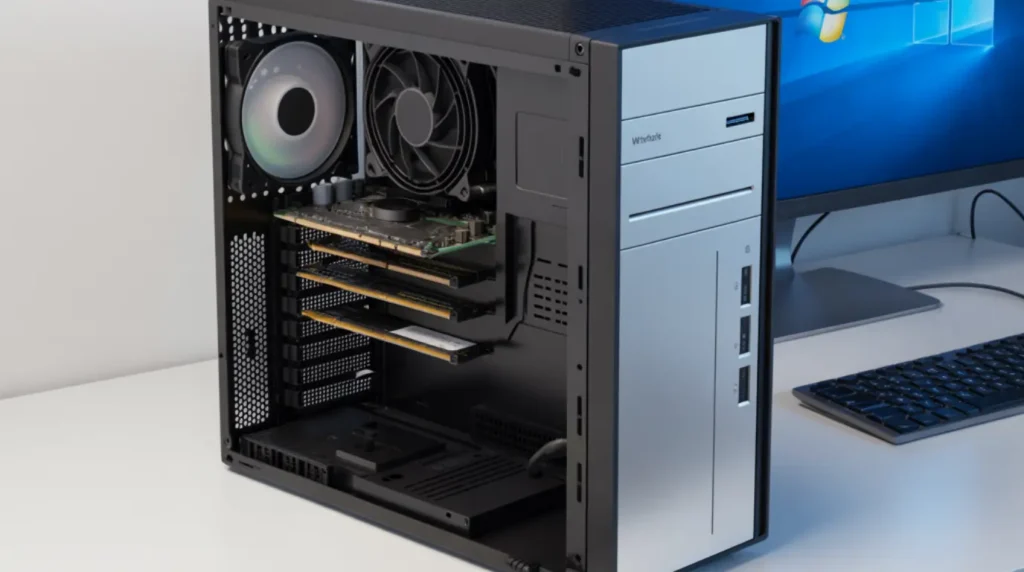
Windows writes changes to core system files during a shutdown or restart, and if a power failure or forced shutdown cuts that process short, the boot screen freeze begins on the very next startup. The operating system tries to load files that are incomplete or partially overwritten and stalls at the logo because it cannot move forward. The clearest sign this is your cause is that the freeze started right after Windows downloaded updates overnight.
If your situation matches this, our detailed guide on fixing the Windows Update white screen stuck problem covers the same update-corruption recovery steps and applies directly here.
Windows Fast Startup Conflicting with Your Hardware
Fast Startup is a Windows feature that saves a partial memory snapshot when you shut down to speed up the next boot, but when a driver or connected device changes between shutdowns, that saved snapshot no longer matches the current hardware state. Windows loads the old snapshot, finds a mismatch, and hangs at the loading screen because it cannot reconcile the two. The giveaway is that the freeze happens after a Shut Down but the computer boots fine after a Restart.
Corrupted System Files
Core Windows files can be damaged by a sudden power cut, a hard drive developing bad sectors, or a virus targeting operating system components. When the startup sequence calls these broken files and gets no response, your computer stays frozen at the boot screen waiting for something that can no longer load. If this is your cause, you may notice the freeze taking slightly longer with every attempt as the drive struggles harder each time.
RAM Not Seated Properly
Every startup begins with a memory check, and a RAM stick that has shifted slightly or is beginning to fail will prevent that check from completing, stopping the boot process before Windows ever appears. This is surprisingly common after a computer has been moved, transported, or cleaned with compressed air, and in many cases the hardware itself is fine and the stick just needs to be reseated. Listen for beep codes when you power on because those sounds are your motherboard flagging that memory was not detected.
Incorrect Boot Order in BIOS
Your BIOS contains a priority list telling your computer which drive to load the operating system from first, and if a forgotten USB drive or a newly added external disk sits at the top of that list, the system tries to boot from it, finds nothing useful, and freezes at the splash screen. This is one of the most commonly overlooked causes of a boot loop, especially after adding hardware or leaving a USB drive plugged in overnight. Removing all USB devices and restarting takes seconds and is enough to confirm or rule this out immediately.
How to Diagnose the Problem at Home
You do not need tools or technical experience for this part, and narrowing down the cause before touching any settings will save you significant time.
- Time to freeze. Start your computer and watch the clock. A freeze in the first ten to fifteen seconds points to hardware such as RAM or BIOS. A freeze after the Windows logo and spinning dots appear points to a software or update issue.
- Listen for beep codes. Pay attention to any sounds from inside the case the moment you power on. Repeated short beeps or one long beep mean the motherboard has flagged a memory problem before Windows even begins loading.
- Remove all connected devices. Unplug every USB drive, external hard drive, printer, and webcam, then restart. If the computer boots cleanly, one of those peripherals was causing the freeze.
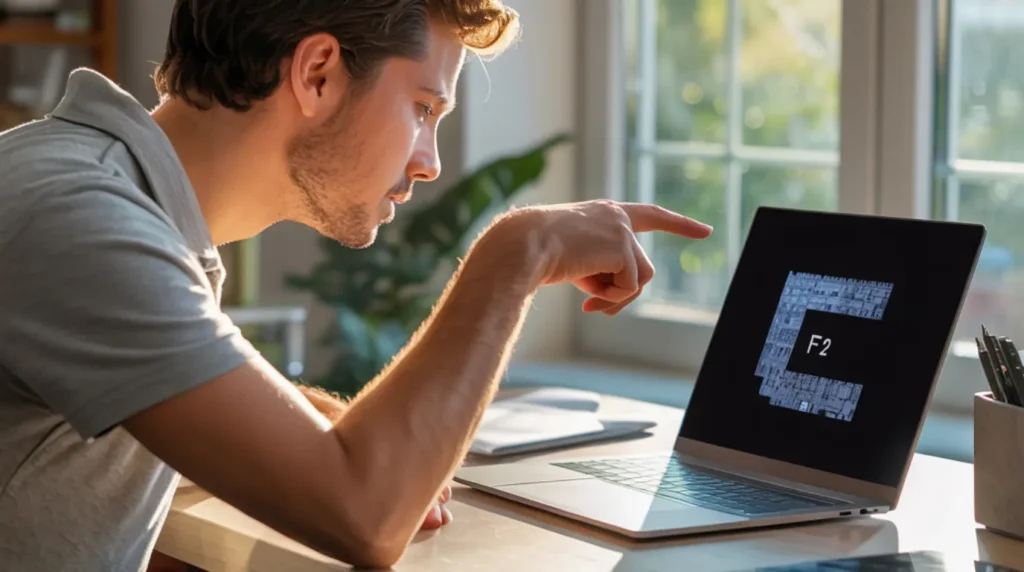
- Test BIOS access. Tap F2, F10, Delete, or Escape repeatedly the moment you press the power button. If you reach the BIOS menu but Windows will not load past the logo, your hardware is functional and the problem lives inside the operating system.
- Trigger the Windows Recovery Environment. Hold the power button for five seconds to force a shutdown, turn it back on, and repeat three times. On the fourth startup, Windows detects the repeated failures and automatically opens the recovery menu where most of the fixes below are found.
How to Fix a Computer Stuck on the Boot Screen
Disconnect Peripherals and Power Cycle | Free
- Hold the power button for ten seconds until the computer shuts off completely.
- Unplug every external device including USB drives, printers, external monitors on a laptop, and any connected storage.
- Remove the power cable from the wall and wait a full thirty seconds to drain residual charge from the components.
- Reconnect only the power cable and monitor, then turn the computer on.
- If it boots successfully, reconnect devices one at a time and restart between each until the freeze returns. The last device you added before the freeze came back is the cause.
This fix takes under two minutes and solves a large share of boot screen freezes caused by peripheral conflicts with the startup sequence.
Disable Windows Fast Startup | Free
- Use the forced restart cycle from the diagnosis section above to open the Windows Recovery Environment.
- Select Troubleshoot, then Advanced Options, then Command Prompt.
- Type powercfg /h off and press Enter, then close the Command Prompt window.
- Select Continue to attempt a normal boot into Windows.
- Once Windows loads, go to the Control Panel, Power Options, Choose What the Power Button Does, and uncheck Turn on Fast Startup to make the change permanent.
Disabling Fast Startup forces a complete clean boot every time, removing the hardware mismatch that causes this type of freeze for a significant number of users.
Run Windows Startup Repair | Free
- Open the Windows Recovery Environment using the three forced restarts method described above.
- Select Troubleshoot from the menu that appears.
- Choose Advanced Options and then select Startup Repair.
- Windows will automatically scan your boot files and repair any corrupted or missing entries. Allow up to fifteen minutes and do not interrupt the process.
- Restart when the repair finishes and allow Windows to load normally.
Startup Repair directly targets broken boot records and incomplete update installations, making it the most focused fix for a Windows loading screen stuck after a failed update.
Reseat Your RAM | Free
- Shut down and unplug the computer completely.
- Open the side panel on a desktop PC or the bottom access panel on a laptop.
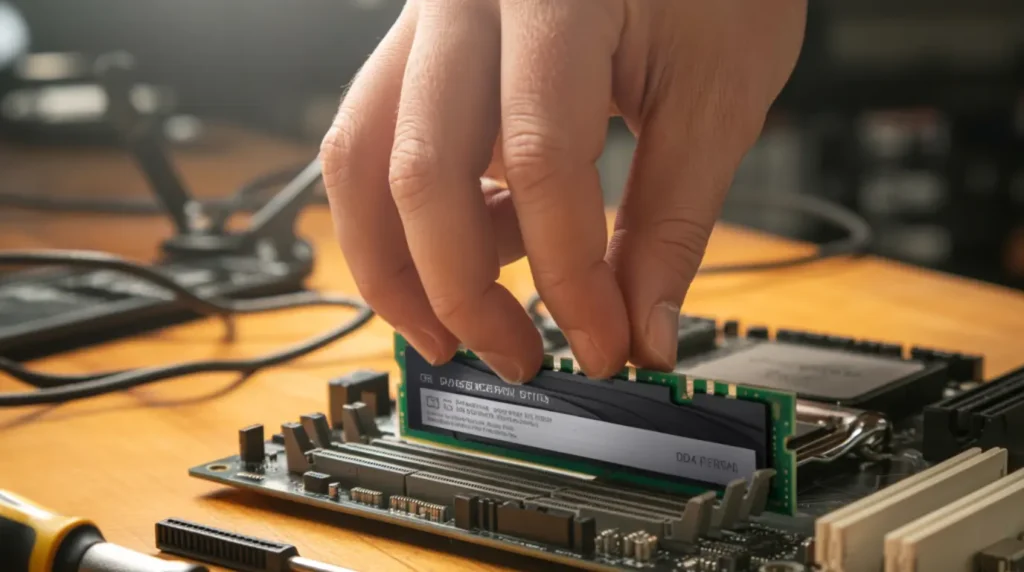
- Press the small release clips outward on both ends of each RAM slot until the stick pops up at an angle.
- Remove the stick, wait ten seconds, and press it firmly back into the slot until both clips snap into place with an audible click.
- If you have two sticks, try booting with just one installed at a time to identify whether a single faulty module is preventing startup.
Reseating RAM is one of the most overlooked fixes for a startup freeze, yet it has one of the highest success rates for computers that freeze before the Windows logo even appears.
Reset BIOS to Default Settings | Free
- Power on and immediately tap Delete, F2, or F10 repeatedly to enter the BIOS setup menu.
- Find an option called Load Setup Defaults or Load Optimized Defaults and confirm the selection.
- Navigate to the Boot or Boot Order section and confirm your primary SSD or hard drive is listed first, above any USB drives or optical drives.
- Press F10 to save and exit. Your computer will restart with corrected startup settings.
A BIOS reset also undoes any changes caused by power surges or a partial firmware update, both of which are documented causes of persistent boot screen freezes that no software repair tool can reach.
When to See a Professional
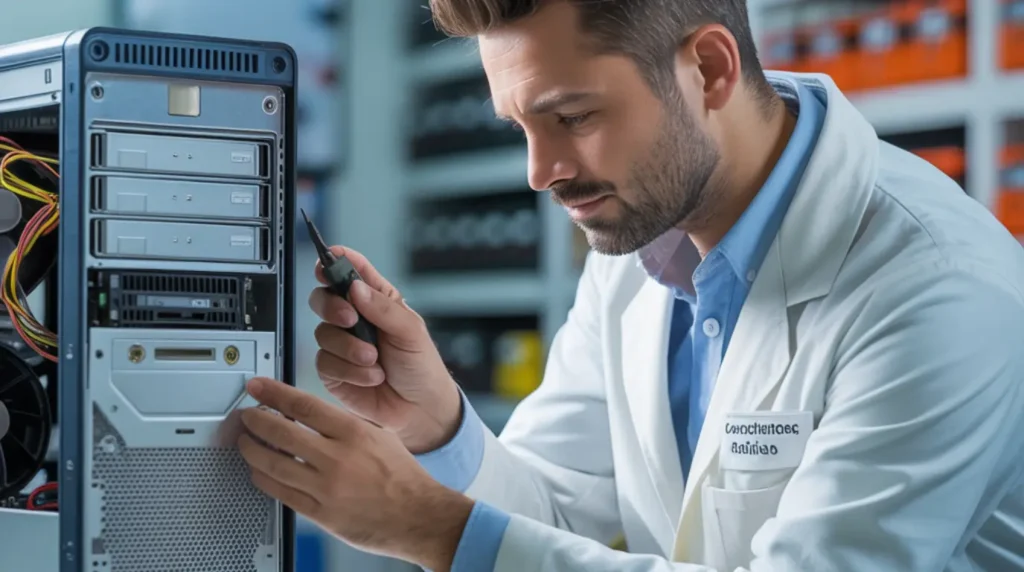
If none of the fixes above resolved the freeze, the problem is most likely a hardware fault. A failing hard drive, a dying SSD, or a damaged motherboard all produce the exact same boot screen freeze and cannot be repaired through software alone.
Bring your computer to a certified repair shop if the freeze appeared with no triggering event such as an update or a power cut, if you hear grinding or clicking from inside the case at startup, or if the screen freezes before you can even reach the BIOS menu. These are signs of physical drive damage, and continued power cycling at this stage can make data recovery significantly harder.
Before paying for any repair, check your manufacturer’s warranty status online. HP, Dell, Lenovo, and Apple all provide free diagnostic support for covered machines, and boot failures caused by a hardware defect are often repaired at no charge. Paid repairs outside warranty typically run $50 to $150 for a software fix and $150 to $400 if a drive or RAM replacement is needed. If your laptop also shows display problems alongside startup issues, our guide on Acer laptop screen flickering explains how display hardware faults can overlap with startup behavior on affected machines.
Prevention Tips
- Always allow Windows updates to finish completely before shutting down or closing your laptop lid, even when the process takes longer than expected.
- Use Restart instead of Shut Down at least once a week to bypass Fast Startup and force a full clean boot cycle.
- Unplug USB drives and external storage when they are not in use to prevent accidental boot order conflicts in BIOS.
- Connect your computer to a surge protector or battery backup unit to prevent sudden power cuts from corrupting system files mid-operation.
- Run a free SMART health diagnostic on your hard drive or SSD every three to four months using a tool like CrystalDiskInfo to catch early signs of drive failure before they cause a freeze.
- Keep your BIOS firmware updated through your manufacturer’s official website, since outdated firmware is a confirmed cause of startup freezes on systems running newer hardware.
Frequently Asked Questions

My computer is stuck on the boot screen and the keyboard is completely unresponsive. Is it dead?
Almost certainly not. The keyboard stops responding when the system freezes before it has finished initializing USB input, which is a software freeze state rather than hardware failure. Hold the power button for ten seconds to force a shutdown, wait thirty seconds, then restart and begin with the peripheral disconnect fix.
The spinning dots have been frozen for over twenty minutes but I can still hear the fans running. Should I keep waiting?
Do not wait longer than ten minutes once the dots have stopped moving entirely. The computer is genuinely frozen at that point and no amount of additional time will resolve a stuck loading screen. Force it off by holding the power button for ten seconds, then start with the power cycle fix.
My computer got stuck on the boot screen right after a Windows update. Are my files at risk?
Your files are almost certainly safe. A failed update corrupts the boot process but does not touch personal data stored on the drive. Windows Startup Repair and System Restore are both designed to fix the boot sequence while leaving your documents, photos, and programs completely intact.
How can I tell whether this is a hardware problem or a software problem before I try anything?
The quickest test is to enter BIOS by tapping F2 or Delete repeatedly at startup. If you reach the BIOS menu, your hardware is communicating normally and the fault is in the operating system or boot files. If the screen freezes before BIOS opens, or if you hear beep codes at power-on, the problem is hardware and a repair technician should run a proper diagnostic.
Editor Note screenproblems.com
- Reviewed for technical accuracy by the screenproblems.com editorial team.
- All fixes verified against current device software and firmware versions.
- Pricing reflects current market rates and may vary by region.
- This article will be updated whenever new fixes are confirmed.
- For unresolved issues visit the Contact Us page with your device details.
About the Author Ben, Founder of screenproblems.com
- Ben has 10 years diagnosing display hardware and software issues.
- All content is written from direct technical experience, not sourced from other websites.
- Ben always prioritizes free fixes before recommending any paid repair.