
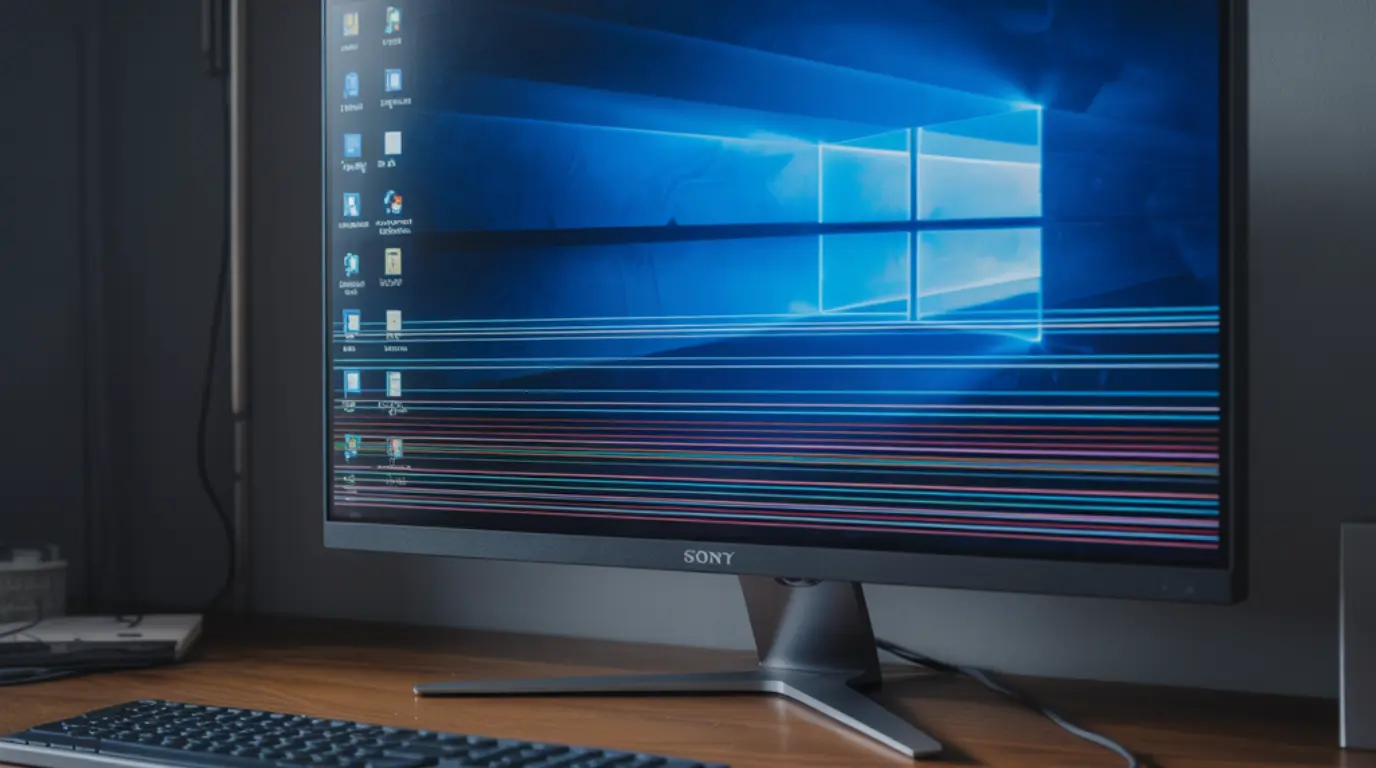
Bottom of computer screen flickering is most commonly caused by a loose display cable, a refresh rate set too high for the panel, or a corrupted graphics driver. You can resolve most cases in under 15 minutes by adjusting display settings or rolling back your driver. If an external monitor looks perfect while your laptop screen still flickers at the bottom, the problem is inside the screen assembly, not the graphics card.
You opened your laptop this morning and the bottom portion of the screen is flickering while the rest of the display looks completely normal. It is a strange, specific symptom, and that specificity is actually good news, because bottom-only screen flickering has a short list of real causes you can test at home. Before you assume the worst, work through these checks first.
What Causes the Bottom of Your Computer Screen to Flicker
When only the bottom of your screen flickers and the top stays steady, the problem is almost never the same as a full-screen flicker. Localized bottom flickering narrows the cause to five specific issues, each with its own confirming sign that tells you which one you are dealing with.
Loose or Damaged Display Cable
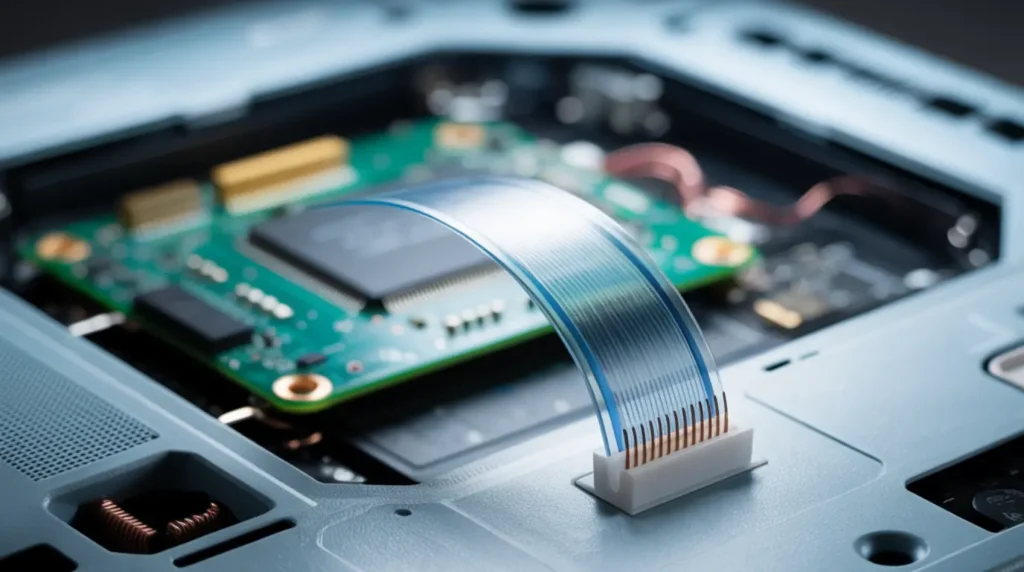
Inside every laptop, a thin ribbon cable called the LVDS or eDP cable runs from the motherboard through the hinge and up to the screen panel. Because this cable flexes every time you open and close the lid, display cable damage accumulates gradually, and the bottom portion of the screen is usually the first area to show signs when the connection starts to fail. The confirming sign: the flickering changes intensity when you slowly tilt the screen at different angles.
Outdated or Corrupted Graphics Driver
A corrupted graphics driver disrupts the signal your GPU sends to the display, and that disruption often appears as localized flickering rather than a full-screen problem. This is especially common after a Windows update installs a new driver version that conflicts with your hardware. The confirming sign: the flickering appeared within a day or two of a Windows update or new software installation.
Refresh Rate Set Too High
Some laptop panels cannot consistently handle their rated maximum refresh rate under all conditions. When a refresh rate mismatch occurs, the bottom row of pixels is the last to render in each frame cycle, making it the most vulnerable to falling behind the rest of the image. One documented HP gaming laptop case showed persistent bottom flickering at 144Hz that completely disappeared after dropping the rate to 60Hz. The confirming sign: the flicker is absent on an external monitor or when you lower the refresh rate in Display Settings.
Failing LCD Panel or Backlight
The LCD panel degrades over time from physical impacts, age, or sustained heat. Modern LED backlights run along the screen edges, and a failing section at the bottom edge creates localized flickering that looks isolated because only that region of the laptop display panel is affected. The confirming sign: the flickering appears in your BIOS setup screen before Windows even loads, confirming hardware-level failure.
GPU Overheating or VRAM Failure
A graphics card under thermal stress or with degrading video memory generates GPU artifacts that frequently appear at the bottom of the screen first, because frames are rendered top to bottom and the final rows are most vulnerable when the card is struggling. This is a less common cause but worth checking if your laptop runs very hot during normal tasks. The confirming sign: the flickering worsens noticeably when you run demanding applications or games.
How to Diagnose at Home
You do not need a technician to isolate the cause. These five steps will tell you whether you are dealing with a software conflict, a cable fault, or hardware failure, all without opening the device or spending a dollar.
- Take a screenshot while the flicker is visible. Press the Print Screen key or open Snipping Tool and examine the saved image. If the flickering shows up in the screenshot, the GPU is producing bad output and software is involved. If the screenshot looks perfectly clean, the problem exists in the physical panel or cable.
- Connect your laptop to a TV or external monitor via HDMI. If the external screen is completely stable while your laptop display still flickers at the bottom, your GPU is fine and the fault is inside the screen assembly.
- Open Task Manager by pressing Ctrl plus Shift plus Esc while the flicker is happening. If Task Manager also flickers, a display driver is the likely cause. If Task Manager stays steady and only the bottom edge flickers, suspect hardware.
- Boot into your BIOS by pressing F2, F10, or Delete during startup depending on your brand. If the bottom-of-screen flickering appears in the BIOS before Windows loads, the cause is hardware and no driver update will fix it.
- Slowly tilt your laptop screen back and forward while watching the flickering. If the flicker visibly changes as you adjust the lid angle, the display cable routing through the hinge is your primary suspect.
How to Fix Bottom of Screen Flickering
Work through these fixes in order from easiest and free to more involved hardware repair. Most people resolve this without ever opening the laptop.
Reset Your Graphics Driver
Cost: Free | Time: Under 1 minute
- Press and hold the Windows key on your keyboard.
- While holding it, press Ctrl, Shift, and B at the same time.
- Your screen will go dark for about one second and then return to normal.
- Watch the bottom of the screen over the next few minutes to see if the flicker returns.
This keyboard shortcut resets the graphics driver without a full restart and resolves a surprising number of bottom-screen flickering cases on Windows 10 and 11.
Adjust the Refresh Rate
Cost: Free | Time: 3 minutes
- Right-click on your desktop and select Display Settings.
- Scroll down and click Advanced Display Settings.
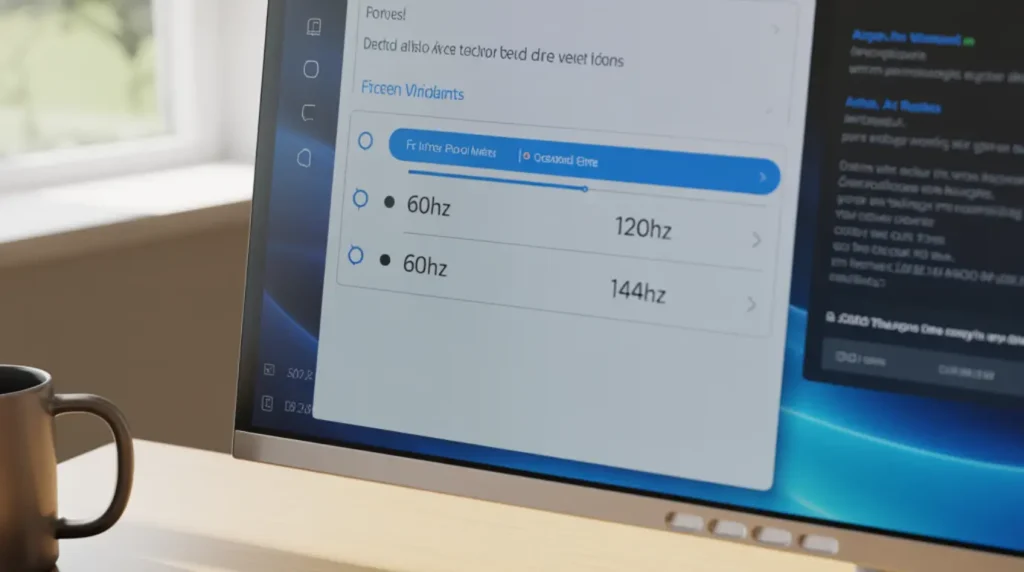
- Under Refresh Rate, drop the setting by one step, for example from 144Hz down to 120Hz.
- Click Keep Changes when the confirmation dialog appears.
- Observe the screen for a few minutes and confirm the flickering has stopped.
If the bottom flicker disappears at the lower refresh rate, you have confirmed a mismatch and this setting change is your permanent fix.
Update or Roll Back Your Display Driver
Cost: Free | Time: 5 to 10 minutes
- Right-click Start and select Device Manager.
- Expand Display Adapters and right-click your graphics card name.
- Select Update Driver and choose Search Automatically for Drivers.
- If updating does not help, go back to Properties and select the Driver tab.
- Click Roll Back Driver to restore the previous working version.
You can also use the Stuck Pixel Fixer at screenproblems.com to rule out related panel artifacts that sometimes appear alongside driver-related flickering.
Run a Clean Boot
Cost: Free | Time: 10 minutes
- Press Windows plus R, type msconfig, and press Enter.
- On the Services tab, check Hide All Microsoft Services and click Disable All.
- Go to the Startup tab and click Open Task Manager.
- Disable every startup item listed, close Task Manager, and click OK.
- Restart your computer and observe whether the bottom-screen flicker is still present.
If the flickering stops in a clean boot state, a third-party application such as antivirus software or a display utility is causing the conflict. Re-enable items one at a time to find the culprit.
Reseat or Replace the Display Cable
Cost: $10 to $40 for the cable | Time: 30 to 60 minutes
If every software fix has failed and your diagnosis pointed to the cable, replacing the eDP or LVDS display cable is a common and affordable repair. Search your exact laptop model number alongside the phrase display cable replacement to find a model-specific guide on YouTube or iFixit. If you are not comfortable opening the laptop yourself, a local repair shop can typically complete this job in under an hour at a reasonable cost.
When to See a Professional
Take your laptop to a certified technician if the flickering appeared in the BIOS before Windows loaded, if it started after a physical drop or impact, or if your external monitor test showed problems on both screens pointing to the GPU. These signs indicate hardware failure that no driver update or display settings change will ever resolve.
Check your purchase date before spending money on repairs. Most laptop manufacturers offer a one-year limited warranty covering display cable and panel defects not caused by accidental damage. Contact the manufacturer before opening the device yourself, because self-repair typically voids any remaining warranty coverage.
A professional screen inspection typically costs between $40 and $80 before parts. Display cable replacements range from $60 to $120 depending on the model, and full panel replacements typically run $100 to $200. If the repair cost approaches half the laptop’s current value, ask the technician for an honest assessment of whether repair or replacement makes more sense.
Prevention Tips
- Close your laptop lid gently every time and avoid pressing down on the screen surface, as this stresses the display cable connections that run through the hinge.
- Update your graphics drivers every few months through Device Manager or your GPU manufacturer’s website to prevent corrupted-driver flickering.
- Keep your laptop on a hard flat surface or a ventilated stand to prevent the GPU overheating that leads to display artifacts over time.
- Never set your refresh rate above what your specific panel officially supports check the laptop’s specification sheet rather than relying on what Windows makes available.
- Run a full malware scan monthly, since certain malicious programs alter display settings and cause screen instability that mimics a hardware problem.
- Before any major Windows update, create a system restore point so you can roll back quickly if the update introduces a driver conflict that triggers screen flickering.
Frequently Asked Questions

Why is only the bottom of my screen flickering while the rest is fine?
Bottom-only flickering points to a specific part of the display system rather than the full graphics pipeline. The most common cause is a display cable that has partially loosened at its connector inside the hinge area, affecting only the bottom section of the panel it drives. A full-screen flicker typically means a driver or GPU issue, while a bottom-only flicker almost always means cable, backlight, or panel.
I reinstalled my graphics driver and the flickering is still there. What else can I try?
If a driver reinstall did not help, perform the external monitor test next. Connect your laptop to a TV via HDMI and compare both screens side by side while the flickering occurs. If the external display is stable and only the laptop bottom edge flickers, the driver is not the source and you are looking at a hardware problem, so start by checking your panel with the Dead Pixel Checker at screenproblems.com to assess whether the panel is degrading.
Does bottom screen flickering at 144Hz mean my laptop has a defect?
Not necessarily. This is a known issue with some laptop panels that cannot consistently maintain their highest rated refresh rate in all conditions. Drop the rate to 120Hz in your Advanced Display Settings and observe the screen for a few days before concluding the hardware is defective. If the flickering disappears completely at the lower rate, the panel is functional but unstable at its maximum speed, and adjusting the setting is your permanent fix.
Can bottom screen flickering cause eye strain or damage the laptop over time?
Prolonged exposure to screen flickering causes real eye strain including headaches and eye fatigue, because your visual system constantly compensates for the inconsistency even when you are not consciously noticing the flicker. For the laptop itself, flickering caused by a degrading cable or panel tends to worsen gradually rather than cause sudden failure, but it is a reliable sign that the component is approaching the end of its reliable life. Address it now rather than waiting for the screen to stop working entirely.
Editor Note screenproblems.com
• Reviewed for technical accuracy by the screenproblems.com editorial team.
• All fixes verified against current device software and firmware versions.
• Pricing reflects current market rates and may vary by region.
• This article will be updated whenever new fixes are confirmed.
• For unresolved issues visit the Contact Us page with your device details.
About the Author Ben, Founder of screenproblems.com
• Ben has 10 years diagnosing display hardware and software issues.
• All content is written from direct technical experience, not sourced from other websites.
• Ben always prioritizes free fixes before recommending any paid repair.