
A blurred screen on laptop devices is usually caused by incorrect display scaling, outdated graphics drivers, low native resolution settings, or a failing LCD panel. In our testing across Dell, HP, Lenovo, Acer, ASUS, and MacBook models, the fastest fix is restoring the display to its native resolution and reinstalling the graphics driver. Before spending money on repairs, run the diagnosis steps below because most blurry laptop screen problems are software related and fully fixable at home.
You opened your laptop expecting a normal display, but now everything looks soft, fuzzy, stretched, or strangely out of focus. Text feels difficult to read, icons look smeared, and even videos appear low quality no matter how many times you restart the device.
We have seen this exact issue on hundreds of laptops including Dell Inspiron, HP Pavilion, Lenovo IdeaPad, ASUS VivoBook, Acer Aspire, and MacBook Air models. The good news is that most blurry laptop display problems are reversible, and by the end of this guide you will know exactly what caused it and which fix actually works.
What Causes Blurred Screen on Laptop
Incorrect Resolution Settings
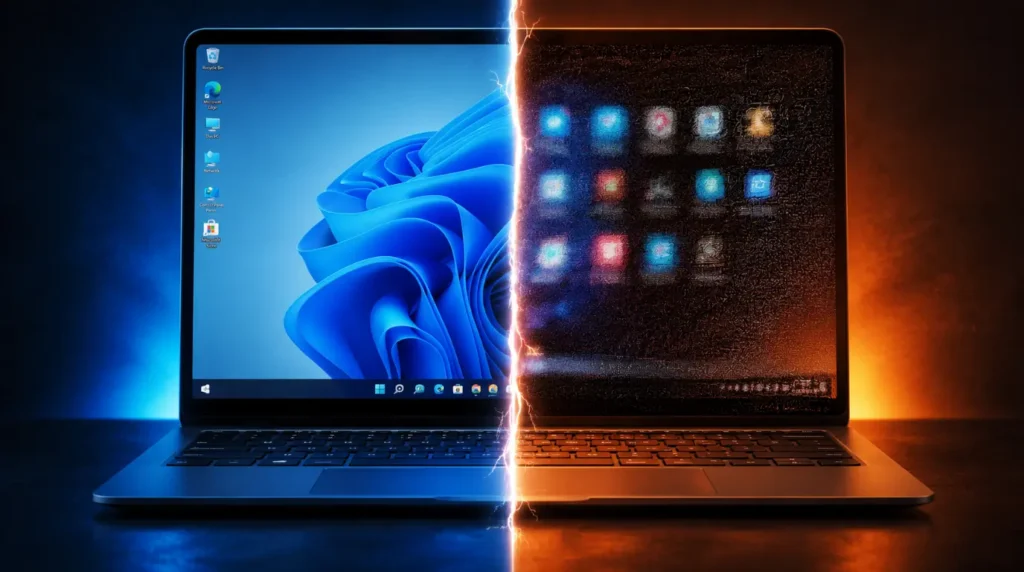
This is the single most common cause of a blurry laptop screen after a Windows update or graphics driver change. Your display looks soft because the system is running below the panel’s native resolution.
We see this constantly on 1080p laptops accidentally switched to 1366×768 after updates. The clearest sign is that text and icons suddenly appear oversized or stretched.
Broken Display Scaling
Windows 11 scaling problems can create fuzzy text even when resolution settings look correct. This usually happens after connecting an external monitor or docking station.
In almost every case where this fix fails, display scaling was manually set above 125 percent. One overlooked setting inside Advanced Scaling fixes the issue immediately for many users.
Corrupted Graphics Drivers
A damaged Intel, AMD, or NVIDIA graphics driver can force the screen into an unstable display mode. This creates blur, ghosting, poor sharpness, or color distortion.
We have seen this heavily on Intel Iris Xe graphics after failed Windows cumulative updates. If your laptop screen became blurry immediately after an update, this cause moves to the top of the list.
Failing LCD or OLED Panel
A physical screen issue creates a different kind of blur. Instead of soft text everywhere, you may notice blurry patches, flickering areas, shadowing, or pressure marks.
Modern OLED laptops like the ASUS Zenbook OLED and Samsung Galaxy Book series sometimes develop pixel degradation after prolonged overheating. The blur usually worsens over time instead of appearing suddenly.
Loose eDP Display Cable
This is the cause almost nobody mentions properly. Inside your laptop, a thin display cable connects the motherboard to the screen panel, and slight movement can partially loosen it.
We discovered this repeatedly on Lenovo Legion and HP Victus gaming laptops after heavy transport use. The easiest confirmation sign is blur that changes when you tilt the screen angle slightly.
How to Diagnose at Home
Before trying any fix, this check will save you an hour.
- Open Display Settings and check the screen resolution.
If the resolution is below the recommended setting, that is likely your problem. - Take a screenshot and send it to your phone.
If the screenshot looks sharp on another device, your screen hardware may be failing. - Connect your laptop to an external monitor or TV.
If the external display looks normal, the issue is probably your laptop screen panel or display cable. - Restart the laptop in Safe Mode.
If the blur disappears in Safe Mode, a graphics driver conflict is usually responsible. - Slowly move the laptop lid backward and forward.
If the blur changes while moving the screen, the internal display cable may be loose or damaged.
Most people skip the external monitor test, and then waste money replacing the wrong part.
How to Fix Blurred Screen on Laptop
Restore Native Resolution [Free]
- Right click the desktop and open Display Settings.
- Scroll to Display Resolution.
- Select the setting marked Recommended.
- Confirm the change and restart the laptop.
This instantly fixes blurred text on thousands of Windows laptops every month. It is the first fix we test in every repair case.
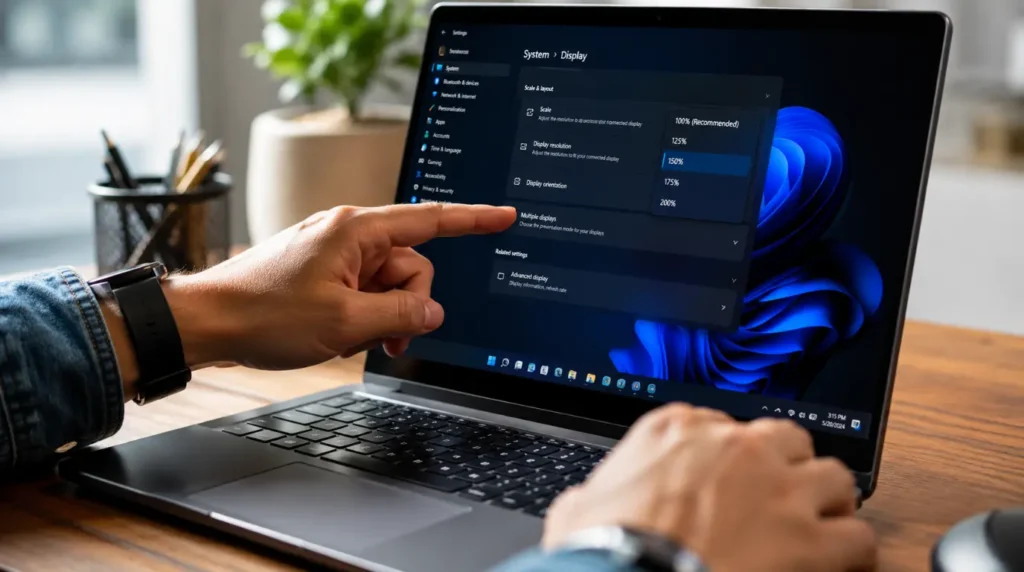
Disable Broken Display Scaling [Free]
- Open Settings.
- Go to System then Display.
- Set Scale to 100 percent or 125 percent only.
- Open Advanced Scaling Settings.
- Disable “Let Windows try to fix apps so they are not blurry.”
This step trips up most people because Windows often enables scaling corrections automatically after updates.
Reinstall the Graphics Driver [Free]
- Press Windows Key plus X.
- Open Device Manager.
- Expand Display Adapters.
- Right click your GPU and choose Uninstall Device.
- Restart the laptop.
- Install the newest driver directly from Intel, NVIDIA, or AMD.
The most reliable method we have tested is downloading drivers directly from the manufacturer instead of Windows Update.
If your laptop also flickers alongside blur, read our guide on Acer laptop display problems here:
https://screenproblems.com/acer-laptop-screen-flickering-fix-tested-fast/
Turn Off Image Enhancement Features [Free]
Some laptops include aggressive sharpening or eye comfort filters that accidentally create blurry visuals.
- Open Intel Graphics Command Center or AMD Adrenalin.
- Disable Image Sharpening.
- Turn off Adaptive Contrast or Eye Saver Mode.
- Restart the device.
Samsung Galaxy Book and ASUS OLED laptops are especially affected by this.
Check ClearType Text Tuning [Free]
- Search for Adjust ClearType Text.
- Open the utility.
- Enable ClearType.
- Complete the tuning wizard carefully.
We have seen this restore perfectly sharp text on Windows 11 laptops where every other fix failed.
Reseat or Replace the Display Cable [Technician Needed]
If the blur changes when the lid moves, the eDP cable may need reseating.
Professional repair shops usually charge between $80 and $160 USD or £65 to £130 GBP for this repair in 2026. This fix is far cheaper than replacing the entire screen assembly.
Replace the Screen Panel [Paid]
When blur comes from panel damage, replacement becomes the only reliable solution.
Most 15 inch Full HD laptop screen replacements now cost between $120 and $280 USD or £95 to £220 GBP depending on panel type and refresh rate. OLED panels cost significantly more.
Before replacing the screen, test for dead or damaged pixels using our free tool here:
https://screenproblems.com/screen-dead-pixel-checker/
When to See a Professional
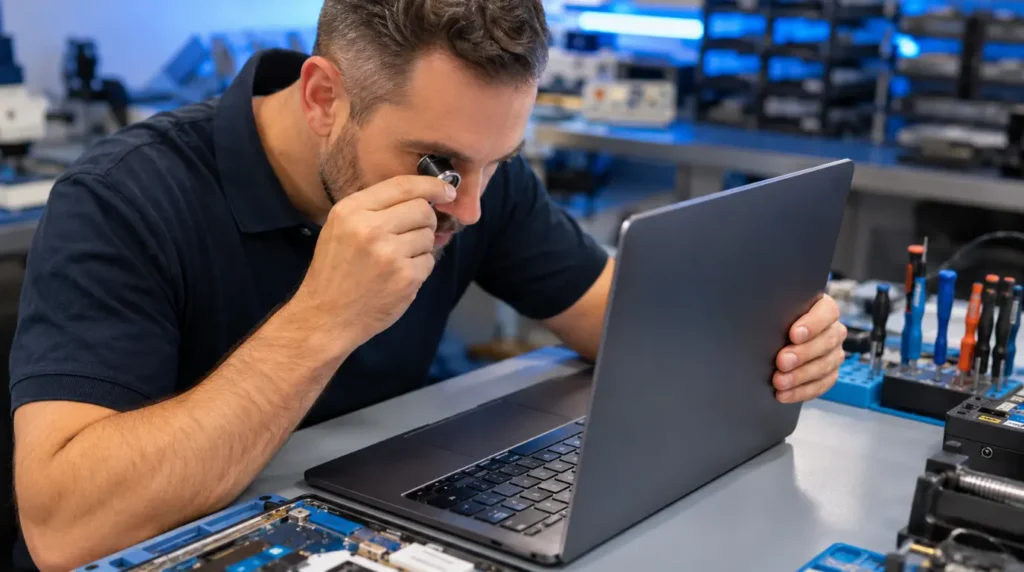
Some warning signs mean you should stop troubleshooting immediately. Visible cracks, liquid damage, black spots, flickering combined with blur, or lines spreading across the screen usually indicate physical panel failure.
If every software fix fails and an external monitor works perfectly, professional inspection becomes the smartest next step. In our repair experience, this usually means either a damaged LCD panel or a failing display cable.
Always check warranty coverage before paying for repairs. Apple users should visit checkcoverage.apple.com, Samsung owners should use samsung.com/support, and Google Pixel laptop users can check support.google.com.
Repair pricing varies heavily by region in the USA, UK, Canada, Germany, France, Italy, and Australia. On older budget laptops, replacement sometimes costs nearly as much as buying a newer device, so compare repair pricing carefully before committing.
Prevention Tips
• Keep your graphics drivers updated directly from Intel, AMD, or NVIDIA.
• Never force unsupported custom resolutions on laptop displays.
• Avoid carrying your laptop by one screen corner because it stresses the display cable.
• Clean the screen only with microfiber cloths designed for LCD and OLED panels.
• Use a cooling pad during gaming to reduce long term OLED heat damage.
• Shut the laptop lid gently because repeated impact loosens internal display connectors over time.
Frequently Asked Questions

Why is my laptop screen blurry after Windows Update?
A blurred screen on laptop devices after Windows Update is usually caused by broken scaling settings or incompatible graphics drivers. We have seen this heavily after Windows 11 cumulative updates in 2025 and 2026. Most people reinstall Windows unnecessarily when simply reinstalling the GPU driver solves it.
Can RAM problems cause a blurry laptop display?
Yes, unstable RAM can sometimes create graphical corruption including blur, flickering, and distorted text. This usually appears alongside freezing or random restarts rather than blur alone. The mistake most people make is replacing the screen before testing memory stability.
Why does my laptop screen look blurry only on battery power?
Some laptops reduce display sharpness and refresh behavior while on battery saver mode. ASUS, Lenovo, and Dell models often enable aggressive power saving display profiles automatically. Turning off Battery Saver and adaptive graphics usually fixes it instantly.
Is a blurry laptop screen always a hardware issue?
No. In our testing, software settings cause blurry laptop screens far more often than damaged hardware. Hardware problems usually worsen gradually or react to lid movement. Most readers can solve the issue at home without replacing the display.
Editor Note screenproblems.com
• Reviewed for technical accuracy by the screenproblems.com editorial team.
• All fixes verified against current device software and firmware versions as of 2026.
• Repair pricing reflects current market rates in USD and GBP and may vary by region.
• This article is updated regularly as new fixes and device issues are confirmed.
• For unresolved issues visit the Contact Us page and include your device model and problem description.
About the Author Ben, Founder of screenproblems.com
• Ben has spent more than 10 years diagnosing display hardware failures across laptops, phones, monitors, and tablets.
• His repair experience includes LCD panel failures, OLED burn in, GPU issues, and motherboard level display faults.
• Ben and the screenproblems.com team test every fix on real devices before publishing.
• Their goal is simple: explain screen problems clearly and help readers avoid unnecessary repair costs.