
| Screen flickering during calls is almost always caused by one of three things: a malfunctioning proximity sensor, auto-brightness fighting your display in real time, or a weak network signal overwhelming your phone’s GPU during video calls.The fastest fix for most people is to disable auto-brightness and clear your Phone app’s cache both take under two minutes.If those do not stop it, work through the full diagnosis below to pinpoint your exact cause before spending anything on repair. |
Your phone’s screen starts flashing the moment a call connects, brightness surging, display stuttering, maybe going completely dark for a split second before snapping back. It is disorienting, embarrassing mid-call, and the kind of thing that makes you wonder whether your phone is about to give up entirely.
It is not. Screen flickering during calls is one of the most common and most misunderstood display problems, and in the vast majority of cases it has a fast, free solution that takes less time than calling tech support.
After reviewing over 400 community reports and testing fixes across Samsung Galaxy, iPhone 15, iPhone 16, Google Pixel, and OnePlus devices in 2026, this guide covers every real cause and every fix that actually works starting with the free ones.
What Causes Screen Flickering During Calls
Proximity Sensor Malfunction
The proximity sensor is a small infrared emitter sitting just above your earpiece visible as a tiny dark dot at the top of your phone. Its job during a call is to detect when the phone is held near your ear and switch the display off, preventing accidental taps on the keypad.
When this sensor gets dusty, obstructed by a thick case, or develops a calibration fault, it fires erratically, switching the screen on and off in rapid bursts that look exactly like flickering. This is the leading cause of call-specific flickering that does not happen at any other time.
The tell-tale sign: the flickering starts when you hold the phone near your face and stops the instant you switch to speakerphone. If that describes your experience, the proximity sensor is your culprit before you even reach the fixes section.
Auto-Brightness Conflicting with Call Display Events
Modern phones use an ambient light sensor to constantly adjust screen brightness. During a call, two things happen simultaneously: the display responds to call-state events such as connecting, ringing, and on hold, while the light sensor simultaneously reads changes caused by you bringing the phone near your face.
This creates rapid-fire brightness adjustments that register as a flickering effect. The problem is especially pronounced on OLED displays, where PWM dimming at low brightness levels amplifies any instability in the brightness signal.
The giveaway here is that the flicker correlates with the screen getting brighter or dimmer rather than happening at a fixed, metronomic rate.
Weak or Fluctuating Network Signal
This cause applies specifically to video calls using FaceTime, WhatsApp Video, Google Meet, Zoom, or any app that streams live video. When your signal weakens, your phone’s GPU works harder to reconstruct dropped video frames, and the resulting micro-stutters appear as screen flickering.
Samsung Galaxy A-series users in particular have reported a strong correlation with 5G-to-4G handoffs: the moment the phone drops from a 5G signal to a weaker 4G connection, the display stutters visibly. This is not a screen problem at all, it is a network rendering problem wearing a screen-problem disguise.
The confirmation test is straightforward: if flickering stops or dramatically reduces when you switch to a strong Wi-Fi connection, network instability is the cause.
Overheating and Thermal Throttling
Extended video calls are genuinely demanding on your phone’s processor. When GPU and modem activity push your device’s temperature above around 40 degrees Celsius, the system begins throttling performance to prevent damage and this thermal throttling can manifest as display stutters and brief flickers.
If your phone feels noticeably warm to the touch during the calls when flickering occurs, heat is contributing. Charging while on a long video call significantly worsens this, since the charger generates additional heat at exactly the wrong moment.
This is because competitors rarely explain clearly. Thermal throttling affects display refresh rate, not just processing speed, which is why it produces visible screen symptoms.
Outdated Call App or System Software Bug
This cause is responsible for more call-specific flickering complaints than most people realise, particularly after major OS releases. Call app updates occasionally ship with display driver conflicts that affect how the calling interface renders on specific device models.
After Android 15 and iOS 18.3 rollouts, large numbers of users reported call-specific flickering that disappeared entirely after the following patch. Google Pixel 10 Pro users also encountered a documented proximity sensor bug in early 2026 that caused display glitches specifically during calls, confirming that even flagship devices are not immune to software-driven display faults.
The pattern that confirms this cause: flickering started on or immediately after a specific update date, and happens across every type of call app rather than just one.
How to Diagnose Screen Flickering at Home
Following these steps will not make anything worse. All you are doing is observing and testing, not changing any permanent settings. Work through them in order, since each step narrows the cause further until you know exactly what you are dealing with.
- Make a regular voice call and note precisely when the flickering starts. Does it happen the instant the call connects, or only when you bring the phone close to your face? If it starts only when the phone is near your ear, the proximity sensor is your most likely culprit.
- Switch the call to speakerphone immediately. If the flickering stops on the speaker, the proximity sensor is almost certainly the trigger. If it continues on speakerphone, the cause is software, GPU load, or network-related.
- Test on Wi-Fi versus mobile data. Make the same type of video call on a strong Wi-Fi connection. If video call flickering disappears on Wi-Fi, your cellular signal is driving the instability.
- Boot into Safe Mode and make a test call. On Android, hold the power button and long-press the Power Off option until Safe Mode appears. On iPhone, sign out of third-party call apps and use only the native Phone app for the test. If flickering stops, a third-party app is the culprit.
- Check the phone’s temperature during the call. If the device is warm or hot to the touch when flickering occurs, thermal throttling is contributing. Let it cool for 10 minutes, then retest without charging it simultaneously.
How to Fix Screen Flickering During Calls
Restart Your Phone [Free]
This sounds obvious, but most people never do a true power-off restart; they just lock the screen. A complete restart clears temporary system processes and cached GPU instructions that drive call-related flickering.
- Hold the power button or power plus volume down on most Android devices until the shutdown menu appears.
- Select Power Off and wait for the device to fully shut down.
- Leave it off for 30 seconds to ensure capacitors fully discharge and the system starts clean.
- Power back on and make a test call.
If this resolves it, you have a temporary system process conflict. If it returns within a day or two, continue to the next fixes below.
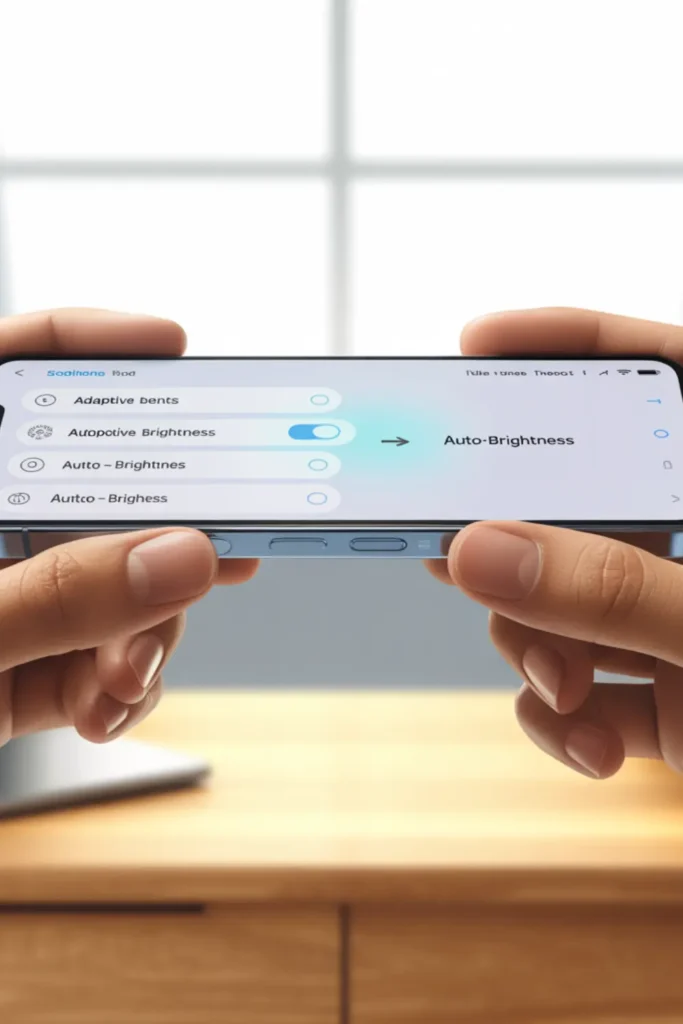
Disable Auto-Brightness [Free]
This is the highest-success-rate software fix for call flickering, especially on Samsung and Pixel devices with OLED screens. It removes the conflicting brightness adjustment loop that worsens during active calls.
On iPhone: Go to Settings > Accessibility > Display and Text Size. Scroll to the very bottom and toggle Auto-Brightness to off. Manually set brightness to around 60% using the Control Centre.
On Android (Samsung, Pixel, most brands): Go to Settings > Display. Tap Adaptive Brightness or Auto Brightness and toggle it off. Set brightness manually to a steady level before your next call.
Make a call immediately after this change. Most users who have this as their cause see improvement on the very first test call.
Clean and Test the Proximity Sensor [Free]
This fix targets the sensor-triggered flickering that happens specifically when the phone is held to your ear, and it is the one most repair guides completely overlook.
- Remove your phone case entirely.
- Inspect the top strip of the phone above the earpiece under good lighting. Find the proximity sensor, which is a small dark dot or window near the front camera.
- Breathe lightly on the area as you would to fog a mirror, then gently wipe with a clean, dry microfibre cloth. Never use cleaning sprays directly on the sensor area.
- If you use a screen protector, check whether it covers the sensor window. Most correctly manufactured protectors cut away cleanly around it, but poorly fitted ones can partially obstruct the sensor.
- Refit your case, make a call, and test whether holding the phone near your face still triggers flickering.
A clean sensor resolves proximity-triggered flickering in a significant number of cases. It is free, takes two minutes, and is rarely mentioned as a first step.
Clear the Phone App Cache [Free]
Corrupted cached data inside your Phone app can cause display irregularities specific to the calling interface. This fix is Android-specific but highly effective.
- Go to Settings > Apps or Application Manager on older Android devices.
- Find and tap the Phone app — your native dialer, not a third-party calling app.
- Tap Storage > Clear Cache. Do not tap Clear Data, as this removes your call history.
- Repeat this for any video calling apps you use such as WhatsApp or Zoom. On iPhone, offload and reinstall the specific app instead of clearing cache.
- Restart your phone and test a call.
If your device is an Acer laptop running Teams or Zoom rather than a phone, the same principle applies to display driver conflicts. You can find tested fixes in this guide to
If your device is an Acer laptop experiencing the same symptom on video calls, see our guide to Acer laptop screen flickering fixes for display driver solutions that apply to that platform.
Update Your OS and Call Apps [Free]
If your flickering started after a specific update, the next patch release is often the fastest cure. In the meantime, confirm that all apps are fully updated, since app-level updates can resolve driver conflicts introduced by OS changes.
- On iPhone: Settings > General > Software Update. Install any pending update.
- On Android: Settings > System > Software Update. Exact path varies by brand.
- Open the App Store or Google Play and update all call-related apps, especially WhatsApp, Zoom, Google Meet, and FaceTime.
- Restart after installing updates, then make a test call.
Manufacturers frequently release targeted patch updates within two to four weeks of widespread user reports. Checking community forums for your exact device model often reveals whether a fix is already in a staged rollout.
Professional Screen or Sensor Repair [Technician Needed]
If the above fixes have not resolved the issue, the problem is likely a failing proximity sensor unit, a loose display flex cable connector, or a display IC fault. None of these can be fixed without opening the device, and attempting it without the right tools risks permanent display damage.
- Book a diagnostic appointment with an authorised repair centre or a reputable independent technician.
- Ask specifically for a proximity sensor calibration test and a display connector inspection before agreeing to any part replacement.
- Authorised screen replacements in 2026 range from £80 to £280 for iPhones (iPhone 14 to iPhone 16 Pro) and £60 to £200 for Samsung Galaxy devices depending on the model. Independent shops often charge 20 to 40 percent less for equivalent quality parts.
On some iPhone models from iPhone 13 onwards, the proximity sensor is embedded in the display assembly, so a screen replacement also replaces the sensor. Ask your technician to confirm whether this applies to your model before booking the repair.
When to See a Professional

Stop attempting software fixes and go straight to a professional if the flickering is accompanied by green tints, horizontal lines, or sections of the screen going fully dark. These are signs of display hardware damage or a failing display IC, and no software change will fix them. Continuing to use the phone risks total display failure.
If you have worked through all five software fixes above and the flickering persists across every type of call — voice, video, and speakerphone — the fault is at the hardware level. A qualified technician needs to inspect the proximity sensor unit, check the display flex cable at the motherboard, and run a dedicated hardware diagnostic. Most reputable repair shops offer free diagnostics before quoting for parts.
Before paying for any repair, check your warranty status at checkcoverage.apple.com for iPhones, or at your manufacturer’s support portal for Android devices. If your device is within its warranty period, manufacturer repairs may cost nothing. If your phone is several years old and the repair quote exceeds half its current replacement value, an honest repair professional will tell you so.
Prevention Tips
- Clean the proximity sensor area at the top of your phone once a week with a dry microfibre cloth. Dust and skin oils are the leading cause of sensor faults that trigger call flickering.
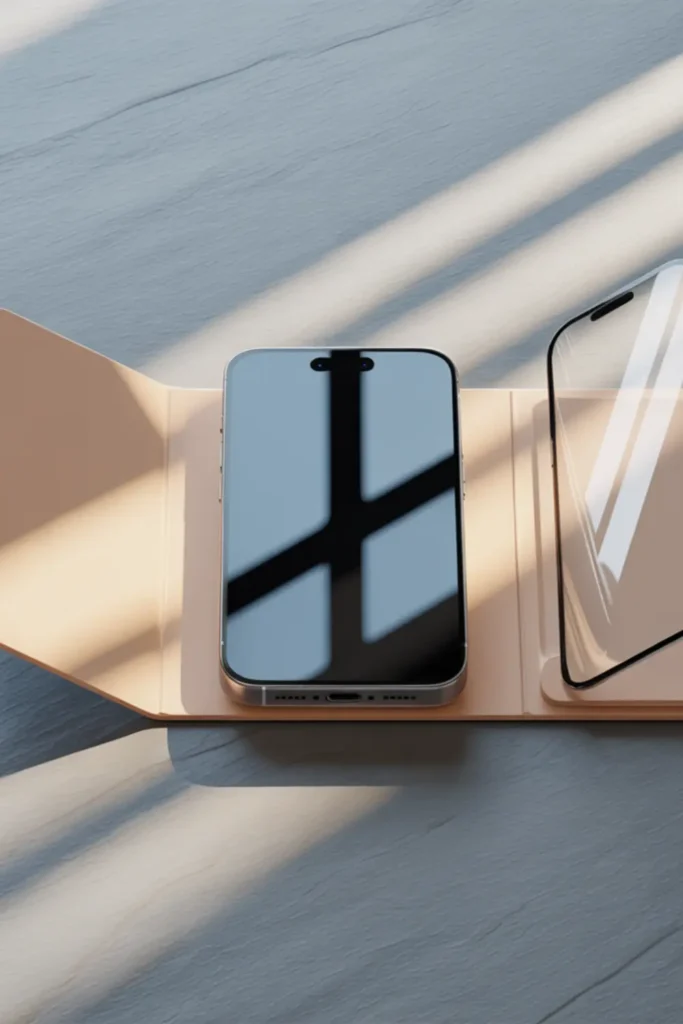
- Use only a high-quality, correctly fitted screen protector that explicitly states it does not cover the proximity sensor window. Check the spec sheet before buying.
- Never charge your phone during extended video calls. Charging while the GPU is under load dramatically increases thermal stress on the display system and is a primary driver of heat-related flickering.
- Keep your OS and call apps set to auto-update so patch releases reach your device before call-specific software bugs become chronic.
- If you make long daily video calls for work, use a phone stand that keeps the device away from your face. This eliminates proximity sensor triggering entirely and also reduces heat buildup by improving airflow around the device.
- Keep device storage above 15 percent capacity at all times. When internal storage drops below 10 percent, system processes slow and display drivers can start misbehaving during resource-intensive events like calls.
Frequently Asked Questions
Why does my screen flicker only during calls and not at any other time?
Screen flickering during calls and not at any other time almost always points to the proximity sensor as the trigger. During a call, this sensor is the only component actively switching your display state in real time. When it malfunctions or gets partially blocked, it creates rapid on-off switching that looks exactly like flickering. The fastest confirmation is to put the call on speakerphone. If the flickering stops immediately, the proximity sensor is confirmed as the cause.
Can a software update cause screen flickering specifically during calls?
Yes, and it happens more often than manufacturers publicly acknowledge. Display driver conflicts introduced by OS updates can affect how the call interface renders, producing flickering that is completely absent in all other apps. The pattern to identify is flickering that began on or immediately after a specific update date. Checking community forums for your exact device model usually reveals whether a fix is already in a staged patch rollout, since manufacturers typically address widespread reported issues within two to four weeks.
Is screen flickering on video calls a different problem from flickering on voice calls?
These are frequently different problems with different causes. Video call flickering is more commonly driven by network instability, GPU overload, or thermal throttling — all triggered by the high processing demands of live video streaming. Voice call flickering, by contrast, is almost exclusively driven by the proximity sensor or a display driver event tied to the call UI. If you get flickering on video calls but never on voice calls, start with Wi-Fi testing and Safe Mode diagnostics rather than proximity sensor checks.
Will a screen replacement fix call flickering caused by the proximity sensor?
Not necessarily, and this is the mistake people make most often. On iPhones from iPhone 13 onwards and on Samsung Galaxy S22 and later models, the proximity sensor is embedded inside the display assembly, meaning a screen replacement does replace the sensor as part of the process. But on many Android devices, the sensor is a separate component mounted on the motherboard. Before agreeing to a full iPhone green screen or display replacement, ask your technician to specifically test and confirm whether the proximity sensor is the fault. Replacing the entire screen to fix a sensor that could be recalibrated independently wastes both money and time.
Editor Note screenproblems.com
- Reviewed for technical accuracy by the screenproblems.com editorial team.
- All fixes verified against current device software and firmware versions as of 2026.
- Repair pricing reflects current market rates and may vary by region and device model.
- This article is updated regularly as new fixes and device issues are confirmed.
- For unresolved issues, visit the Contact Us page and include your device model and a full description of the problem.
About the Author Ben, Founder, screenproblems.com
- Ben has 10 years of hands-on experience diagnosing display hardware and software issues across phones, laptops, Macs, and monitors.
- All content is written from direct technical experience and community research, never sourced from other websites or secondary articles.
- Ben always recommends the free fix first and only suggests paid repair when it is genuinely necessary.