
A YouTube black screen with audio but no video is almost always caused by a browser conflict most commonly a faulty extension, enabled hardware acceleration, or a bloated cache. Disabling hardware acceleration in your browser settings and clearing your cached data resolves this issue in the majority of cases. If it persists on a laptop or desktop, an outdated graphics driver is usually responsible.
You hit play, the audio kicks in perfectly, but the screen stays completely black. Everything is working except the one thing you actually want to see. This is one of the most frustrating YouTube problems out there, and you are definitely not alone in experiencing it.
What Causes YouTube Black Screen with Audio
Several different problems can produce the exact same symptom, which is why random fixes from forums often fail. Identifying your specific cause first saves a lot of wasted time.
Hardware Acceleration Conflict
Browsers use your graphics card to speed up video rendering through a feature called hardware acceleration. When the GPU driver has a bug or the browser version clashes with the driver, the video frame simply never renders while the audio stream continues unaffected. The tell-tale sign of this cause is that the black screen appears on YouTube specifically but not on other video sites.
Browser Extensions Blocking Video
Ad blockers and tracker blockers are the most common extension culprits behind a YouTube black screen. These tools inject scripts into the page to strip out ad content, and sometimes they accidentally block the video element itself instead of just the ad overlay. If your screen turns black immediately when the video loads but audio plays right away, an extension is almost certainly the cause.
Corrupted Browser Cache and Cookies
Your browser stores pieces of YouTube’s code locally to speed up future visits. When those cached files become corrupted or outdated after a site update, the player can partially load — delivering audio while the video layer fails silently. This type of black screen issue tends to appear suddenly after YouTube pushes a site update, even though nothing changed on your end.
Outdated Graphics Driver
The GPU driver is what translates browser rendering instructions into pixels on your screen. An outdated or corrupted driver can fail specifically during hardware-accelerated video decode, which is exactly what YouTube uses. If the black screen occurs across multiple browsers on the same device, a driver problem is the most likely explanation.
Poor or Throttled Internet Connection
YouTube loads the audio and video streams as separate data tracks. On a weak or throttled connection, the lighter audio stream arrives first while the heavier video stream stalls completely, giving you sound with no picture. If the black screen only appears when streaming at higher resolutions like 1080p or 4K, your connection speed is likely the culprit.
How to Diagnose the Problem at Home
You do not need any technical tools to figure out which cause is affecting you. These five quick tests will point you straight to the right fix without any guesswork.
- Open YouTube in an incognito or private window. If the video plays normally, a browser extension is the cause. Incognito disables extensions by default, which makes this the fastest diagnostic test available.
- Try a different browser entirely. Open Chrome if you normally use Firefox, or try Edge. If the video loads fine there, the problem is isolated to your main browser settings or extensions.
- Lower the video quality. Click the gear icon on the YouTube player and drop the resolution to 480p or 360p. If the video appears, your connection cannot handle the default stream quality.
- Check if the problem happens on other video platforms like Vimeo. If other sites work but YouTube does not, the issue is specific to how YouTube interacts with your browser.
- Test on a second device on the same network. If it also shows a black screen, the issue may be network-related rather than device-specific.
How to Fix YouTube Black Screen with Audio
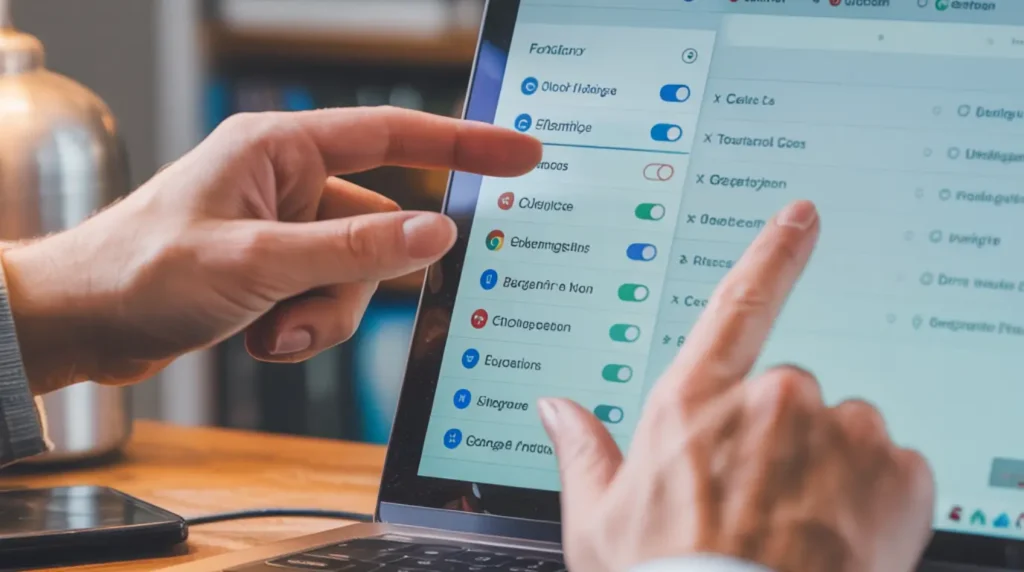
Work through these fixes from the top. They are ordered from the easiest and completely free to the more involved solutions that take a few extra minutes.
Disable Hardware Acceleration Free, 2 Minutes
- Open Chrome and click the three-dot menu in the top right corner.
- Go to Settings, then scroll down and click Advanced.
- Under System, toggle off Use hardware acceleration when available.
- Click Relaunch, then reload YouTube and test the video.
In Firefox, go to Settings then General, scroll to Performance, and uncheck Use hardware acceleration when available. This fix resolves the problem for the majority of users who experience YouTube black screen issues.
Disable All Browser Extensions Free, 2 Minutes
- In Chrome, type chrome://extensions in the address bar and press Enter.
- Toggle off every extension listed on the page.
- Reload YouTube and check whether the video now plays.
- If it works, re-enable extensions one at a time until the black screen returns. The last extension you enabled is the culprit.
Ad blockers like uBlock Origin, AdBlock Plus, and Ghostery are the most common offenders for this specific problem.
Clear Browser Cache and Cookies Free, 3 Minutes
- Press Ctrl + Shift + Delete on Windows or Cmd + Shift + Delete on Mac.
- Set the time range to All time.
- Check Cached images and files and Cookies and other site data.
- Click Clear data, restart your browser, and open YouTube.
Cache corruption does not only hit YouTube. If you are seeing blank screens inside other apps as well, our guide on fixing the Messenger white screen walks through the same cache-clearing process for app-based screen failures and may help you rule out a wider software issue.
Update Your Graphics Driver Free, 10 Minutes
- Right-click the Start button on Windows and choose Device Manager.
- Expand Display adapters and right-click your graphics card.
- Select Update driver, then Search automatically for updated driver software.
- Fully restart your computer after the update completes and test YouTube again.
If your YouTube black screen started right after a Windows update, the OS update may have reset or replaced your GPU driver. Our detailed guide on the Windows update white screen fix covers exactly this scenario and gives you additional driver recovery steps if the standard update does not resolve the black screen.
Lower the Video Resolution Free, Instant
Click the gear icon on the YouTube player and drop the resolution to 720p, 480p, or 360p. If the video now appears, your connection or device cannot reliably handle the default auto-selected resolution. Try switching to a different browser as well to confirm whether the issue is browser-specific or system-wide.
Check Your Screen Health Before Calling a Repair Shop
Before you book a professional repair, it is worth confirming that the black screen is a software problem and not a hardware display failure. Our free Stuck Pixel Fixer tool runs a full-screen color test directly in your browser that takes under 60 seconds. If your screen displays all colors cleanly during the test, your display hardware is fine and the YouTube black screen is definitely a software or driver issue — not a broken screen.
Run the screen health test here: https://screenproblems.com/apps-white-screen-repair-tool/
When to See a Professional
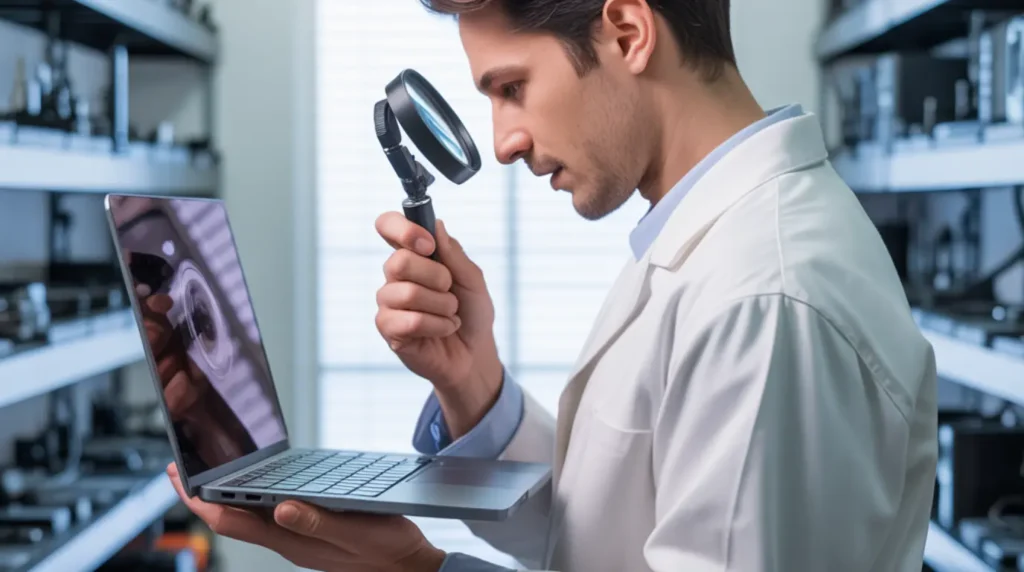
Most YouTube black screen problems are software-based and fixable at home using the steps above. If the issue occurs in every browser, every app, and every video file on the device, your GPU may be failing. Similarly, if video output looks fine on an external monitor but not on the built-in laptop display, the internal screen hardware or its cable connection is the likely cause.
Before booking a paid repair, check whether your device is still under manufacturer warranty. Most screen and GPU hardware failures within the warranty period are repaired or replaced at no cost. If your device is out of warranty, always get a written quote before authorizing any repair work.
Prevention Tips
- Keep your browser updated to the latest stable version. Browser updates frequently include fixes for video playback bugs and GPU compatibility issues.
- Update your graphics driver every few months, especially after major Windows or macOS updates.
- Clear your browser cache once a month to prevent old cached files from conflicting with updated YouTube code.
- Audit your browser extensions every few months and remove any you no longer use.
- Test YouTube in incognito mode first whenever a new video playback issue appears. This single step instantly tells you whether an extension is responsible.
- Maintain a stable internet connection avoid running large downloads while streaming at 1080p or above.
Frequently Asked Questions
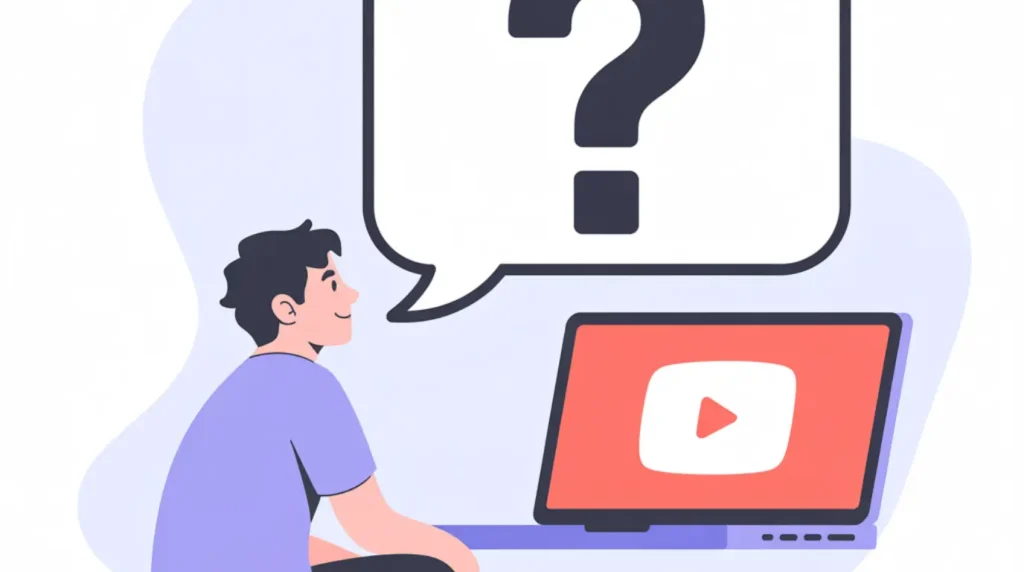
Why does YouTube show a black screen but audio still plays on Chrome?
This happens most often because Chrome’s hardware acceleration is conflicting with your GPU driver. The audio stream loads independently from the video stream, so sound arrives while the video frame never renders. Disabling hardware acceleration in Chrome Settings under the System section and relaunching the browser resolves this in most cases.
Why does YouTube have a black screen on my phone?
On Android, a corrupted app cache is the most common cause. Go to Settings, then Apps, find the YouTube app, and clear both its cache and stored data. On iPhone, deleting and reinstalling the YouTube app usually resolves persistent black screen issues across multiple videos.
Why does the YouTube black screen only happen on some videos?
Certain videos encoded at higher resolutions or newer codecs require stronger GPU support. Lowering the video quality confirms whether resolution is the trigger, and updating your GPU driver is the permanent solution.
I disabled my ad blocker but YouTube is still showing a black screen. What now?
Close the browser completely, reopen it, and test YouTube again. Some ad blockers leave injected scripts even after being toggled off until the browser is fully restarted. If the black screen still appears, clear your browser cache and then test with hardware acceleration disabled.
Editor Note screenproblems.com
- Reviewed for technical accuracy by the screenproblems.com editorial team.
- All fixes verified against current device software and firmware versions.
- Pricing reflects current market rates and may vary by region.
- This article will be updated whenever new fixes are confirmed.
- For unresolved issues visit the Contact Us page with your device details.
About the Author Ben, Founder of screenproblems.com
- Ben has 10 years diagnosing display hardware and software issues.
- All content is written from direct technical experience, not sourced from other websites.
- Ben always prioritizes free fixes before recommending any paid repair.