
Laptop screen ghosting happens when your display’s pixels transition too slowly, leaving a faint trail behind moving objects on screen. Most cases are caused by slow panel response times, outdated graphics drivers, or incorrect power settings and can be fixed for free in under ten minutes. If the ghosting only disappears when you connect an external monitor, you may have a physical ribbon cable or panel issue that requires professional attention.
You moved your mouse and the cursor left a shadow behind it. You scrolled a webpage and the text smeared as it went. You’re not imagining it, and your laptop is not haunted. What you’re seeing is laptop screen ghosting, and it is one of the most common and fixable display problems on modern laptops. Understanding the exact cause before you start changing settings will save you time and protect your display from any unintended side effects.
What Causes Laptop Screen Ghosting
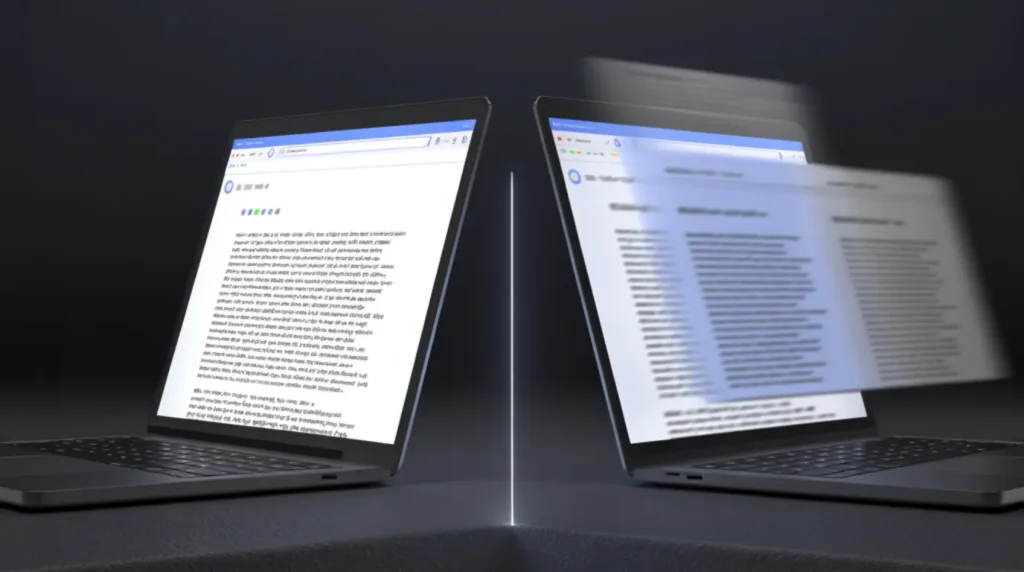
Ghosting on a laptop screen is not a single problem with a single cause. It can come from the panel technology inside your device, from software and driver issues, or even from how your laptop manages power when it is running on battery. Knowing which one applies to your situation makes the fix straightforward.
Slow Pixel Response Time
Every pixel on your laptop display must physically change color to show a new image. On slower panels, this transition takes long enough that the old color briefly overlaps the new one, producing that familiar blurry trail behind moving objects. Budget laptops running VA or older IPS panels typically have pixel response times between 10 and 25 milliseconds, which is far too slow for fast motion. The confirming sign: the ghosting is only visible when objects are moving on screen and disappears completely on still images.
VA Panel Technology and Image Retention
VA panels are widely used in mid-range and budget laptops because they offer excellent contrast at a low cost. The tradeoff is that they have the slowest gray-to-gray pixel response times of any LCD type, which is why ghosting looks noticeably worse on a VA screen than on an IPS or OLED display. A related symptom called image retention, where a faint outline of a previous window lingers on solid colors, is also specific to VA panels. If you see ghost outlines on a plain white or gray background after closing an app, this is most likely your cause. For related display artifacts that overlap with ghosting, the stuck pixel fixer tool at screenproblems.com can cycle colors across the panel to help clear residual image retention.
Outdated or Corrupted Graphics Drivers
Your GPU driver controls how frames are sent to the screen, including timing and synchronization. When the driver is outdated or corrupted, the signal to the panel becomes inconsistent, causing display artifacts that look exactly like motion ghosting. This is one of the most fixable causes because a fresh driver install often clears the problem completely. The key sign to watch for: the ghosting appeared suddenly after a Windows update or after installing new software.
Battery and Power Plan Conflicts
This one surprises most people: Windows power plans can throttle screen performance when your laptop is running on battery to conserve energy, effectively dropping the display’s refresh rate and signal quality in ways that introduce visible ghosting. The confirming sign is clear: the ghosting appears or worsens the moment you unplug your charger and disappears when you plug it back in. This is a software issue with a free fix, not a hardware failure.
Loose or Damaged Display Ribbon Cable
Inside your laptop lid, a thin ribbon cable carries the video signal from the motherboard to the screen panel. If that cable is loose, pinched in a hinge, or partially damaged, the signal degrades and produces artifacts that look like ghosting or smearing. This physical cause is more common than most guides acknowledge, especially on laptops older than two years where repeated hinge flex has gradually worked the cable loose. The clearest sign is that the ghosting changes, flickers, or disappears when you slightly adjust the angle of the lid.
How to Diagnose Laptop Ghosting at Home
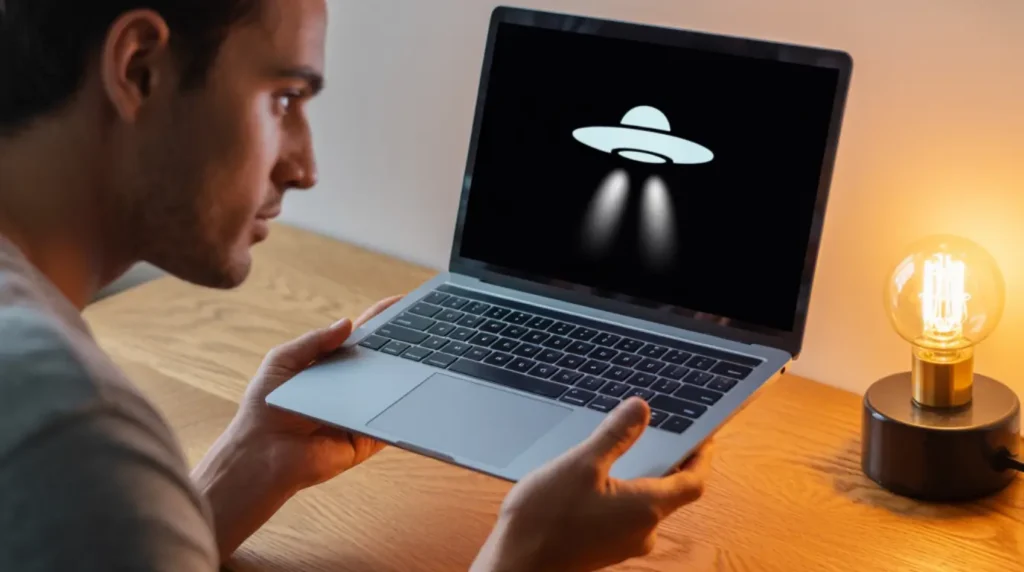
You can identify exactly what type of ghosting you have in less than five minutes without any tools or technical experience. Work through these steps in order and stop when you find your answer.
- Open your browser and visit testufo.com. Watch the moving UFO image for thirty seconds. A blurry trail behind the UFO confirms motion ghosting from slow pixel response time. A bright halo appearing in front of the UFO instead means your display overdrive is set too high, which causes a different artifact called inverse ghosting.
- Run a quick image retention test by opening a solid white window and leaving it visible for ten minutes, then switching to a solid gray background. If you see a faint outline of the previous window on the gray screen, you are dealing with image retention rather than motion ghosting. These two issues look similar but require different fixes.
- Unplug your charger and repeat the UFO test on battery power only. If the ghosting appears or gets noticeably worse without the charger, your power plan settings are the cause rather than the panel itself.
- Connect an external monitor using HDMI or USB-C and run the UFO test on that screen. If the external display is clean, the problem is isolated to your laptop’s internal panel or ribbon cable. If the ghosting appears on the external monitor too, the cause is your graphics driver or GPU, not the screen itself.
- Slowly open and close the laptop lid by a few centimeters while watching the screen for flickering or changes in the ghosting. If the image reacts to lid movement, the display ribbon cable is the cause. For related display artifacts you might notice alongside ghosting, this guide on Acer laptop screen flickering fixes covers the overlap between ghosting and flickering symptoms in detail.
How to Fix Laptop Screen Ghosting
Work through these fixes from the easiest and free options first. The majority of laptop ghosting cases resolve before you reach the hardware steps.
Update Your Graphics Drivers (Free)
Outdated drivers are the most common software cause of display artifacts on laptops, and updating them costs nothing.
- Press Windows + X and select Device Manager.
- Expand Display Adapters and right-click your GPU.
- Select Update Driver, then Search Automatically.
- Restart your laptop after the update completes.
- If ghosting persists, visit your GPU manufacturer’s website (Intel, NVIDIA, or AMD) and download the latest driver manually for your specific model.
Updating drivers takes under five minutes and solves a large proportion of ghosting complaints without any further steps needed.
Set Your Refresh Rate to Maximum (Free)
Windows sometimes defaults your display to a lower refresh rate than the panel supports, which directly increases motion blur and ghosting.
- Right-click the desktop and open Display Settings.
- Scroll down and select Advanced Display Settings.
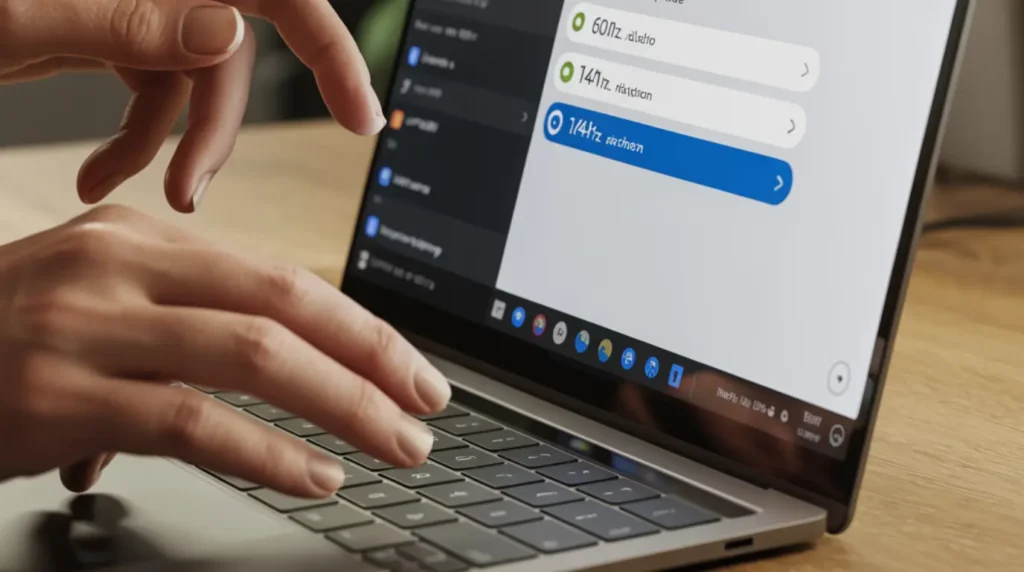
- Under Refresh Rate, select the highest available value (120Hz or 144Hz if your laptop supports it).
- Click Keep Changes when prompted.
- Reopen the UFO test at testufo.com to confirm the improvement.
Running at the maximum supported refresh rate is one of the fastest and most effective free wins for reducing motion ghosting on any laptop panel.
Switch to High Performance Power Plan (Free)
If your ghosting only happens on battery power, this fix is almost certainly all you need.
- Press Windows + R, type powercfg.cpl, and press Enter.
- Select High Performance or Balanced if High Performance is not listed.
- Click Change Plan Settings, then Change Advanced Power Settings.
- Under Display, confirm the refresh rate is not being reduced while on battery.
- Save the changes and test on battery power again.
Battery-related ghosting is one of the most common causes that users never think to test for, and the fix here takes less than two minutes.
Adjust Overdrive Settings in Manufacturer Software (Free)
Overdrive is a feature that pushes pixels to change color faster than their default rate. On laptops that expose this setting, it can both cause and cure ghosting depending on the level selected.
- Open your laptop manufacturer’s display utility: Asus Armoury Crate, Lenovo Vantage, HP Omen Command Center, or Dell Display Manager.
- Look for a setting labeled Response Time, Overdrive, or Pixel Response.
- If overdrive is off, enable it at the Normal or Medium level.
- If overdrive is already on High or Extreme, reduce it by one level. Overdrive that is too aggressive causes inverse ghosting, a bright halo that appears in front of moving objects.
- Confirm the result using the UFO test.
The display overdrive setting is the most commonly missed fix for ghosting on gaming laptops because it is buried in manufacturer software rather than Windows settings.
Reseat the Display Ribbon Cable (DIY, Free Parts)
If your diagnosis showed the ghosting changes when you move the lid, reseating the display ribbon cable can fix it without any replacement parts. Search YouTube for a teardown guide specific to your laptop model before attempting this step, as the bezel removal method varies significantly between brands. This fix is accessible for most people comfortable with basic DIY repairs and typically takes about thirty minutes with the right guide.
Screen Panel Replacement (Paid: $80 to $200)
When every software fix fails and the external monitor tests clean, the LCD panel inside the laptop needs replacement. A replacement laptop screen panel typically costs between $80 and $200 for parts depending on your model, with labor adding $50 to $100 at a repair shop. Always check your warranty status first, since a screen defect causing ghosting may be covered by the manufacturer within the first year at no cost to you.
When to See a Professional

If ghosting persists after updating your drivers, setting the maximum refresh rate, and switching to a high performance power plan, you are most likely dealing with a physical panel issue. The clearest sign that a professional repair is needed is when an external monitor shows no ghosting but the laptop’s built-in screen does, even after every software fix has been attempted. At that point, the display panel or the ribbon cable connecting it has a physical defect that no software can address.
Check your warranty before spending anything. Dell, HP, ASUS, and Lenovo all cover display defects within their standard one-year warranty, and extended warranties often include display failures for up to three years. If you are out of warranty, get two or three quotes from local repair shops and ask specifically about screen panel replacement costs for your exact model before committing to a repair.
Also note that ghosting appearing alongside other symptoms such as screen flickering, purple or green tints, or lines across the display is a stronger sign of cable or panel failure than ghosting alone. The more symptoms present at the same time, the more likely the repair will require physical component replacement rather than a software fix.
Prevention Tips
- Keep your graphics drivers updated at least once every three months using your GPU manufacturer’s update tool, whether Intel, NVIDIA, or AMD.
- Always run your laptop on the Balanced or High Performance power plan when doing anything visually demanding such as gaming, video editing, or watching high-frame-rate content.
- Avoid leaving the same static image on screen for extended periods. Static content accelerates image retention on VA panels, which can eventually become more persistent and difficult to clear.
- Set your display to turn off after ten to fifteen minutes of inactivity in your power settings. This single habit does more for VA panel health than most other prevention tips.
- Handle the laptop lid gently and always open it from the center hinge. Opening from one side repeatedly puts sideways stress on the hinges and gradually damages the ribbon cable connection inside.
- Run a quick check at testufo.com every six months to catch any panel degradation early before it becomes a permanent issue.
Frequently Asked Questions

Is laptop screen ghosting permanent damage?
Motion ghosting is not permanent. It is a live visual artifact that only appears when objects are moving on screen and disappears completely on still images. If you see trails only during video or gaming and the screen looks normal when static, your display is not permanently damaged. Image retention, where a faint outline lingers on a solid background, is usually temporary on LCD panels and clears after the screen sits idle for a few minutes.
Why does my laptop ghost only on battery but not when plugged in?
This is a known Windows behavior where power plans reduce your display’s refresh rate or signal quality to save battery. Switch to the High Performance or Balanced power plan and check your Advanced Power Settings to make sure the display refresh rate is not being reduced while on battery. This fix is free and takes under two minutes.
Will updating Windows fix laptop screen ghosting?
Windows updates occasionally include display driver improvements, but a dedicated graphics driver update from Intel, NVIDIA, or AMD is far more reliable and targeted. If your ghosting started right after a Windows update, open Device Manager and try rolling back the display adapter driver to the previous version as your first step rather than waiting for another update.
Can ghosting cause eye strain or long-term vision problems?
Prolonged exposure to ghosting causes eye strain because your visual system works harder to compensate for the inconsistent motion on screen. Users who work or game on a ghosting laptop for several hours daily often report headaches and fatigue that go away when the display issue is fixed. If you use your laptop intensively every day, fixing the ghosting is genuinely worth prioritizing for your comfort and visual health, not just for picture quality.
Editor Note screenproblems.com
- Reviewed for technical accuracy by the screenproblems.com editorial team.
- All fixes verified against current device software and firmware versions.
- Pricing reflects current market rates and may vary by region.
- This article will be updated whenever new fixes are confirmed.
- For unresolved issues visit the Contact Us page with your device details.
About the Author Ben, Founder of screenproblems.com
- Ben has 10 years diagnosing display hardware and software issues.
- All content is written from direct technical experience, not sourced from other websites.
- Ben always prioritizes free fixes before recommending any paid repair.